How To Install A Unity Package

Purpose

.unitypackage files are sometimes a convenient way to update game assets, such as textures, models, and sometimes even scripts. This document explains how to install a Unity Package.

Method 1: Drag and Drop

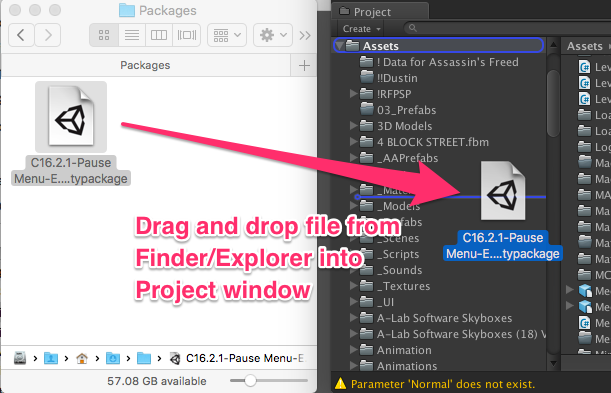
  1. Find the .unitypackage you wish to install in Windows Explorer or in the Finder.
  2. Drag and drop the file from Explorer/Finder into the ‘Project’ pane in Unity.
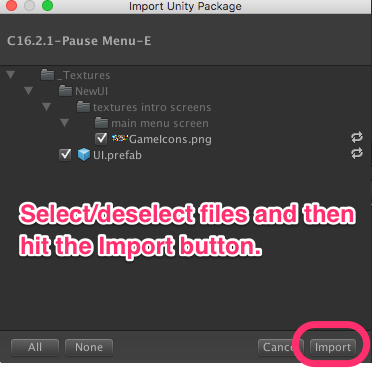
  3. Unity will show a dialog asking which files you want to import. You can select, unselect files, and then hit ‘Import’. They’ll be added to your project.

screenshot_2016-10-14__9_39_am

sample_import

Method 2: Import Custom Package

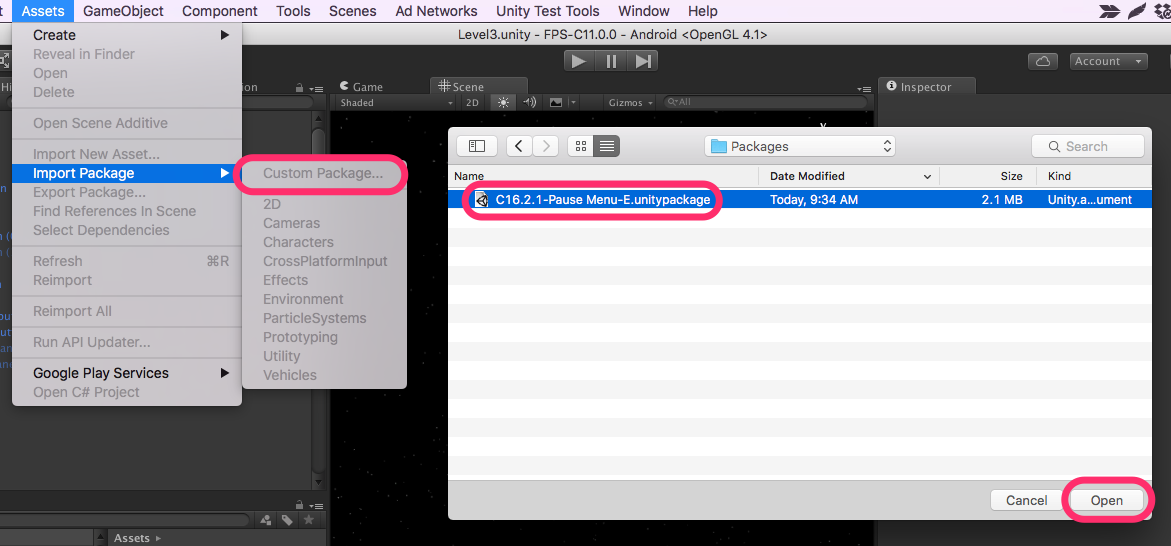
From the menu, choose Assets -> Import Package -> Custom Package…

An ‘open file’ dialog will come up. Browse to your package and open it.

You’ll then be asked which particular files you wish to import.

assets

Method 3: Double Click

This method is awesome when you are only running one instance of Unity. (If you are running Unity 5.0 and Unity 5.3 simultaneously, the import may happen in the wrong Unity).

Find the unity package file in Windows Explorer or in Finder, and then double-click on it. Unity will then pop up a dialog asking which files you wish to import.

Caution

While Unity Package files are easy to pass around and install, it is really easy to install an old package, with old scripts or prefabs, that will break your project. This is not always the right tool to use.

Updating to C16.2.2 Using Enemy Exporter

Purpose

This post explains how to update existing games using the new Enemy Exporter feature, available in the C16.2.2 version of the code (and newer). The instructions assume you are using an older game using the C10.2 code. It should work with the ‘E’ variants of the project. It’ll need some tweaking to work with existing C16 projects.

Get Your Project Folder

All existing projects have a project folder. You’ll be sent instructions on where to download it from. C10.2-style projects are designed to be opened in Unity 5.0.

Determine what the name of your game is; you’ll need this when creating a branch for it. In this example, the game being updated is “Assassin’s Freed United Games”.

Testing Heyzap Mediation

Purpose

  • shows how to check if all or the desired advertisers are included in your game for testing
  • this post is part of a series

Applicability

This applies to you if you’ve been tasked with updating an existing project to use the Heyzap mediation features.

Videos

https://youtu.be/2u_wZDd7Jrc

https://youtu.be/YlgEovwwpDI

Written Instructions

Now that you are done putting all the information into the Heyzap dashboard, it is time to test that it is right.

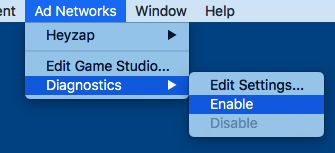
Open your new project in Unity 5.3. From the menu, choose Ad Networks -> Diagnostics -> Enable.

enable ad networks

Build a .apk for your device.

Go to the Heyzap dashboard. Turn on the advertisers you are testing.

Clear the cached files for the app you are testing on your device. This will make it get the latest settings from Heyzap when you next run it.

Run the game. Click on the ‘Ad Tester’ button. Click on the Mediation button. Check that all the networks you want to be ‘on’ are ‘on’. Go into them and play Videos and Rewarded Videos. (Interstitials and Native Ads aren’t used by our game).


I recommend building a small spreadsheet to record the results. Something like this:

Cops Vs Robbers: Jail Break 2 AdColony AppLovin Heyzap Unity Ads
Video Played 1 time in 3; skippable N/A Plays (2/2); skippable Plays (2/2); skippable
Rewarded Video Played 2 times in 3; unskippable Plays (2/2); unskippable Plays (2/2); unskippable Plays (2/2); unskippable
Overall Not great — it shouldn’t report an ad is available and not show on.  Possibly shippable. Right Right Right

When you are satisfied, go back to the Heyzap dashboard, and turn off all the advertisers that you just turned on.

Go into Unity, and from the menu, choose Ad Networks -> Diagnostics -> Disable.  Build another .apk; the ads are ready to publish.

(After you publish, I’d wait an hour, and then go in to Heyzap and turn on all the ad networks. This will limit the likelihood of someone running the old game and trying to use the new mediation settings.)

Set Up AdColony Ads Under Heyzap Mediation

Purpose

  • explains how to set up Ad Colony ads for a game where the advertising is controlled by Heyzap mediation
  • part in a series of articles

Applicability

This applies to you if you’ve been tasked with updating an existing project to use the Heyzap mediation features.

Video

https://youtu.be/2aKERQe5e-4

Written Instructions

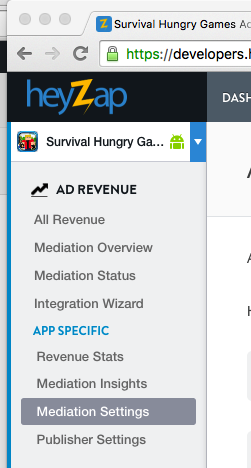
Log in to Heyzap and find your game. Go to the app-specific mediation settings and expand the ‘AdColony’ area.

Log in to AdColony and find your game.

Make sure you have a placement for the (Non-rewarded) Interstitial zone, and a placement for the Incentivized zone.

I thought about reusing existing ones, and I don’t see that it would hurt, but I’ve opted to create new ones, as in the video.

Interstitial Zone

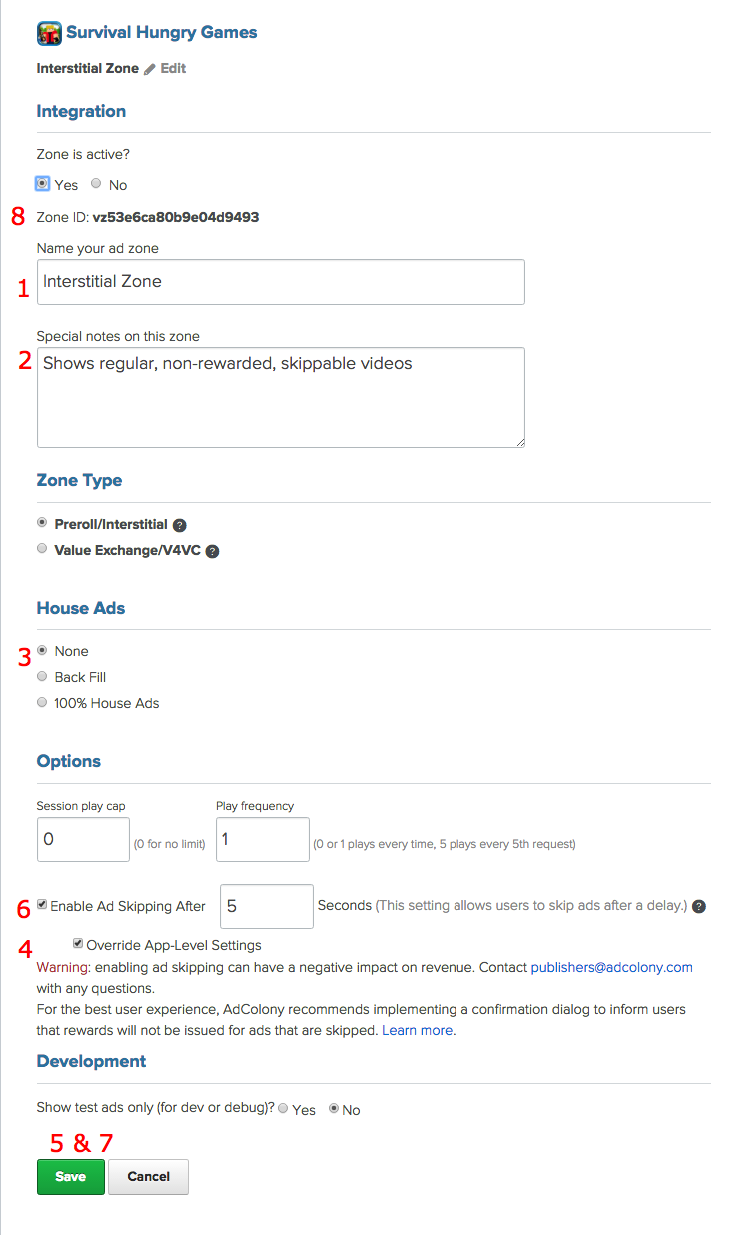
AdColony Interstitial Zone

I created a new interstitial zone, and 1) set the name, 2) added a comment, 3) avoided the use of house ads, 4) overrode the app-level settings, 5) saved, 6) enabled ad skipping after 5 seconds, 7) saved again and 8) copied the Zone ID to Heyzap.

Also, set ‘Show Test Ads Only’ (at the bottom) to ‘No’.

Incentivized Zone

In the video, I repurposed the death zone. Here, I created a new zone. Do whichever you prefer.

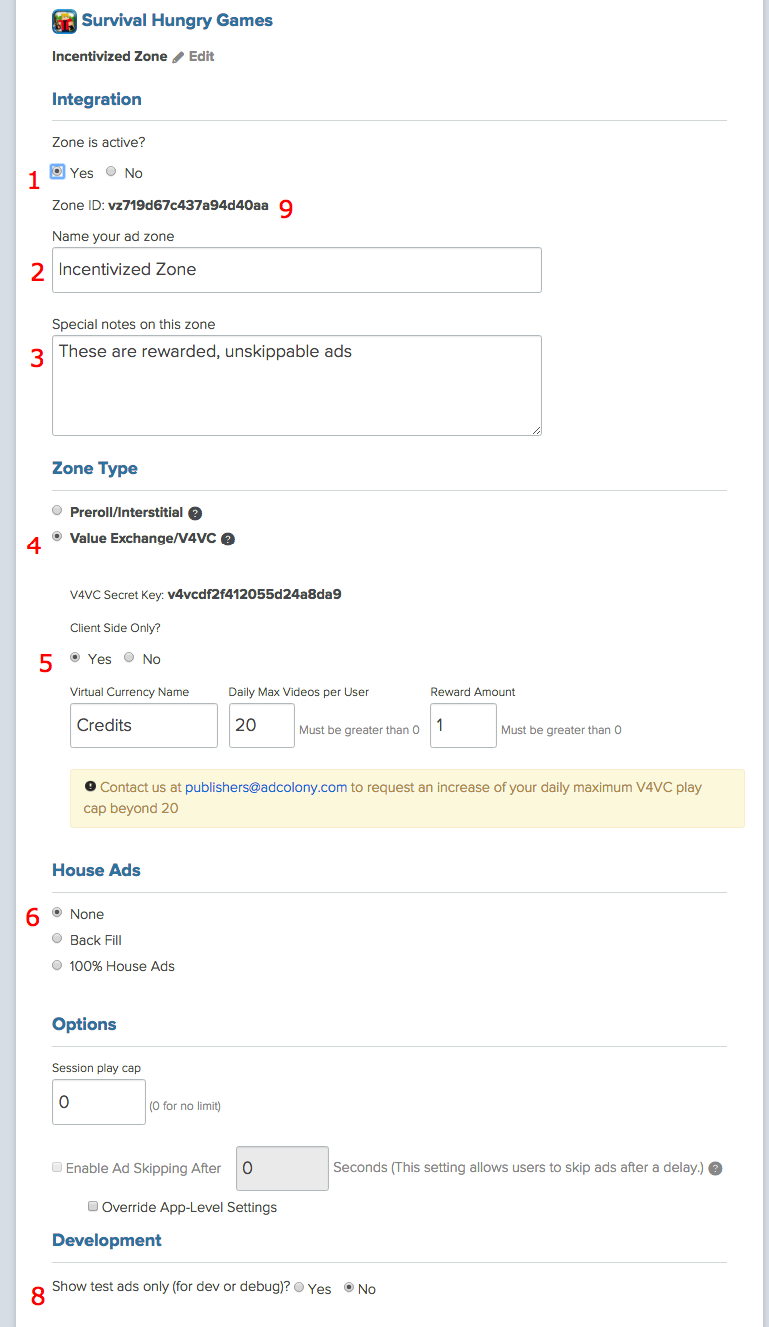
AdColony Incentivized Zone

I made sure that 1) the zone is active, 2) set a name and 3) a comment (optional), 4) chose the V4VC (rewarded) ads, and made them 5) client-side-only, 6) turned off house-ads, 7) there is no seven, 8) turned off test ads, 8.5) saved the settings, and 9) copied the zone ID to the heyzap dashboard.

Final Steps

Finally, get the App ID, and the API Key, according to the directions on the Heyzap page. (The API key was already set correctly for me).

Save the settings. Don’t turn them on yet.

Next

Set up App Lovin to work under Heyzap mediation

Set Up AppLovin Ads Under Heyzap Mediation

Purpose

  • explains how to set up AppLovin ads for a game where the advertising is controlled by Heyzap mediation
  • part in a series of articles

Applicability

This applies to you if you’ve been tasked with updating an existing project to use the Heyzap mediation features.

Videos

https://youtu.be/KD24slVGndg

https://youtu.be/XKFSNJtoaDY

Written Instructions

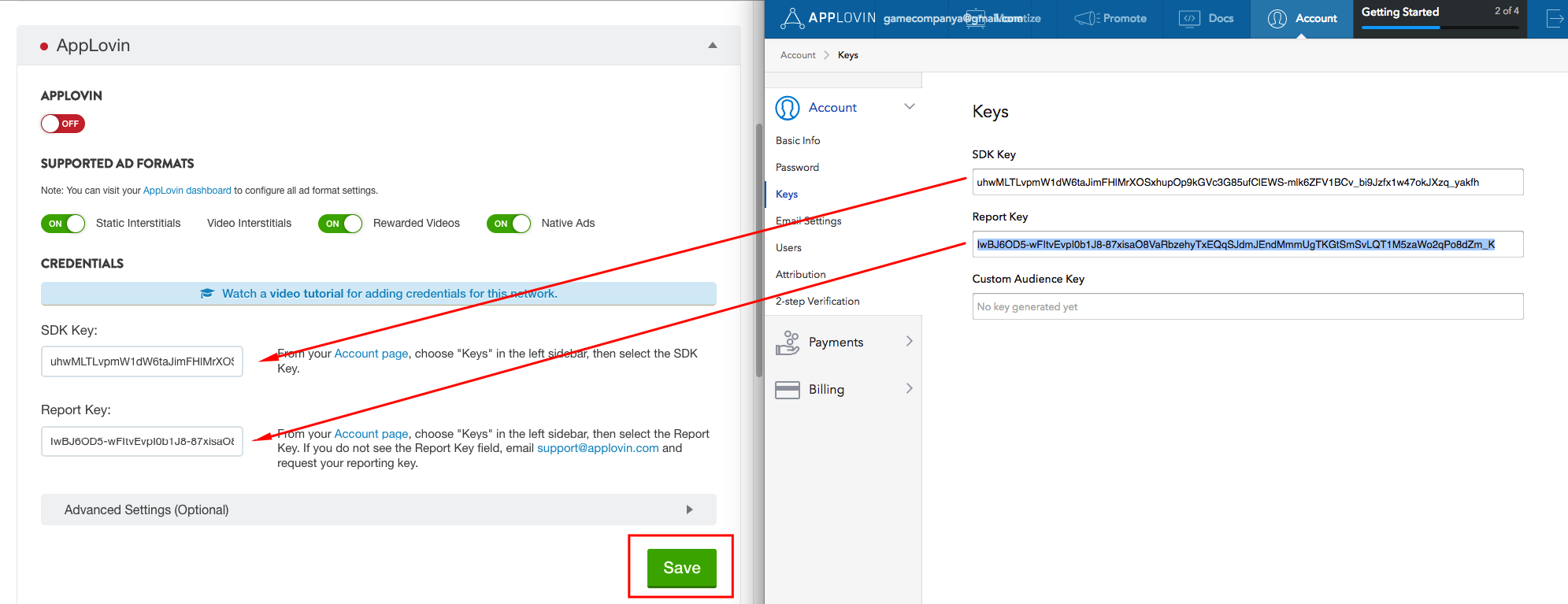
Sign in to Heyzap, find your game, go to the App-specific mediation settings, and find the AppLovin section. Expand it.

It has links and instructions for finding the API key and report key. Click on the link, and sign in to Blockyverse AppLovin account.  You can also find these keys in Ad networks Master file too.

Save the information. Don’t turn it on until you are ready to test or have published it.

AppLovin keys


Setup, Part 2

You have to run the app and watch some app lovin ads. (See the ‘Next’ step, below).

Then, bring up the AppLovin dashboard, find your game, and turn on rewarded ads.

Next

Test that you’ve integrated everything properly

Set Up Unity Ads Under Heyzap Mediation

Purpose

  • explains how to set up Unity Ads for a game where the advertising is controlled by Heyzap mediation
  • part in a series of articles

Applicability

This applies to you if you’ve been tasked with updating an existing project to use the Heyzap mediation features.

Video

See updated information below the video!

https://youtu.be/DnnoyvF0ZNY

Video Updates

You unlinked/relinked Unity Services in the previous video. There is no need to do it again.

Do not turn the Unity integration on in the Heyzap dashboard until you are ready to test (and turn it back off when done) or publish it.

See the instructions at the bottom about getting the right API Key.

Written Instructions

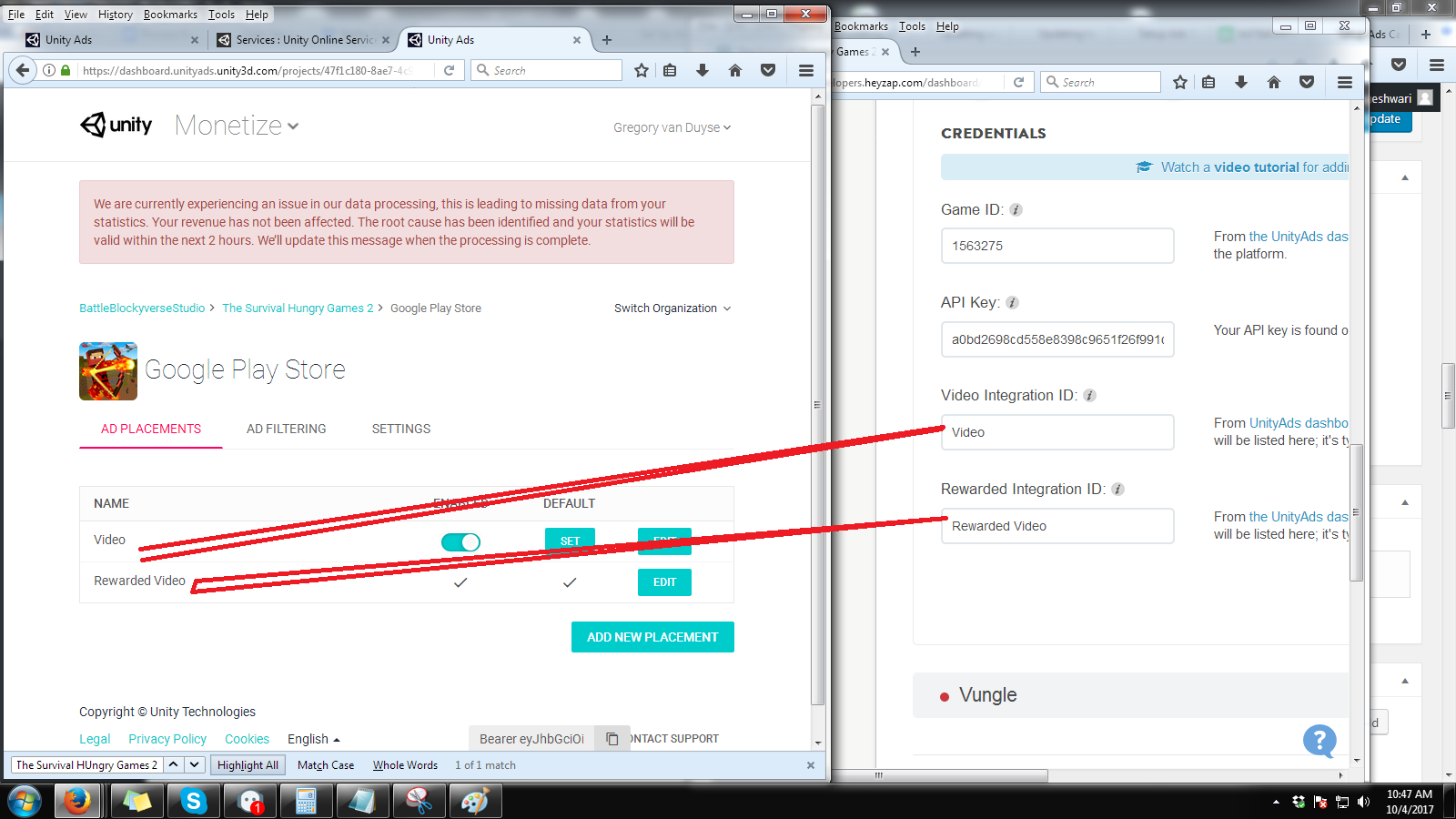
Log in to Unity Ads with Blockyverse account.

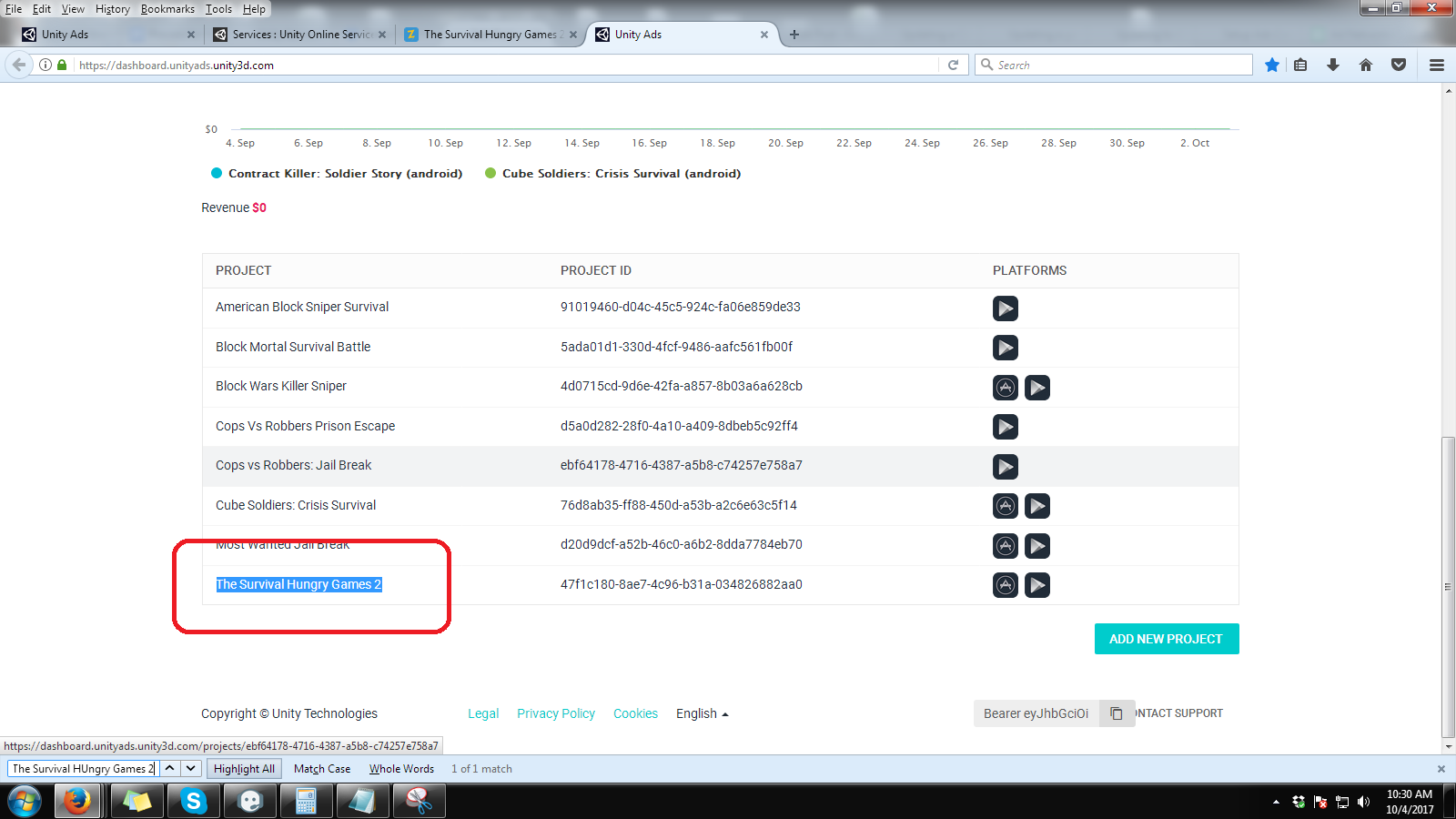
Find your game in Unity Ads. And open it.

Log in to Heyzap with Correct Company (A, B C or E).

Find your game in the Heyzap dashboard.

Go to the App-Specific Mediation Settings.

app-specific mediation settings

You can now start to apply the id’s.

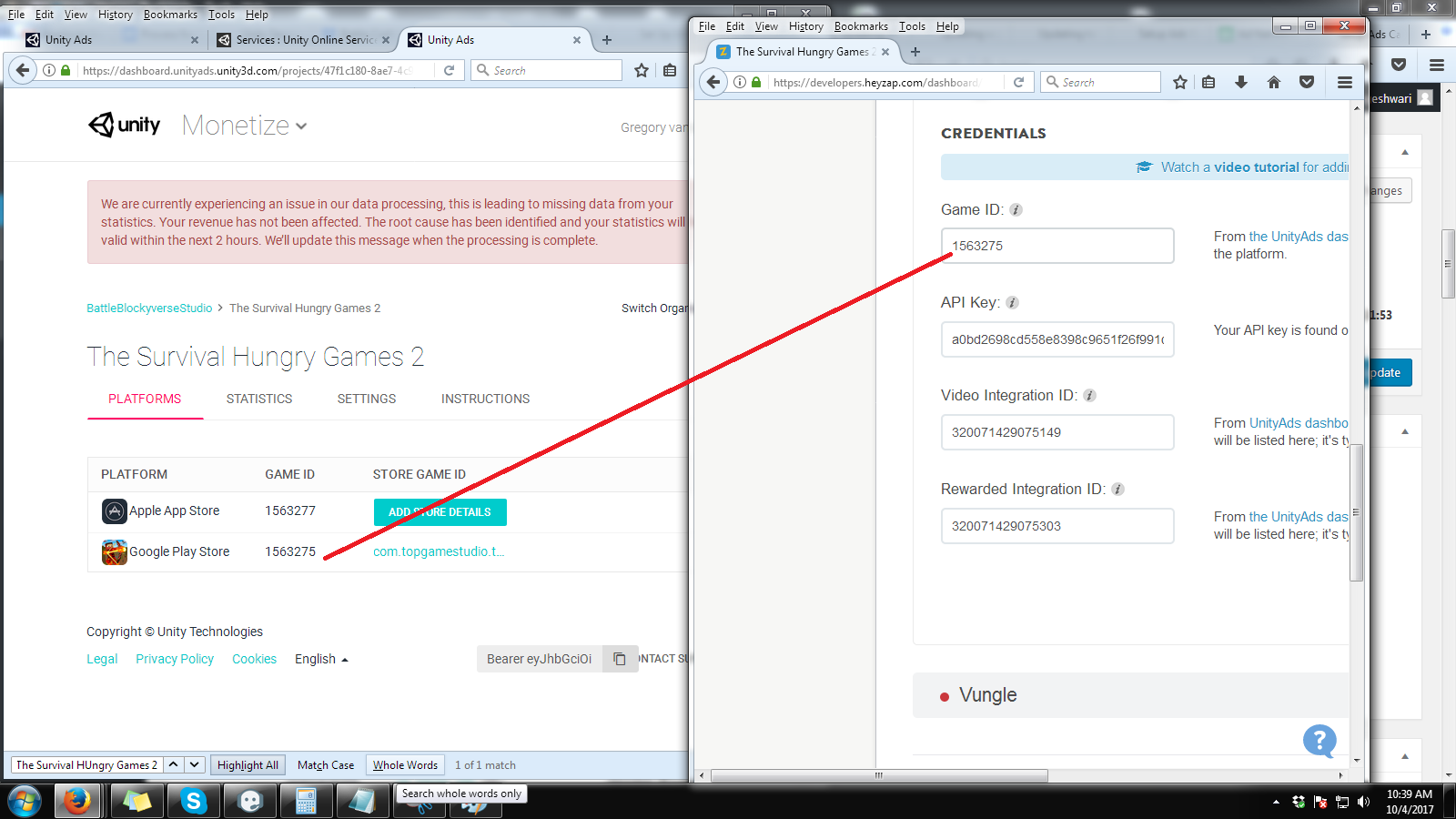
Apply Game id first. Make sure it should be for Google Play store.

Open the game ID by double clicking on it to get video integration Id and Rewarded Integration Id.

Getting The API Key

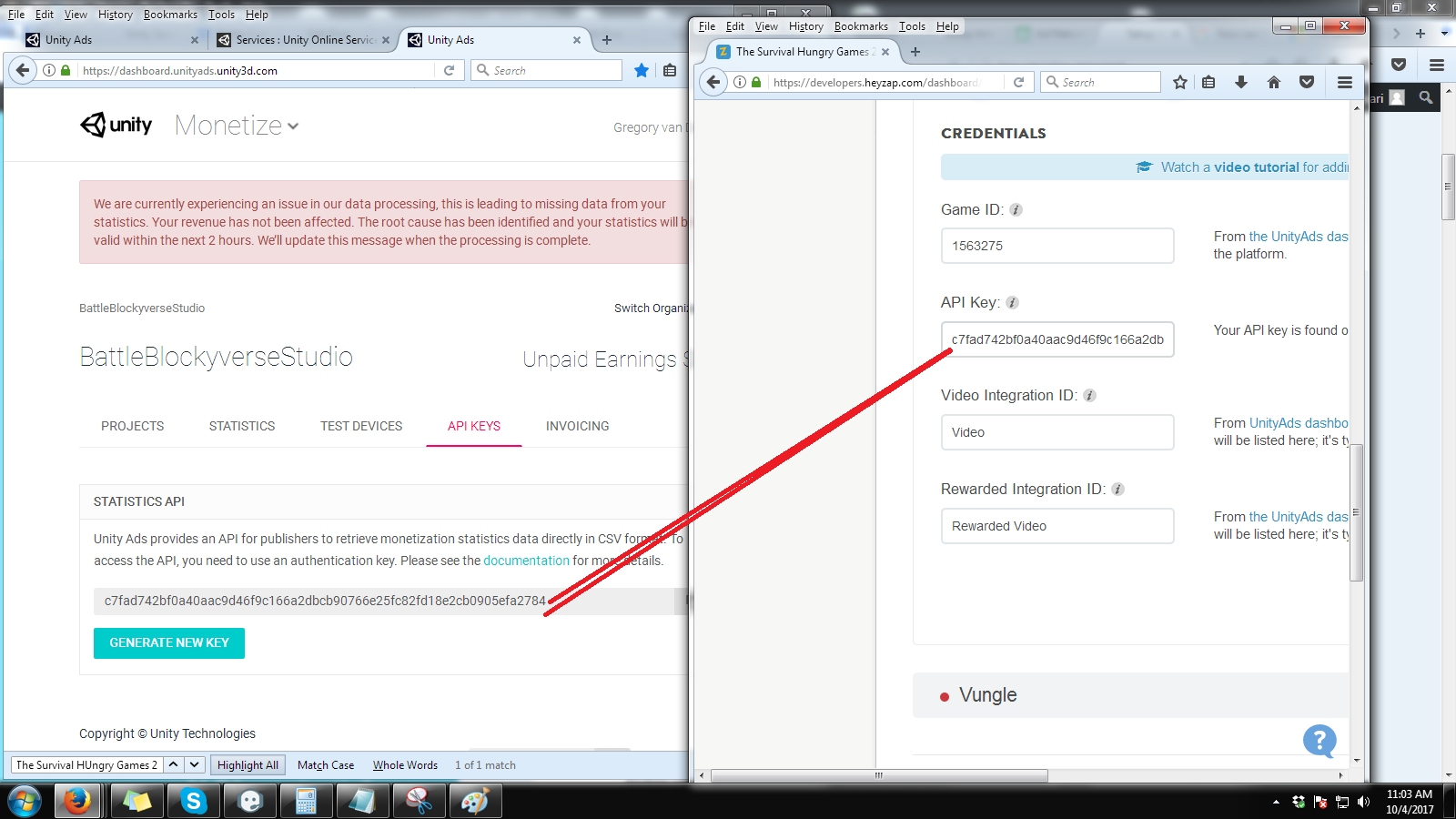
Heyzap might be filled in the Unity Ads API key. Don’t trust it — their value may be wrong. Worse, their instructions will take you to the wrong place to get the API key, at least for our games. (I confirmed this with a Heyzap employee).

Your API key is found on the API keys tab of the UnityAds dashboard.

Finally, hit the ‘Save’ button in Heyzap, and you are done. Don’t turn the Unity Ads integration on unity it is time to test.

Next

Set up Ad Colony to work under Heyzap mediation

Unity Service Settings and Heyzap Overview

Purpose

  • explains how to turn on Unity Services for use with Unity 5.3
  • gives overview of Heyzap mediation settings
  • Part 3 in a series

Applicability

This applies to you if you’ve been tasked with updating an existing project to use the Heyzap mediation features.

Video

https://youtu.be/31obCaO-O_E

Notes from Video

Most of the settings in the LaunchController don’t do anything any more. (If they aren’t there when you look at it, it means we’ve updated it to remove the unused settings).

In particular, the Unity Analytics ID isn’t used, the Unity Ads IDs aren’t used, and the Ad Colony Ad IDs aren’t used.

Setting Up Unity Services

Go to Window -> Services

(Sign in to the right game company if necessary)

Unlink the game

Link the game to your proper game, being careful to say we have an existing game to link to, and not creating a new one.

Go to Analytics, and bring up the dashboard. We want to be sure that it is connected to the right version of the game and that we’ll see analytics in the same place we used to see them.

Turn on Unity Ads.

Save the project.

Prep For Heyzap Settings

Bring up the game in the Heyzap dashboard. Heyzap knows the game by its bundle ID. You may need to look it up by its name.

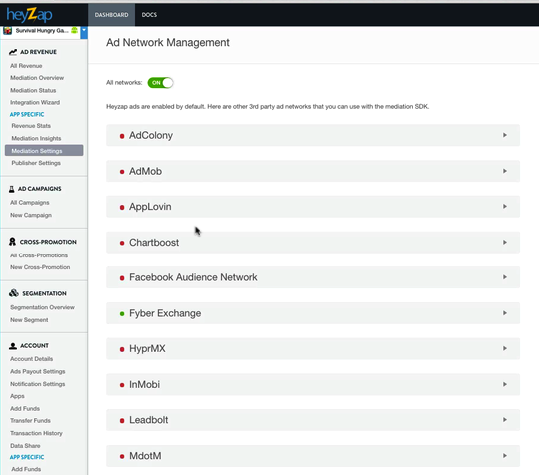
When you find it, note that all the settings are turned off. The only things turned on are ‘all networks’ and ‘Fyber Exchange’.

Heyzap settings

Follow the setup as explained in the next videos, but do not turn the ad networks on until it is time to test them (and turn them off right after!) or the game has gone live. [We should test this more. Heyzap in the old versions of the game tries to use the settings and run mediation. It looks like this causes lost ad revenue. It does work with the new version of the game, and should be turned on shortly after it goes live.]

Upgrade a C10.2 Project (for using Heyzap Mediation)

Purpose

This document explains how to upgrade an existing project folder to use Heyzap mediation. (These steps will likely work for other sorts of upgrades from C10.2 to new feature branches of the project underway by development).

Note: This is page 2 in a series. Please make sure you meet the preconditions listed on page 1.

Applicability

This applies to you if you’ve been tasked with updating an existing project to use the Heyzap mediation features.

Instructions

Videos

https://www.youtube.com/watch?v=pD6hxYiEaU8

Here is an alternate video that does a couple of things differently, and shows how to do the work using version control.

https://youtu.be/c_hN9NJGOHY

Filters (references in video)

Files to exclude:

*.cs
*.cs.meta
*.js
*.js.meta

Folders to exclude:

Editor
GoogleMobileAds
JMO Assets
LeanplumSample
Plugins

Written Instructions

Terminology

You will be using two projects to do this change.

  • The original, pre-existing project, or Project Folder. This runs under Unity 5.0. We will call it the ‘old’ project. It will remain unchanged.
  • The latest version of the E.1.11 branch of the C Code with the Heyzap mediation feature. This will be the ‘new’ project. You are going to change it into an updated version of the existing project.
  1. Save .meta files in Text format (OPTIONAL)

We are going to be taken a few settings from the old project and moving them into the new project. To do this easily, those settings need to be in text format.

  • Open your old project’s Project Folder in Unity 5.0
  • From the menu, choose Edit -> Project Settings -> Editor
  • From the inspector window, change ‘Asset Serialization Mode’ to ‘Force Text’

It’ll take a minute reprocessing small assets. You can quit out of Unity 5.0.

2. Open both projects in Beyond Compare for comparison

Beyond Compare allows you to compare two files or two directories and bring changes from one onto the other. It is an excellent tool for this task, as we’ll be bringing a lot of files from the pre-existing project onto the new version of the project.

There are two ways to do this.

Method 1:

Find the existing project in Finder/Explorer.

Right click on the folder, and choose ‘Services -> Select Left Folder For Comparison’.  (I know the wording is really similar on Windows. If you don’t see it on Windows, you’ll need to install a shell integration plugin.)

Find the folder with the E.11 Heyzap Mediation code.

Right click on the folder, and choose ‘Services -> Compare Files’.

The two folders will come up for comparison.

Method 2:

Run ‘Beyond Compare’.

Tell it you want to do a Folder Comparison.
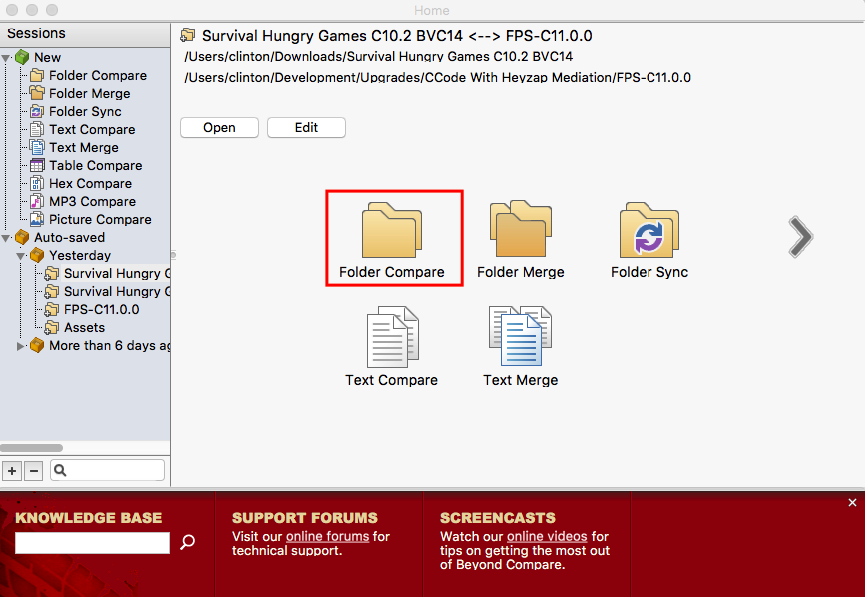
Shows where to find the 'Folder Compare' button

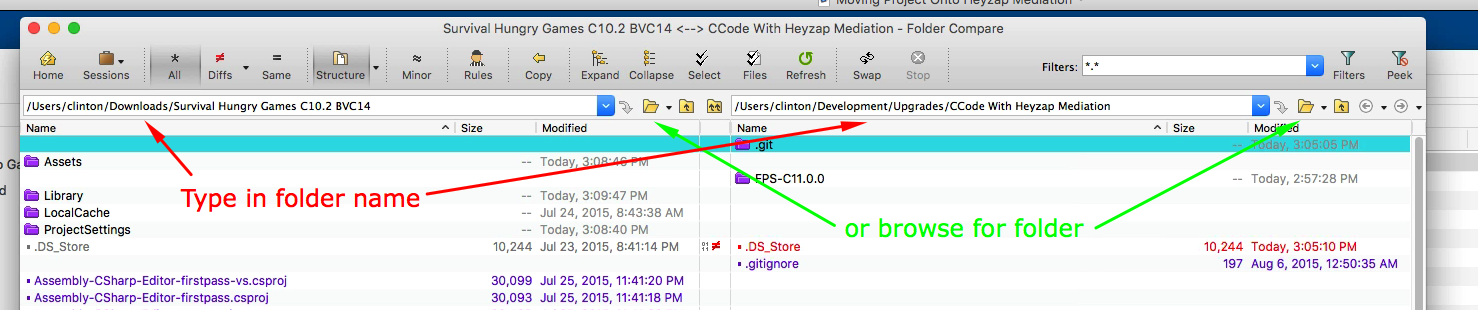
Using the browse button, or just typing in the folder, browse to the existing project on the left-hand side, and the newer version of the project on the right-hand side.
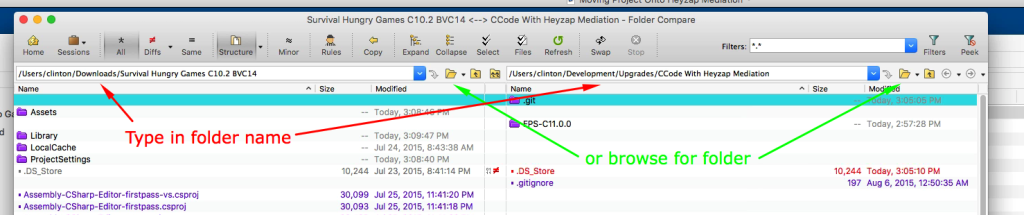
Shows how to choose a folder

3. Compare the ‘Assets’ folder to the ‘Assets’ folder

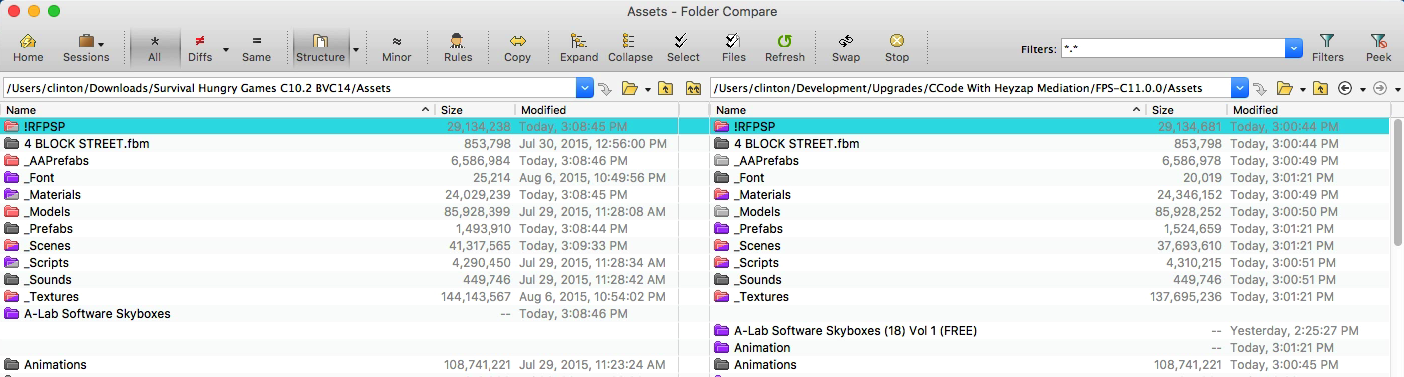
Find the ‘Assets’ folder on the left side, possibly opening other directories first, and then right-click on it, and set as base folder.

Do the same on the right-side.

You will end up with something like this:
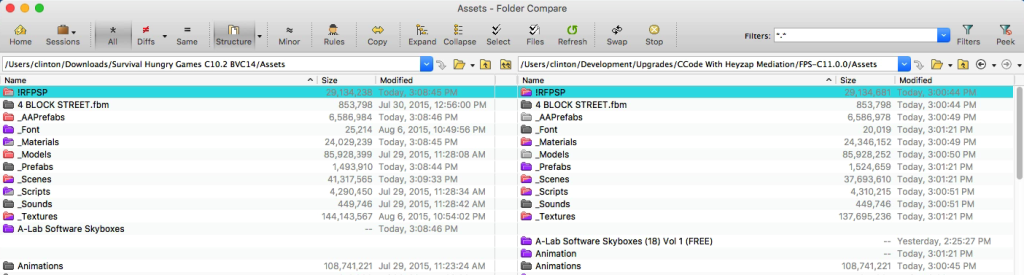
Shows base folders set

Note that both folders end in ‘Assets’ and you can see that they contain a lot of the same sub-folders.

4. Filter Out Files We Don’t Want To Copy

Click on the Filters button
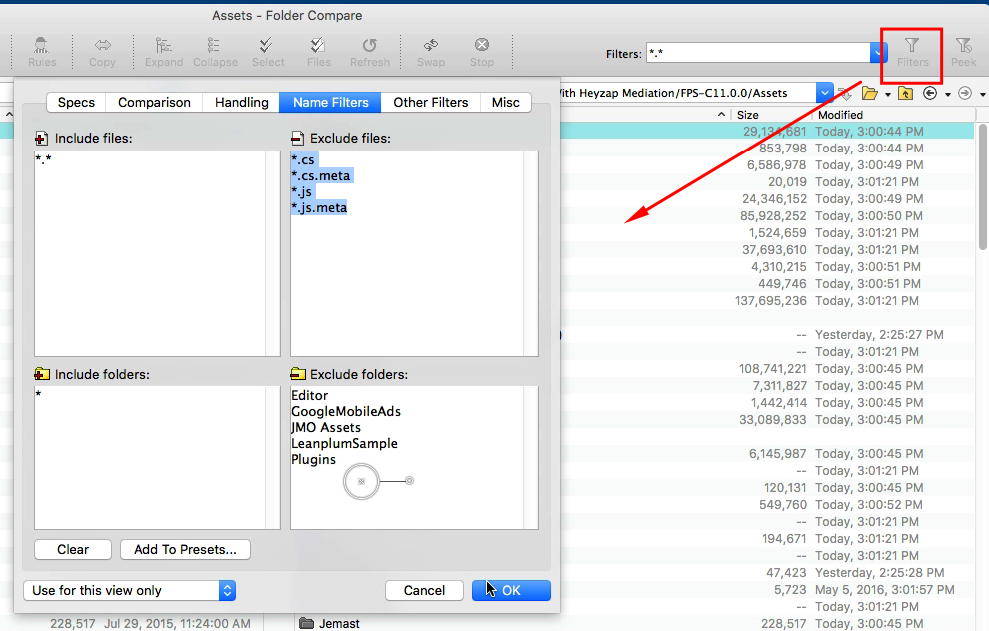
Filters setup

Exclude the following files:

*.cs
*.cs.meta
*.js
*.js.meta

Exclude the following folders:

Editor
GoogleMobileAds
JMO Assets
LeanplumSample
Plugins

This will allow us to copy over level scenes, logos, prefabs, skins, etc, but will not overwrite any plugins (where all the Heyzap Mediation stuff is) or any of the project’s source code.

5. Copy Over Files

With the filter in place, we are ready to copy over files.

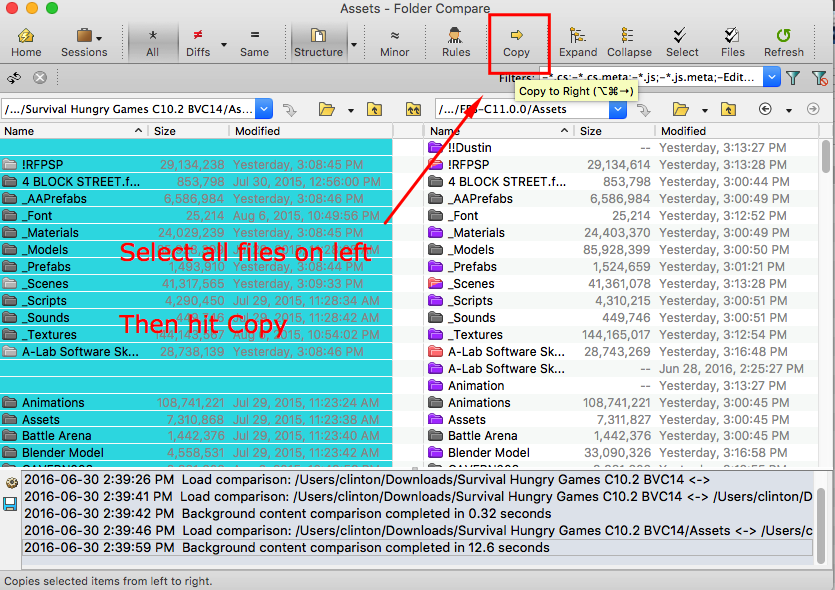
  1. Click on the first line on the left-hand side.
  2. Scroll down to the bottom.
  3. Hold down shift and click on the last line of the left-hand side.
  4. All the files on the left will now be selected (but not on the right).
  5. Hit the ‘Copy’ button.
    Select left then copy
  6. The defaults are right — copy files from the left to the right, applying our filters. Hit Start.
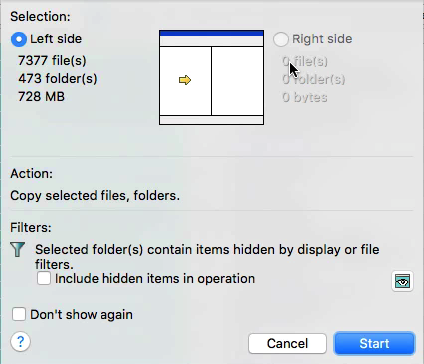
    copy l to r
  7. When asked if you want to overwrite newer files, hit ‘Yes To All’. overwrite newer files
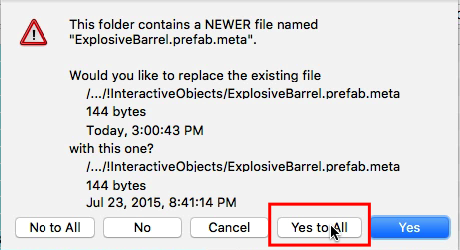
The files will take a minute to copy.

6. Copy over BVC, etc. (Optional method)

You need to get the bundle version code and game name and such from the old project to the new one. You can do it as shown here, or as explained in step 8.

This is shown at the six minute mark in the video, but I thought it’d make sense to do it now. The new project folder needs the name and company name and such from the old project. The settings are stored in a file called ‘Project Settings’ and haven’t been copied over. We do not want to replace the entire file, but we do want bits and pieces from it.

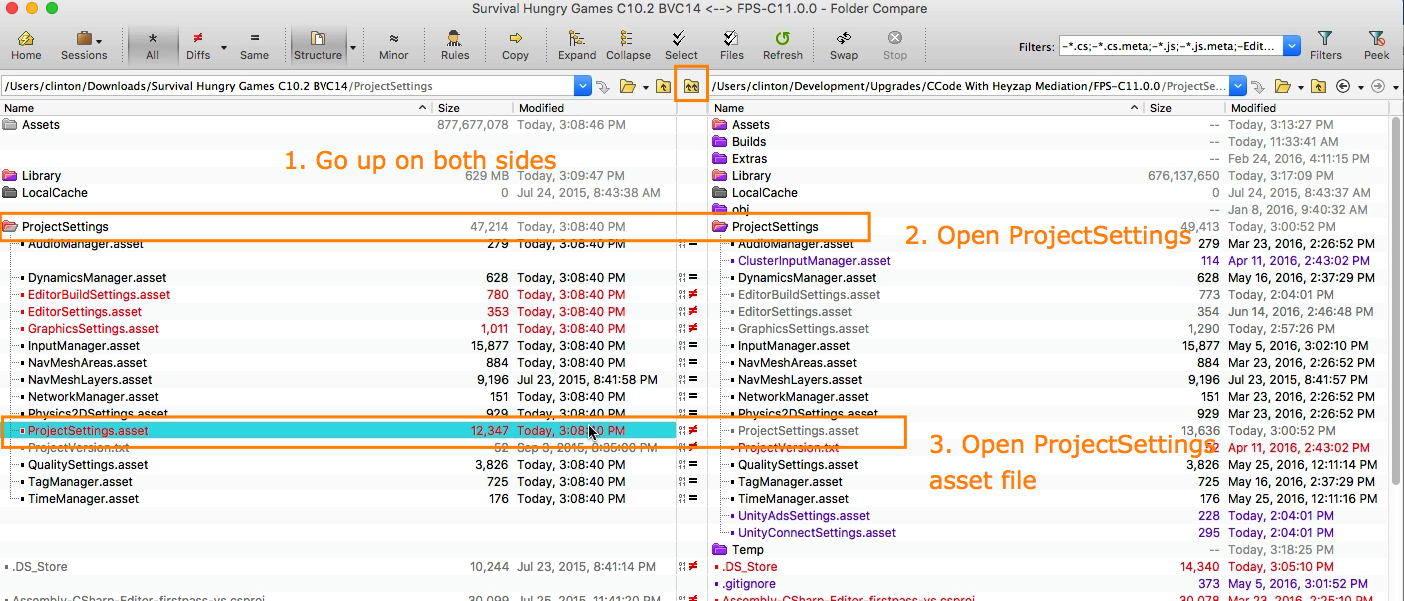
In this method, 1. click on the ‘Up One Level On Both Side’s’ button (two arrows in the middle — see picture), and then 2. double-click on the ‘ProjectSettings’ folder to open it, and 3. on the ‘ProjectSettings.asset’ file to open it.
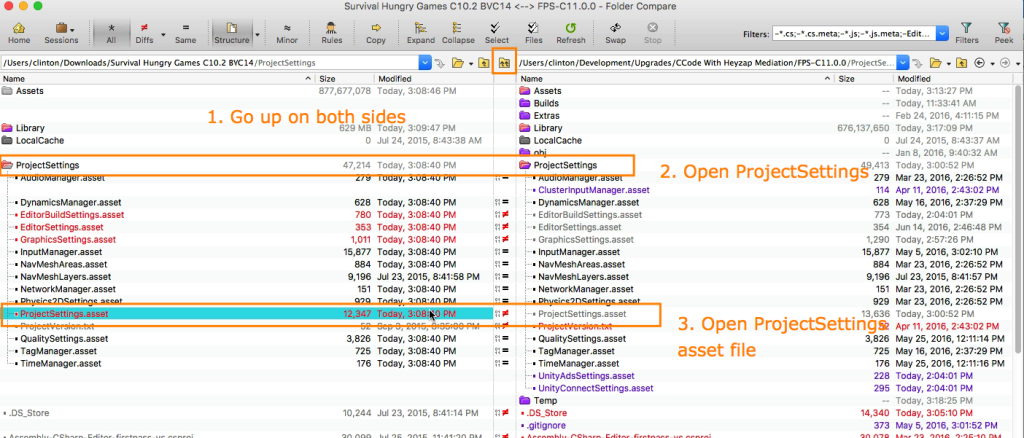
Project Settings

Now, with the file open, you’ll want to

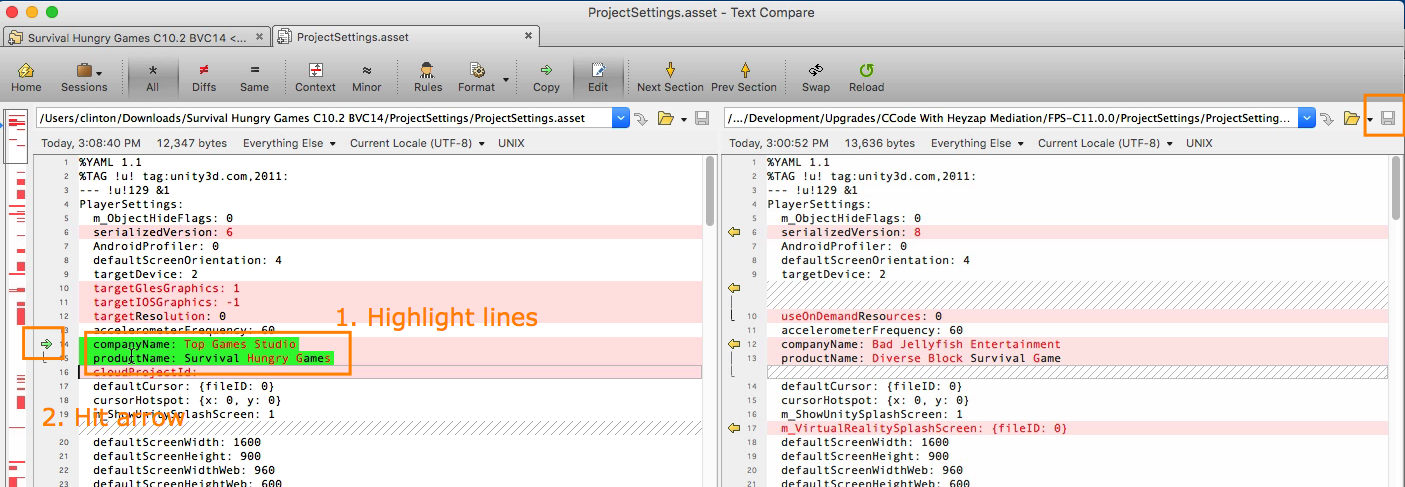
1. Find lines that are set right on the left that you want to bring to the right, and highlight them.

You’ll want the lines:

  • companyName
  • productName
  • bundleIdentifier
  • bundleVersion

2. With the lines highlighted, hit the green arrow off to the left to copy them over.

3. Save the file on the right side.
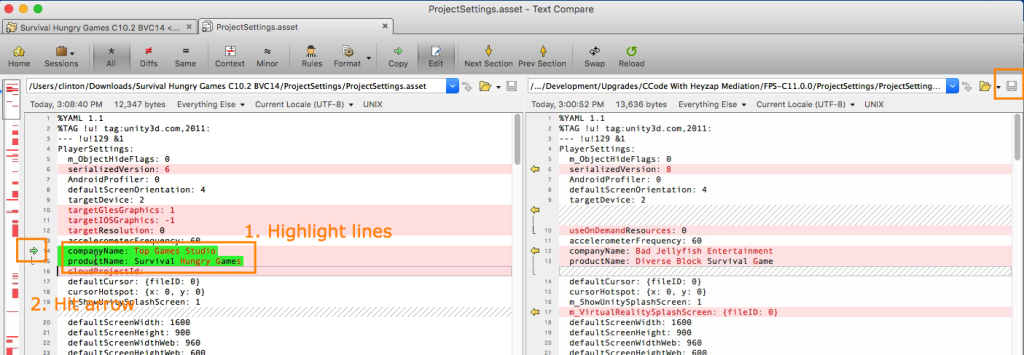
Copying over company name

You may close Beyond Compare at this point.

7. Open the new Project in Unity 5.3

You can now open the new project, using Unity 5.3.

8. Copy over Settings (Semi-optional)

If you didn’t follow the method using step 6, you’ll need to do it here.

Obtain the Bundle ID, Bundle BVC, company name, and product name. It may be easiest to just open the old project folder in Unity 5.0, go to Player Settings, find those values, and then, paste them in the corresponding fields in the new project folder in Unity 5.3.

9. Set the Icon

Get the latest icon from Ponch and set it as the app’s icon.

10. Test the Game

Does it look like the old game, but have new features? Hooray!

Next

Set up Unity Ads to work under Heyzap mediation

 

Updating a PF To Run on Heyzap Mediation

Purpose

These documents explain how to take an existing project’s C10.2 project folder, and update it to work with Heyzap mediation, and to set up the ad network settings for it.

Applicability

This is applicable to anyone updating a game — it may be most applicable to people on the Production Team.

Preconditions

You will need:

  • the project folder (PF) for an existing game
  • the project folder for the Heyzap Mediation game (or get the E.11-Diverse-Block-Survival-Game branch from GitHub)
  • Unity 5.0 (5.0.3p2, ideally)
  • Unity 5.3 (5.3.1p2, ideally). Be sure to download the Android development component.
  • Beyond Compare (30-day trial here)
  • Advertising password for the game company you are doing the work for

Next Steps

Once you have met the preconditions, you are ready for reading/watching the next steps.

  1. Upgrade the C10.2 project to use Heyzap mediation.
  2. Turn on Unity Services + Get an overview of Heyzap mediation
  3. Set up Unity Ads to work under Heyzap mediation
  4. Set up Ad Colony to work under Heyzap mediation
  5. Set up App Lovin to work under Heyzap mediation
  6. Test that you’ve integrated everything properly