
Purpose
- explains how to set up Unity Ads for a game where the advertising is controlled by Heyzap mediation
- part in a series of articles
Applicability
This applies to you if you’ve been tasked with updating an existing project to use the Heyzap mediation features.
Video
See updated information below the video!
https://youtu.be/DnnoyvF0ZNY
Video Updates
You unlinked/relinked Unity Services in the previous video. There is no need to do it again.
Do not turn the Unity integration on in the Heyzap dashboard until you are ready to test (and turn it back off when done) or publish it.
See the instructions at the bottom about getting the right API Key.
Written Instructions
Log in to Unity Ads with Blockyverse account.
Find your game in Unity Ads. And open it.
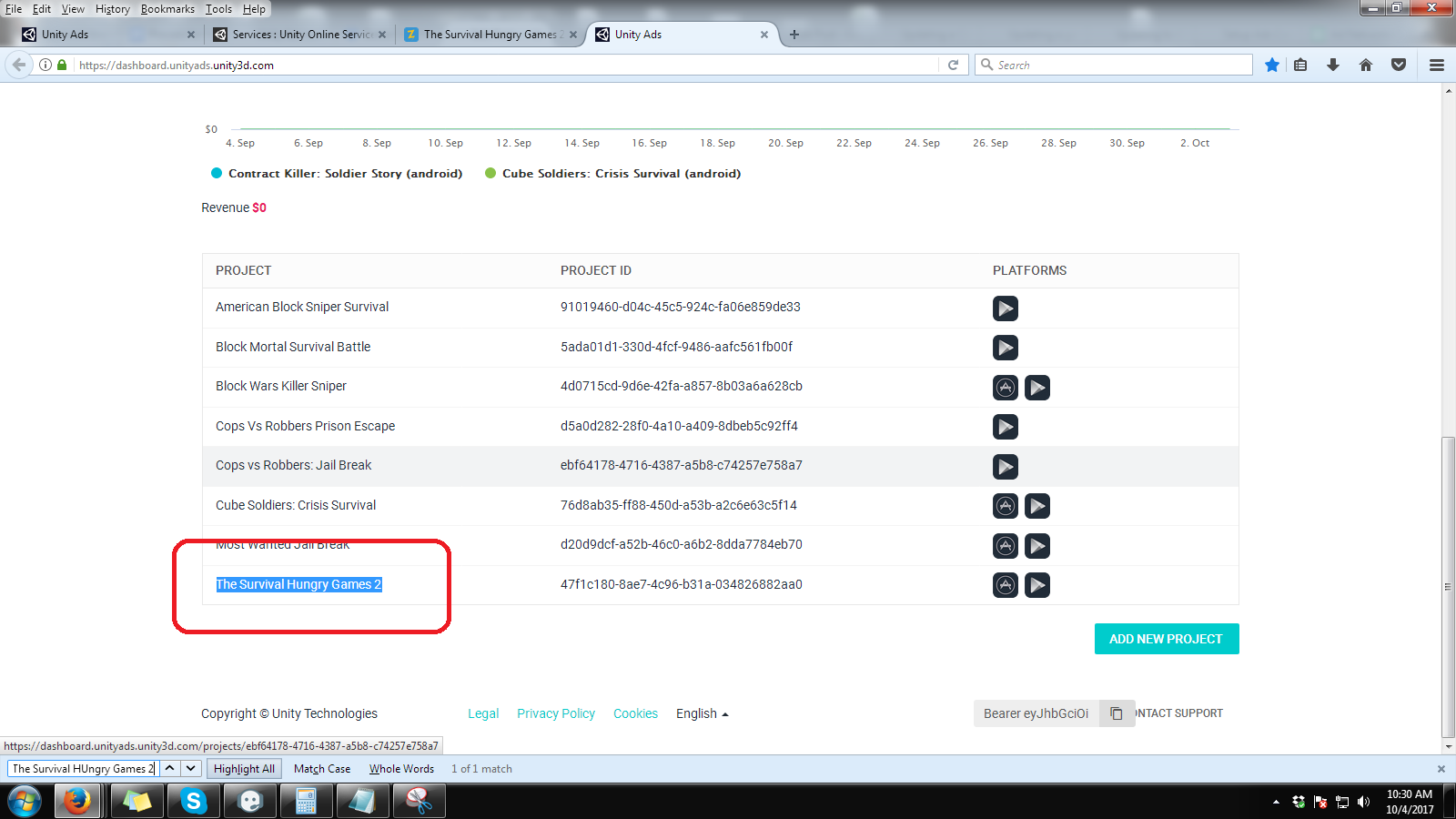
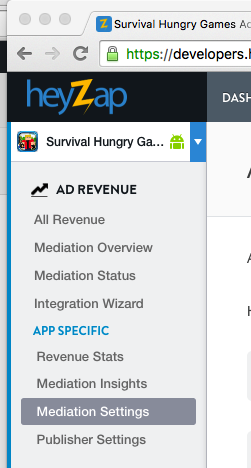
Log in to Heyzap with Correct Company (A, B C or E).
Find your game in the Heyzap dashboard.
Go to the App-Specific Mediation Settings.
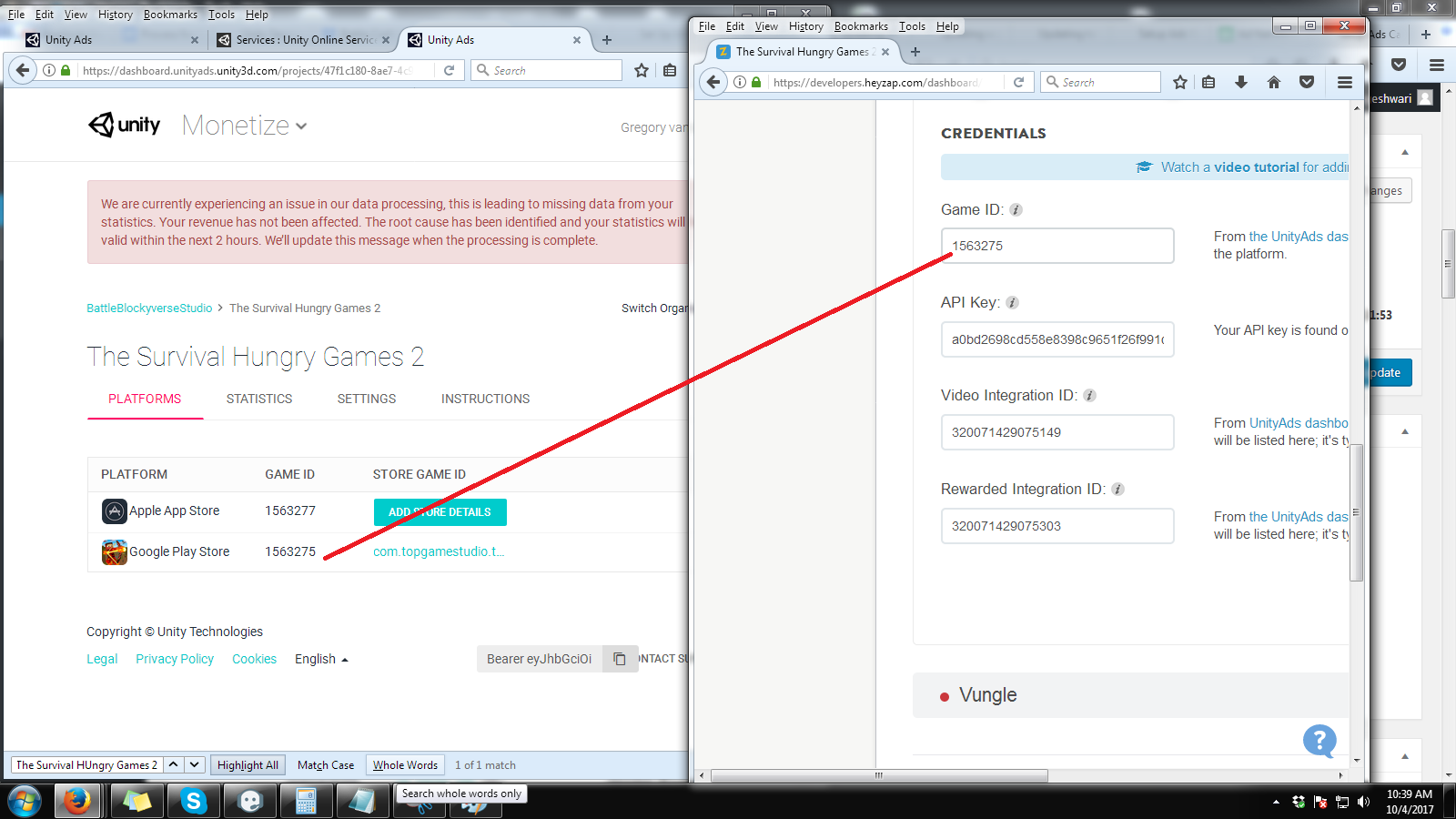
You can now start to apply the id’s.
Apply Game id first. Make sure it should be for Google Play store.
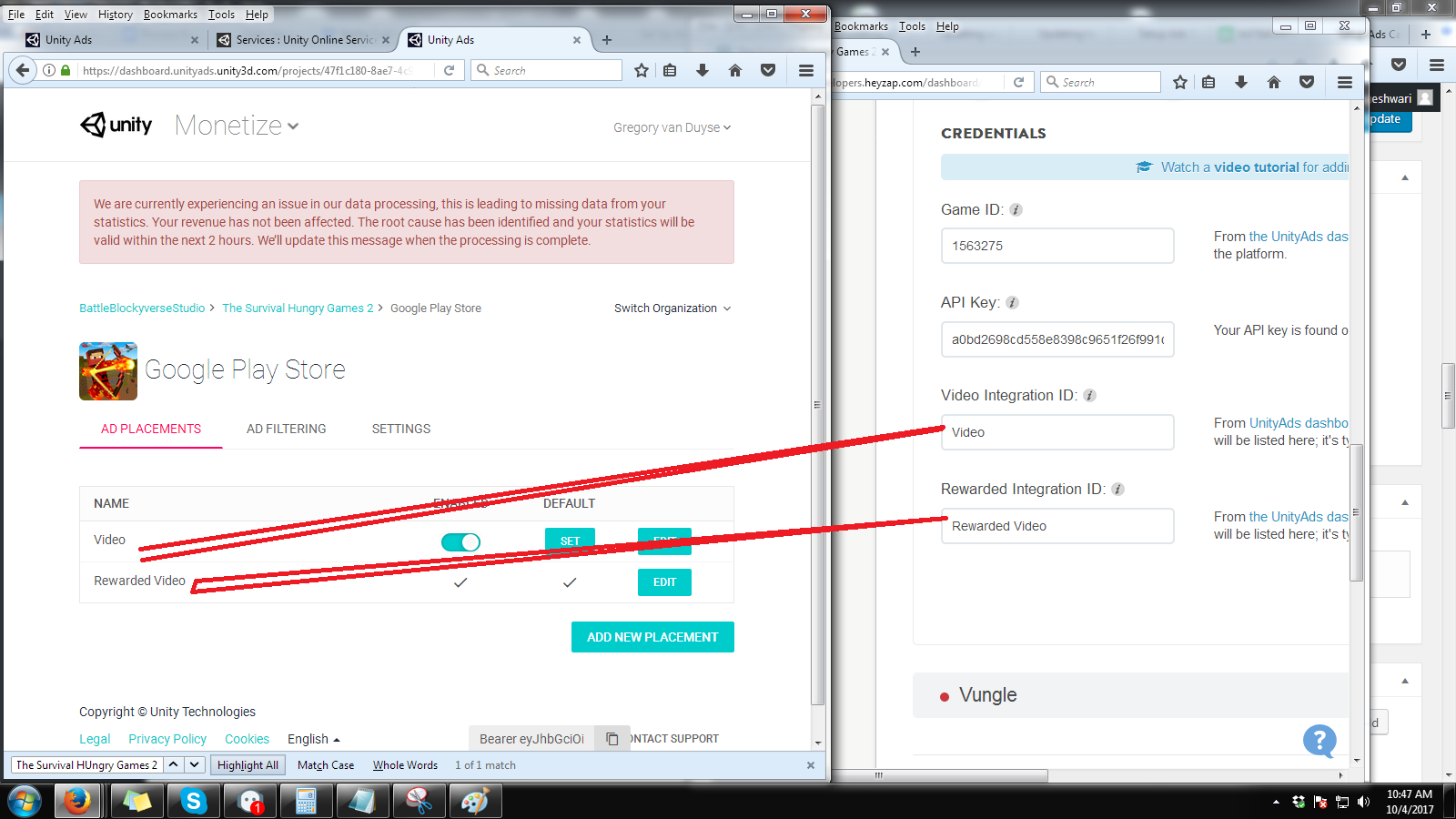
Open the game ID by double clicking on it to get video integration Id and Rewarded Integration Id.
Getting The API Key
Heyzap might be filled in the Unity Ads API key. Don’t trust it — their value may be wrong. Worse, their instructions will take you to the wrong place to get the API key, at least for our games. (I confirmed this with a Heyzap employee).
Your API key is found on the API keys tab of the UnityAds dashboard.
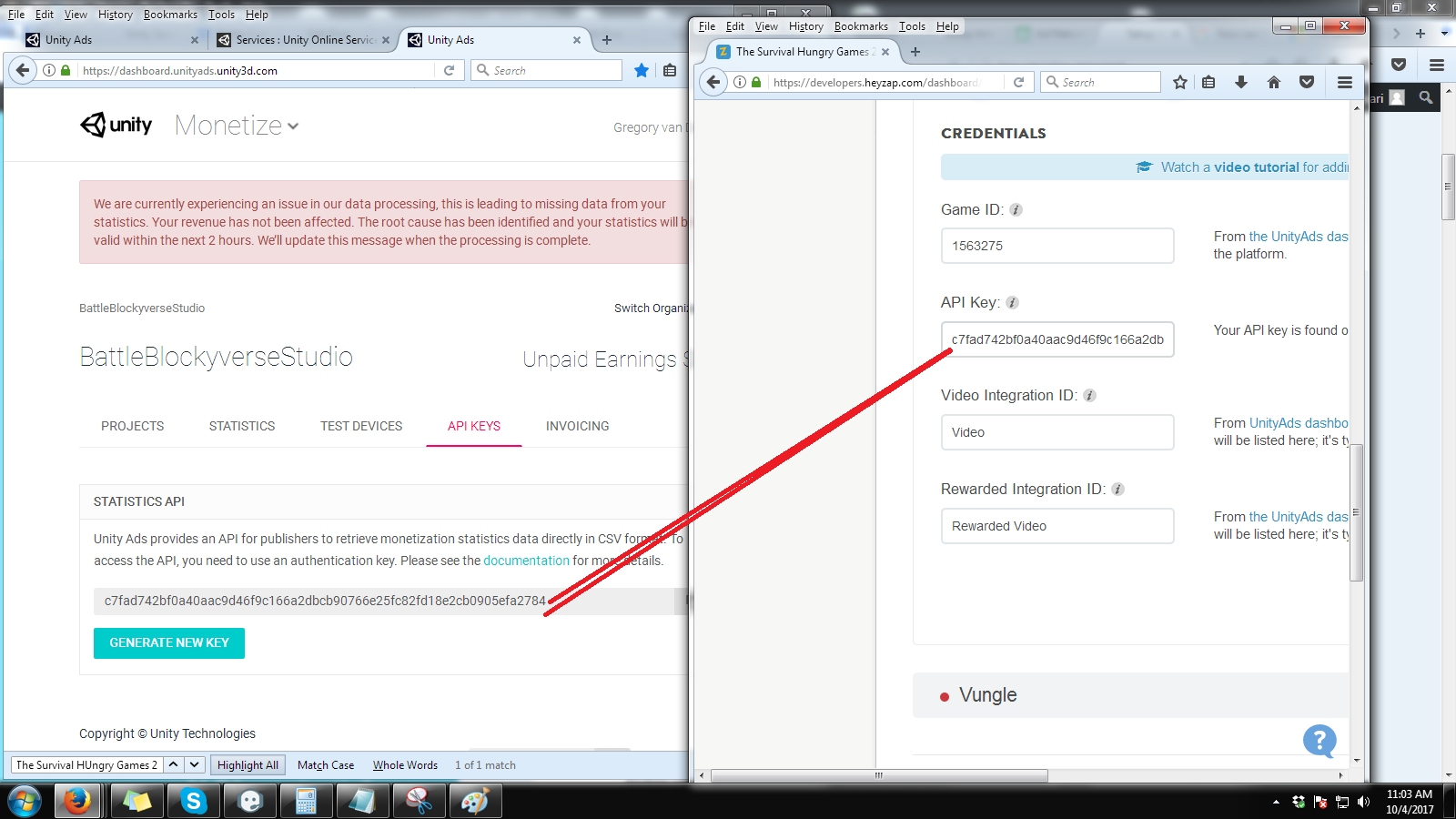
Finally, hit the ‘Save’ button in Heyzap, and you are done. Don’t turn the Unity Ads integration on unity it is time to test.