
This process follows the same steps for
updating a game to C17 and an X-code to C17.2.2
First things first –
- Download PF.
- Create rollback apk.
- Sync and branch off from the “C17.3-main” branch. [C17.3-appname]
- Open new project, and create exporter package.
- Open old project and import exporter package.
- Enable “Minimal Mode”.
SKIP THIS, if the game you are updating is a normal game.
-
If the game you are updating is an x code game with new and/or replaced weapons:
Refer to this link to know the changes on x code games.
Change weapon numbers of replaced and/or added weapons on the “Weapon Pickup” script of the prefab. [Refer to this spreadsheet for standard weapon numbers]
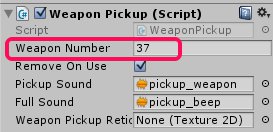
Do this for new and/or replaced rewarded weapons too.
If a reward weapon has been replaced and is not used in the game, place at least 1 on a scene, and apply the standard weapon number.
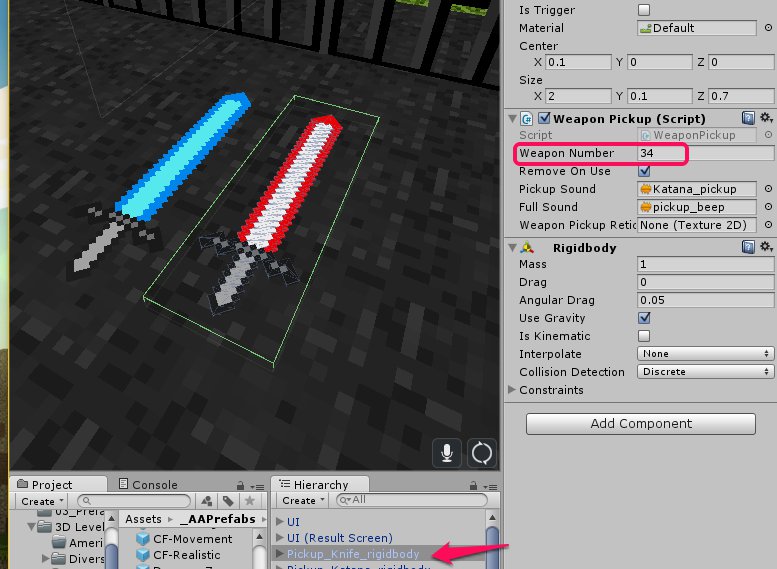
Do this before you export.
Take note: This is the only change that you need to do on the weapon pickup prefabs. You don’t need to change the order of the components in the inspector.
If you have enemies with new weapons, export them, and import them (without scripts) in the new project, BEFORE importing via exporter.
-
- Export all data and IDs.
- Import all data and IDs in the new project.
- Set all settings.
-
Additional things needed to be checked and added on all levels:
- Rebuild Nav Mesh.
- Add new C17 ammo pickups.
-
If you are having issue on your radar (which should not happen), here are 2 things you can try:
- Add a new game object in your Hierarchy, rename it to “NPCVehicles”
- if you don’t want to do this PER SCENE, apply the “PlayLevelsFromScene_v1_1” from the FPS Team.] (do not include the “NewRadar” script)
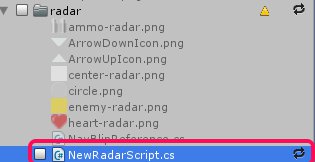
SKIP THIS, if the game you are updating is a normal game.
-
If you have new and/or replaced weapons, check weapon id for ammo pickups, and ragdoll drops on the “Weapon Pickup C17” script.
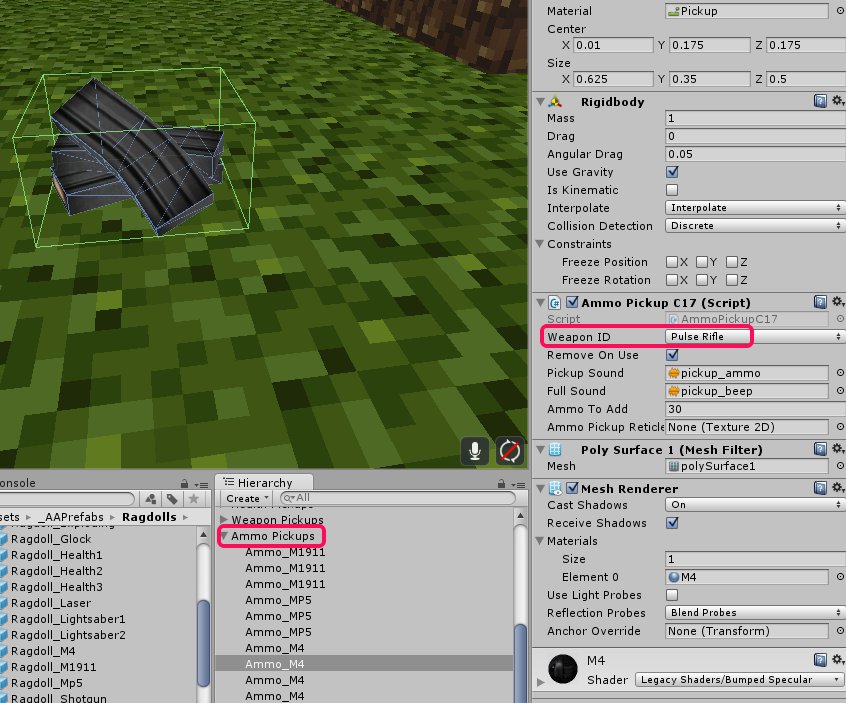
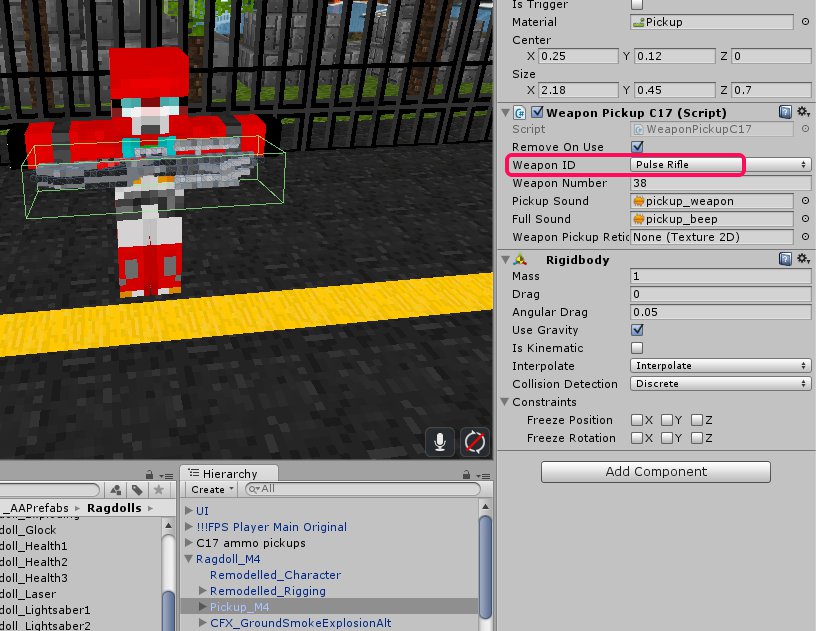
- You also need to check weapon values for the new weapons in the FPS Weapon Prefabs, (Assets>Weapons>Prefabs). [refer to this link]
Weapon Normal Position X Y Z = Weapon Unzoom Position X Y Z
Weapon Zoom Position X Y Z = Weapon Zoom Position X Y Z
Weapon Sprint Position X Y Z = Weapon Sprint Position X Y Z
Damage = Damage
Fire Rate = Fire Rate
Range = Range
Fov = Zoom FOV
Play test per scene.
After everything has been setup per level..
*Link Unity services.
*Verify all ad IDs. [make sure there are no extra spaces, not swapped places with other ids, etc.]
*Make change on the Android Manifest scripts. [Bundle id and Applovin sdk on Plugins>Android>Android Manifest, and Firebase Android Manifest]
*Add AdMob IDs, setup AdMob on VMs for games under companies A, B, C, and E.
*Import pause menu package for your game. [Remove your game if it is in the list of games in the Pause Menu]
*Set title and apply latest icon.
*For Rewarded Weapons:
To change rewarded weapons, go to Assets>Weapons>PlayerWeaponSettings and put the Weapon ID of the weapon that will be used.
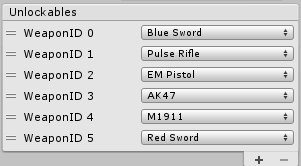
Reward icons can be found at:
[_Textures > NewUI > textures into screens > permanent weapon icons]
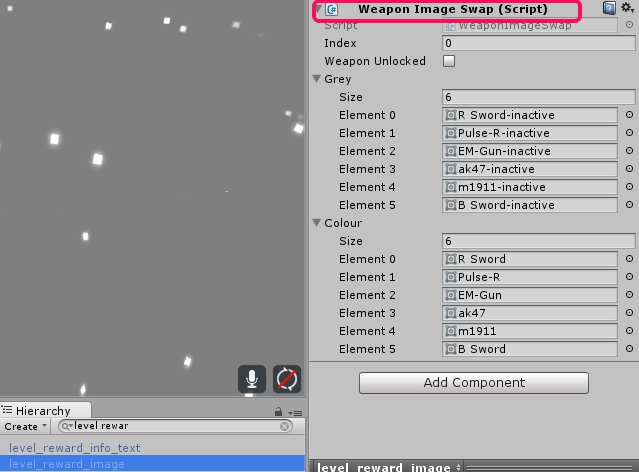
On the Menu scene, you need to change the following under the UI prefab:
- level_reward_image -Weapon Image Swap (script)
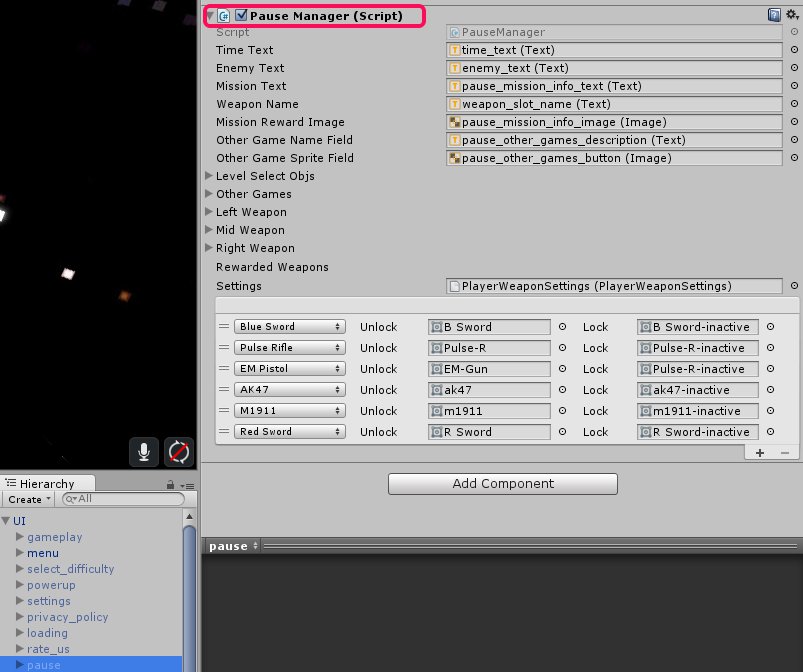
- pause – bottom part of the Pause Manager (script)
- select_difficulty – UI Difficulty Selection (script)
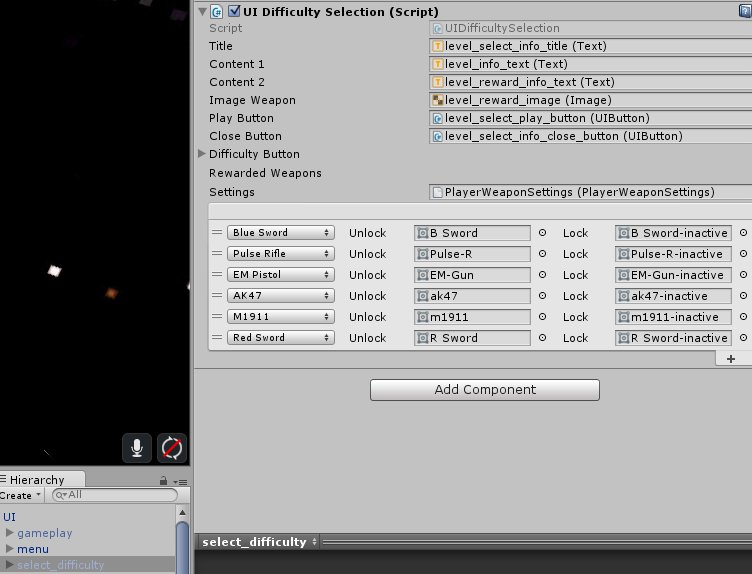
Hit APPLY.
On the LevelSelect scene, you need to do this change under the LevelSelectCanvas:
- LSMissionInfoPanel – Level Info Manager (script)
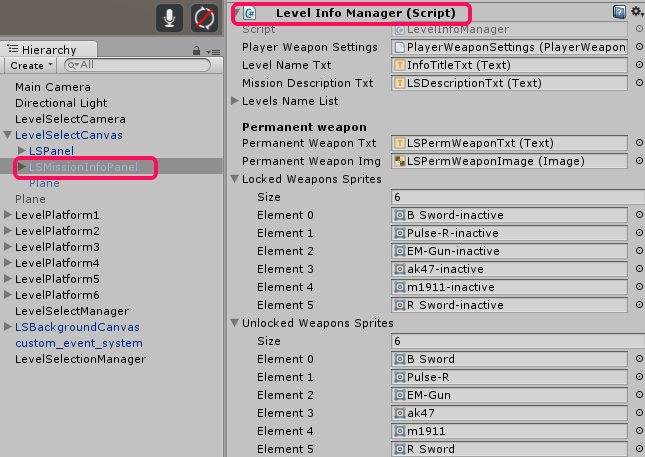
Hit APPLY.
*Play test on Unity.
*Verify leaderboards script, hit SETUP. Apply Google services compatible version package.
*Verify Player Settings.
*Build apk.
Congratulations! You just updated a game to C17.3 😀
