
Purpose
- shows how to check if all or the desired advertisers are included in your game for testing
- this post is part of a series
Applicability
This applies to you if you’ve been tasked with updating an existing project to use the Heyzap mediation features.
Videos
https://youtu.be/2u_wZDd7Jrc
https://youtu.be/YlgEovwwpDI
Written Instructions
Now that you are done putting all the information into the Heyzap dashboard, it is time to test that it is right.
Open your new project in Unity 5.3. From the menu, choose Ad Networks -> Diagnostics -> Enable.
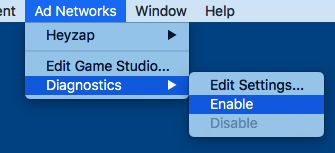
Build a .apk for your device.
Go to the Heyzap dashboard. Turn on the advertisers you are testing.
Clear the cached files for the app you are testing on your device. This will make it get the latest settings from Heyzap when you next run it.
Run the game. Click on the ‘Ad Tester’ button. Click on the Mediation button. Check that all the networks you want to be ‘on’ are ‘on’. Go into them and play Videos and Rewarded Videos. (Interstitials and Native Ads aren’t used by our game).
I recommend building a small spreadsheet to record the results. Something like this:
| Cops Vs Robbers: Jail Break 2 | AdColony | AppLovin | Heyzap | Unity Ads | |
| Video | Played 1 time in 3; skippable | N/A | Plays (2/2); skippable | Plays (2/2); skippable | |
| Rewarded Video | Played 2 times in 3; unskippable | Plays (2/2); unskippable | Plays (2/2); unskippable | Plays (2/2); unskippable | |
| Overall | Not great — it shouldn’t report an ad is available and not show on. Possibly shippable. | Right | Right | Right |
When you are satisfied, go back to the Heyzap dashboard, and turn off all the advertisers that you just turned on.
Go into Unity, and from the menu, choose Ad Networks -> Diagnostics -> Disable. Build another .apk; the ads are ready to publish.
(After you publish, I’d wait an hour, and then go in to Heyzap and turn on all the ad networks. This will limit the likelihood of someone running the old game and trying to use the new mediation settings.)