Updating to C17.3

This process follows the same steps for

updating a game to C17 and an X-code to C17.2.2

First things first –

  1. Download PF.
  2. Create rollback apk.
  3. Sync and branch off from the “C17.3-main” branch. [C17.3-appname]
  4. Open new project, and create exporter package.
  5. Open old project and import exporter package.
  6. Enable “Minimal Mode”.

    SKIP THIS, if the game you are updating is a normal game. 

    • If the game you are updating is an x code game with new and/or replaced weapons:

      Refer to this link to know the changes on x code games.

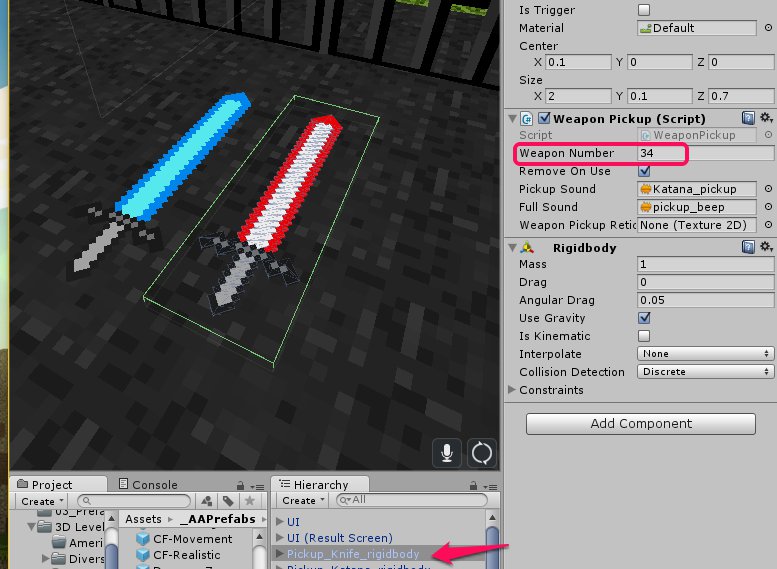
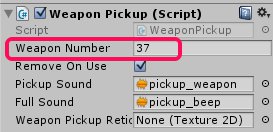
      Change weapon numbers of replaced and/or added weapons on the “Weapon Pickup” script of the prefab. [Refer to this spreadsheet for standard weapon numbers]

      Do this for new and/or replaced rewarded weapons too.  

      If a reward weapon has been replaced and is not used in the game, place at least 1 on a scene, and apply the standard weapon number.

      Do this before you export.

      Take note: This is the only change that you need to do on the weapon pickup prefabs. You don’t need to change the order of the components in the inspector.

      If you have enemies with new weapons, export them, and import them (without scripts) in the new project, BEFORE importing via exporter.

  7. Export all data and IDs.
  8. Import all data and IDs in the new project.
  9. Set all settings.
  10. Additional things needed to be checked and added on all levels:

    • Rebuild Nav Mesh.
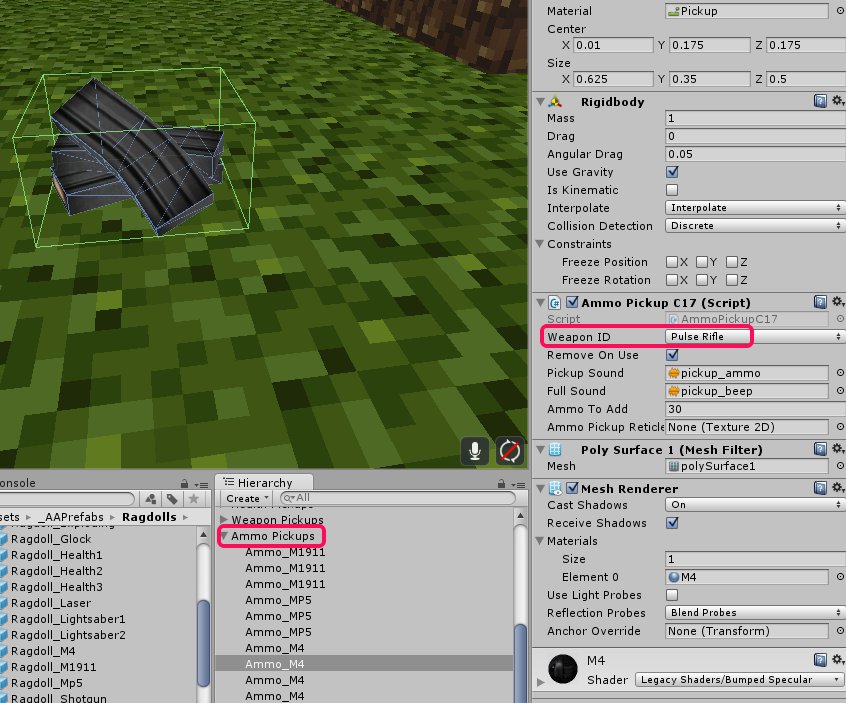
    • Add new C17 ammo pickups.
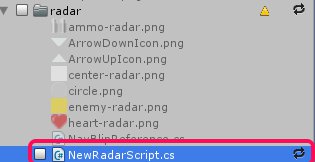
    • If you are having issue on your radar (which should not happen), here are 2 things you can try:

    • Add a new game object in your Hierarchy, rename it to “NPCVehicles” 
    • if you don’t want to do this PER SCENE, apply the “PlayLevelsFromScene_v1_1” from the FPS Team.] (do not include the “NewRadar” script) 

      SKIP THIS, if the game you are updating is a normal game.

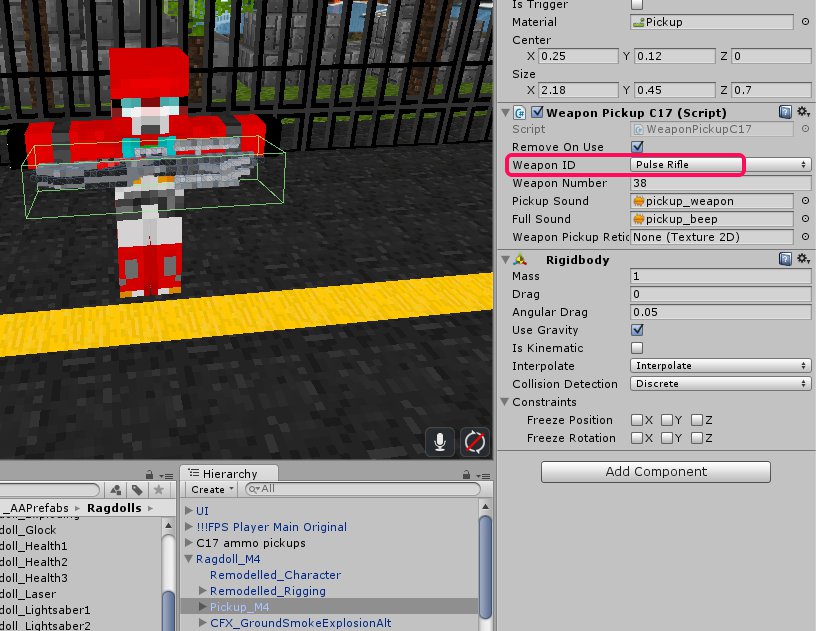
    • If you have new and/or replaced weapons, check weapon id for ammo pickups, and ragdoll drops on the “Weapon Pickup C17” script.

    • You also need to check weapon values for the new weapons in the FPS Weapon Prefabs, (Assets>Weapons>Prefabs). [refer to this link]

Weapon Normal Position X Y Z = Weapon Unzoom Position X Y Z

Weapon Zoom Position X Y Z = Weapon Zoom Position X Y Z

Weapon Sprint Position X Y Z = Weapon Sprint Position X Y Z

Damage = Damage

Fire Rate = Fire Rate

Range = Range 

Fov = Zoom FOV

Play test per scene.

After everything has been setup per level..

*Link Unity services.

*Verify all ad IDs. [make sure there are no extra spaces, not swapped places with other ids, etc.]

*Make change on the Android Manifest scripts. [Bundle id and Applovin sdk on Plugins>Android>Android Manifest, and Firebase Android Manifest]

*Add AdMob IDs, setup AdMob on VMs for games under companies A, B, C, and E.

*Import pause menu package for your game. [Remove your game if it is in the list of games in the Pause Menu]

*Set title and apply latest icon.

*For Rewarded Weapons:

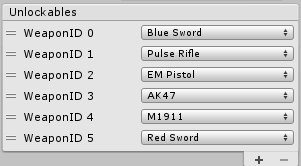
To change rewarded weapons, go to Assets>Weapons>PlayerWeaponSettings and put the Weapon ID of the weapon that will be used.

Reward icons can be found at:

[_Textures > NewUI > textures into screens > permanent weapon icons]

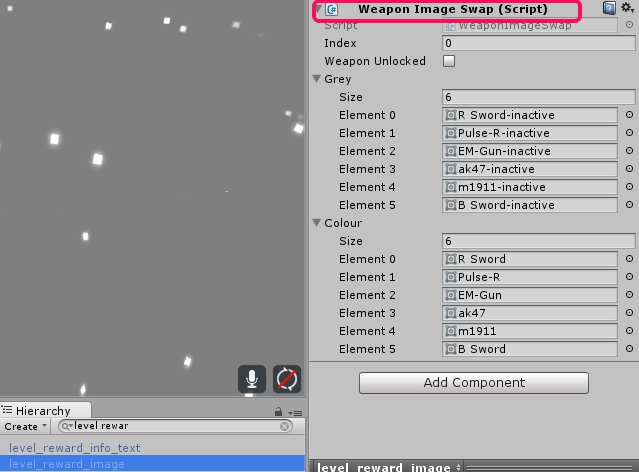
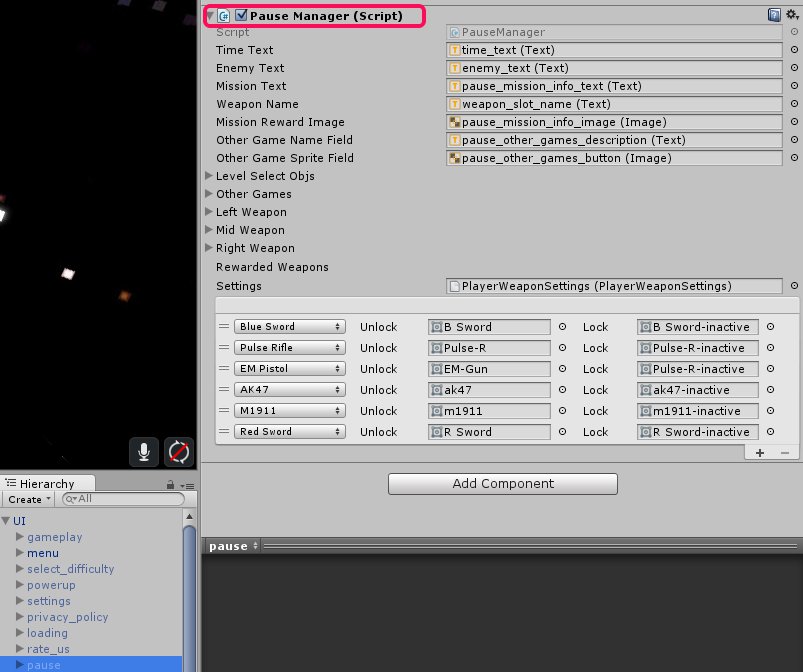
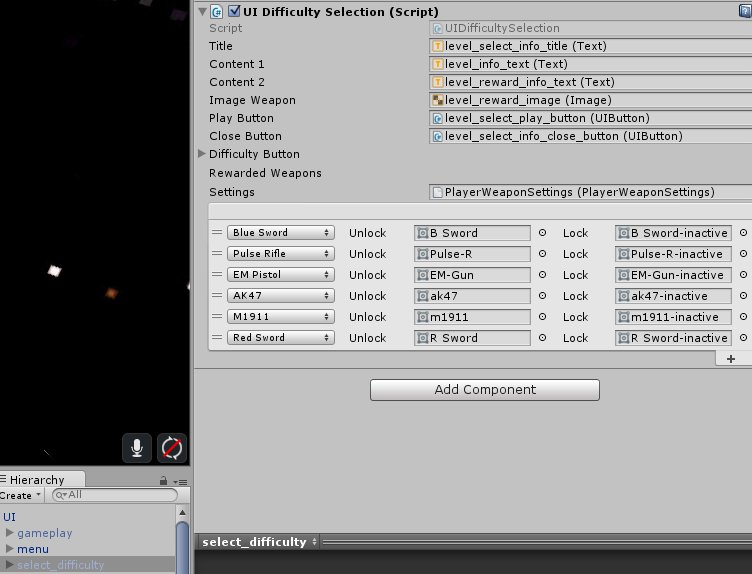
On the Menu scene, you need to change the following under the UI prefab:

  • level_reward_image -Weapon Image Swap (script)


  • pause – bottom part of the Pause Manager (script)


  • select_difficulty – UI Difficulty Selection (script)

Hit APPLY.

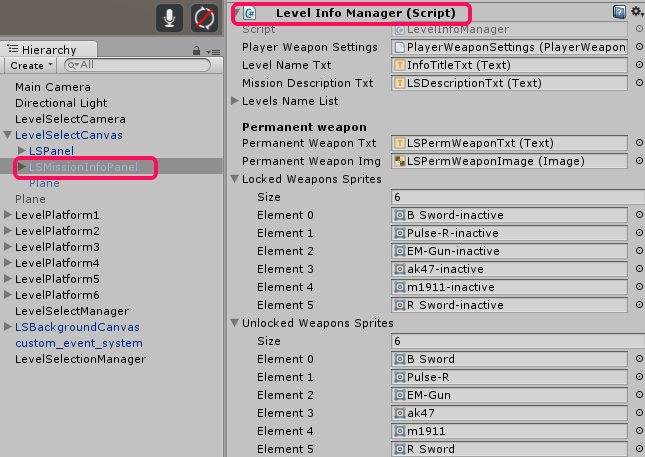
On the LevelSelect scene, you need to do this change under the LevelSelectCanvas:

  • LSMissionInfoPanel – Level Info Manager (script)

Hit APPLY.

*Play test on Unity.

*Verify leaderboards script, hit SETUP. Apply Google services compatible version package.

*Verify Player Settings.

*Build apk.

Congratulations! You just updated a game to C17.3 😀

Block types and Shader Types for VoxelEngine

This applies to the Hub project, which uses Voxel Engine.

Choosing A Shader

The shader to use for regular lighting is: VoxelEngine/Diffuse

If an object is a cutout (like the outline of a mushroom, or even a door with glass) use: VoxelEngine/Grass_cull_off

If the object is water, use: VoxelEngine/Water

If the object is semi-transparent, use: VoxelEngine/Alpha-Diffuse
– Note: this reduces performance and increases work. Use sparingly.
– (The above is true for regular rendering; in addition, the Voxel Engine looks at the shader used on a block. If the shader has ‘alpha’ in the name, it can not consider the blocks made out of it to be a solid mass and has to draw each face of each blocks. This is bad for memory, performance, and worse, we send more triangles than we are allowed to in a mesh, and Unity truncates it).

If the object is a custom mesh, then it appears we should use VoxelEngine/Object-Diffuse.

Lastly, there is VoxelEngine/Alpha-Diffuse_cull_off. I don’t really know when you’d use it. Perhaps if you had a transparent cutout.

Types Of Blocks

CubeBlocks
– default choice
– used for solid blocks
– surprisingly, used for tree leaves
– use the VoxelEngine/Diffuse shader

GroundBlocks
– used for terrain (grass, sand, etc)
– normal blocks cover a 1×1 area and then repeat
– these are designed to cover a 4×4 area, and then then repeat
* I hacked the code for our demo to disable this feature
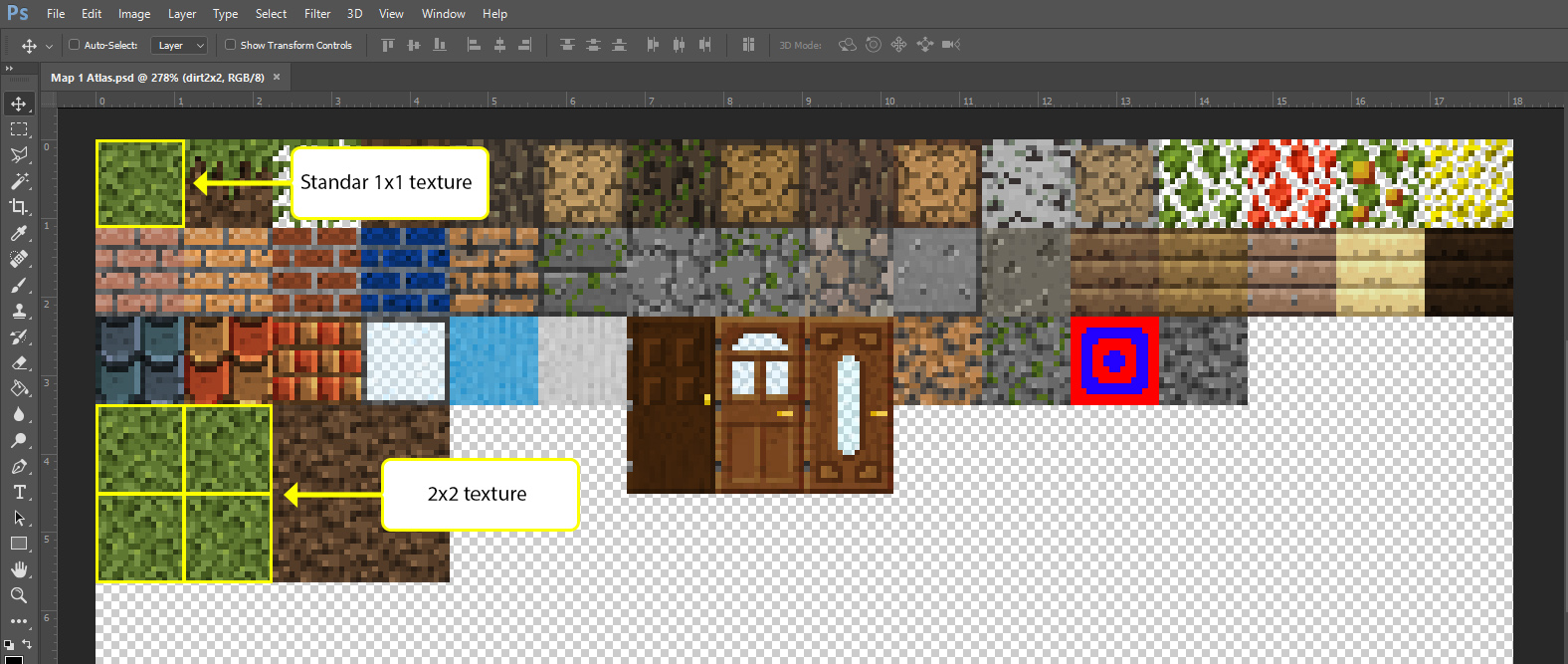
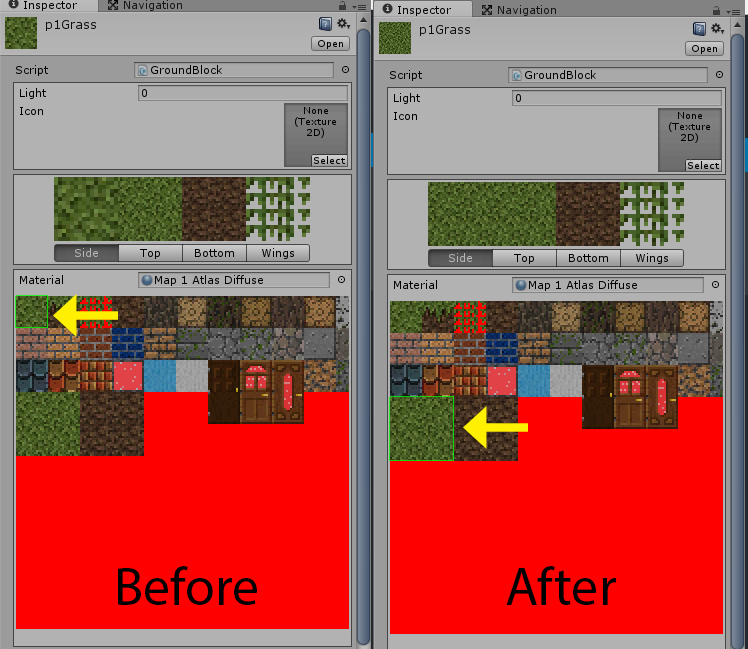
– to make the texels as big as in regular blocks, use 4x the width and height in a texture
– use the VoxelEngine/Diffuse shader

FluidBlocks
– use for water (and probably lava)
– use the VoxelEngine/Water shader

CrossBlock
– user for flowers, plants, bushes, grass, fire
– I suggest using the VoxelEngine/Grass_cull_off shader

MeshBlock
– ???

GameObjectBlock
– allows us to use a custom game object
– use the VoxelEngine/Object-Diffuse on the object

DoorBlock
– if the door is solid, use the VoxelEngine/Diffuse shader
– if it has a cutout part, use VoxelEngine/Grass_cull_off
– if it needs transparency (tinted glass, perhaps), use VoxelEngine/Alpha-Diffuse

StairBlock, FenceBlock
– these are wrapped around shapes, and use a solid texture
– use the VoxelEngine/Diffuse shader

GroundBlocks Tile Size

Ground blocks have the ability to manage tiling differently

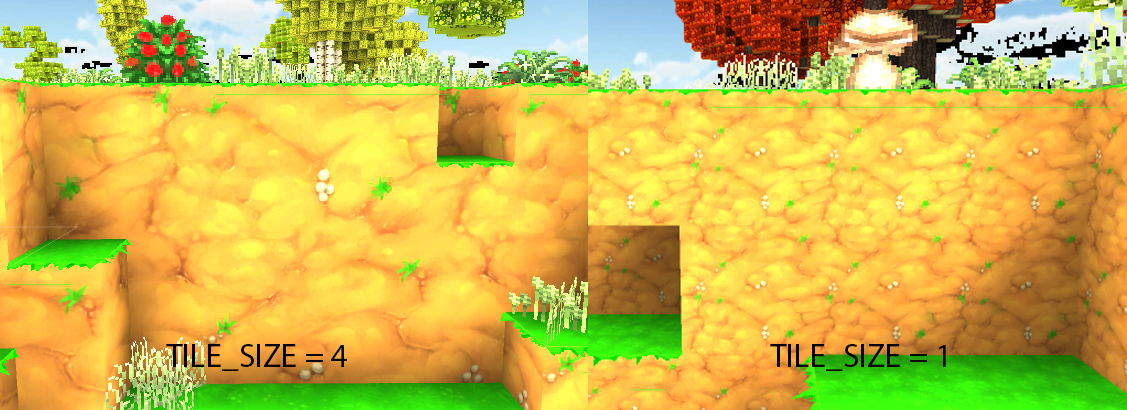
To accomplish this you need to edit “TILE_SIZE” option in the script “GroundBuilder.cs”

if you change the number if  you can have a bigger/tilled top texture of the ground block, but you need to change the texture depending of the number you changed, in this example we used a Tile_size = 2;

NOTE: if you want to ground blocks behave like other blocks use “TILE_SIZE = 1”


Here is how blocks are set up in the Voxel Engine.

They have a texture called ‘Base Atlas’

They have a material called ‘Base Atlas’ (using the ‘Base Atlas’ texture)
– this material uses the VoxelEngine/Diffuse shader
Texture: Base Atlas (512×512)
+ Material: Base Atlas; Shader: VoxelEngine/Diffuse
+ Used by most of the ‘3 Artifact’ blocks (mostly CubeBlocks, but also Fence, Stair, and MeshBlocks)
– Brick, Chest, Fence, Fireplace, MeshBlock, Pumpkin, Stair Block, TNT
+ Used by half of the ‘4 Tree/Wood’ blocks (CubeBlocks)
+ Used by the ‘Old Terrain’ blocks (CubeBlocks)

+ Material: Base Atlas-Alpha; Shader: VoxelEngine/Alpha-Diffuse
+ Used by ‘2 Flora\Cactus’ (a CactusBlock)
+ Used by some ‘3 Artifact’ items
– Door (DoorBlock), Fire (CrossBlock)
+ Used by half of the ‘2 Flora’ blocks (all CrossBlocks)

+ Material: Grass; Shader: VoxelEngine/Grass_cull_off
+ Used by half of the ‘2 Flora’ blocks (all CrossBlocks)

There are additional grass textures (512×512) but no corresponding materials
– Fern, Grass &2, Weed &2&3, WhiteFlowers

Texture: Terrain Atlas (4096×256)
– includes textures for Dirt, Grass, Leaves &1&2&3, Sand, Stone, Wood (most are 256×256)
+ Material: Terrain Atlas; Shader: VoxelEngine: Diffuse
+ Used by all ‘1 Terrain’ blocks (except Water); these are all GroundBlocks

Texture: Leaves 2
+ Material: Leaves 2; Shader: VoxelEngine/Alpha-Diffuse_cull_off
Texture: Tree Atlas (1024×128)
– has textures for leaves and logs
+ Material: Tree Atlas; Shader: VoxelEngine: Diffuse
+ Used by all ‘4 Tree/Leaves’ blocks (CubeBlocks)
+ Used by half of the ‘4 Tree/Wood’ blocks (CubeBlocks)

Texture: Water (32×32)
+ Material: Water; Shader: VoxelEngine/Water
+ Used by ‘1 Terrain/Water’ block; set to a FluidBlock


MCedit – Minecraft resource pack

Tutorial – Create resource pack for MCedit / Minecraft

  1. Go to Minecraft folder

Windows

“C:\Users\*Username*\%AppData%\Roaming\.minecraft\ resourcepacks”

Mac

“~/Library/Application Support/minecraft/resourcepacks”

  1. Create a folder and rename it as you want
  2. Create a new file and rename it “pack.mcmeta”

NOTE: Make sure you don’t have an extra “.txt” after the file like this “pack.mcmeta”, also if you are in mac use Latin-US (Dos) or Western(Windows Latin1) for Plain text encoding.

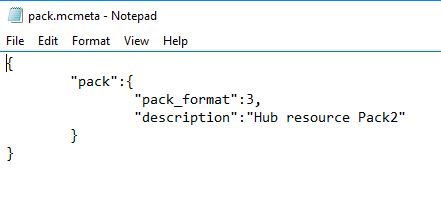
  1. Inside the file put this information and change the description with the desire name for the resource pack

{

               “pack”:{

                               “pack_format”:3,

                               “description”:”Hub resource Pack”

               }

} 

NOTE: pack_format: “x” If this number does not match the current required number, the resource pack will display an error and required additional confirmation to load the pack. Requires 1 in versions before 1.9, and 2 as of 1.9 and 1.10. 1.11 also requires a new number, 3 .

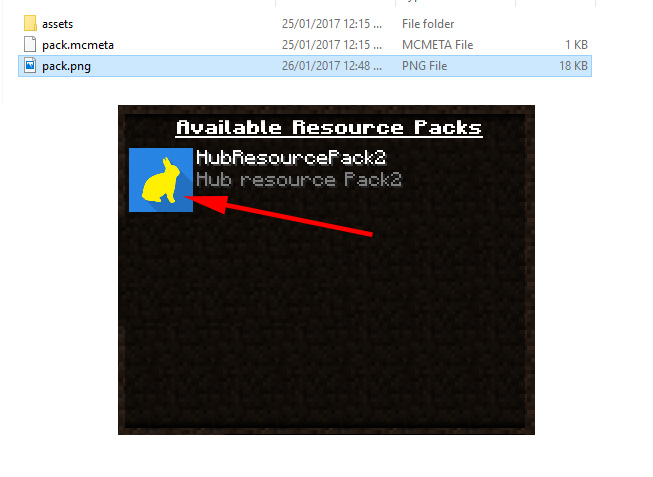
  1. Create a new image file with size 128×128 (or any square resolution) and save it as “pack.png” this will be the icon shown in minecraft


 Go to this folder (where x.x.x is the version you have installed)

Windows

“C:\Users\*Username*\%AppData%\Roaming\.minecraft\version\x.x.x\”

Mac

“~/Library/Application Support/minecraft/version/x.x.x/”

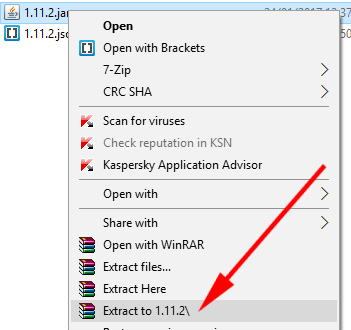
  1. Extract the x.x.x.Jar file


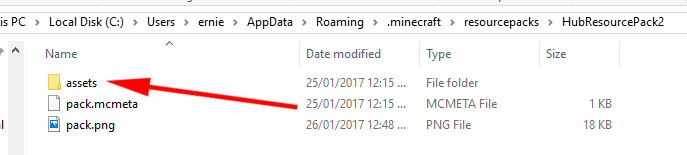
  1. Inside the folder you just extracted copy the folder “assets” to the folder you created inside the resourcepack folder.


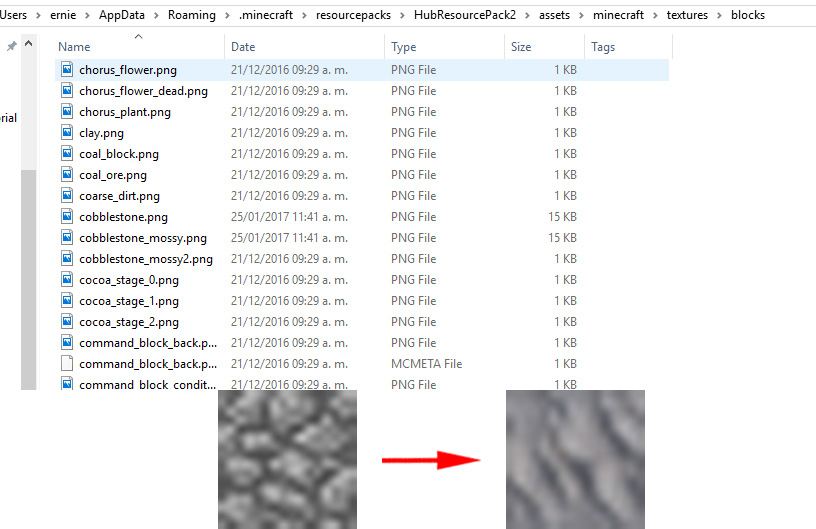
  1. Go to this folder (where x.x.x is the version you have installed) and change the block textures you need using a image editor.

Windows

“C:\Users\*Username*\%AppData%\Roaming\.minecraft\resourcepacks\Resourcepack folder\assets\minecraft\textures\blocks”

Mac

“~/Library/Application Support/ resourcepacks/Resourcepack/folder/ assets/minecraft/

textures/blocks”

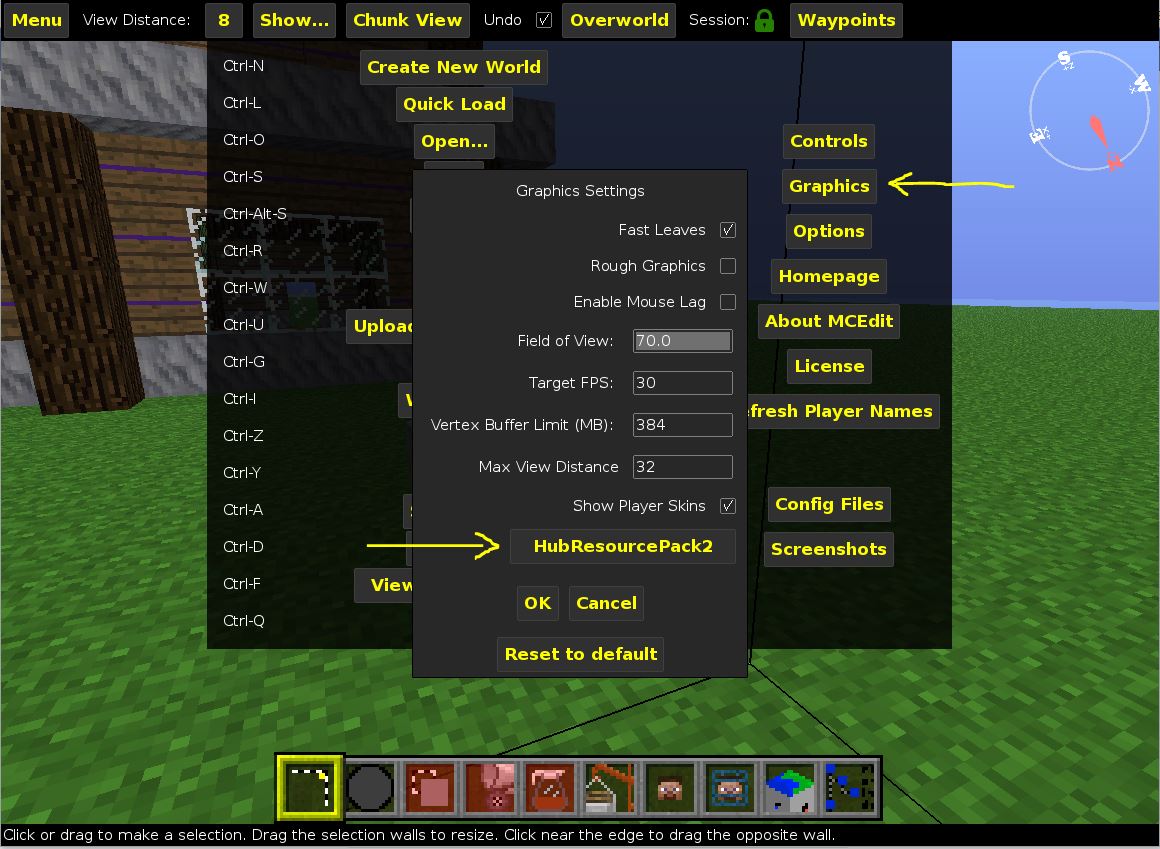
  1. In MCedit you can change the resource pack in the menu->graphics

if you have a problem you can follow this video on youtube:


MCedit – Quick Start

Tutorial – How to use MCedit 1.0

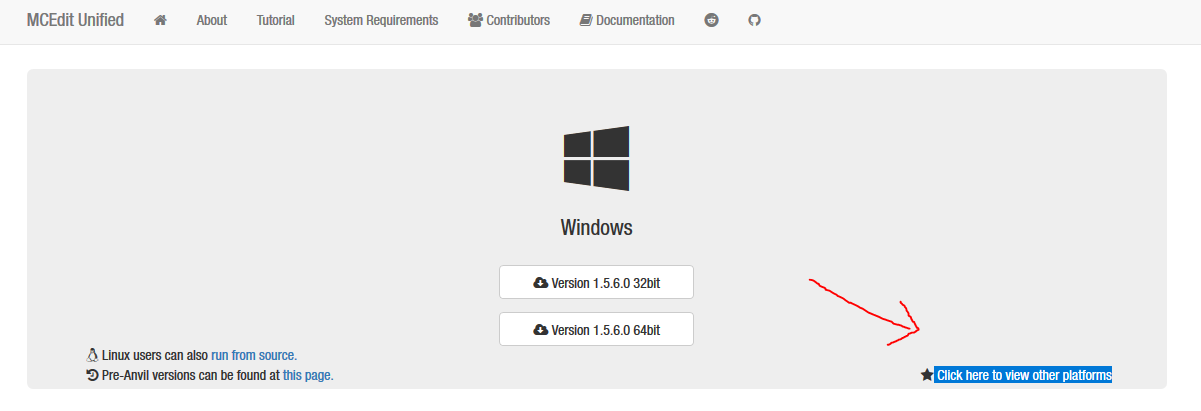
1.- Download MCedit (old version) in this link:

http://www.mcedit-unified.net/

NOTE: Mac and Linux users hit the little button “Click here to view other platforms“

Start Mcedit.exe


2.- Open / Create a level

NOTE: if you open a level you need to go to and select the “level.dat” file

Windows

“C:\Users\*Username*\%AppData%\Roaming\.minecraft\saves\*LevelName*\level.dat”

Mac

“~/Library/Application Support/minecraft/saves/level.dat”


3.- Movement

Use W/A/S/D to move around

Use Shift / Space to go down / up

Use right mouse click to rotate camera

4.- Select tool

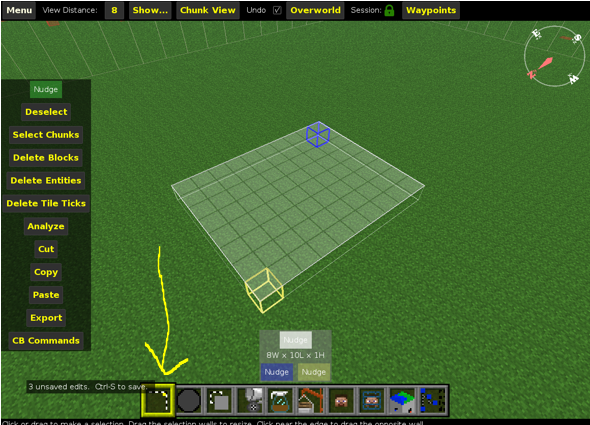
Click or drag to make a selection.

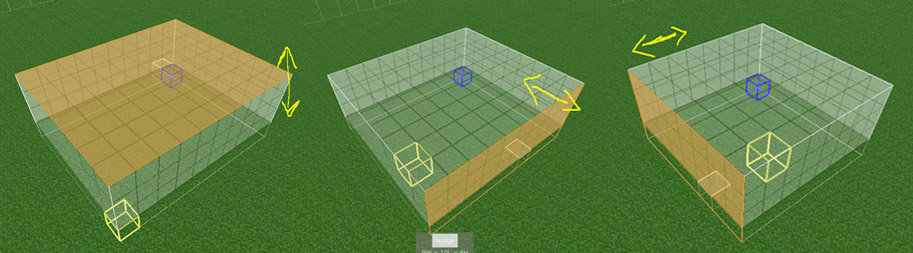
You can edit the selection by dragging the selection walls.


NOTE: the orange face is the selected one.

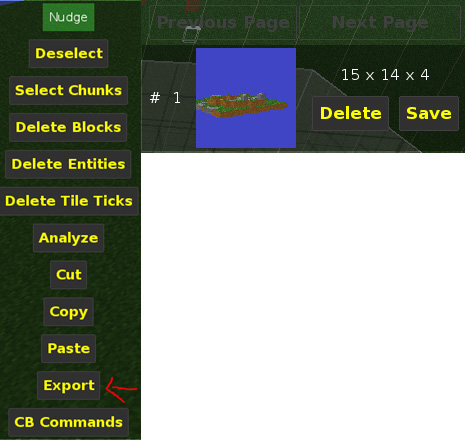
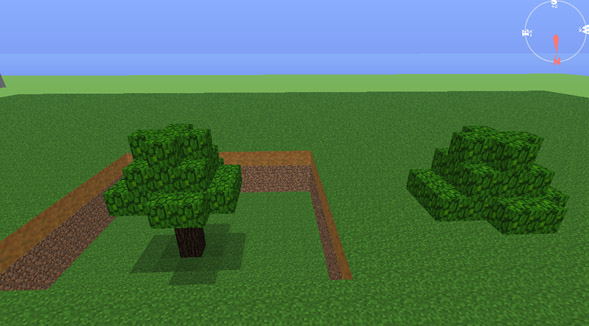
With the selected area you can delete the objects (Delete key) , copy (Ctrl+C / CMD+C) and paste (Ctrl+V / CMD + V). Also you can save the selection as a schematic by clicking on export or save in the top right corner.

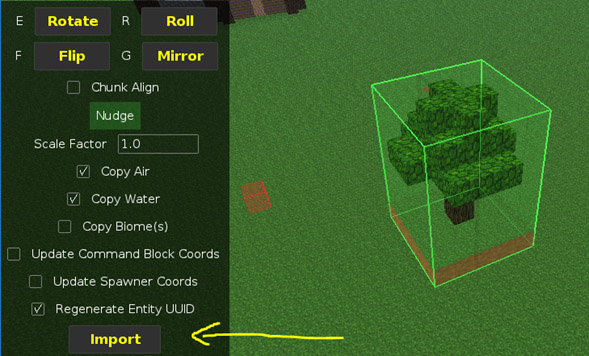
NOTE: When pasting objects you need to click import (or “enter key” after placing the object in the scene ( if you don’t do this the object will be deleted and need to start again the paste process)


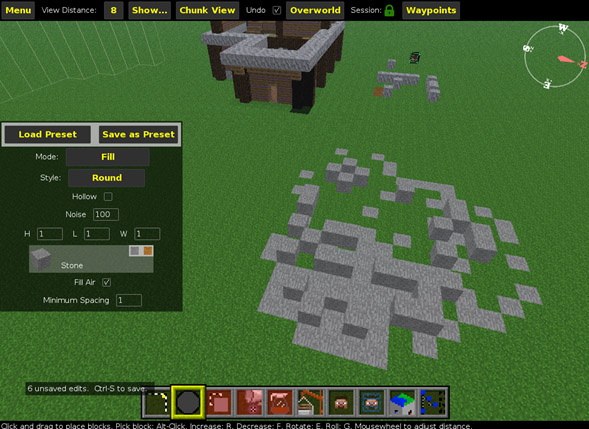
5.- Brush tool

Click or drag to place blocks.

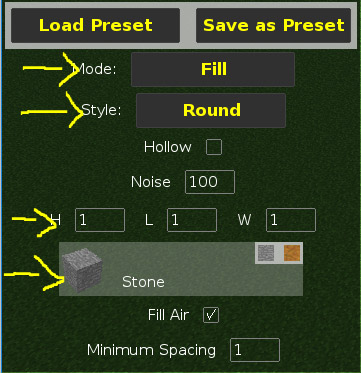
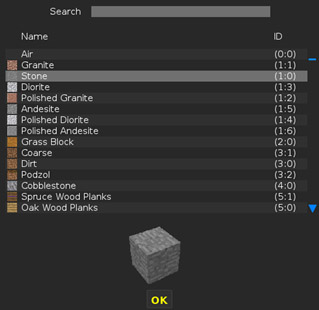
You can change the mode to different ones (schematic to paste previous saved objects) and fill with a Height, Length and width of 1 to place 1 block. You can change the type of the block by clicking on the block.

Change cube layout

5.- Clone tool

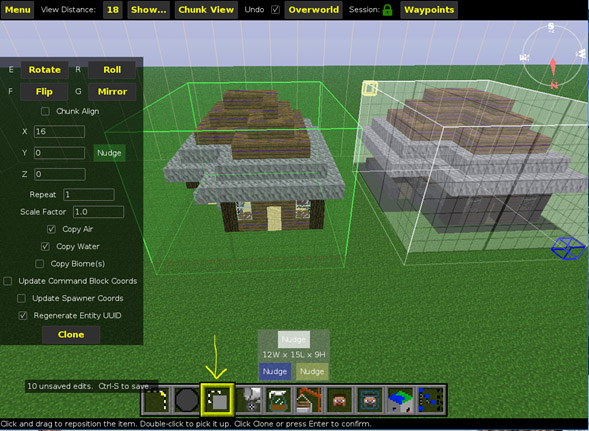
With the object previously selected click the tool clone and drag the object to the position you want, change settings if needed and hit “Clone” or “Enter key”

NOTE: If you have the “Copy air” option enabled you copy the empty spaces and if you place the object intersecting other cubes the empty spaces will be delete the objects in the space of air

Ej.


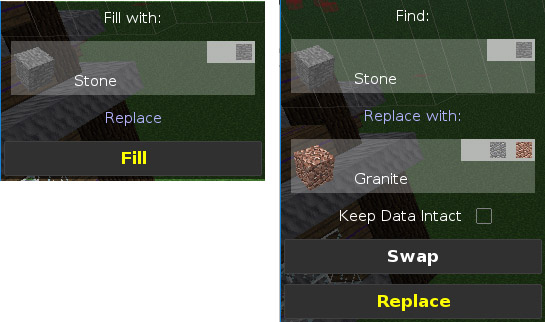
7.- Fill and Replace tool

With a selection you can fill it with the selected block or replace specific block with another one


Voxel Engine Tutorial

Voxel Engine is a powerful plugin for Unity, that will let us create 3D worlds right away in a Minecraft style, with random terrains.

It is important to know how this terrains are made:

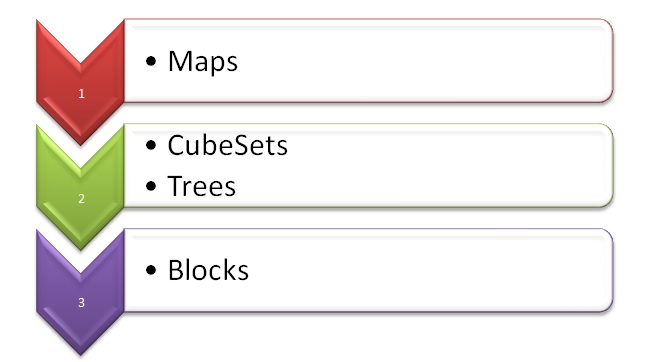
Maps are the terrain itself, they contain the built world in which the player is going to be. They contain CubeSets and Trees. This cubeSets are a group of blocks, for example, if we have a world based on a forest, this group of blocks may be conformed of blocks  maybe with textures of grass, dirt and any other fauna. We can create different cubeSets for the same world. In a hierarchy, it will look like this:

organigramaAfter undestanding this, it’s time to build our own world.

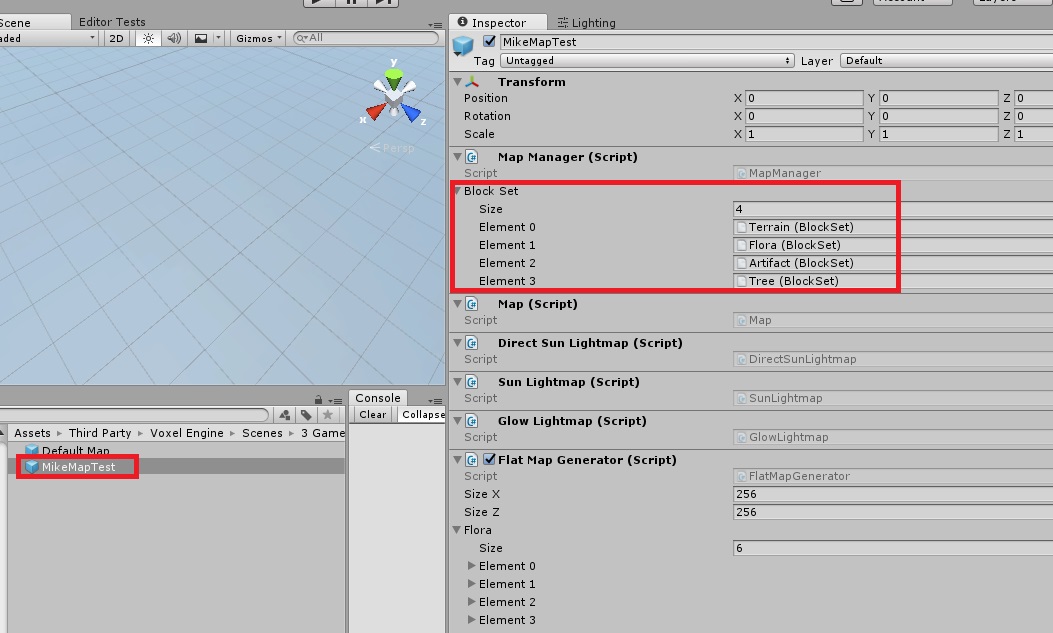
  • Creating a Map

**Recommended: Copy prefab of map and modify arrays of blocksets and Flat map arrays**

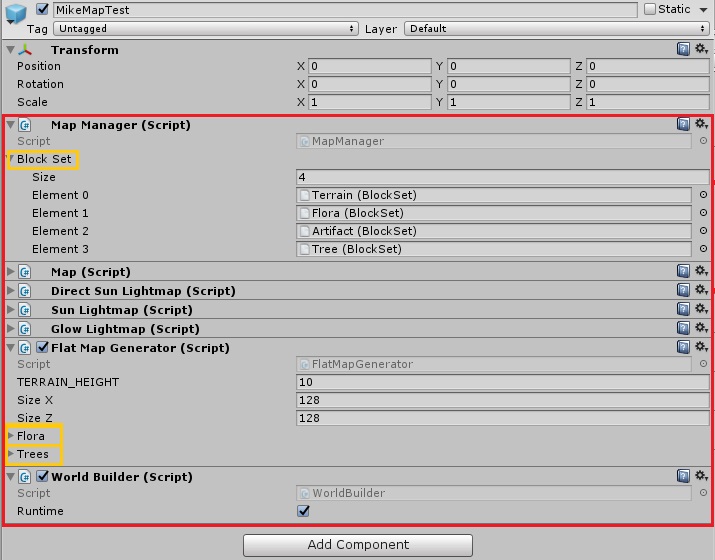
We need to create a new GameObject,  and assign it the next scripts:
-Map Manager.cs  (and add Blocksets if we already have them)
-Map.sc
-Direct Sun Lightmap.cs
-Sun Lightmap.cs
-Glow Lightmap.cs
-Flatmap Generator.cs (and add Flora and Trees if we have them and want them)
-World Builder.cs

map01

  • Creating a CubeSet

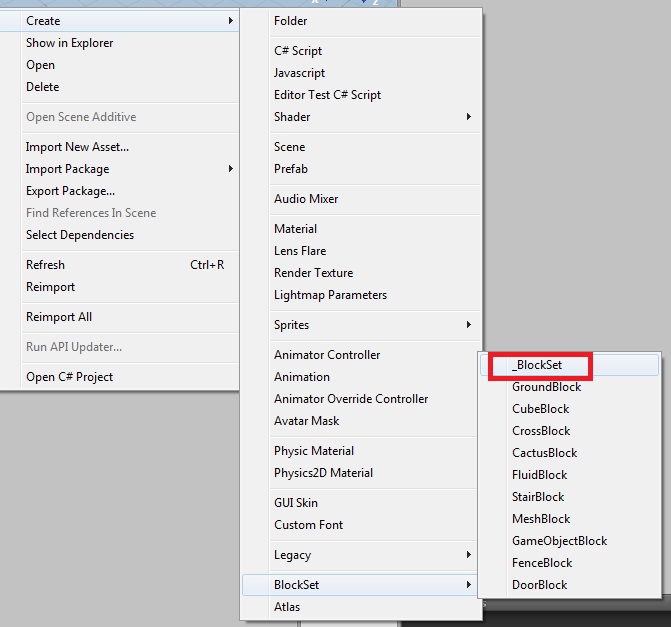
To create new cube type:
-Right Click / Create / BlockSet / _Blockset

blockgroupset01

After that, just rename it and fill it with the blocks that you want.

To Assign new cubes set:
-In the map manager, there is an array with the blocksets
-Add a new element and assign your blockSet

blockgroupset02

  • Creating a Tree

There 5 different types of trees (each one of them is only different in how it is randomly made)

**Recommended: Copy a prefab and change only Wood and leaves**

Create a new Gameobject and assign it ONE of the next scripts:
-BirchTree.cs
-OakTree.cs
-PineTree.cs
-RedTree.cs
-SakuraTree.cs
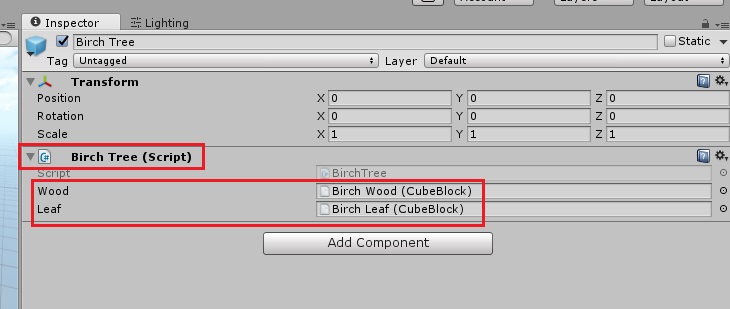
Then, assign the wood and leaves (this ones should be cubes of type “CubeBlocks” and not normal prefabs).

tree

  • Creating Blocks

These Blocks are what is actually going to be visible in the world. For them we need a texture (most properly an Atlas containing many textures), a material, and if we need it, an Icon.

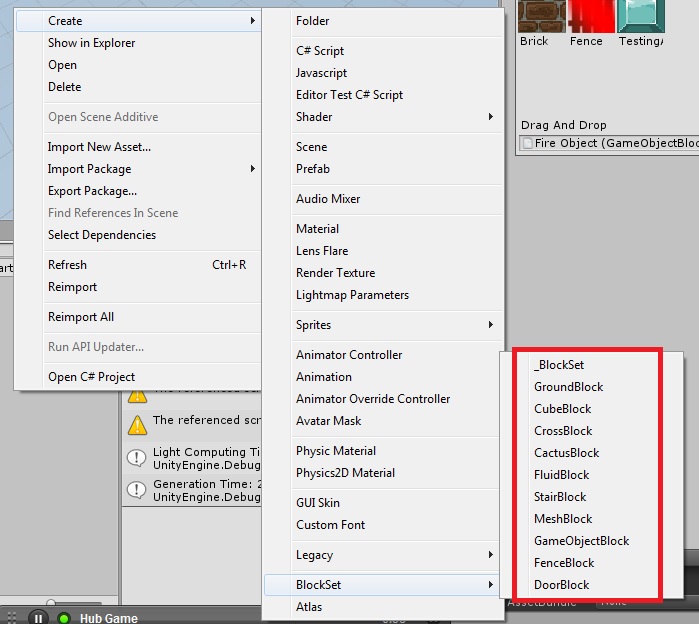
To create new cube type:
-Right Click / Create / BlockSet / and select type of new cube…

blockset01
Add Textures:
-Select the newly created cube
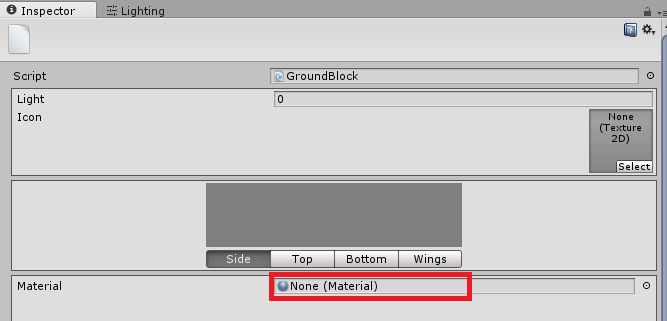
-Assign a material

blockset02
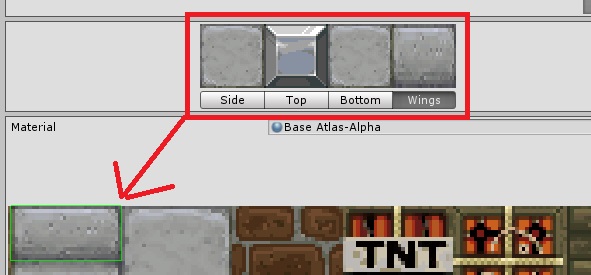
-Assign each of the Corresponding texture elements for each side of the cube by selecting part of the texture the material has.

blockset03
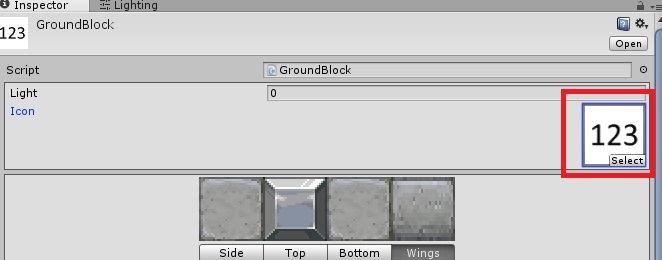
-Add an icon if necessary.

blockset04

After the Block is complete, we will need to assign it into a CubeSet to be used:
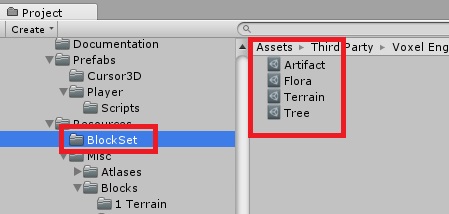
-Go to the BlockSet folder (Assets/Third Party/Voxel Engine / Resources / Blockset) If you want it in another directory, you can have it.

blockset05
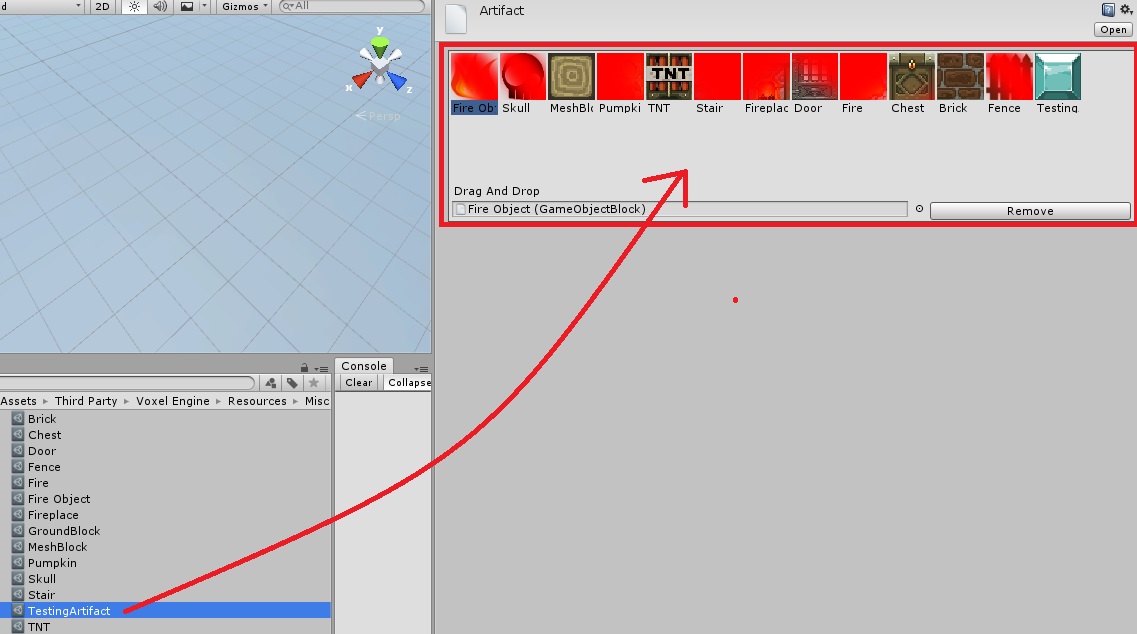
-Select the group where you want to add your new cube
-Add the new cube just by dragging it to the container.

blockset06

Audio Import Settings – Cheat Sheet

1 Introduction

This document is intended to be a quick reference sheet when working on audio within a mobile project. Different platforms will have different requirements, though some things (like general practices) stay the same across platforms. This document assumes the project is a mobile project.

2 The File

  • File type: Native (WAV) for SFX, .ogg (Ogg Vorbis) for music
  • Sample Rate: 22050Hz
  • Stereo/Mono: Mono as often as possible.

    Some files need to be in stereo (and that’s okay!) but phone speakers aren’t very good, and using stereo on most sound files will be a waste of resources. Use the qualities of the Audio Source within unity if you need to create panning effects etc.

3 Import Settings

Bad import settings are a huge killer for a project’s performance. Don’t underestimate audio’s impact on your game’s performance.

3.1 Load In Background / Preload Audio Data

Load in background is an asynchronous loading method which allows you to load sound files into the scene outside of the main loop. This can help if you’re loading tons of audio clips at the same time.

Preload audio data loads the audio data before the first Awake call in your scene.  You can’t unload this file if you preload it.

Use these when it fits the frequency you use the sound, how many sound clips you’re loading, etc etc. If in doubt, just leave both without the tick.

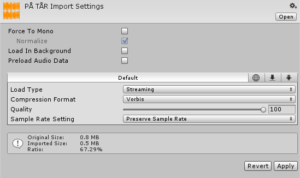
3.2 Music

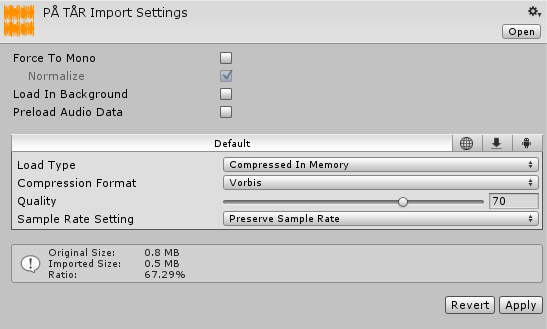
audio1

  • Load Type: Streaming or Compressed in memory.

    Streaming requires very little memory, but requires a little more CPU power and uses disk I/O throughout. NOTE: ONLY USE STREAMING FOR ONE AUDIO FILE IN THE SCENE, OR PERFORMANCE DROPS WILL HAPPEN!

    Compressed in memory replaces the need for using disk I/O, but has a memory cost. Reduce the Sound Quality to around 70% if you use this option.
  • Compression Format: Vorbis.

3.3 Small SFX

Around 1 – 3 seconds long SFX.

3.3.1 Played Frequently

audio2

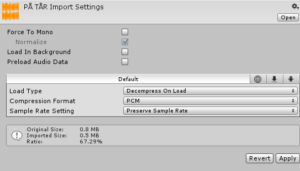
If the SFX is played frequently, use the following import settings:

  • Load Type: Decompress on load
  • Compression Format: PCM or ADPCM. PCM requires no decompression and is therefore faster, ADCPM requires decompression.

3.3.2 Played Infrequently

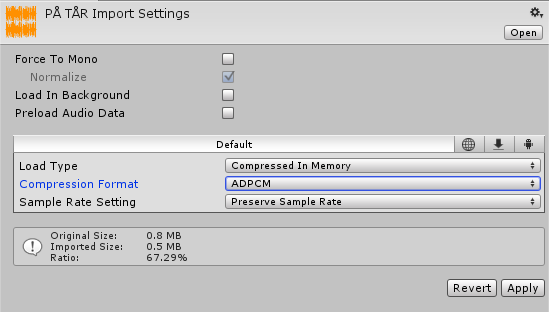
audio3

If the SFX is played infrequently, use the following import settings:

  • Load Type: Compressed in memory
  • Compression Format: ADPCM. ADPCM is about 3.5 times smaller than PCM, and requires less CPU power to decompress.

3.4 Medium SFX

Around 3 – 8 seconds long SFX.

3.4.1 Played Frequently

audio3

If the SFX is played frequently, use the following import settings:

  • Load Type: Compressed in memory
  • Compression Format: ADPCM. ADPCM is about 3.5 times smaller than PCM, and requires less CPU power to decompress.

3.4.2 Played Infrequently

audio4

If the SFX is played infrequently, use the following import settings:

  • Load Type: Compressed in memory
  • Compression Format: Vorbis. File might be too long and played too infrequently to warrant ADPCM, so the additional CPU power to decompress isn’t that big of an issue.

Updating a game to C16.4

This process follows the same for updating a game to C16.2.2.

This code contains (C16.2.1/2 + Ads Cascades System + X code Games[new prefabs])

Pre-requisite

  1. Create roll back apk before doing the update. (+2 on the BVC of the live version)/(+1 on the BVC of the current update) and upload it in the corporate dropbox, folder name 7-Rollback APKs.
  2. Old project folder for game.
  3. Exporter package (varies for the version of your game)
  4. For X code games, check this document to see changes for the game. (refer to this link for game changes – 3D Prefabs Team doc)

What exporter version to use:

1.0.8 version – this version is applicable to games that are currently on C16 and the ones on E.1.11 and C10 codes (Pre-C16 Games).
1-1

Branch off of the latest version – Latest branch is called C16.4
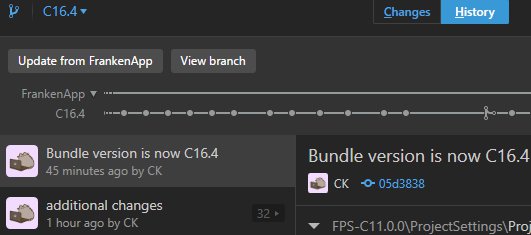
screenshot_111516_030109_am


Open GitHub Desktop, and switch to the branch that has the features you are updating to. At the time of writing, you’d want the “C16.4” branch but your task instructions should tell you which branch to use. If you aren’t certain, ask. Switch to it and sync up to the latest version of the branch.

Install Enemy Exporter

If the game you’re updating has the last data in the 9-App Asset Packages folder in the corporate dropbox, use that instead and skip this step.

Export the Exporter

Open the new project in the appropriate version of Unity. C16 projects are designed to be used with Unity 5.3.1p2. (If you use a different version, it causes problems.)

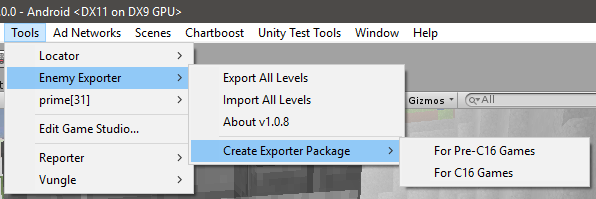
New, in Export v1.0.8. From the menu, choose Tools -> Enemy Exporter -> Create Exporter Package and then choose to create a package for C16 games, or for earlier (C10, E11) games.
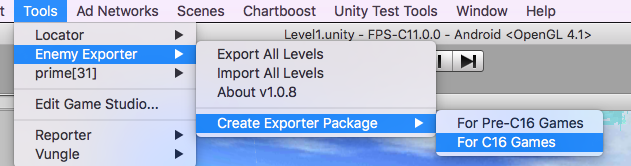
new_version_of_tools

(Previously, you’d choose Tools -> Enemy Exporter -> Advanced -> Create Enemy Exporter Package, and it would create a package that didn’t work for updating C16-style games.)

You’ll be asked to save it. By default, it’ll use the exporter’s version, the version of the game the exporter works for, and save to your Desktop.
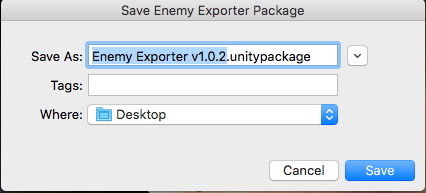
save_enemy_exporter_package_and_menu_unity_-_fps-c11_0_0_-_android__opengl_4_1_

Import The Exporter

Now, import the exporter into your older project.  compiling_indicator[How To Import]
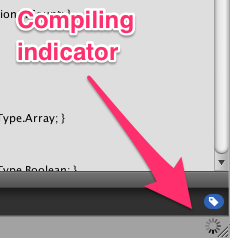
This import contains a lot of scripts (and nothing else).

It’ll recompile for a bit. Unity tells you it is recompiling by showing a spinning circle in the bottom-right corner.

After it recompiles, you’ll have Tools -> Enemy Export in your menus.

Understanding What The Exporter Does

This page is optional, but I advise looking at the ‘Notes’ section.

It may be useful to understand what the exporter does.
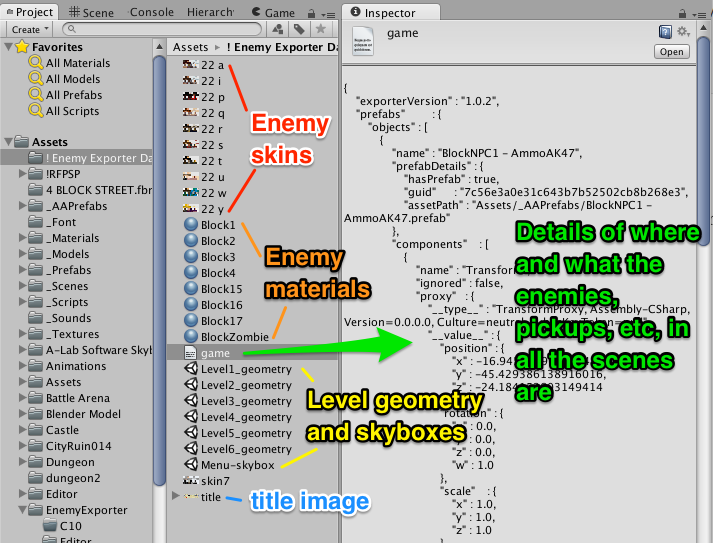
exporter_detailsWhen exporting, it:

  • Saves the bundle ID, company name, etc
  • Loads the menu scene, grabs the title image, deletes everything else, and saves it as ‘Menu-Skybox’
  • Goes through each level:
    • Exports all of the enemies, with their settings
    • Exports the player start point and pickups (without any settings)
    • Gets rid of everything in the scene that has a script on it and saves the scene as ‘LevelX-Geometry’
  • Collects a list of all enemy prefabs used in all the levels and saves their settings
  • Saves copies the enemy skins and materials

What does the importer do?

  • It sets the company name, and the bundle version code (and even bumps it up for you)
  • It applies the changes to the enemy prefabs
  • It takes the menu skybox, adds in the C16 menu stuff, and saves it over the existing menu scene
  • For each level:
    • it takes the LevelX-Geometry file
    • it adds in all the new C16 stuff that should be in every level
    • it imports all the enemies with their settings
    • it places the player start point and pickups

Notes

  1. When something is exported (like, say, a pickup, or even an enemy), the exporter remembers the unique ID of the prefab used for that game object. When it imports it, it instantiates the latest version of the prefab.
    • the enemies placed in the scene will be C16-style enemies. (The exporter has special code to update the saved data for the enemies from C10-style to C16-style).
    • the player starting point and pickups will all use the latest versions and artwork in the branch that you started from.
  2. You may want to go through your levels beforehand and make sure that the buildings and other level-geometry items do not have any scripts on them. You may need to break prefab references. (Look at the troubleshooting steps for the levels for more details).
  3. Things that use scripts in your scenes (like elevators and particle effects) will not come over during the import. You’ll need to re-add them manually.
  4. The game’s icon isn’t exported, but that is just as well as you’ll want to get the latest version available for the game (as explained in a later step).
  5. Spiderbots aren’t likely to export at the moment.
  6. The exporter should work as-is for C10 and E versions of the game, and should work for games generated from C16.2.2 or newer. It will need tweaking to work with earlier C16 games.

Export The Data

For X code games, you need to remove all shader scripts in the levels before you export it. (refer to this link for additional details – Level Prep)

From the menu, choose Tools -> Enemy Exporter -> Export All Levels.

export_all_levels

A progress bar comes up, showing you which level it is currently exporting.

exporting_levels_and_level4_unity_-_assassins_freed_united_games_c10_1_bvc_7_-_android

Then, Unity is unresponsive for a couple of minutes, and you see a spinning wait cursor. …

Finally, it asks you where to save the exported game data.
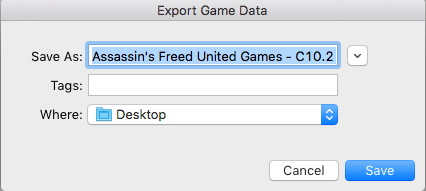
export_game_data_and_untitled_-_assassins_freed_united_games_c10_1_bvc_7_-_android

You may need to tweak the name. Spaces and dashes are fine, but colons and slashes may cause it to refuse to save.

Using the defaults, it created “Assassin’s Freed United Games – C10.2 – BVC 7.unitypackage” on my desktop.

[DO WE WANT PEOPLE TO SAVE THIS INTO DROPBOX?]

Production team agreed that it is better if the data exported from the old project folder will be uploaded in the corporate dropbox.

The folder for these packages is called 9-App Asset Packages.

All the assets for the game should be in this neat little unity package.
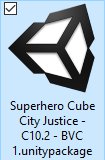
screenshot_110316_105248_am

Tada! Everything that we need from that game, in one tidy import file.

For X code Games – refer to this link

(you need to do these steps first before importing the data from the exporter.)

Don’t forget to export the player skin from the old project and import it on your C16.4 project.

(Find for the SteveArmy material [Assets>_Models>_Weapons>BlockGuns>Materials>SteveArmy.mat], click on the texture applied for you to find your player skin)

Import the new prefabs first before importing the data from an X code game.

Import The Game Data

Wait! Stop the presses. Didn’t we just import?

Yes, yes, we did. We imported assets into Unity.

Now, we will import all the enemies and game settings into our game.  It is confusing that they use the same name — if you have a better term, contact your friendly neighbourhood dev team.

It is not a bad practice to clear the messages in the console before beginning. Find your console window (Window -> Console, from the menu) and hit the clear button.
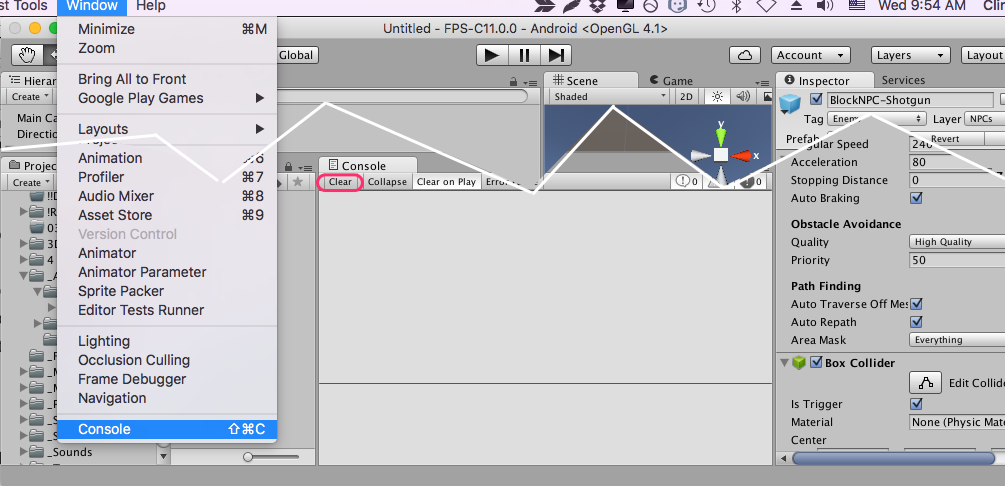
clear_the_console

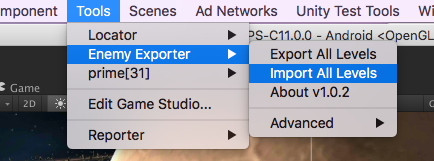
Now, go to Tools -> Enemy Exporter -> Import All Levels to kick off the process.
tools_and_menubar

You’ll get a nice progress bar to show you what is happening.

importing_levels_and_c16_assets_unity_-_fps-c11_0_0_-_android__opengl_4_1_

Woohoo! This process just save you six hours of mind-numbing work!

If other prefabs are missing please refer to the C16.2.2 process for troubleshooting missing prefabs. 

Rename the Exported Data Folder

Your game relies on the data in the “Assets/! Enemy Exporter Data !” folder, but you can’t leave it named like that, or you won’t be able to export from this project when it is time to update to “C37 now with added awesomeness”.

Therefore, rename the folder. Your hair is too valuable to lose!

level6_unity_-_fps-c11_0_0_-_android__opengl_4_1__and_screen_shot_2016-10-07_at_4_37_51_pm_png

I renamed it to “! Data for Assassin’s Freed”

I’ll refer to it as ‘your import folder’ from here on.

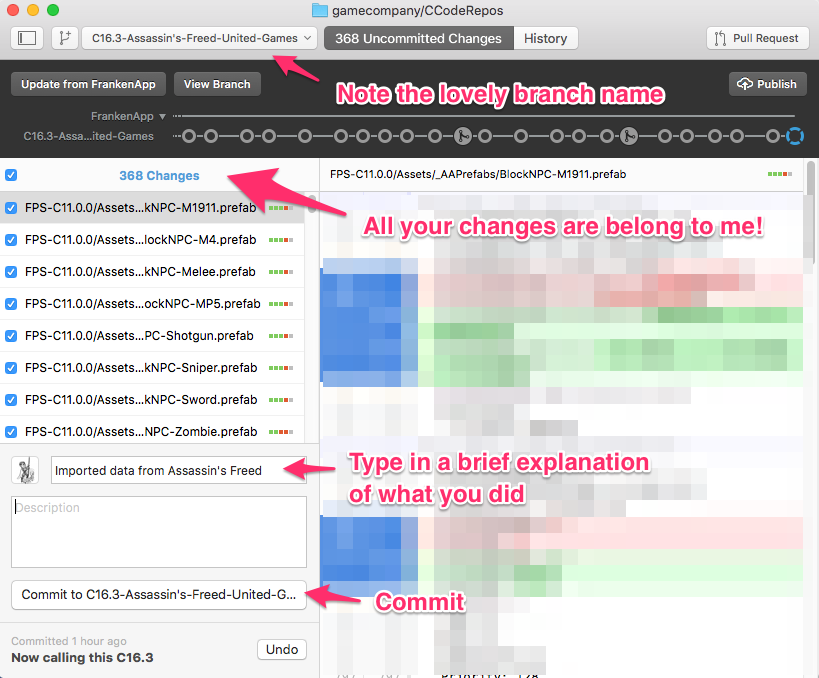
Save it to Version Control

You’ve done some great work. Save it – ’cause, hair loss!
gamecompany_ccoderepos

You may optionally ‘Publish’ and ‘Sync’. (You will need to do that later).

Additional steps to be done:

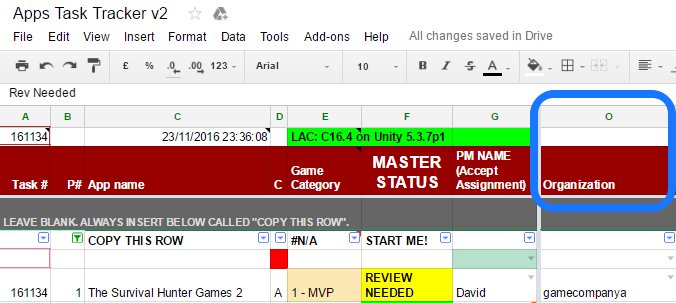
You can find the game organization at : Apps Task Tracker – Column O
screenshot_112416_051404_pm

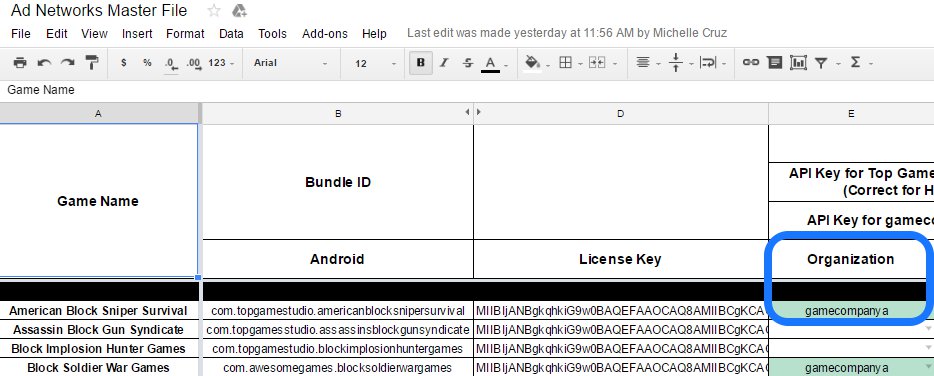
Or the Ad Networks Master File – Column E
screenshot_112416_051617_pm

  • Import proper pause menu games package for the correct organization. (refer to this link – C16.4 Pause Menu Packages)
  • Link Unity services. (log in to correct company, link to correct organization, turn off Unity Ads) (refer to this link – Linking the game in Unity services)
  • Setup Soomla Key. (refer to this link – Soomla key is on column D of this spreadsheet)
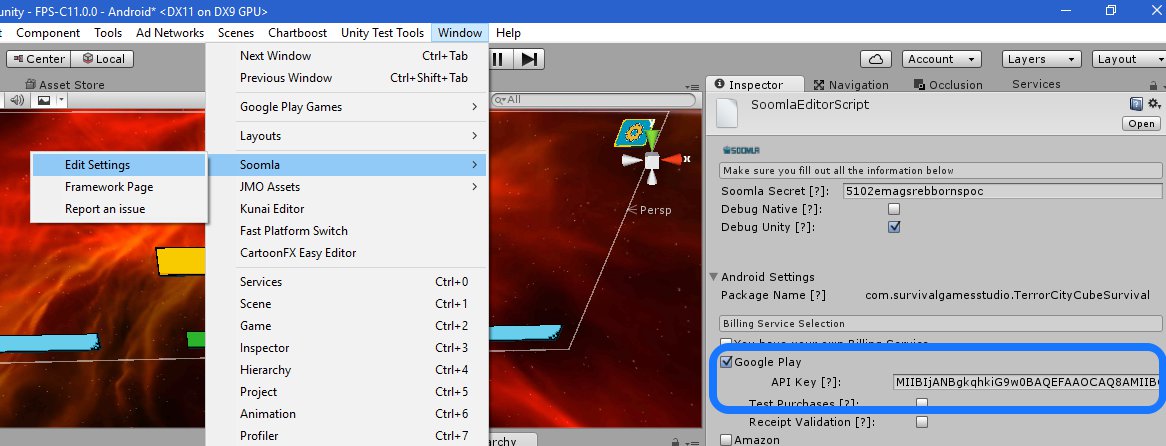
screenshot_112416_065059_pm

  • Get the latest icon. (refer to this link – Current icon is on column K of this sheet) Please disregard any instructions related to Heyzap Mediation.
  • Setup Time Manager. DON’T FORGET TO HIT APPLY! (Note that enemies from enemy manager of each level is the correct enemy count, which should be the same count indicated on your Time Manager.)
  • Setup Leaderboards script. Don’t forget to click SETUP. (refer to this link for additional ways to setup your leaderboards script – Leaderboard settings)
  • SAVE, COMMIT, SYNC/PUBLISH.

Export the Data and Upload

Export data from new project and upload it on corporate dropbox. (refer to this link for this last step – Export the Data)

HOLD YOUR HORSES!

Before sending an APK for approval, check the logo scene and see if the reporter game object is enabled.

If it is, disable it or remove it on the scene, and then build your apk.
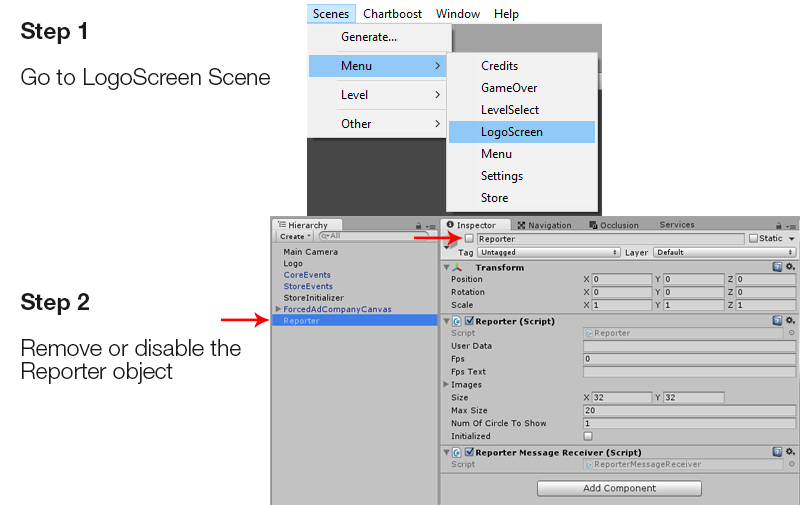
reporter-disable

Send APK for Approval

Follow the format for Approval email. Attach link of the spreadsheet of your game for the Ten Slot Ad Settings and transfer ownership to Top Cube Games (gamecompanya@gmail.com). If ownership is not transferred, the game will not be approved.
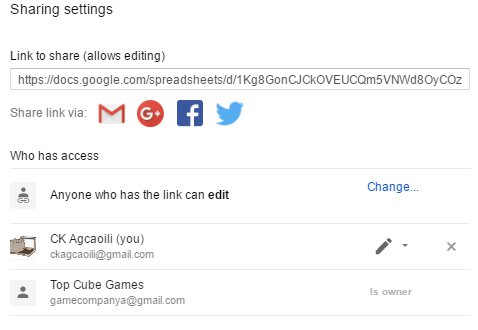
screenshot_111816_093435_pm

Balancing the game

After your game is published, you should check the game a day after it was published in Unity analytics after the update. Monitor and balance death and ammo watches based on analytics if needed.

Main factor for balancing are:

  1. Ammo pick ups for a level.
  2. Health packs for a level.
  3. HP of the NPCs.
  4. Number of enemies in a level.

Any questions or suggestions regarding this process, please do not hesitate to contact Production Team.

Create A New Project In GitHub

This post explains how to get a new team project on github.

First, log in to github with the company account (or, get someone with the password to do the first few steps for you 🙂

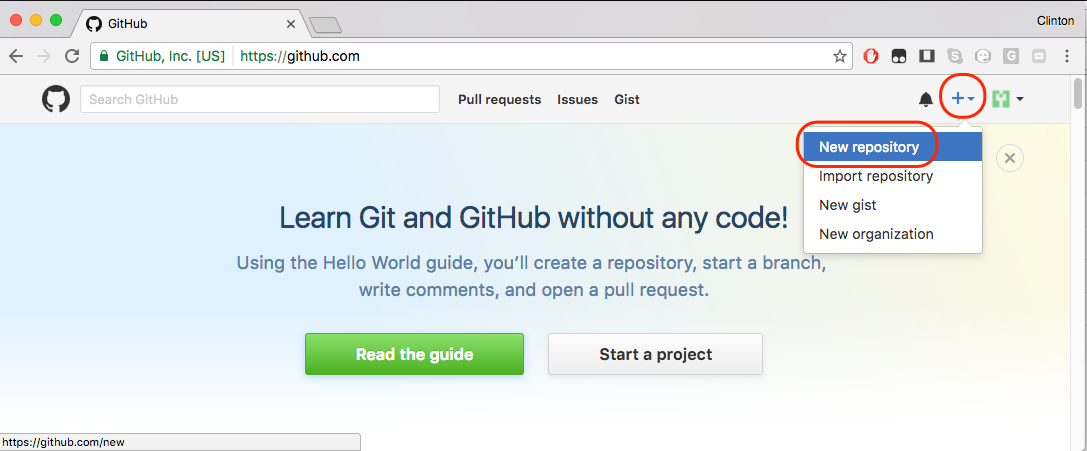
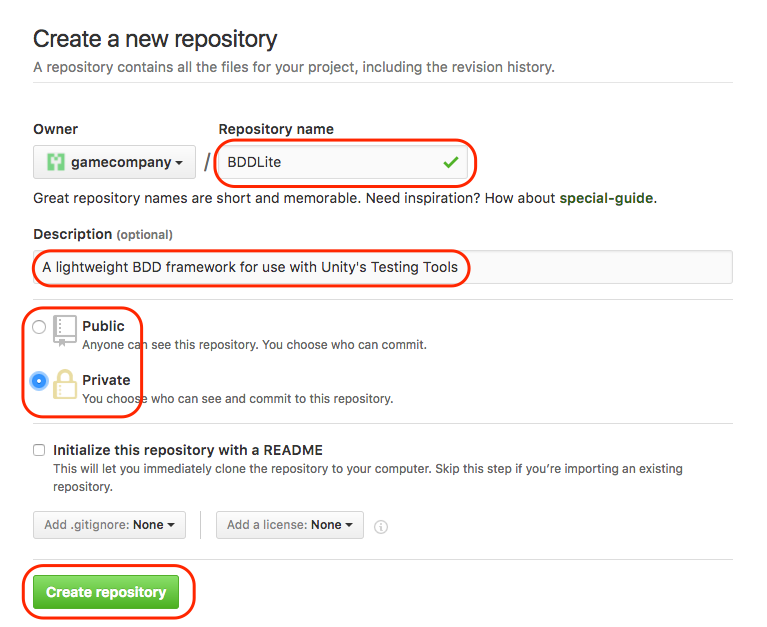
Click on the “+” button and create a new repository.

1_git_-_create_new_repo

Set the name of the repo and a shot description. Mark it as private and create it.

2__info_on_new_repo

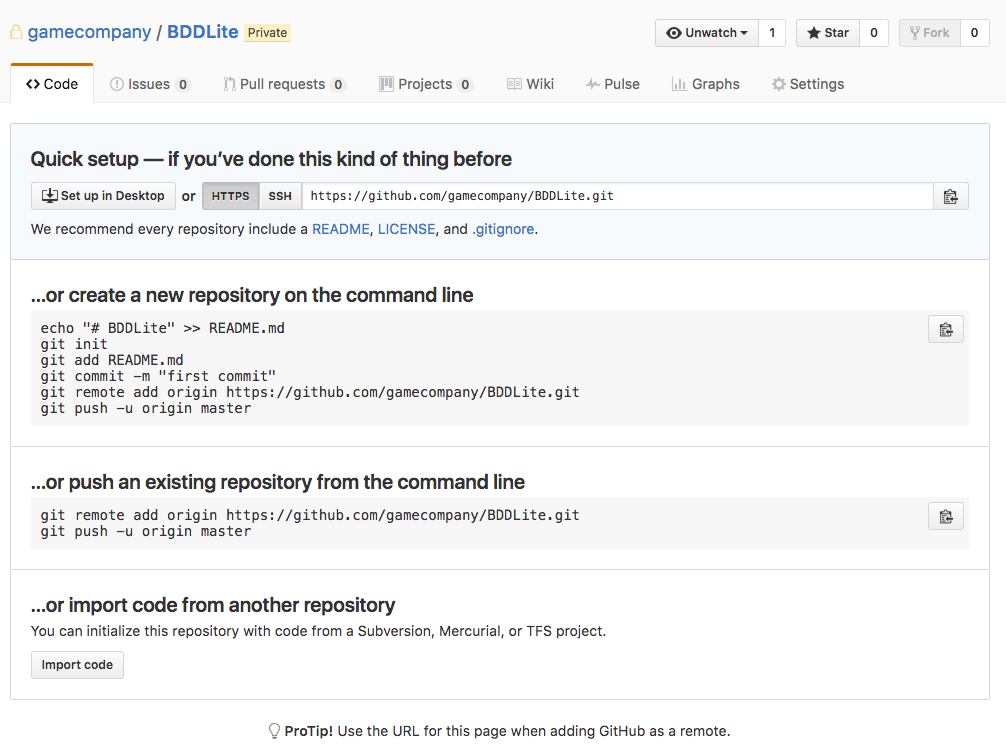
You’ll get a nice page with instructions on setting it up, but you can’t do that yet …

3__quick_setup_page

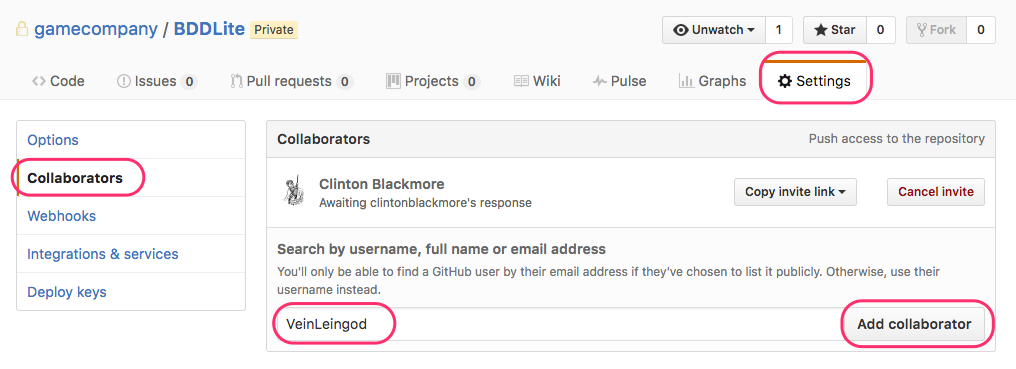
Click on Settings, and then Collaborators, and add accounts for the people who’ll actually work on the project.

4__add_collaborators

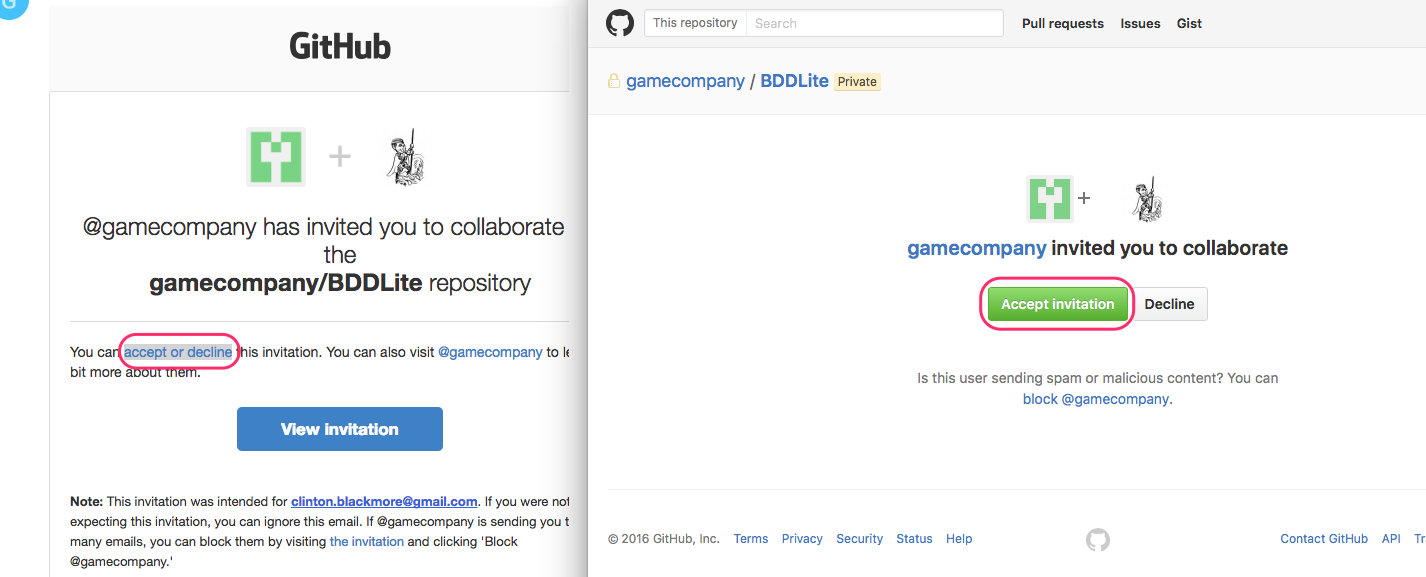
That person will get an e-mail invitation to accept.

5__accept_invitation

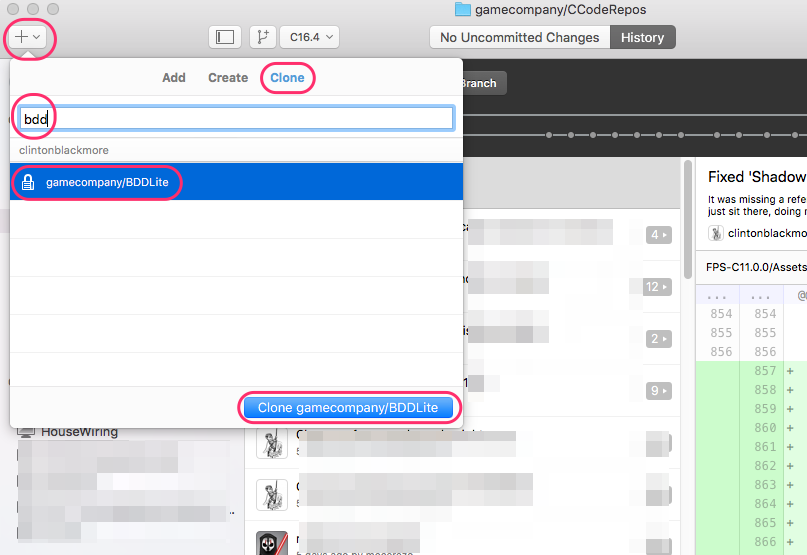
After they’ve accepted, and perhaps after waiting a few minutes, they can fire up GitHub Desktop, and clone the project.

6__clone_repo

They’ll be asked where to save the project on their hard drive.

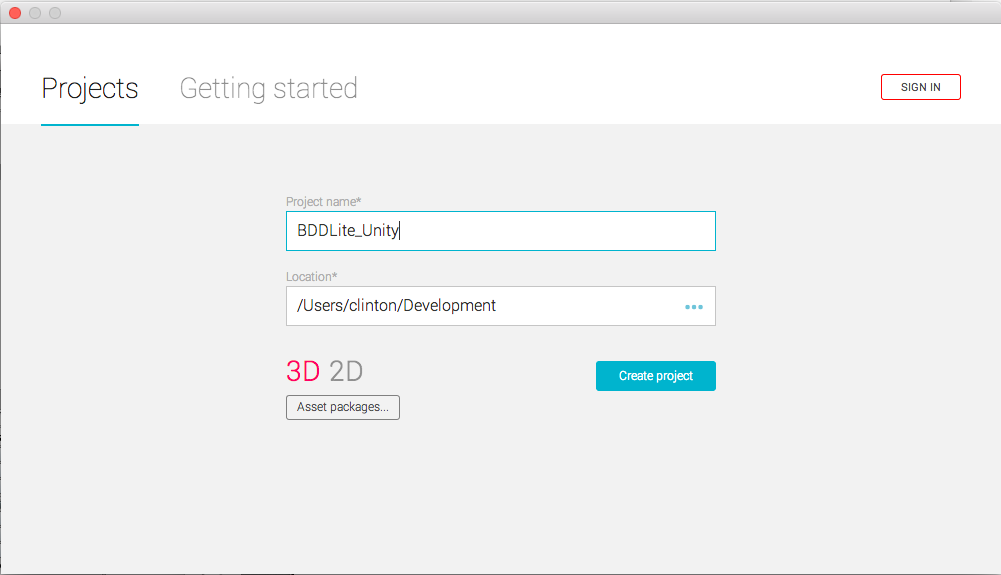
Then, they need to create the project in Unity. Unfortunately, they can’t use the same directory; Unity will complain a project already exists there. So, create a new directory.

7__create_new_unity_project

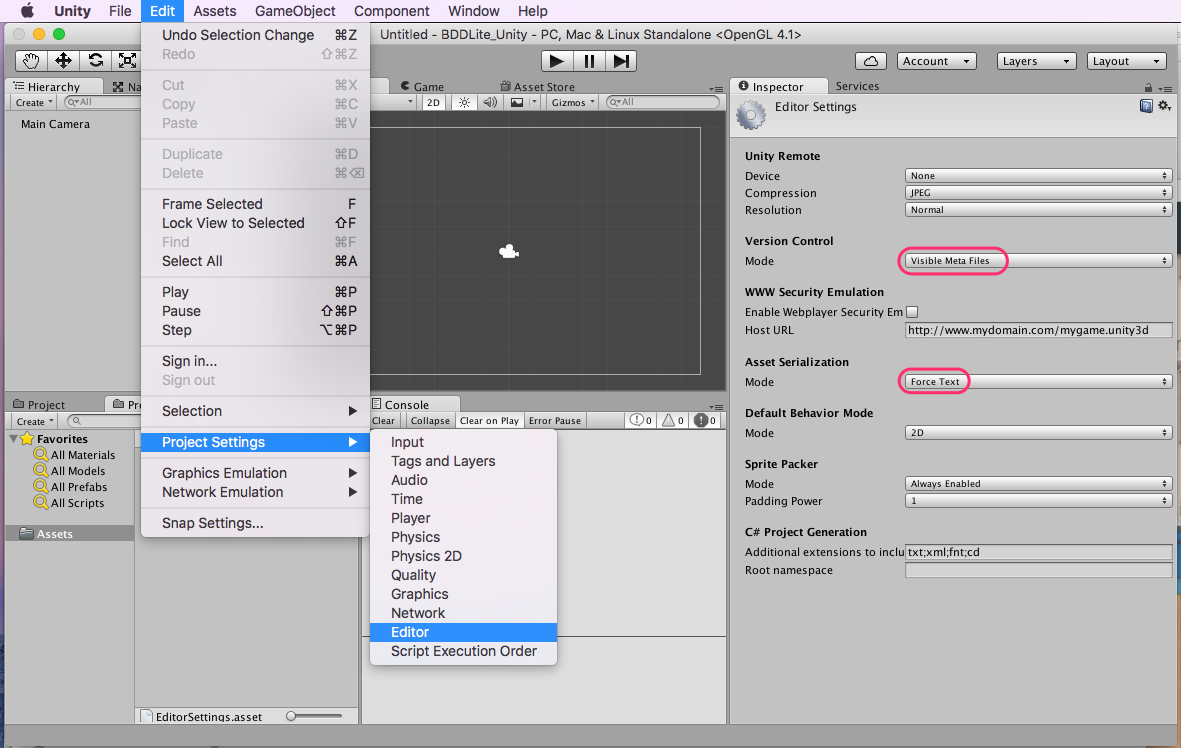
Then, set up Unity right for use with external version control. Go to Edit -> Project Settings -> Editor, and turn on Visible Meta Files and Force Text Mode for asset serialization.

8__set_up_project_for_version_control

Quit Unity.

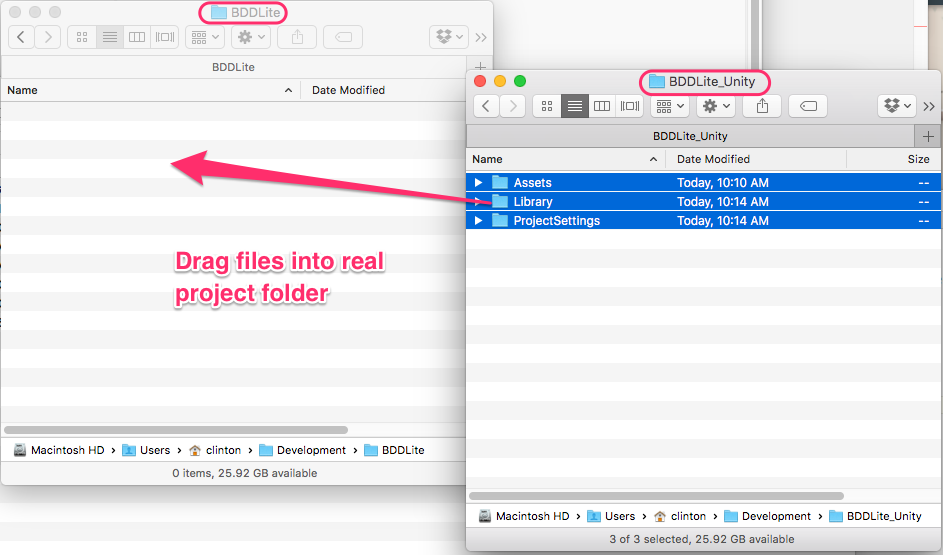
Go to your file manager, and copy all the files and folders Unity just created into the proper folder that is in version control.

9__drag_files_into_real_folder

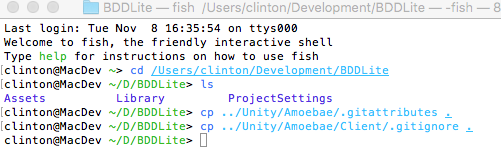
Finally, you need to create a .gitignore and a .gitattributes folder. The ‘.’ in front of the name hides the file on Unix-like systems (including the Mac), which makes them a little tricky to copy. Here I’m grabbing them from another repo on my computer. I suggest getting them from here.

The .gitignore file tells git to ignore things like the Library folder, and build you’ve made. The .gitattributes file helps deal sanely with the line endings on text files.

10_set_gitignore_and_gitattributes

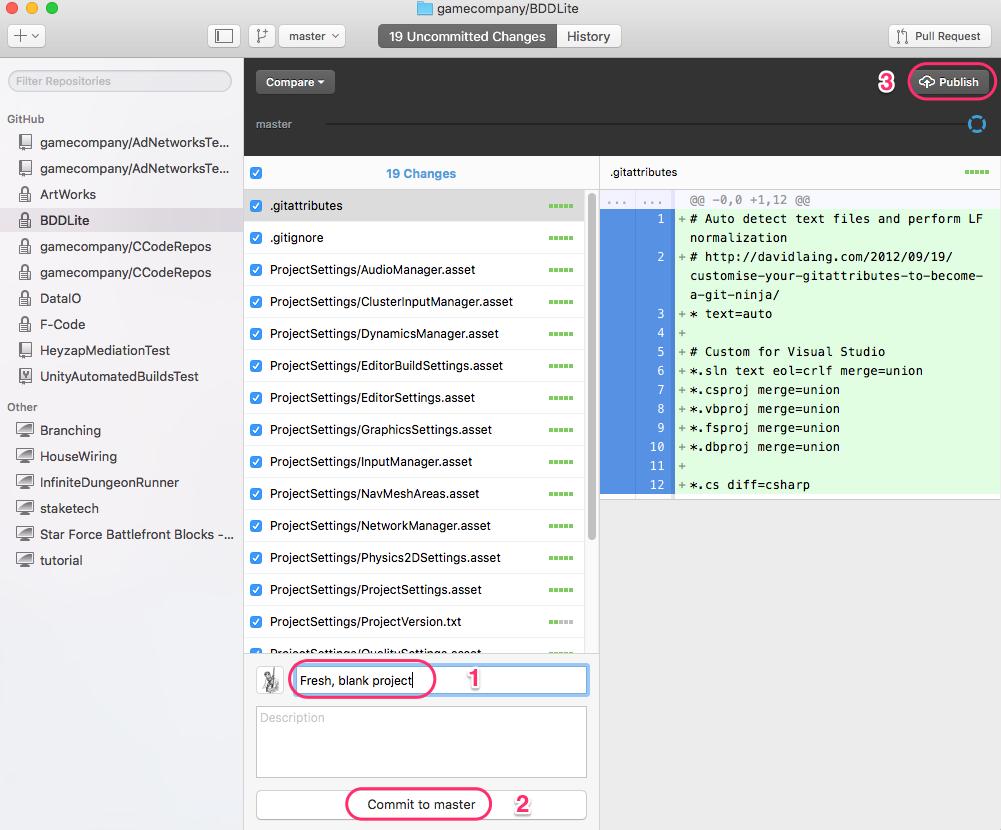
With all that done, you can make your first commit, and publish the branch, and start working on it.

11-publish-project

Updating X-Code Projects

Purpose

This document speculates about how to update X-Code projects.

Instructions

You will, of course, need an X-Code project to update, and I assume you’ll be following most of the steps for doing a C16.2.2 update using the Enemy Exporter. You’ll also need to know which branch you are updating to — I’d go with C16.4 at the time of writing.

It is unclear to me how you’ll get all the new prefabs from an X-project game to the C-code. I’m sure Michelle has a good idea, and will ask her.

Level Prep

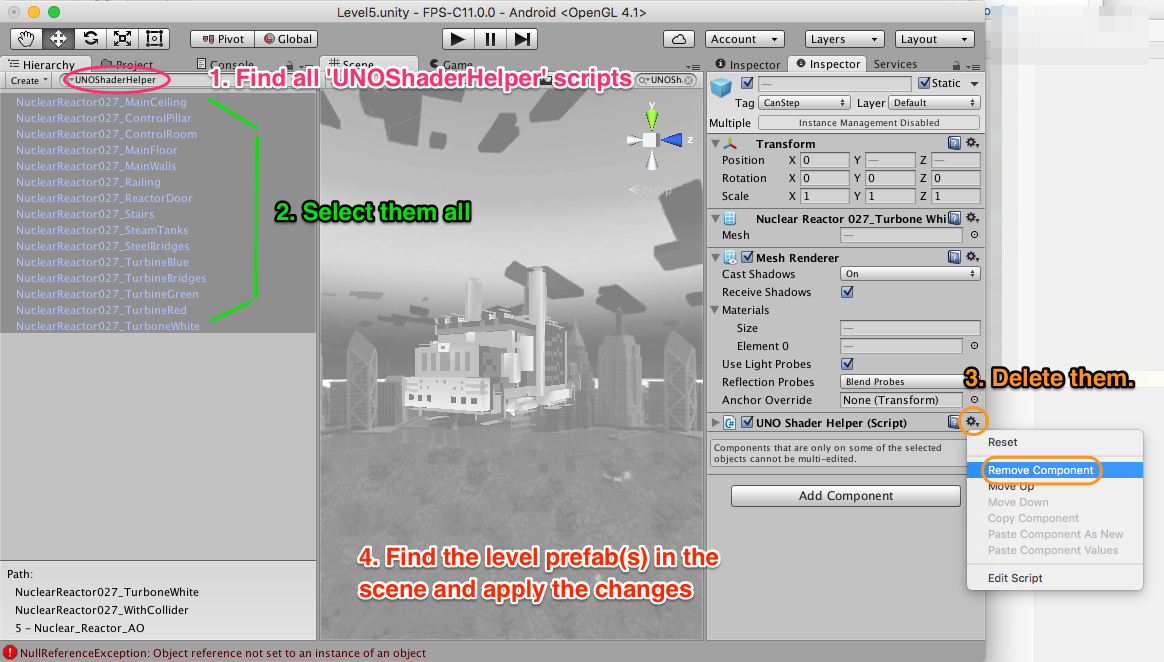
Before doing the export, you’ll want to prep your levels. A lot of them look beautiful because of a new shader, but it left scripts on the geometry objects (which aren’t needed any more) that will prevent the levels from exporting. Save yourself some effort; open each level and:

remove_scripts_before_exporting

  1. Search the heirarchy for UNOShaderHelper. It’ll highlight all game objects that have this script on them.
  2. Select all the game objects with the script.
  3. Remove that component from all the objects.
  4. Then, exit your ‘find’, go to the geometry prefabs, and apply them — or, better, break the prefab connection. This’ll save them without the scripts so that they’ll export.


Setup Ads Cascade System

 Setup Vungle on Ads Cascade System

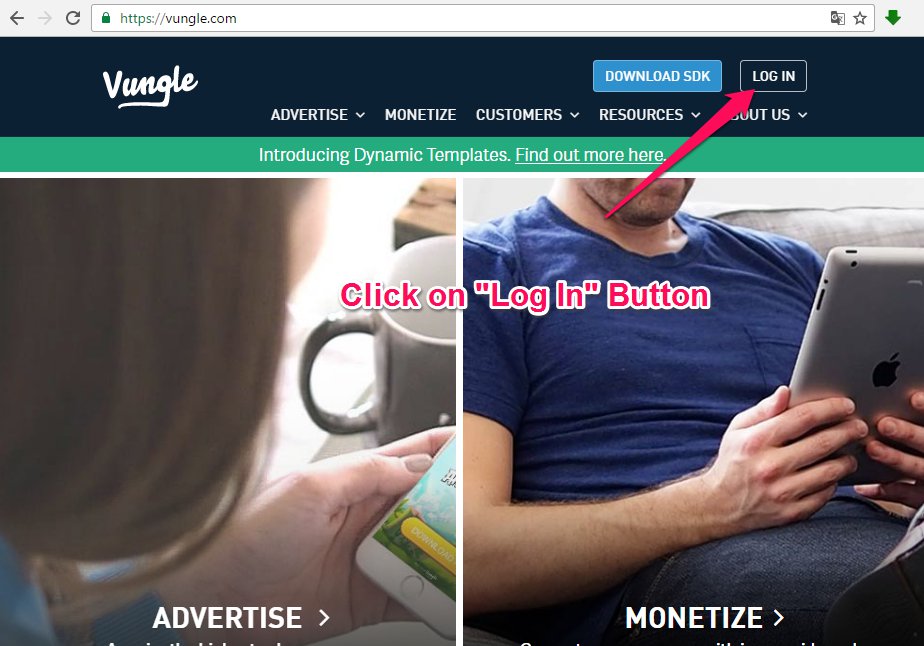
  1. Go to the Vungle website.
  2. Click on the “Log in” button.

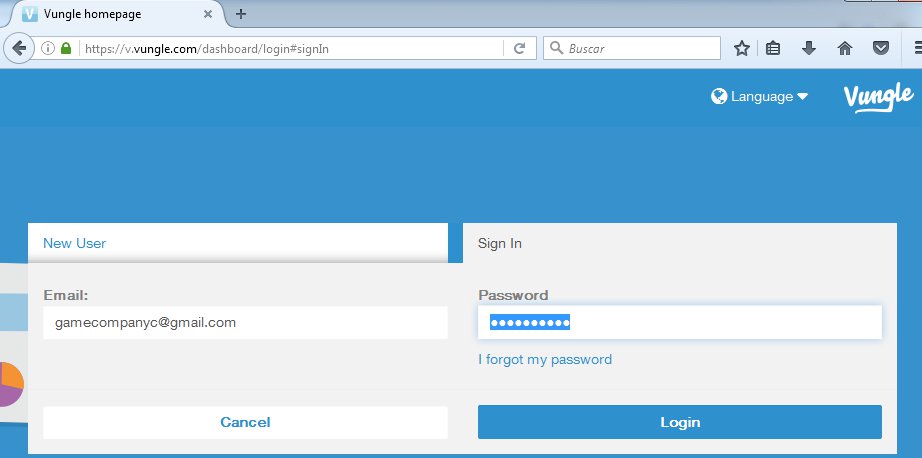
captura_de_pantalla_110416_042801_am

3. Log in with the correct game company.

captura_de_pantalla_110416_043037_am

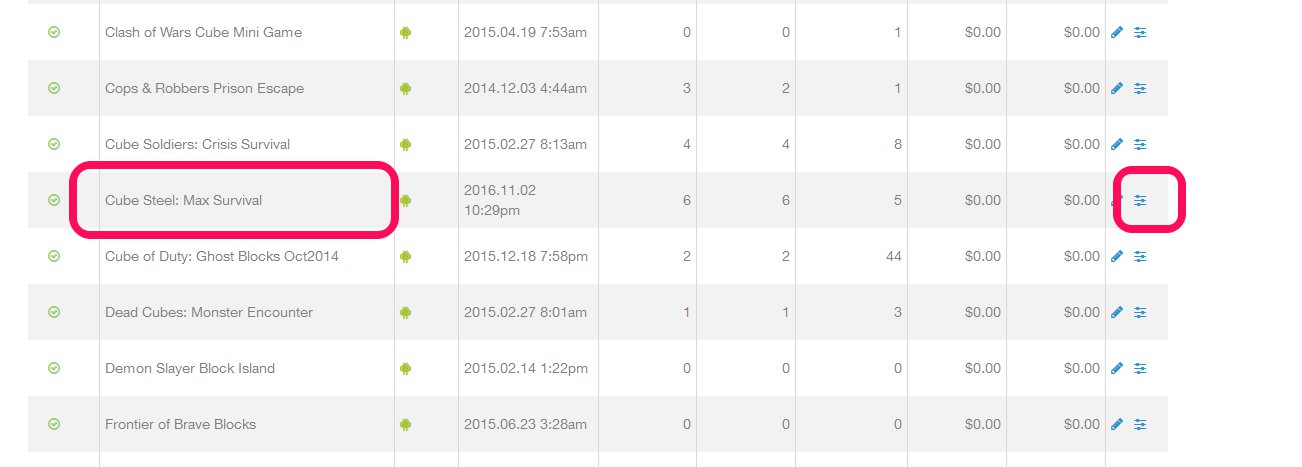
4. Find your game on the list and click on the config button.

captura_de_pantalla_110416_044343_am

If the game is not in the list, just add it with the next instructions, else go to the point 5:

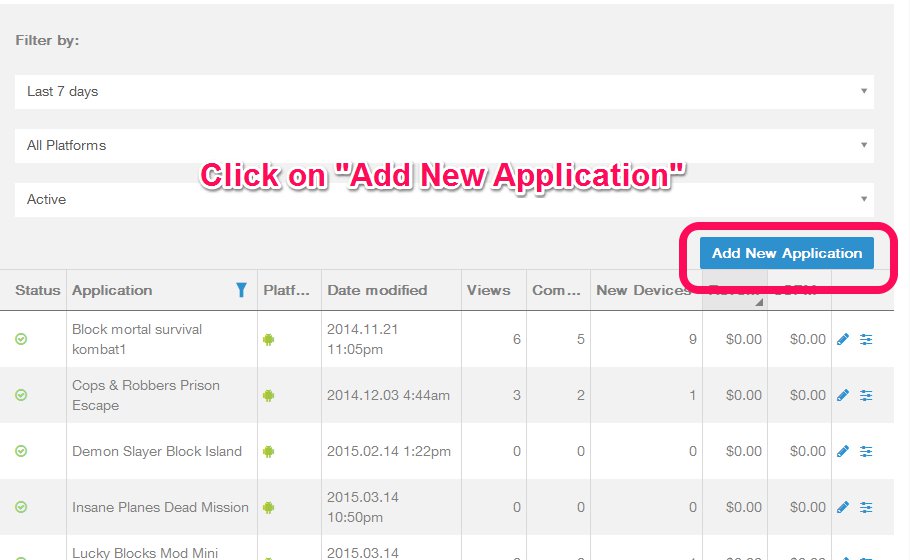
  • Click on “Add New Application” button.

captura_de_pantalla_110416_045607_am

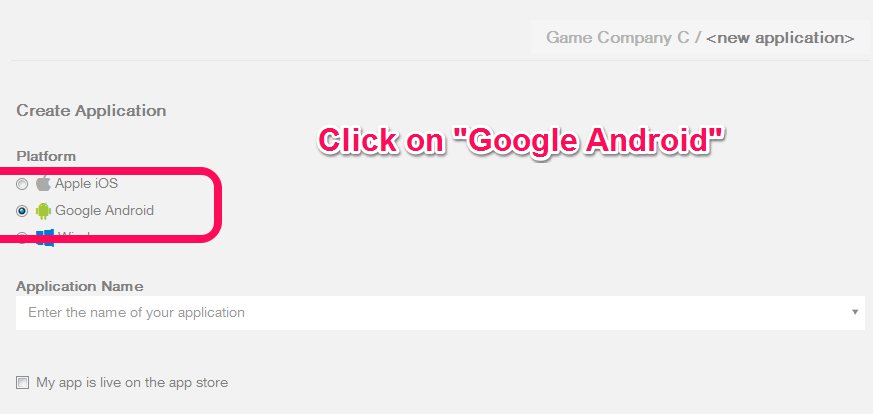
  • Click on “Google Android“.

captura_de_pantalla_110416_045845_am  

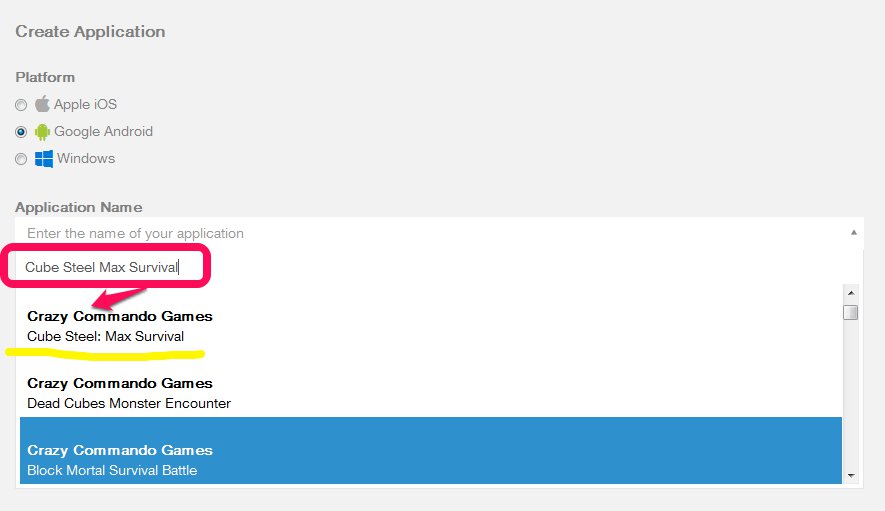
  • Enter the Game Name on the Application name Field and select the game from the list.

captura_de_pantalla_110416_050155_am

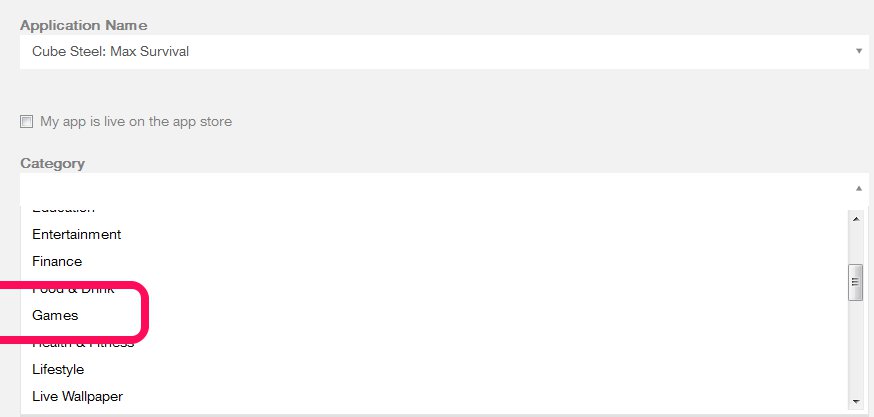
  • Select “Games” on the Category.

captura_de_pantalla_110416_050424_am

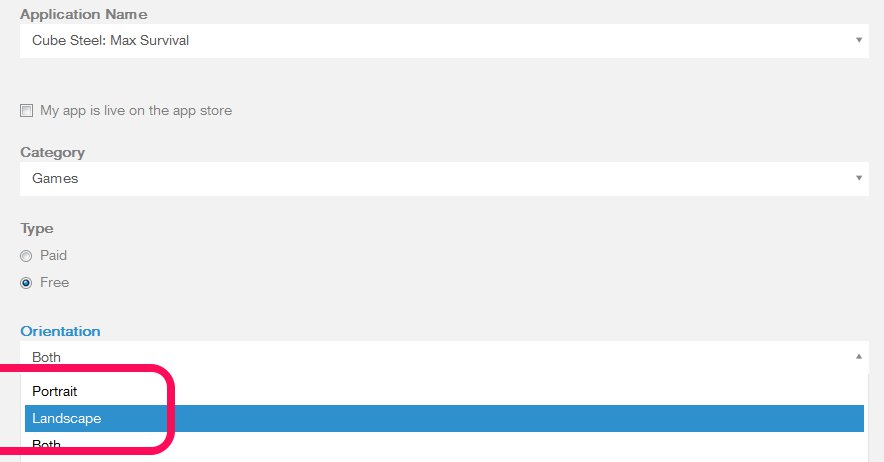
  • Select “Landscape” on the Orientation.

captura_de_pantalla_110416_050602_am

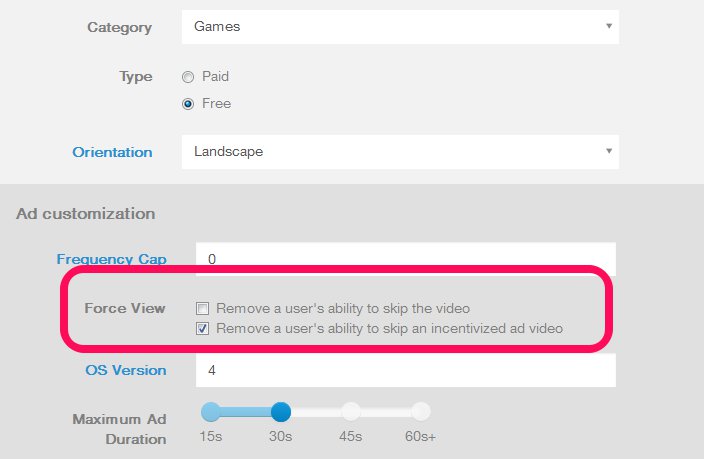
  • In the “Force View” options, be sure that “Remove a user’s ability to skip video” is unselected and “Remove a user’s ability to skip an incetivized ad video” is selected.

captura_de_pantalla_110716_041550_am

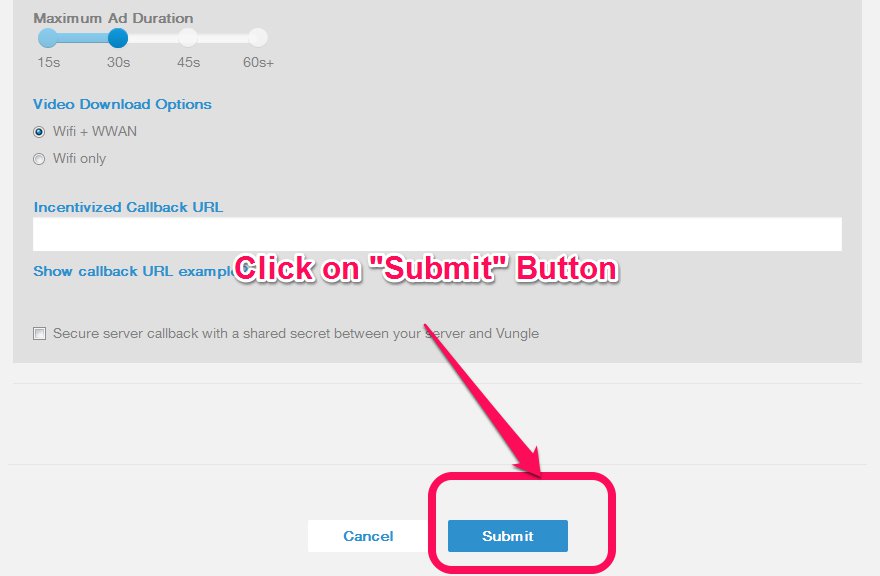
  • Click on “Submit” button.

captura_de_pantalla_110416_050750_am

  • Click on “Submit” button and go to the point 4.

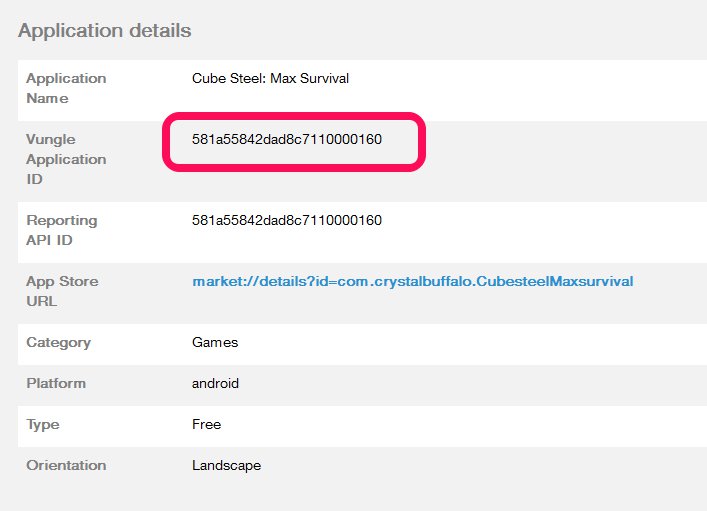
5. Copy the Application ID to the clipboard.

captura_de_pantalla_110416_044534_am

6. Go to the Unity project and click on the “Ad Networks” Menu ->Vungle -> edit settings.

captura_sin_titulo_110416_044802_am

7.  The settings for the Vungle Ad Network will appear on the Inspector Tab, copy the Application ID to the ID Field.

captura_sin_titulo_110416_045115_am

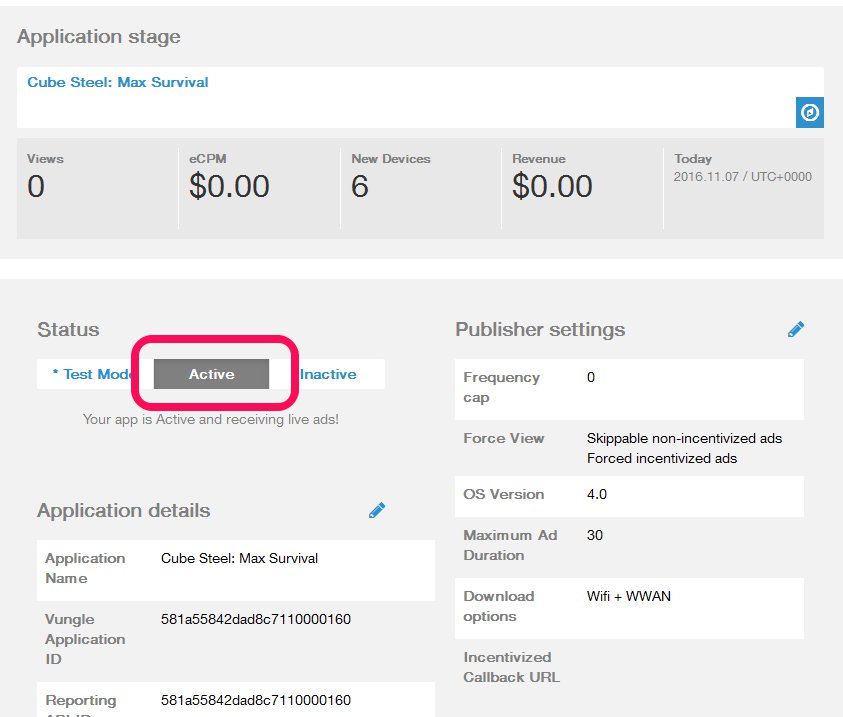
8.  Be sure that the Status is set on “Active.

captura_de_pantalla_110716_114346_am

9. Save your project.