Magas and I built a spreadsheet to allow you to quickly compare Herby data to App Annie data. Here’s a link, and there’s a downloadable version above that you could upload to google docs.
Zoomed way out, the spreadsheet looks like this:
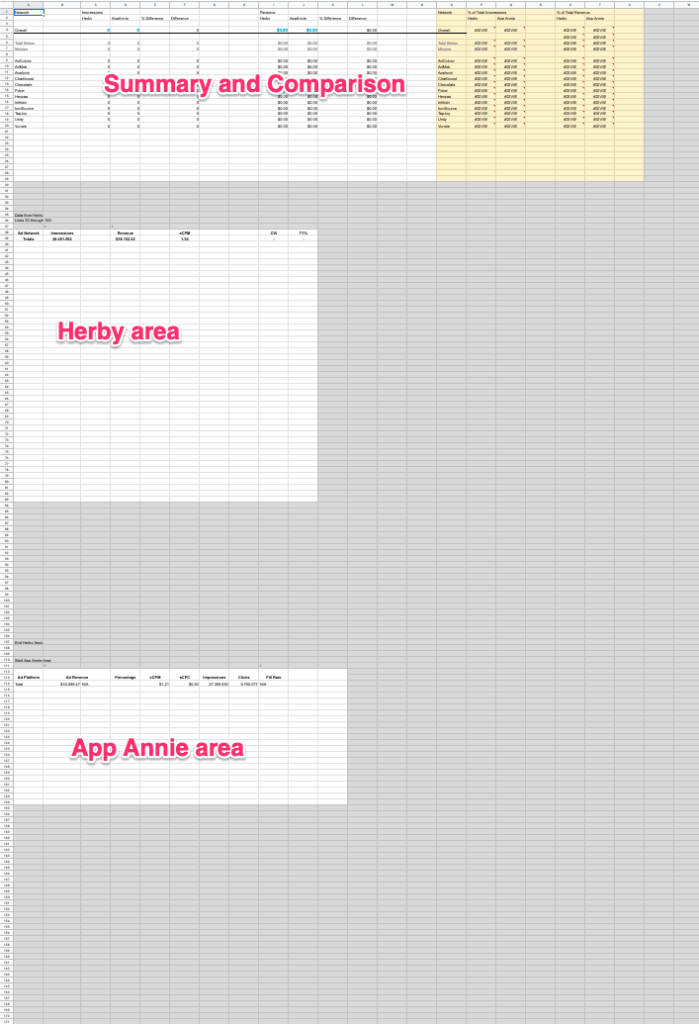
At the top is a summary area, in the middle is an area for the Herby data, and at the bottom is a summary.
- Make a copy of the spreadsheet.
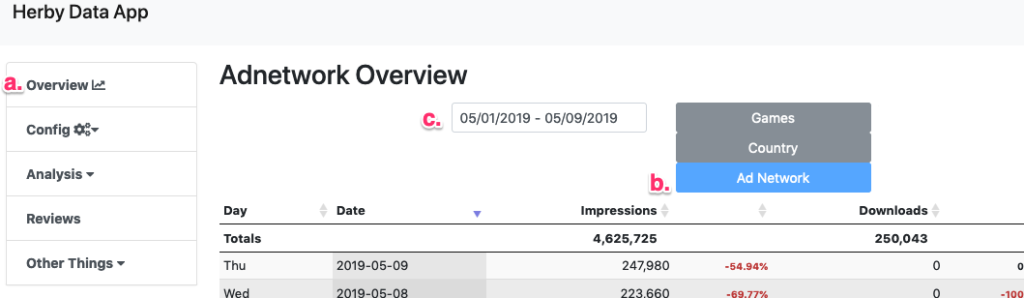
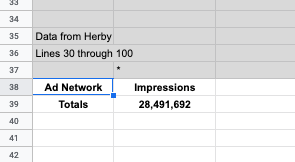
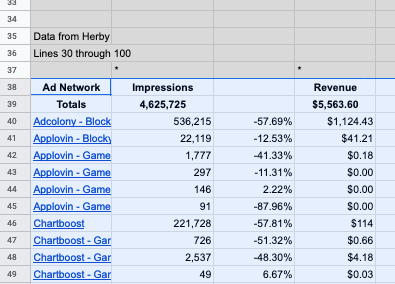
- Now, go to Herby, to the (a) overview (although there’s no reason you couldn’t specify any specific game), then (b) choose the breakdown by ad network. (Link). Set your (c) date range.
3. Optionally, sort by ad network, then highlight all the data in the table (I like to start at the bottom right), and copy it.
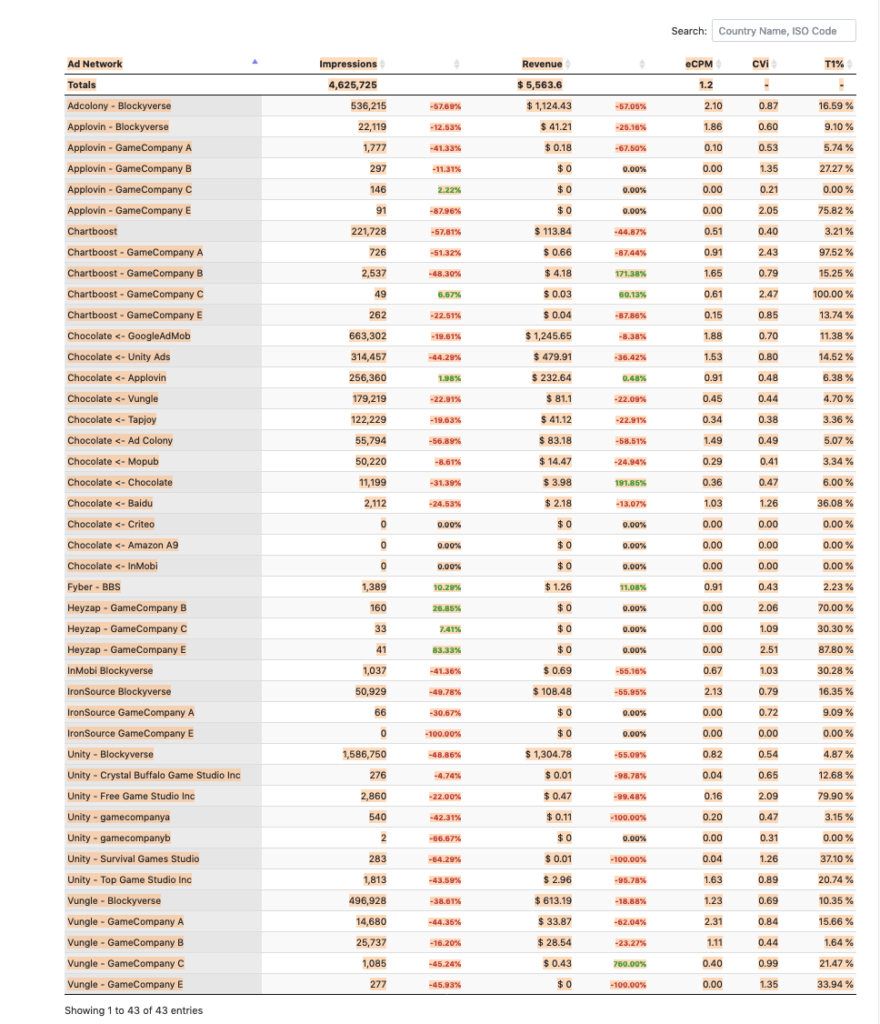
4. Paste the data into the spreadsheet, putting the headings on top of the matching headings in the Herby area.
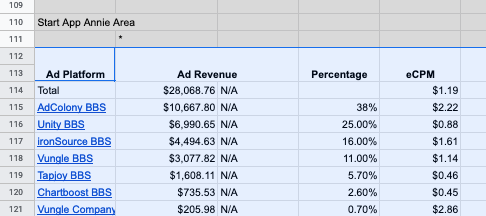
6. Go to App Annie, and click on Ad Revenue. (Link) Set the date range of interest.
7. Select all the data in the table here, and copy it.
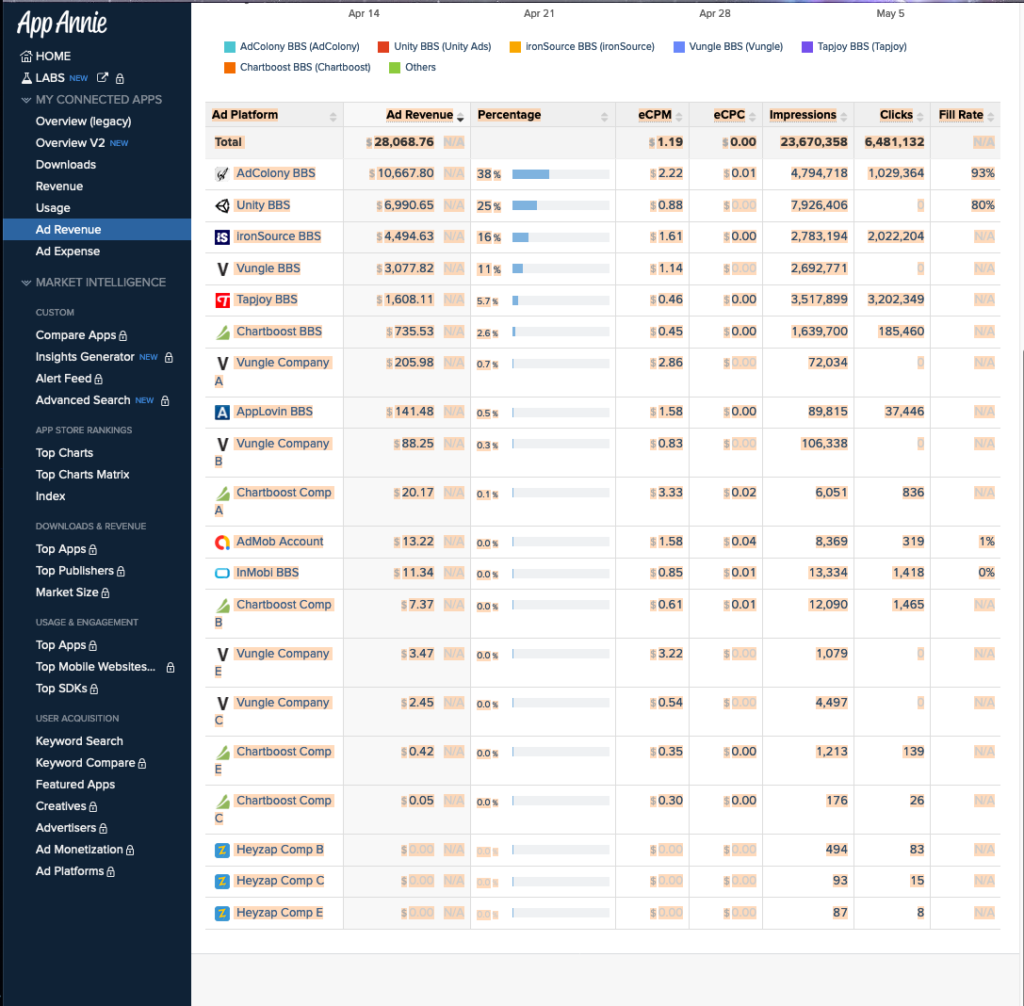
8. Now paste the data into the App Annie area.
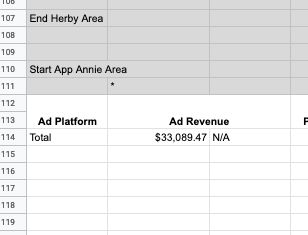
9. Lastly, scroll up to the top and check that things worked nicely.
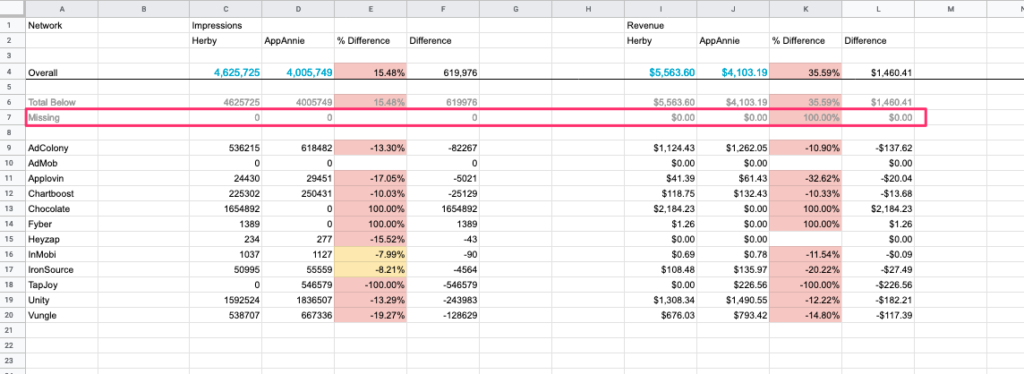
On line 4 is ‘Overall’ which totals the numbers from the Herby and App Annie areas. Lines 9 through 20 specify the ad network to be summarized — ex. every line that starts with ‘Vungle’ in the data below will be added up and summarized on the line 20, as it starts with Vungle.
On line 6 is ‘total below’. This is the sum of all of the summaries.
Line 7, ‘missing’, is the one you need to check. It is the grand total minus the total below, and should be 0. If it is not, something is wrong (like, for example, there is a new ad network that isn’t being summarized.)
10. Enjoy your nice, clean comparison results.
Bonus: How does this work?
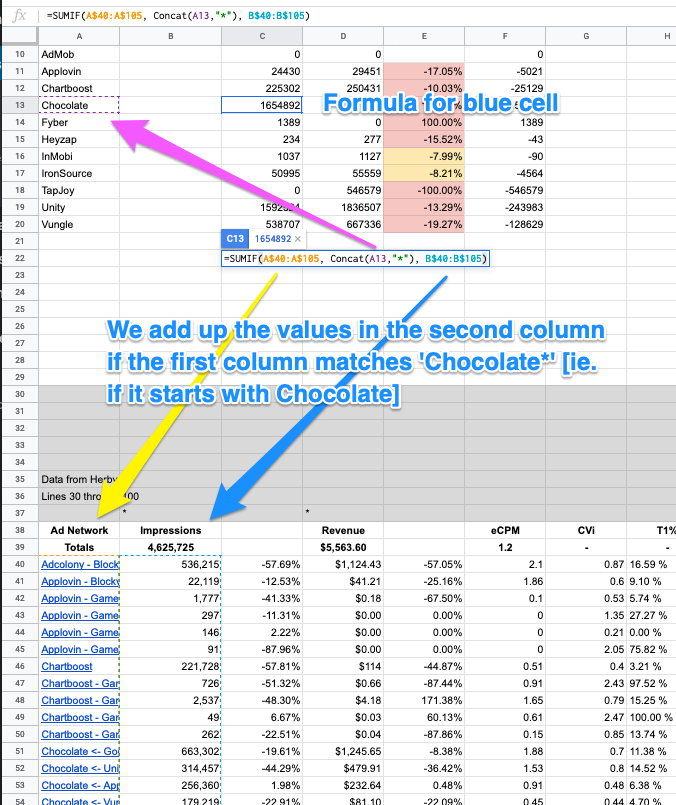
The key formula is
=SUMIF(A$40:A$105, Concat(A13,”*”), B$40:B$105)