Putting a C10.2 Game In Version Control

NOTE

See this page, on updating to use Heyzap mediation. That process is much simpler than the one outlined here.

Purpose

This article outlines how to go from having a PF (a “Project Folder”) for a game to putting it into version control

Applicability

This is for both developers and people in production — anyone asked to get a game into version control.

NOTE

This is a work in progress.

Written Instructions

To get a game into version control, you’ll need:

  • The latest Project Folder of the game (probably a C10.2 version)
  • GitHub desktop (or equivalent) installed and working, and access to CCodeRepos
  • To know what the BVC of the published game is
  • You’ll also need Unity 5.0 and Unity 5.3

Open up GitHub desktop, and sync up to the “Approved Version” branch.  [Note: we may want to do this from the “C10.2” branch instead.] Create a new branch off of it with the game name (ex. Survival Hungry Games 2). You will automatically be taken to the new branch.
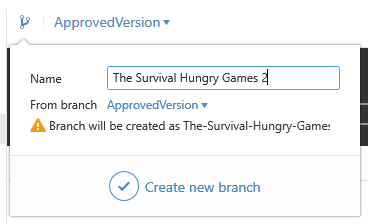
Create a branch off of the Approved Version

Setting the Name, Icon, and Bundle Version Code

Open up your project from version control in Unity 5.3, and open up the old version in Unity 5.0.  [NOTE: Do not open up the old game in the new version of Unity! It’ll take forever to import and will not get you closer to being done.]

Open up the Player Settings in both versions of Unity.
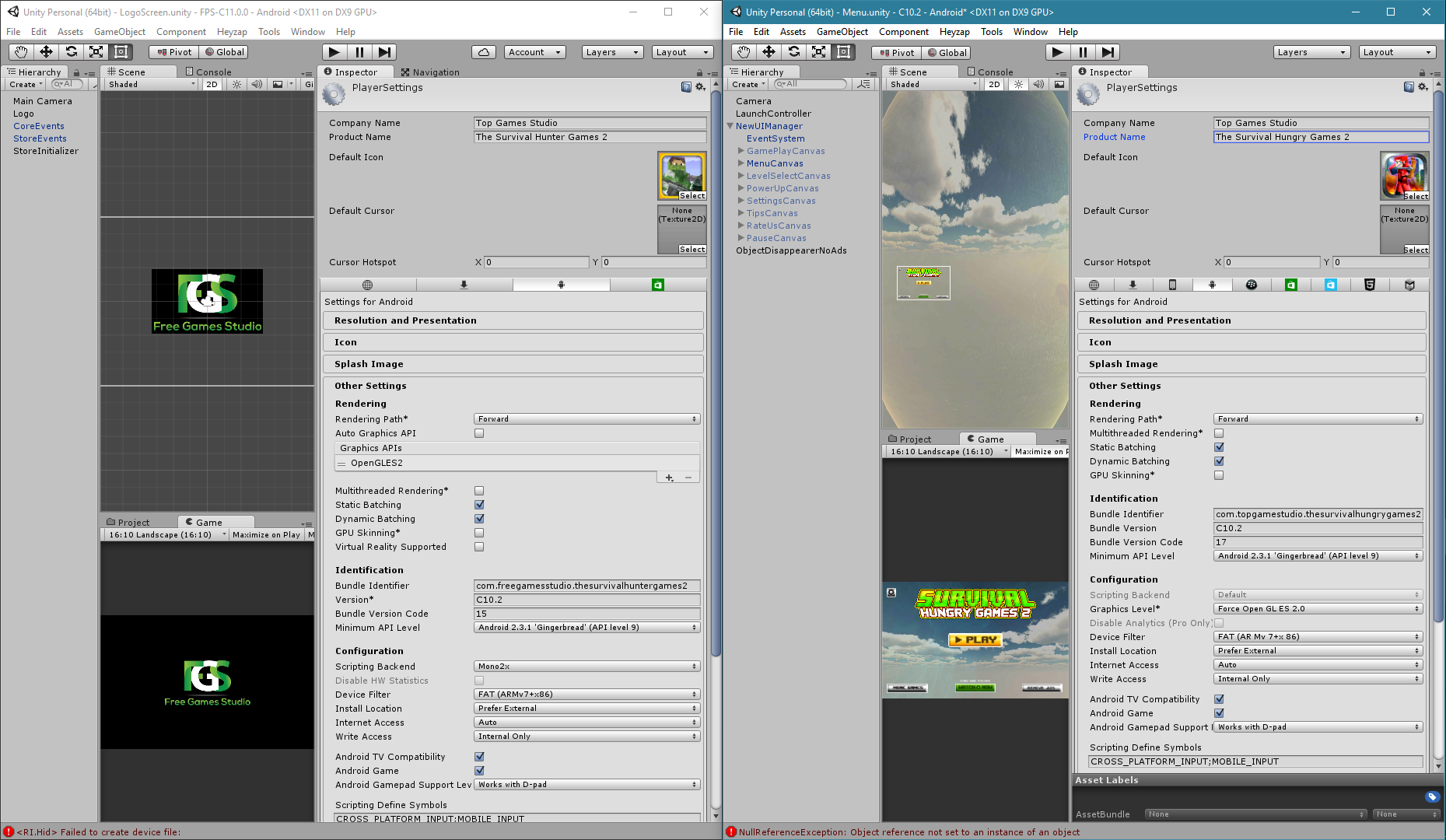
Player settings in both versions of Unity. (Old one is on the right).

Copy over the Company Name and Product Name.

Copy over the Bundle Identifier.

If the old version is C10.2, the new version is C14.2. [See article on version numbers].

Set the BVC to the BVC of the live game in the store. [How to get the BVC].

Get the Icon

In the player settings on the old version, click on the image of the icon (but not on the select button). It’ll show you where the icon file is.
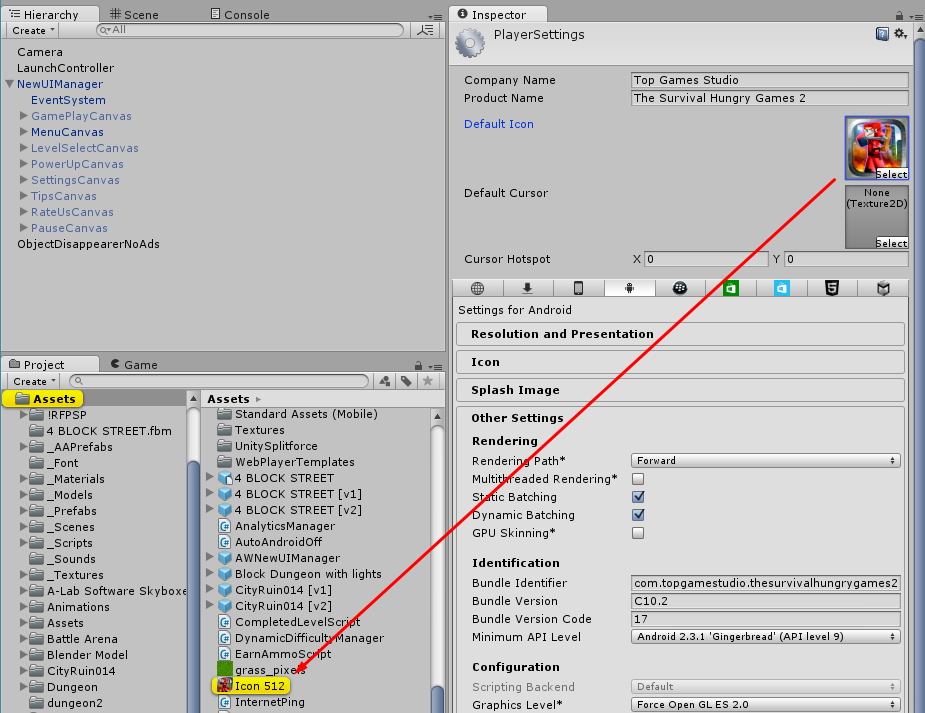
Click on icon to find its file location

Copy the file to the new project, and set it as the icon there.  [It may change the name to Icon 513! You might want to delete the old Icon 512 and rename this to be Icon 512]

Save the new project (File -> Save Project) and commit it to version control, perhaps with a message like “Brought over BVC and Icon”.

Copying The Levels

What we are going to do is make new copies of the scenes that only contain things specific to the scenes; the level geometry.  All of the interactive things — the player, the ammo pickups, the enemies — will be removed.  [Particle effects may require additional work later.]  The level geometry (and random cubes and such should be left in the scene) so that we can later export all the textures and models and such it relies on.

For each level in the old version (level 1 – 6),

  1. Open up the level.
  2. Figure out everything that is level geometry. Select is in the inspector, and turn it off — make sure you get it all turned off; this way you’ll know that you’ve got it.
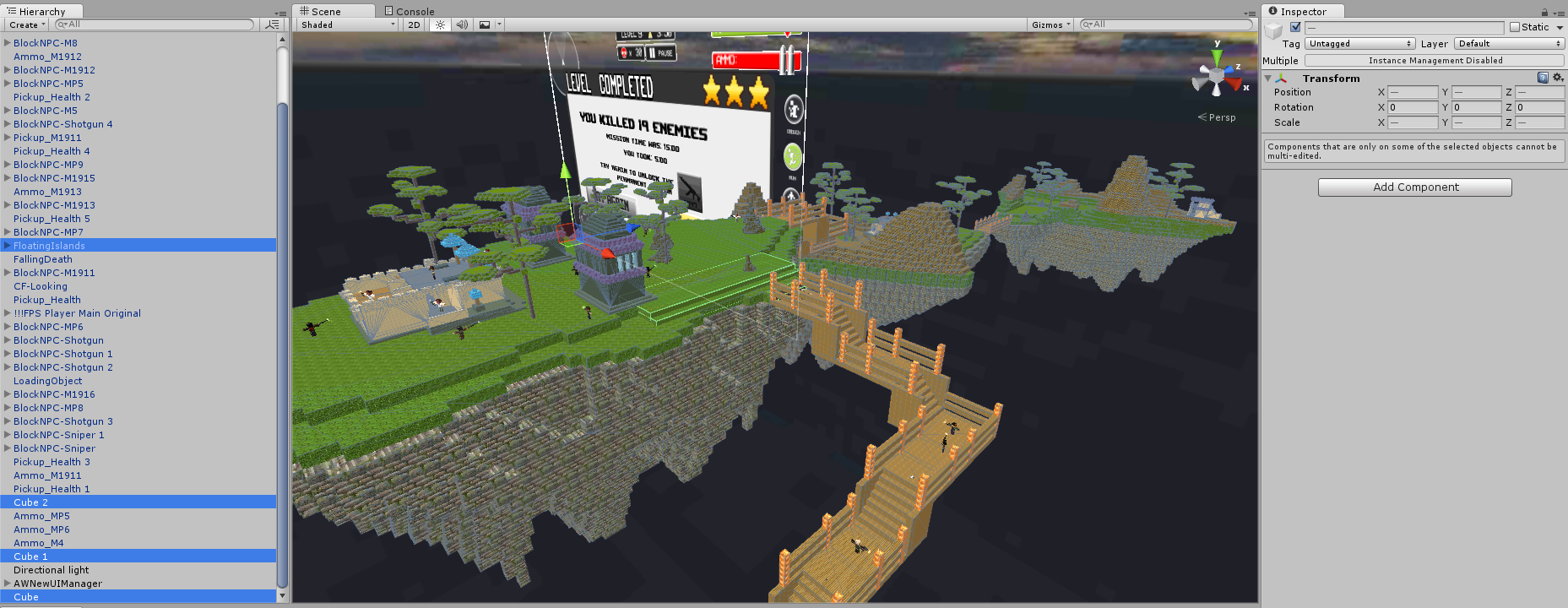
    Figure out what is scene geometry
    Figure out what is scene geometry
  3. Now, select everything in the scene, and unselect the ones you want to save. Delete it all.
  4. Now, go File -> Save Scene As… and save it Level{X}Stripped [where {X} is your level number.]

After you’ve done that for each level, select all six Level{X}Stripped scenes in the project, and choose Asset -> Export Package.  You’ll want to export it with all the dependancies.

If you see tons of files — especially lots of scripts — then you’re levels haven’t been stripped properly.  You’ll want to try exporting them one at a time — don’t actually do the export, just see what it would export — to find the level that is the problem.  The package should contain materials and models and textures, not much by way of code.
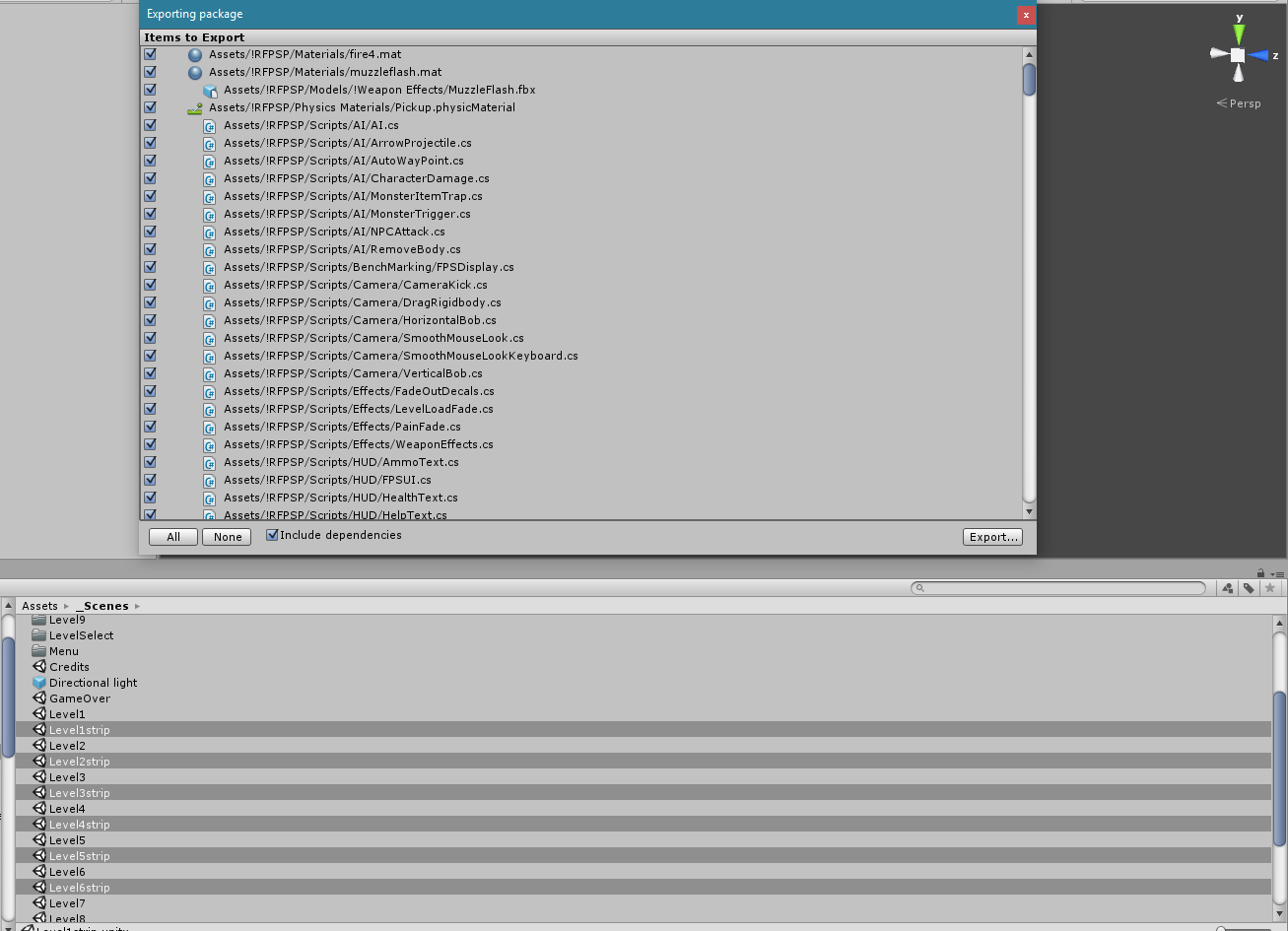
Stripping fail! Go back and do it right!

When you have things properly stripped, export your package (“stipped levels” maybe?) and import it into the new project.  Don’t import the stripped level files, but do import everything else.
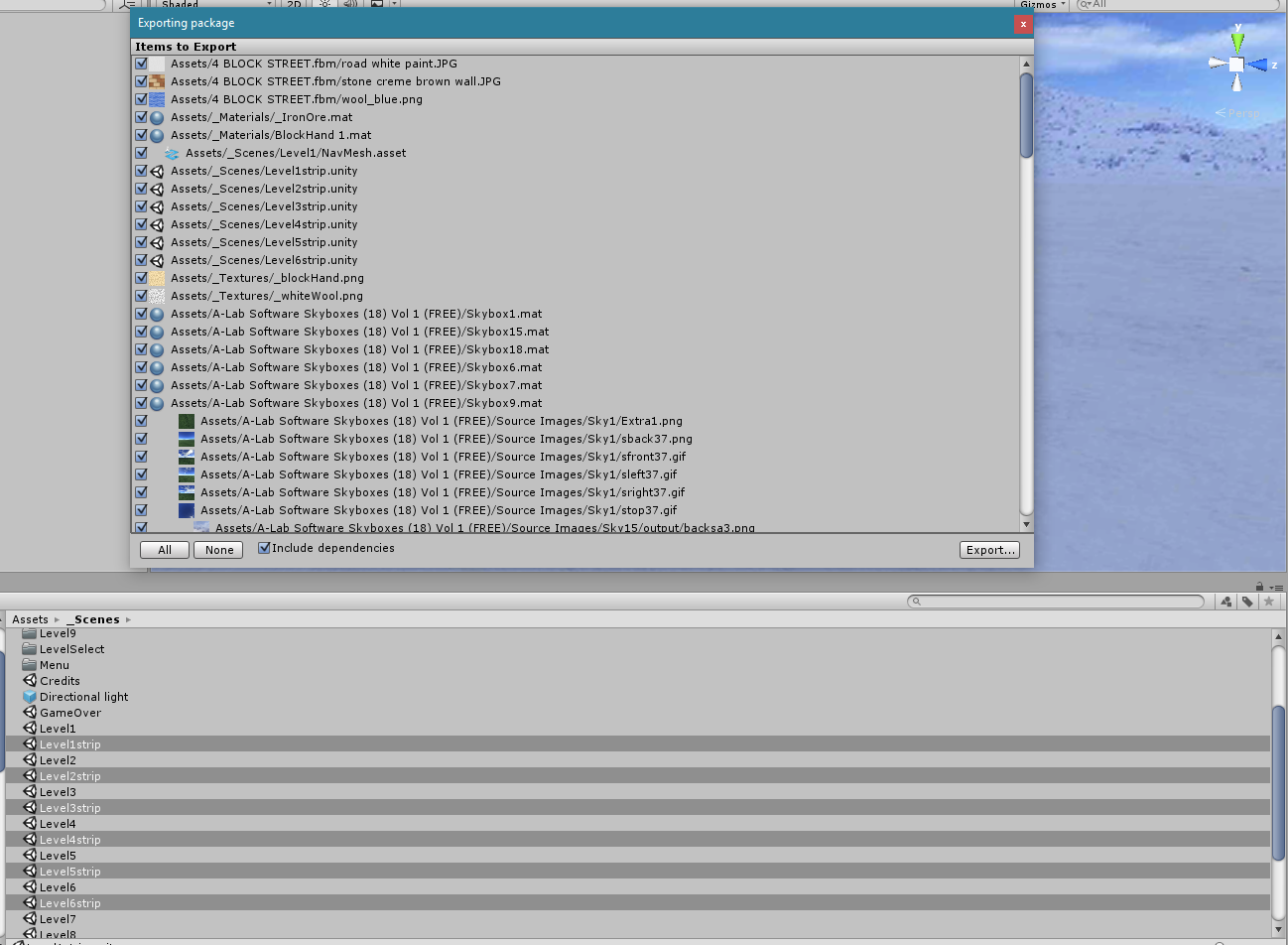
Export from properly stripped levels

You could optionally save the project and commit after this step (“Brought over level dependancies”).  Wait until the commit finishes.

In the new project, go to the _Scenes folder and delete the scenes Level1-6 and the folders that are also named levels1-6. Then, copy these same files from the old project. [I had an issue where the controls were all broken. I think I had copied the files by exporting and importing. The issue went away when I directly copied the levels using Beyond Compare.]
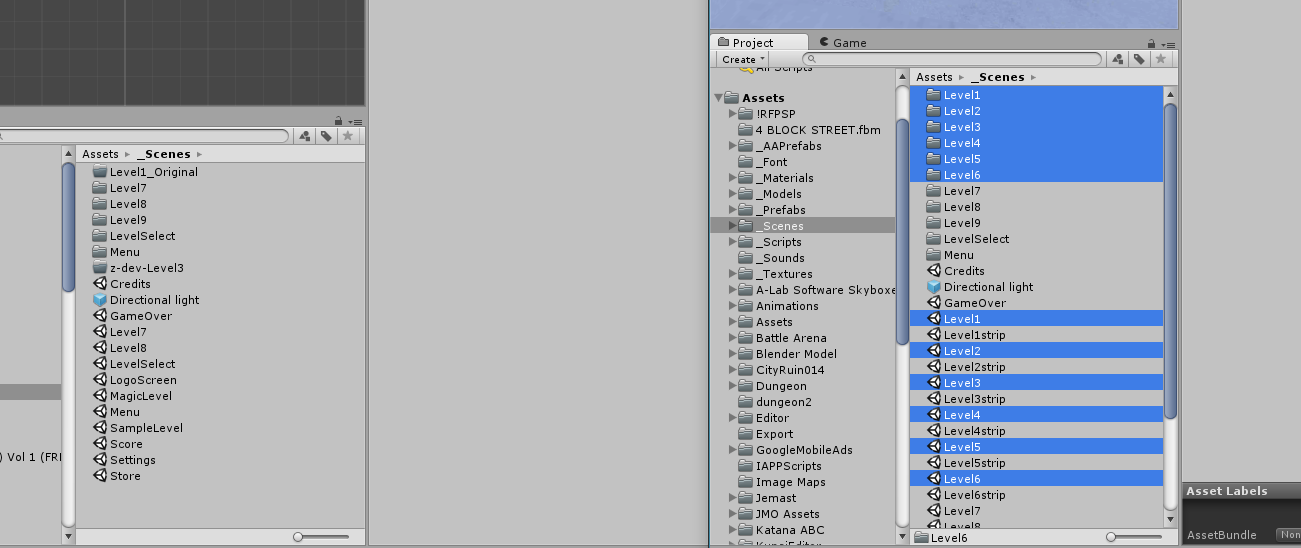
Copy over the level files

(We got some error messages due to this step — Null References — but I don’t think they are a problem)

It may not hurt at this point to open up some or all of the levels to compare them.

Commit your work.

Copying the Launch Controller, Logo Screen, and Menu

Now we want to close the new project.

Without copying the meta files, copy Assets/_Prefabs/LaunchController from the old project to the new one. Also copy Asset/_Scenes/LogoScreen and Assets/_Scenes/Menu.  You’ll probably need to use Windows Explorer or The Finder to do this copy, from the old project to the new one. Overwrite the existing files.

We also need to get the title image (and its meta file).  Open up the menu scene in the old project, click on the title, and in the inspector, click on the source image for that script. This’ll show you where the Title’s file is. You can copy it while Unity is running or not.
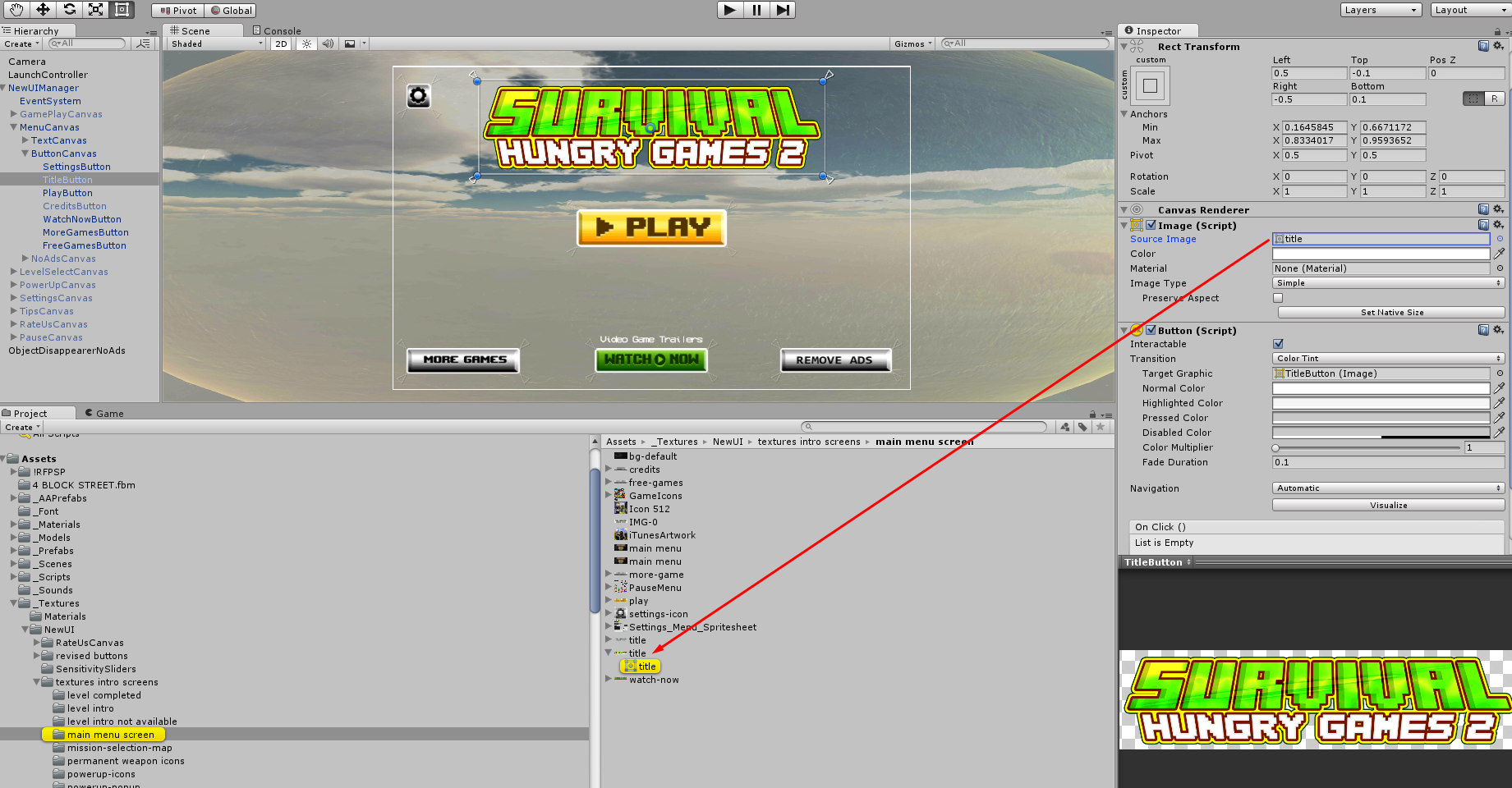
Finding the Title image

Play the game from the logo screen. Does it show the right company? Does it show the right title?

[Note: If you can’t see the game title and UI of the menu screen in the scene view, removing the Canvas, Canvas Scale, and Graphic Raycaster from subcanvases should help. It seems to work right in the game.]

You may also want to double-check the launch controller settings.

If it looks right, commit your work (“Brought over Title and LaunchController”)

Copying the Skins

Duplicate the _AAPrefabs folder in the old project (“_AAPrefabs 2”)

In the new folder, select all the ones with names that start with “BlockNPC”
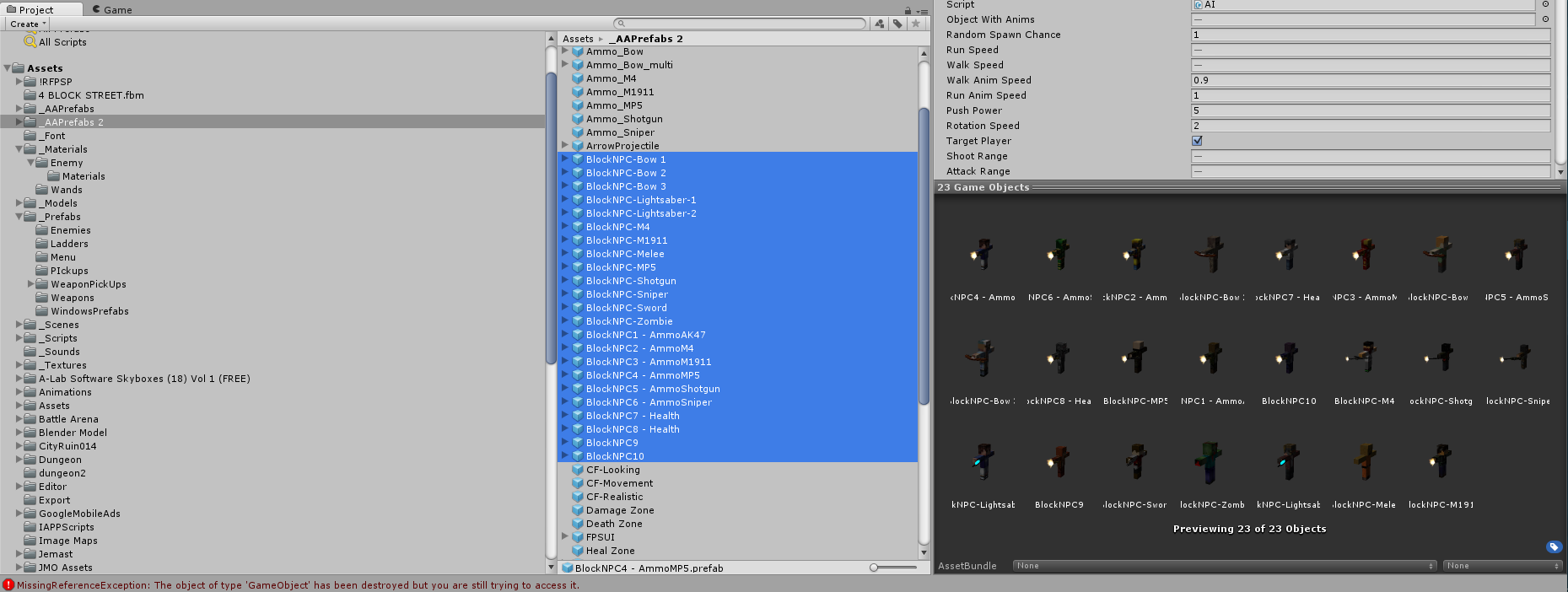
Select copies of all the NPC block characters in the original project.

With them selected, remove all of the scripts from them — the AI script, character damage and NPC attack scripts.

Select them all again, and right click on them and choose “Export Package”. Export them with their dependancies. It should be materials and textures — not scripts.

Import this onto the new project.

Delete the _AAPrefabs2 folder (in both projects)

Now, go to the old project, and go to the original _AAPrefabs folder, and select all of the BlockNPC items, and export them without dependancies.  Import this into the new project.

Commit your work to version control. (“Brought over enemies and skins”)

NOTE: You’ll need to do the same sort of thing for __AAPrefabs/Ragdolls. If your game has magic users in it, you may need to do it for them, too.

Test

Finally, do some testing. You might run both games in the editor and see if they give different errors.  It would be especially good to give someone an .apk for this game and the rollback .apk for it and have them test and compare both.  Fix any issues that occur in the new version that didn’t occur in the old one, and commit and sync/publish the branch.


 

Determine the BVC of a published game

Purpose

To help you get the BVC (bundle version code) or a game that is live on the play store, so that you can put our new versions and rollback releases with proper BVCs.

Applicability

This is applicable to developers.

Written Instructions

A. Get latest version of game onto your phone.
B. Find the bundle identifier for your game. You can find it in the URL for the game in the google play store. (ex. com.freegamesstudio.copsvsrobbersjailbreak) {BUNDLEID}
C. Find out where your Android SDK is. {SDKPATH}

On Windows, go to Edit -> Preferences -> External Tools.
On Mac, go to Unity -> Preferences -> External Tools.

Under External Tools, you’ll see ‘Android’ and it’ll list your SDK path.
ex: C:/Users/Axel/AppData/Local/Android/sdk
ex: /Users/clinton/Library/Android/sdk

D. Plug your phone in with a USB cable.

E. Ask the device for the game’s BVC.

On Windows, start ‘Powershell’ or ‘cmd’. On a Mac, run ‘Terminal’.

You’ll want to enter a command similar to this:

~/Library/Android/sdk/platform-tools/adb shell dumpsys package com.freegamesstudio.copsvsrobbersjailbreak | grep version

C:/Users/Axel/AppData/Local/Android/sdk/platform-tools/adb shell dumpsys package com.freegamesstudio.thesurvivalhuntergames2 | findstr version

that is:

{SDKPATH}/platform-tools/adb shell dumpsys package {BUNDLEID} | {GREPTOOL} version

(Replace GREPTOOL with ‘grep’ or ‘findstr’ on Mac OS X and Windows, respectively.)

This command uses the android tool ‘adb’ to talk to your phone and ask for details about a specific installed program. It then filters the results for any lines that have the word ‘version’ in them.

You’ll get a result like this:

versionCode=15 targetSdk=17
versionName=C10.2

This let’s you know that the latest version of the game on the store has a BVC (bundle version code) of 15. {STOREBVC}

Your new work on the game will have a BVC of {STOREBVC} + 1. (15 + 1 = 16).
Your rollback version will be one more than that — {STOREBVC} + 2. (15 + 2 = 17).

Understanding The Mobile Market

Purpose

The dev team did a kaizen to learn about the mobile market. This page shows what we researched and presented.

This is a collection of our research presentations on learning about the mo

Applicability

This article is applicable to anyone who would like to learn a little more about the mobile market.

Introduction

For a continual improvement, especially since we want to make successful X-Prize applications, the development team decided to research the mobile market. Each of us researched for, say 90 minutes, and then presented the next day on our findings, recording it on Google Hangout-On-Air.

Rodrigo

https://www.youtube.com/watch?v=wUuAdETqVb0

Mobile Market

Rodolfo

https://www.youtube.com/watch?v=6ejJTJovERs

Marketing Improvements

Clinton

https://www.youtube.com/watch?v=QXOW0eyXfMI

Understanding the Mobile Market – Clinton

Axel

https://www.youtube.com/watch?v=z7SDkNQrr3Q

How Not To Market Your Indie Game

Miguel

https://www.youtube.com/watch?v=KJl2h-5Lyfs

Game Publishing

Ponch

https://www.youtube.com/watch?v=YHE6Xl85Mgo

FPS Icon Standards

Icon A/B Testing


Version Numbers

Applicability

This matters to developers and to people who need to know where a build number came from.

Instructions

We want to reserve the version number ‘C10.2’ for the CCodeRepos Minecraft-style FPS game, built with Unity 5.0.

If we build the same game, but using Unity 5.3, the version number is C14.2.

As we put out new features, they’ll have code names, like E.1.1. This should be used for the version code of the game; it’ll let us trace back what feature we were testing.

Now, let’s say that features E.1.1, E.1.2, E.1.3 and E.1.4 have gone through the “Judgement” process, and we want to include E.1.2 and E.1.3 in the new base version. We’ll take C14.2, integrate those two features into it, test it, and bump up the final number, calling it C14.3. We will also tag it in github so that we can find out where C14.3 happened.

Quality Assurance Procedure

Purpose

This article spells out the steps that we take to increase the quality of the products we release.

Applicability

This article is primarily applicable to the development team and to the testers working on that team. It is somewhat applicable to anyone using projects developed by one of our development teams.

Continuous Improvement

Do you see a way we can improve this process? Great. Talk to the team, and we’ll try different things to improve it.

If this tells you to do something you know is wrong, talk to the Scrum Master or team if possible, and we’ll work around it. Don’t blindly follow the steps here, but please don’t ignore them either.

Rationale (“Why?”)

  • As craftspeople, we pride ourselves on doing quality work.
  • Defects can always be corrected with less hassle the sooner they are found.
  • Buggy games make less money; if a game crashes, people play it less (lowering retention and cents per download) and review it poorly (resulting in fewer downloads).
  • When we build things ‘right’ it is easier to keep working on and making improvements to. No one wants to work on a project that is a mess.

Who Is Involved?

Everyone on the team is responsible for releasing quality products, not just the testers.

Terminology

An Issue is anything in JIRA — a task, a subtask, a bug, a story.

The Mainline Branch is the place where all new development is happening in Git/GitHub. On the CCodeRepos project, this Mainline Branch is called ‘FrankenApp’.

A Platform is a device or environment that runs our project. Most development is done on the Unity Editor platform; other target platforms include Android, Win10 Universal, and iOS.

Black-box testing is testing something without looking at what goes on inside it. If you were black-box testing a calculator, you’d input numbers and symbols and see output results. You have no idea how the calculator takes that input and produces the output; you just care that the output is what is expected.

Glass-box testing (also known as ‘white-box testing’) is when you look at what goes on inside a system to see if it is correct. A white-box test of a piece of artwork would check that it is the correct dimensions and has the right import settings.  (Maybe it’d even check the colours are ‘right’ or that it evokes the proper feeling.) A white-box test of some code might involve looking over the code or even inputting values in certain places and checking that the outputs in other places are as-expected.

How Bug Reports Are Created

Everyone may find and report bugs.

If you sync up to the mainline branch and the build is broken, alert the entire team and ask them not to sync up. We’ll get people in right away to fix the problem.

For lesser bugs, either tell a tester what you saw and what sort of things you think will cause the bug to occur, so they can probe it more deeply and write up a bug report, or, write up a report yourself.

If you are reporting a bug, you need to do the following:

  • figure out the simplest set of steps to reproduce the bug
  • if possible, test on multiple platforms (Editor, Android, iOS, etc) and note where the issue occurs
  • Create a a new issue in JIRA and fill it with all the good stuff that goes into a bug report
  • If the new issue is related to the current sprint goal:
    • add it to the current sprint
    • mark it as blocking one or more issues in the current sprint
    • move the ‘blocked’ issues back to “In Progress”
  • If it isn’t related to the current sprint goal,
    • add it to the product backlog [that’s where it’ll go by default]
    • let the Product Owner know so s/he may prioritize it and bring it into a future sprint

Testing Procedures

Note that this will change if/when we get automated building and reporting going.

Testers sync up to the mainline branch regularly (ideally, after every commit), and build it for different platforms. If the build is broken, they alert the entire team, and it becomes a priority to fix.

Testers will sync up to other branches on request.

Testing will go through multiple stages. [It might be nice to write down somewhere what sort of testing has happened to a given build so we can have confidence in how well it works.]

  1. Does it build?
    • if it doesn’t build, alert everyone who uses the branch.
      • if it is the mainline branch, alert the entire team, and ask them not to sync; fixing this issue is a priority.
  2. Do a smoke test
    • a smoke test is a simple test where you run the game on the device, and check to see if you can get into the different scenes without crashing.  A sample smoke testing procedure is to:
      1. does the game go into the menu scene?
      2. does the game go into the gameplay scene?
      3. can I move around and shoot?
    • That’s it. If the build fails the smoke test, alert the team (if it is from the mainline branch) and don’t test it any further.
  3. An In-Depth Checklist
    • Testers will develop (and change, over time) a checklist of things that need to be tested for their game.
    • Here is a sample checklist, for the CCodeRepos family of games:
      1. Advertising Tests
        • does the ‘trailers’ button show an ad?
        • does the ‘more games’ button show an ad?
        • can I earn a power-up, and does it show an ad?
        • if I die in a scene, am I able to watch an ad and continue?
        • did I see ads from all of the supported ad networks used by our project in this platform:
          • Unity Ads
          • Heyzap
      2. Functionality Tests
        • can I beat a ‘kill all the enemies’ mission?
        • can I beat a ‘kill all enemies of type’ mission?
        • can I beat a ‘get the items’ mission?
        • can I beat a ‘rescue the hostage’ or ‘defuse a bomb’ mission?
        • can I lose a ‘kill all the enemies’ mission?
        • can I lose a ‘kill all enemies of type’ mission?
        • can I lose a ‘get the items’ mission?
        • can I lose a ‘rescue the hostage’ or ‘defuse a bomb’ mission?
      3. Miscellaneous tests
        • do the enemies follow me around and shoot me?
        • can I kill enemies?
        • does the game play smoothly, or are their hiccups?
        • do I have the weapons I expect to have? Do they carry through levels as designed?
  4. A Fast Playthrough
    • Test different levels; cheat to get there [but be aware that this may cause bugs!]; use your knowledge of the layout and answers to puzzles to get through it really fast. This step is done to prove that parts of the games work when approached as intended.
  5. Break the game
    • You must break the game! Show no mercy to it. Look for edge cases and stress test the system by doing things a normal user would never do.
    • This is one of the most important tests to do, as it really does find problems
    • The game has problems, and it is your job to find them. (If you don’t believe there are more bugs, you will not find them.)
    • Try strange things. For example:
      • use unusual button combinations and sequences.
        • What if you try to shoot and pause simultaneously?
        • things like “shooting, immediately changing weapon, reloading, changing weapon, shooting in the middle of the weapon swap animation, etc”
      • can I beat a level without actually killing enemies myself?
      • can I get myself or enemies stuck?
      • can I rocket jump and leave the expected play area? can I jump onto a building?
      • To test a network game, you might try things like this:
        • What happens if I take a phone call during gameplay?
        • What happens if I switch to another app and back?
        • What happens if my wifi signal becomes very poor? [You may be able to cause this with some sort of network simulator, or by putting your device into a microwave and closing the door most of the way].
      • Test things related to physics, collisions, AI
  6. Play through the game like a normal user
    • Don’t expect to have the time to play through the entire game, but do try to test all the pieces of it over several builds. (Maybe test level 1 and 5 on one go-round, and 2 and 7 on the next?)
    • Aside from starting into the game, don’t use shortcuts or cheat; try to pretend you are someone who doesn’t already know the game
    • This is done to prove that the average user will not encounter problems

How Issues Get To Done (Non-Branching Variation)

Note: In the future, we’ll discuss a branching variation with glass-box testing. We decided it wasn’t the highest priority for right now.  (If you feel the time has come to make this or other changes, speak up!)

A developer starts to work on a new Issue.

  • they move the Issue to ‘in progress’ in JIRA
  • they sync up to the mainline branch before beginning work (unless there is a good reason not to, like a broken build)
  • If the Issue is a bug, the developer reproduces it before fixing it. This is really important! If you didn’t find it before you fixed it, how do you know that 1) the bug was still there and 2) that your fix worked? If you can’t find the bug, a tester can check to see if it still occurs.
  • generally, they commit frequently to their local branch on their own computer
  • potentially, they sync up frequently to the mainline branch
  • when the developer feels they’ve completed the work, they sync it up with the mainline branch
  • the developer does some basic testing of the functionality on a device
  • they move the task to ‘Testing’ in JIRA
    • and fill in the name of the build that has the new functionality (or the bug fix)
    • and add a comment to the effect of “This appears to be working and is ready for testing.” They might add notes as to how they implemented it, or anything that they think needs to be tested especially hard to make sure it still works.
      • ex. “The new elevator platform works by using a kinematic rigid body. Be sure to test that the player can stand on it, and what happens if they are underneath it. It wouldn’t hurt to check how it interacts with enemies and pickups.”

The testing team monitors JIRA.  When they see something moved to ‘Testing’, they perform black-box testing:

  • one of the testers goes to the Issue in JIRA that is in the testing column
    • they note which developer was assigned the issue, and assign it to themselves with a note such as “Started testing work by <implementor’s name>”
    • the tester syncs up to a build that contains the implementation
    • s/he determines if the work meets the definition of done
      • if s/he can’t tell, s/he should talk to the Product Owner, or someone other than the person who implemented it, if possible
      • if the work is done, it is moved into the ‘Done’ column in JIRA
      • if it isn’t complete, and working:
        • a bug is written up and marked as blocking the issue
        • the issue is moved back to the “In Progress” column and reassigned to the original developer.
        • the developer is notified of the issue

Simplified process:

  • sometimes this is more work than is necessary. Depending on the availability of the developer, the tester might just point out what is wrong, the developer might fix it, and it can be tested again.

Additional Things

Re-Testing Old Bugs

Every now and then, testers should try to reproduce old bugs, both ones marked fixed and ones that are believed to still be bugs, and make sure they haven’t reoccurred, or haven’t been fixed.  It would be helpful to mark what build it was tested on in the comments (and the build name should go into the ‘Affect build(s)’ field if it is now a bug).

If an old bug that was fixed is now a problem again, it should be brought back to the sprint backlog or the project backlog (depending on whether it was due to a change done in this sprint or not.) If the new problem is similar, but not the same, it should simply be written up again.

Collateral Fixes

In the same way that ‘collateral damage’ is damaging things that you didn’t mean to, it is possible for things to be fixed that weren’t meant to be.  Let’s bring these issues into the current sprint, put them in the ‘Done’ column, and edit the title to start with “[Collateral Fix]”.  (If it doesn’t stay fixed throughout the sprint, and wasn’t part of the sprint goal, the name can be edited again and it can be moved back to the backlog.)

Other Ways To Close Bugs

Sometimes a bug is written up, and the behaviour is what is intended. This should be closed (moved to done) with a comment mentioning that it is as-designed.

Occasionally there is a bug that we will not fix. If the team agrees, it should be closed (moved to done) with a comment saying that we will not fix it.


What Goes Into A Bug Report

Purpose

To detail what goes into a bug report. Note that this does not discuss how to find bugs or prepare them to be written up.

Applicability

This is most applicable to developers and testers working on new code, and may be applicable to anyone else using projects that are or were in development.

Written Instructions

Screen Shot 2016-02-18 at 11.58.54 AM

To create a bug in JIRA, first hit the blue ‘Create‘ button on the menu at the top of the JIRA page.

Choose the project that has the bug.

Screen Shot 2016-02-18 at 11.59.16 AM

Set the Issue Type to ‘Bug’. This changes what fields follow and need to be filled in.

Screen Shot 2016-02-18 at 11.59.27 AM

Write down a one-line summary or title for the bug.

This description should be explicit and using simple language. This means that it’s not just for the developers to understand, but someone without programming knowledge should understand what the summary is trying to say.

Bad Descriptions: “Menu bug”, “Game crashes”, “Texture glitch”

Good Descriptions: “Pause Menu stays opened after tapping close button”, “Game crashes when firing at doors”, “Level 5 Boss texture appears magenta”

Screen Shot 2016-02-18 at 11.59.36 AM

Choose the priority of fixing the bug based on its severity.

Highest: choose this when

  • the game crashes or halts
  • Google (or Apple or Microsoft) will reject our application
  • this absolutely must be fixed

High: choose this when

  • the player gets stuck and can’t move
  • required functionality is broken
  • the game can not ship without this being fixed

Medium: choose this when

  • this is a clearly a bug and it is ugly, but we can ship it if we absolutely have to

Low: choose this when

  • this issue fairly minor, and just something that it’d be nice to fix

Lowest: choose this when

  • this bug is something trivial or subjective; ex. “the shed door should be red instead of purple”

Screen Shot 2016-02-18 at 11.59.44 AM

The reporter field is automatically filled in for you.

Screen Shot 2016-02-18 at 11.59.50 AM

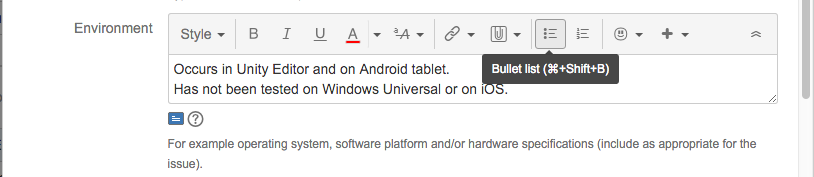
On which platforms (Environments) can the bug be reproduced? Are there platforms where it does not occur?


The next field is the Description, where most of the information about the bug goes.

Screen Shot 2016-02-18 at 12.00.02 PM

Optionally start with a slightly longer summary.

Screen Shot 2016-02-18 at 12.00.12 PM

Steps To Reproduce

This is the MOST important part of a bug report, we can’t stress that enough. The tester will write down a very specific step-by-step breakdown of how to reproduce the bug. This should be written in the second person as if they were instructions to follow (which they are) so that the developer will know exactly what to do to reproduce this bug. So, rather than saying “this is what I did”, it should say “this is what you must do”. These steps are critical for finding out what causes the bug and how to fix it. If the developer can’t reproduce the bug after following these steps to the letter, then the bug report is written incorrectly.

These steps must be numbered and written down as a list.

Many testers think that a bug can’t be reproduced all the time, this is incorrect. In an environment like Unity, most of the bugs can be reproduced 100% of the time once you know what the reproduction steps are, and this is the role of the testers. If a tester still can’t find all the necessary steps to reproduce the bug 100% of the time, then he can ask for another tester’s help.

Screen Shot 2016-02-18 at 12.00.19 PM

Actual Results: What buggy behaviour occurred when you followed these steps?

Screen Shot 2016-02-18 at 12.00.26 PM

Expected Results: If the game didn’t have this bug, what is supposed to happen when these steps are followed? This step is really important and not to be taken lightly. The tester must read the task description very carefully so as to not put an incorrect expected result (i.e. we don’t want testers to report things as bugs when they are behaving as expected).

Screen Shot 2016-02-18 at 12.00.32 PM

Optional additional comments and attachments:

Feel free to add additional comments. You might stress why this bug is important, or add what you think is causing it.

If you added a screenshot or a link to a video, note them here. They aren’t always required, but a video prevents a developer from saying you are crazy, and screenshots are really helpful, too

Screen Shot 2016-02-18 at 12.02.02 PM

Affected build(s): Put the name(s) of the builds that were tested and have this bug, one per line.

Screen Shot 2016-02-18 at 12.02.15 PM

Attachments:

This is the best place to put screenshots that show what is broken. They aren’t required, but are very useful.

It might be useful to put a crash log or dump here, too.

Screen Shot 2016-02-18 at 12.02.25 PM

Linked Issues:

If this bug blocks another task (or multiple tasks) from being moved to ‘Done’, mark it as blocking those issues.

Screen Shot 2016-02-18 at 12.02.36 PM

When it is time for someone to fix the bug, they’ll assign it to themselves.

When they have a fix published, they’ll put the build name in the ‘Fixed build‘ field (so testers can determine if they have a build with the fix in it).

Screen Shot 2016-02-18 at 12.02.45 PM

Sprint

If this bug prevents something from being moved to done in this sprint, choose the current sprint in the sprint field.

If it doesn’t, leave the field blank and it will be added to the backlog.

Screen Shot 2016-02-18 at 12.02.53 PM

Finally, hit the ‘Create‘ button to create the bug.


How To Name A Build

Purpose

This page explains how to name a developmental build — something that is essential for useful bug reports.

Applicability

This is applicable to developers and testers.

Written Description

We need to name builds in development in such a way that people can tell what is in the build.

The name is in the following format:

[Repository] “Build” [Date of last commit] [Branch] [Short ID of last commit]

Repository: the (short) name of the place where the project is stored in github. Examples: CCodeRepos, UFPS, JulianXPrize, CubeEngine

Build“: the world ‘Build’ so that people know what this file is.
[We might optionally tag this with the platform — iOS Build, Android Build, Editor Build].

Date of last commit: what was the date of the last commit being built from? The date should be in YYYY-MM-DD format; thus, February 10, 2016 is 2016-02-10.

Branch: which branch of the project is being built from? Examples: FrankenApp, 53-Test, CK-CPTE, Purge

Short ID of last commit: What is the 7-digit SHA1 unique ID for the last commit you are building with? Note: ‘last commit’ refers to the last commit your project is synced to at building time; it isn’t necessarily the same as the last commit in github.

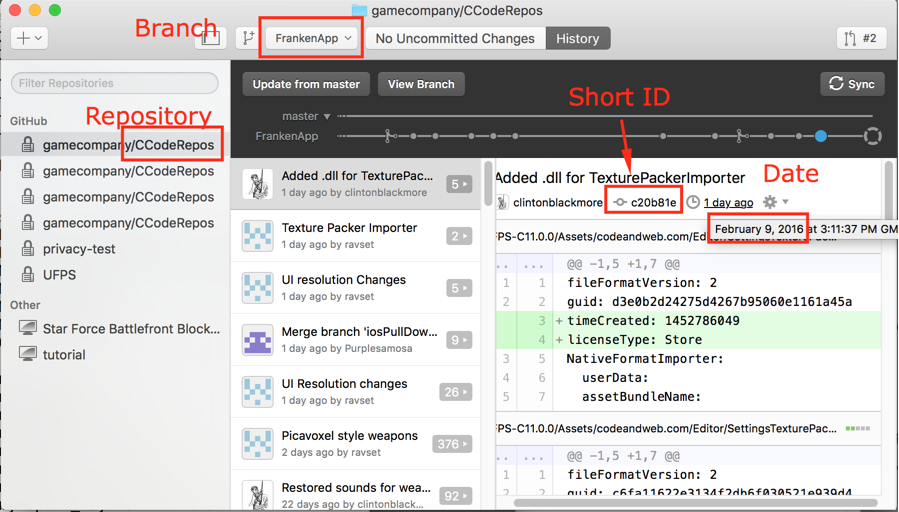
Finding This Information in GitHub Desktop

ID from Github

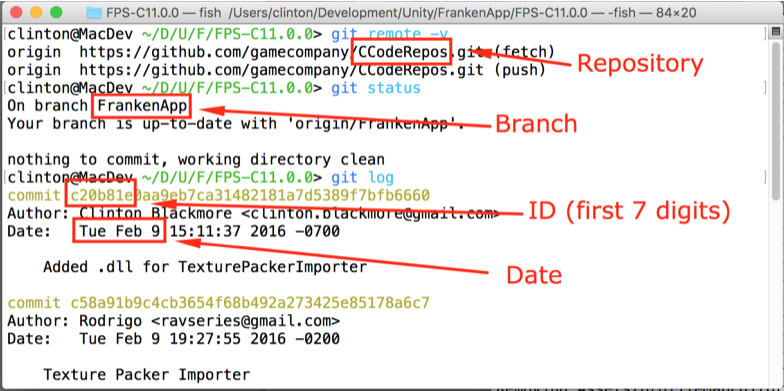
Finding This Information In A Git Shell

Repo from terminal

Putting It All Together

In both of the images above, the information is:

[Repository] “Build” [Date of last commit] [Branch] [Short ID of last commit]

Repository: CCodeRepos

Date of last commit: 2016-02-09

Branch: FrankenApp

Short ID of last commit: c20b81e

Plugging that into our format

[Repository] "Build" [Date of last commit] [Branch] [Short ID of last commit]

we get:

CCodeRepos Build 2016-02-09 FrankenApp c20b81e

Main Menu Logo Sprite and Animation Change

Purpose

To give game designers some idea of how to change the logo in the Main Menu and edit it’s animations.

Applicability

This is applicable to Game Designer using the D6.0.1 or newer. You need a patch to get this feature, if you’re on D5.1 code.

Written Explanation

In order to simplify the process of adaptation of all the Game Titles, we created this tutorial to guide the Game Designers through the steps of changing the logos and set up the animation applied to it.

We have two types of animations:

  • Standart basic Scale Up animation – Used with only one image containing Background, Game Title and Subtitle.
  • Complete 3 step animation – Used with Background, Game Title and Subtitle in separate objects, which has a sequence of animations.

Title sprite replacement

In order to make these changes it’s required to open the “Menu” scene and drag the “UIManager 1” to the Hierarchy, which is located in Assets/_Textures/NewUI.

There is a GameLogoBackground object which is parent to the GameLogoTitle and GameLogoSubtitle. When using only one image with the whole game Title, this is the object that should be updated inside _Texture/_UI/TitleScreen.

When using the title in 3 separate sprites the GameLogoTitle and GameLogoSubtitle should be changed inside the same path and activated in the UIManager prefab and the animation.

How To Create A Patch File

Purpose

Explains how to create a .unitypackage to upgrade the code in use by production.

Applicability

This article is applicable to Developers using the D6.0.1+ code.

Video

https://youtu.be/MBKB_a8byiI

Notes

Before making a patch, I update the ‘production’ branch in git as follows:

First, I make sure the FrankenApp branch is where I want it.

Then:

git checkout production
git pull # just in case someone else has changed production
git merge --no-commit FrankenApp

By telling it not to commit, I am able to make sure that certain files don’t get changed on the branch. I would like people tracking the branch to be able to be confident that their game-specific changes aren’t going to be overwritten, and as such, I don’t want to include the following files in production:

– the level scenes
– the mission JSON files
– the dynamic variable JSON files

In short, anything that is “data”.

Likewise, I’d probably try to avoid including:
– menu scenes
– overwritten skins
– overwritten title images
Then there is dealing with conflicts — most of which happen to be from the sort of files I just mentioned, in which case, I’ll briefly look at the diff and take the version already in the production branch, so it remains unchanged.

(To grab the existing version, “git checkout –ours — FILENAME”)

A “git clean -if” might also be in order to delete stray files.