Setup AdMob on Ads Cascade System
IMPORTANT NOTES:
For all ad networks, you usually login from your PC using gamecompany[letter]@gmail.com. AdMob is the exception – you cannot login to AdMob using the game company[letter].
You can ONLY login to AdMob using the Virtual Machines.
We do AdMob ONLY on these 4 main companies:
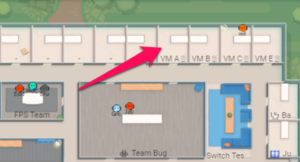
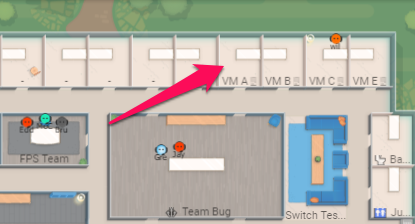
VM A = company A = bad jellyfish Entertainment
VM B = company B = inter pixel arts
VM C = company C = crazy commando
VM E = company E = GunChimp Studios
If you ever login to admob from your computer you will be in BIG BIG troubles. Do NOT forget!
Login to the VMs process:
As an important step, please send a message on “all-company” slack channel when you’re using a VM and when you are done.
- Go to the VM that corresponds to the company where you are creating a game. Make sure the VM is not in used by someone else.
- Login to the VM using the amazon workspace. Download the application here:
https://clients.amazonworkspaces.com
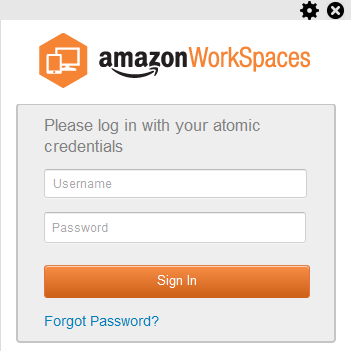
* Ponch or Jorge will provide you with the credentials
3. Please, do not close the google play dev console. Just open a new tab.
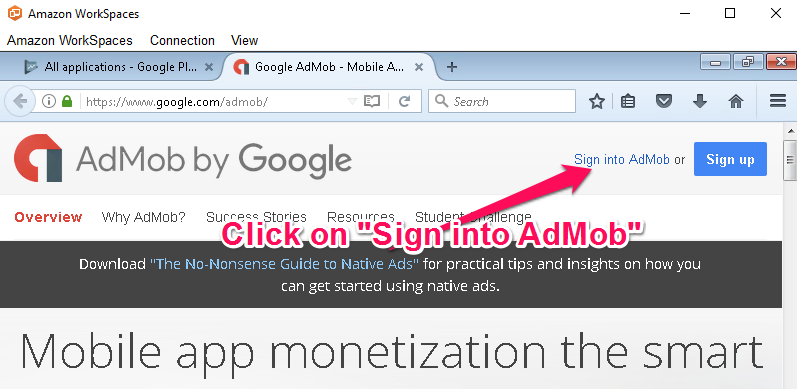
4. Open Admob in the browser inside the VM, then click on the “Sign into AdMob”
Once you are logged in to AdMob
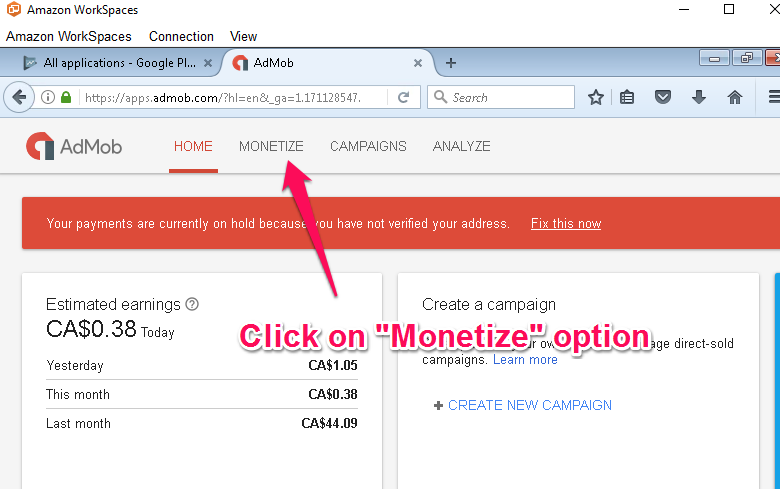
- In the dashboard, click on the option called “Monetize”.
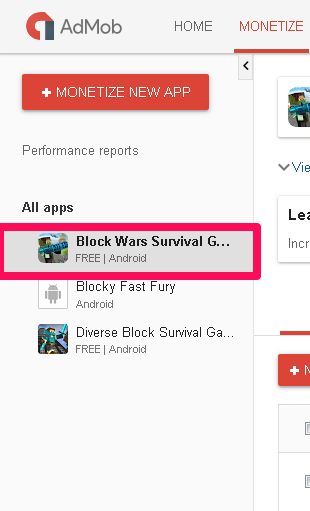
- Find your game in the left column and Click on it.
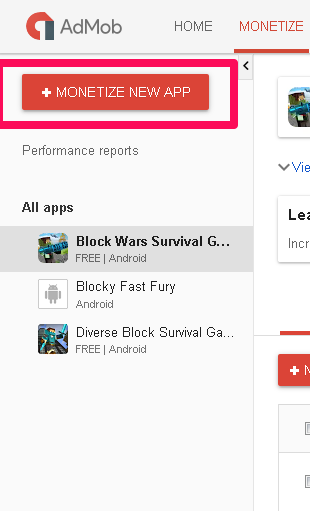
If the game is not on the list, just add it with the next instructions
- Click on “Monetize new app” button.
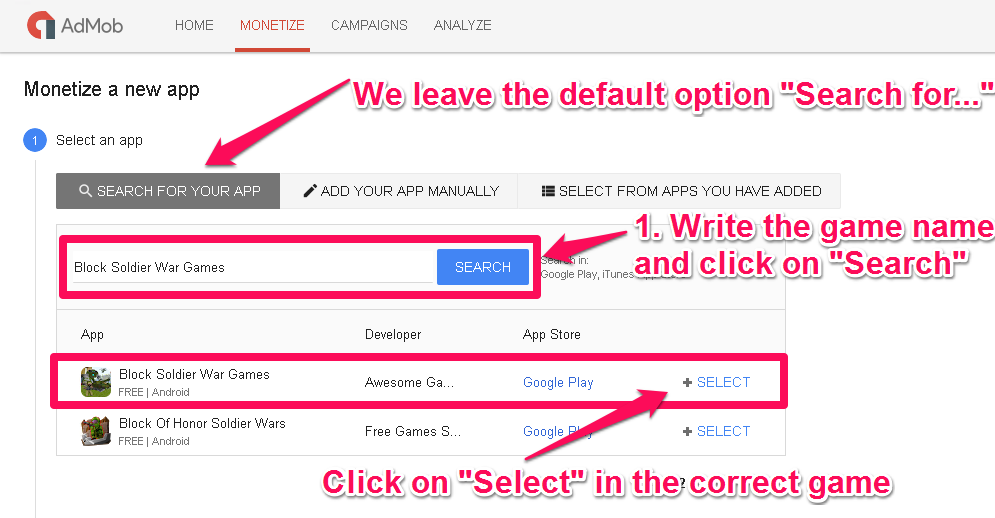
- A “monetize new app” screen will appear.
- Leave the default option “Search for your app” selected.
- Write the name of the game you are going to add.
- Click on “Select” option in the correct game.
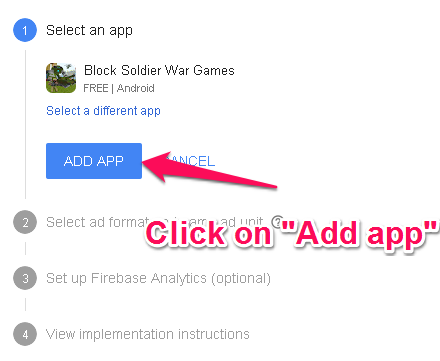
- Click on “Add app” in the next screen.
- Once the app is added, an App ID is created.*
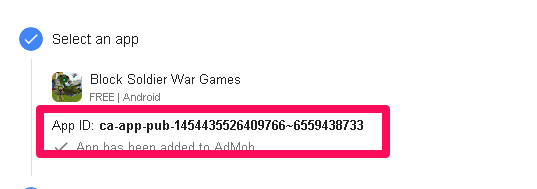
* It is strongly recommended to copy and paste the ID’s once you have them in the Ad Networks Master File.
- In the next step of the setup
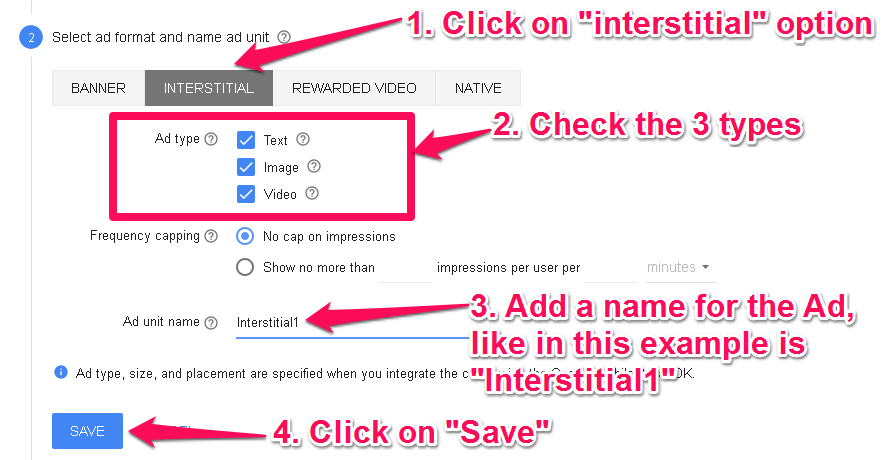
- Click on “Interstitial” option
- Check the 3 Ad types if needed.
- Add a name for the Ad*
- Click on “Save”.
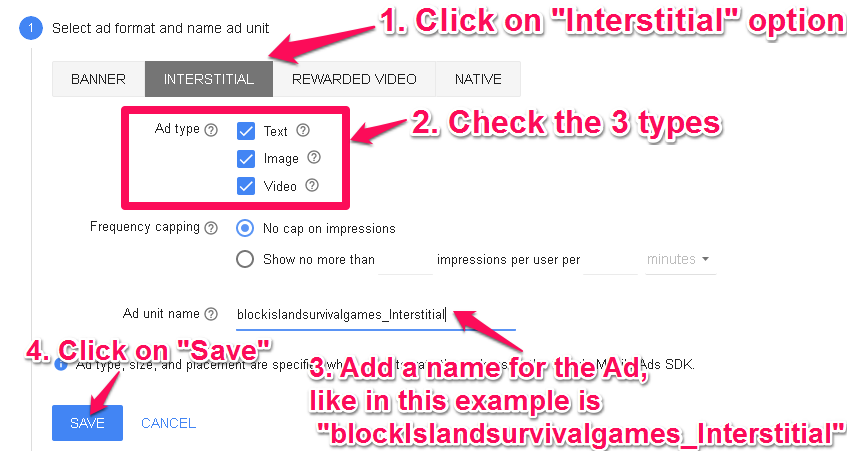
* This is only an identifier inside Admob, it doesn’t affect anything related to the ads, but we need to standardize these names for simplicity when checking information about it.
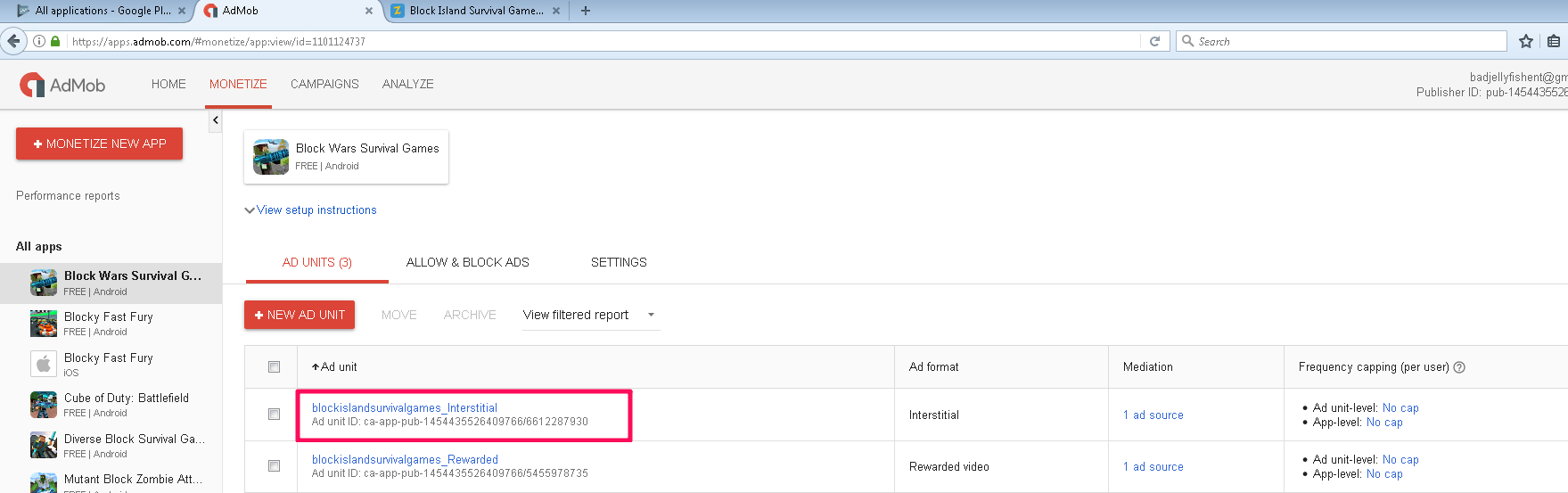
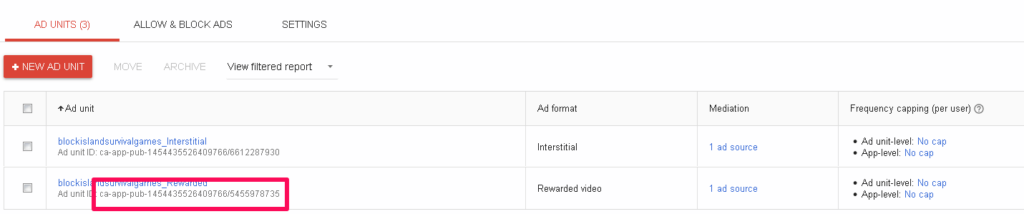
Use the final word from the Bundle ID of the game. For example, this game is: com.topgamestudio.blockislandsurvivalgames; so the standard name for it would be:
blockislandsurvivalgames_Interstitial.
- Click on “Skip”
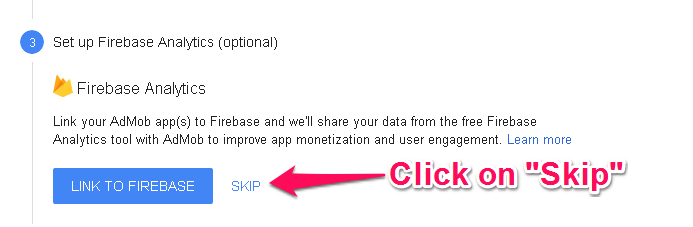
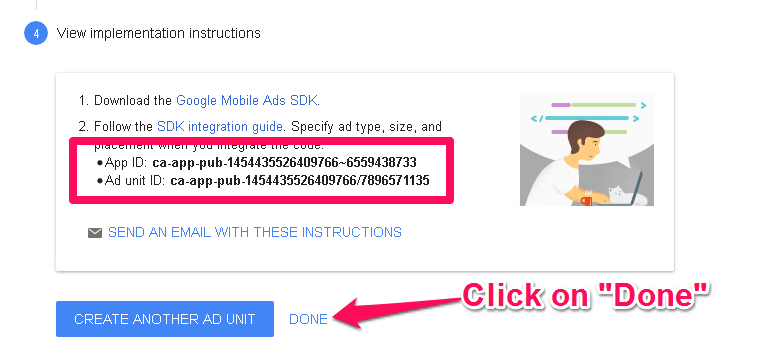
- It shows again the same App ID that was created before, but also shows an Ad unit ID, an identifier for the ad campaing that was just created. (Again it is recommended to copy and paste the ID into the Ad Networks Master File.
- Click on “Done”
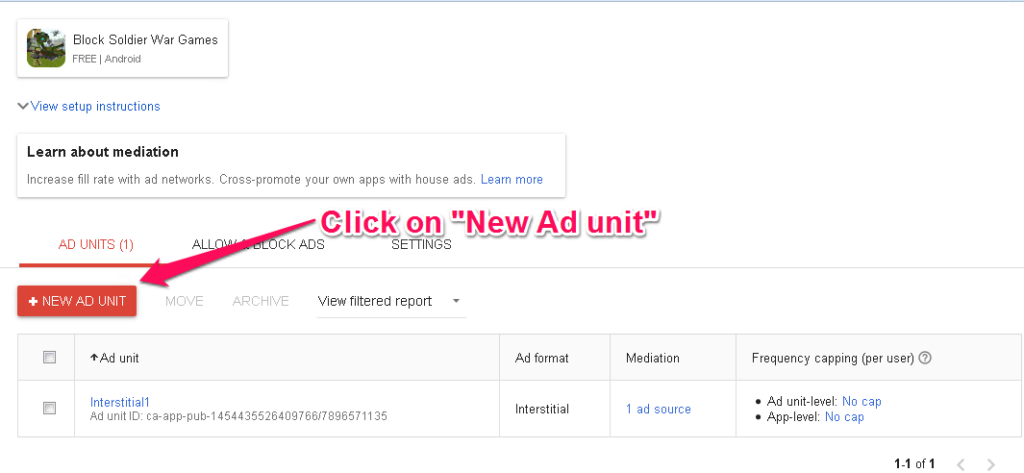
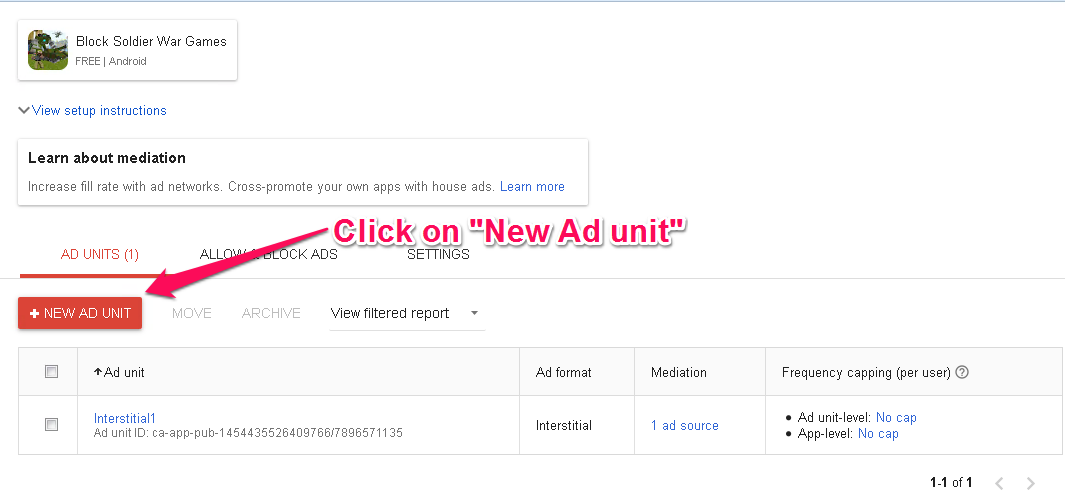
- Click on “New Ad unit” button.
- In the next screen:
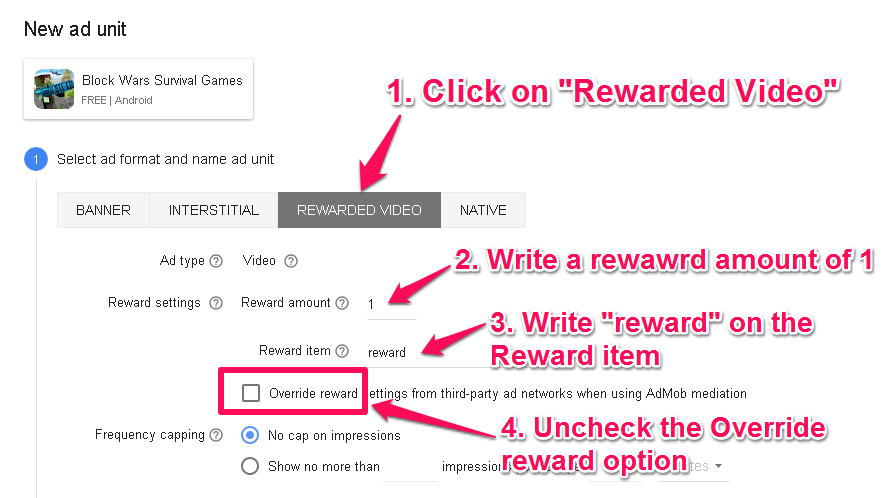
- Click on “Rewarded Video” option.
- Write a reward amount of 1.
- Write “reward” on the Reward item.
- Uncheck the Override reward settings box.
- Leave the dafault values on “Frequency capping”.
- Add a name for the Ad.*
- Click on “Save”.
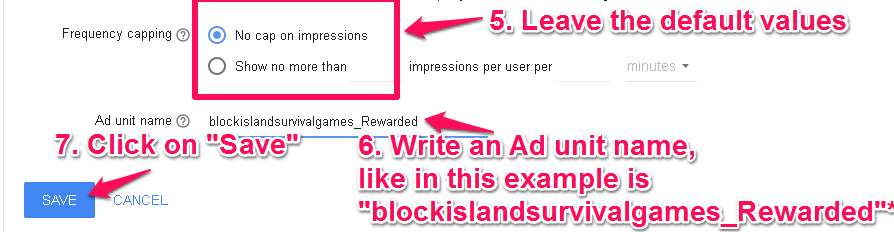
* This is only an identifier inside Admob, it doesn’t affect anything related to the ads, but we need to standardize these names for simplicity when checking information about it.
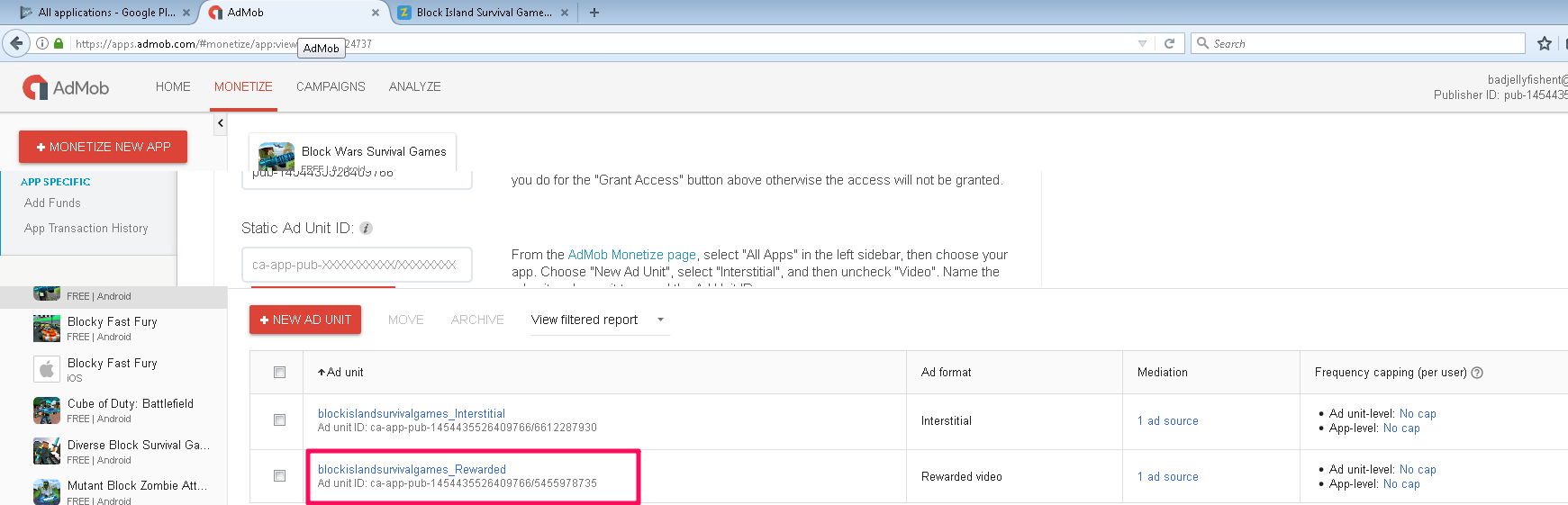
Use the final word from the Bundle ID of the game. For example, this game is: com.topgamestudio.blockislandsurvivalgames; so the standard name for it would be:
blockislandsurvivalgames_Rewarded.
The next step just shows the App ID and the Ad unit ID of the new campaing we just created.*
- Click on “Done”
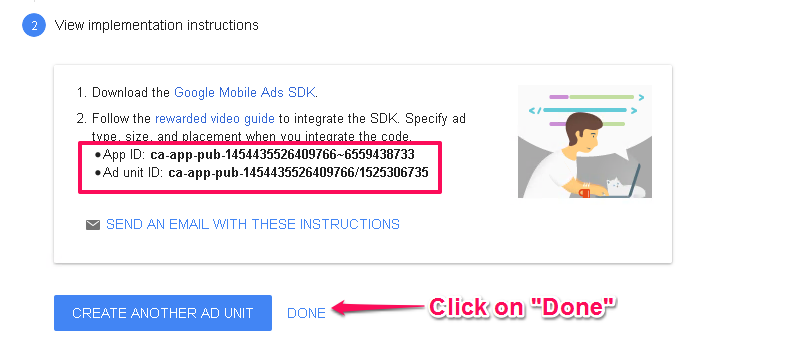
* You must copy and paste the ID’s once you have them in the Ad Networks Master File.
IMPORTANT NOTE: You mustn’t open the Ad Networks Master File inside the virtual machine, open it in your normal browser.
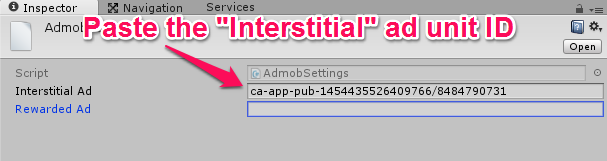
- Copy the Ad unit ID of the blockislandsurvivalgames_Interstitial to the clipboard.

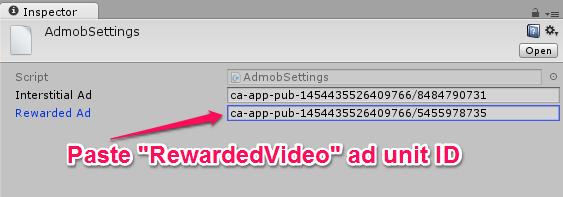
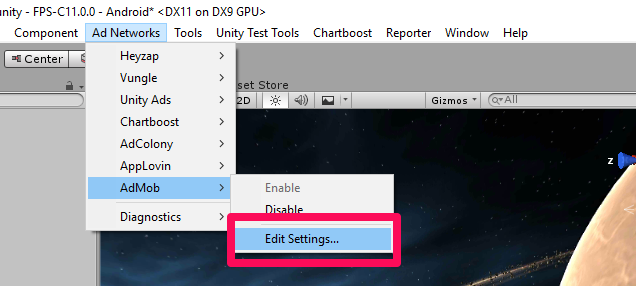
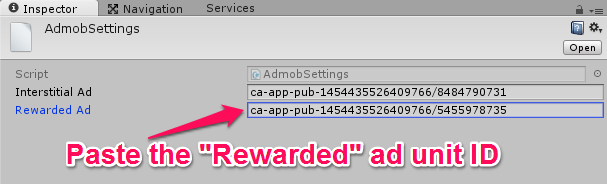
- Go to the Unity Project and click on the “Ad Networks” Menu -> AdMob -> Edit Settings.
- Paste the ad unit you just copied on the “Interstitial Ad” Field.
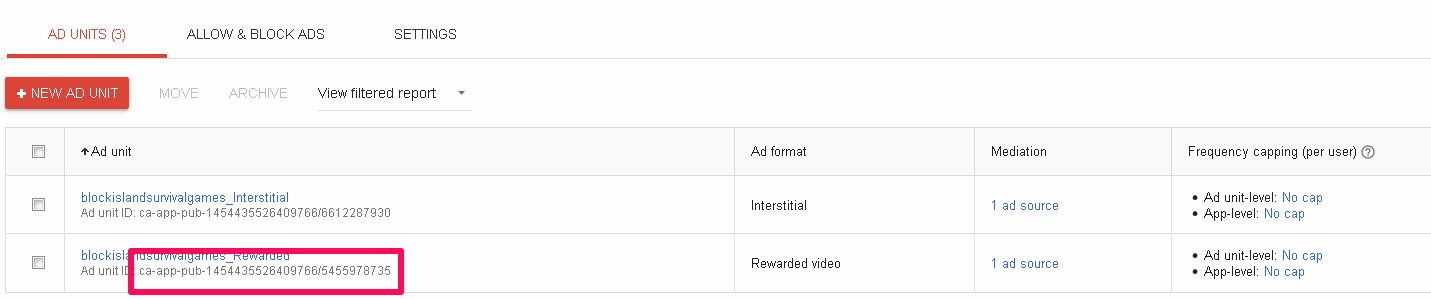
- Go back to the AdMob dashboard (or Ad Network Master file) and copy the Ad unit Id from the blockislandsurvivalgames_Rewarded to the clipboard.
- In the Unity Project (on AdMob Settings), paste the ID you just copied into the “Rewarded Ad” Field.
- Save your Project.

Now your Project is ready for showing AdMob ads!.
Setup AdMob in Heyzap mediation
Once that you have admob setup, it is time to do another setup for making it work in Heyzap mediation.
This setup MUST be done through Virtual Machines as well.
- Go to Heyzap mediation web page.
You should be already logged in to the corrrect account.
- Go to the company’s name and click on “Dashboard”.
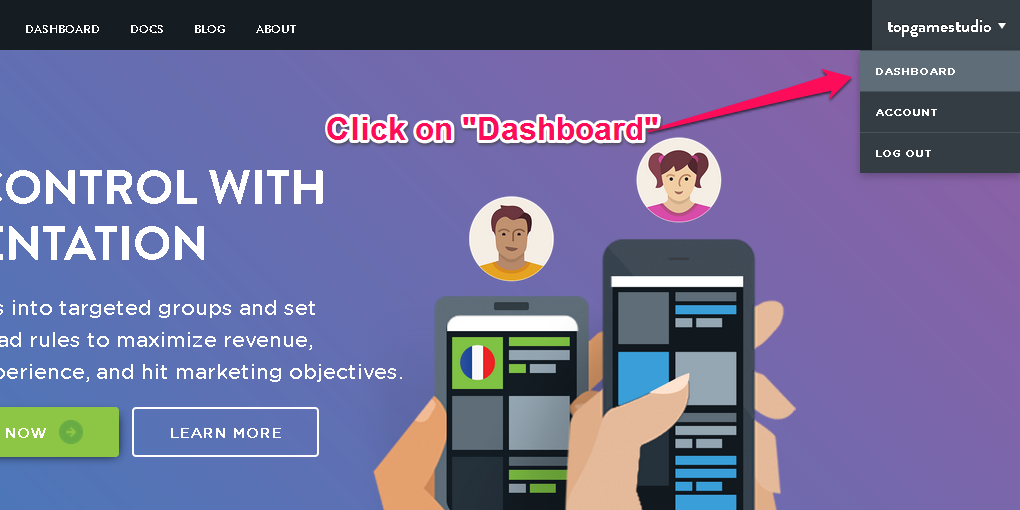
- Inside the dashboard:
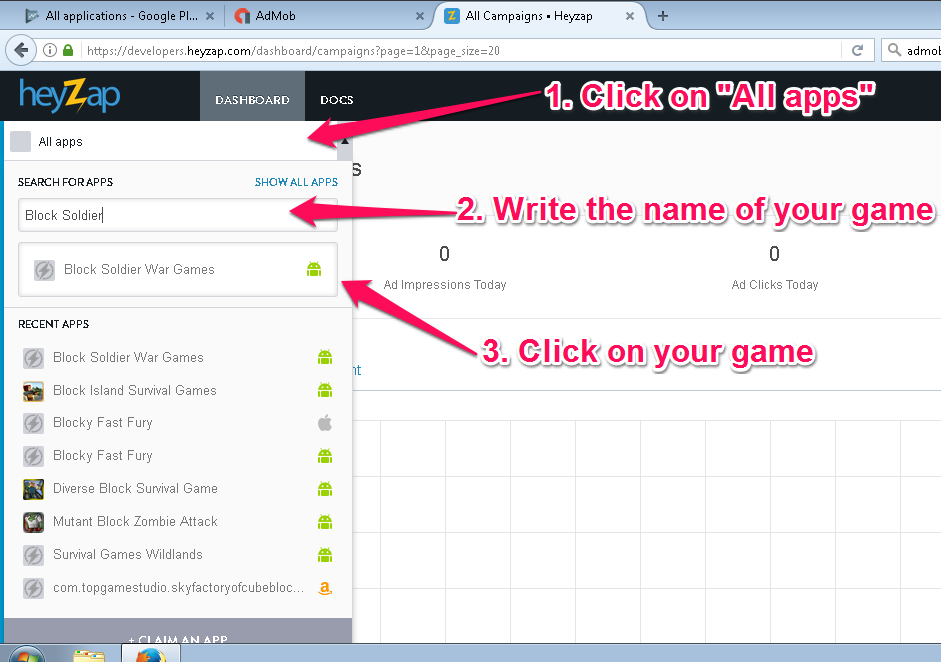
- Click on “All apps“.
- Write the name of your game.
- Click on your game.
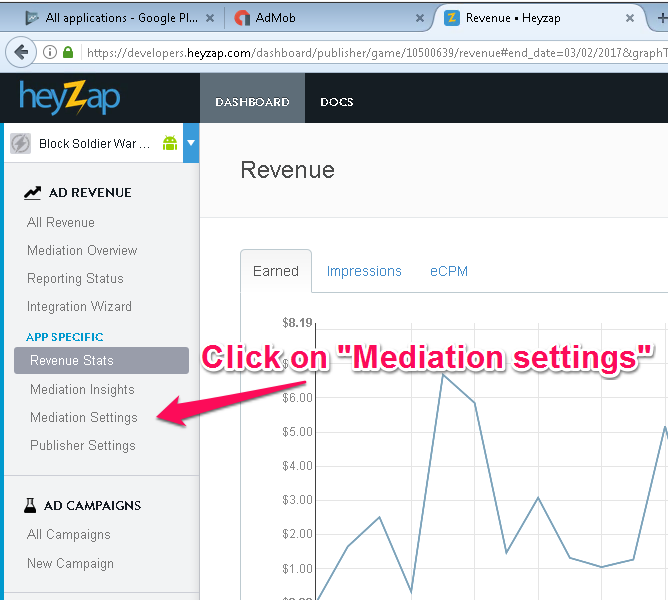
- Click on “Mediation Settings”.
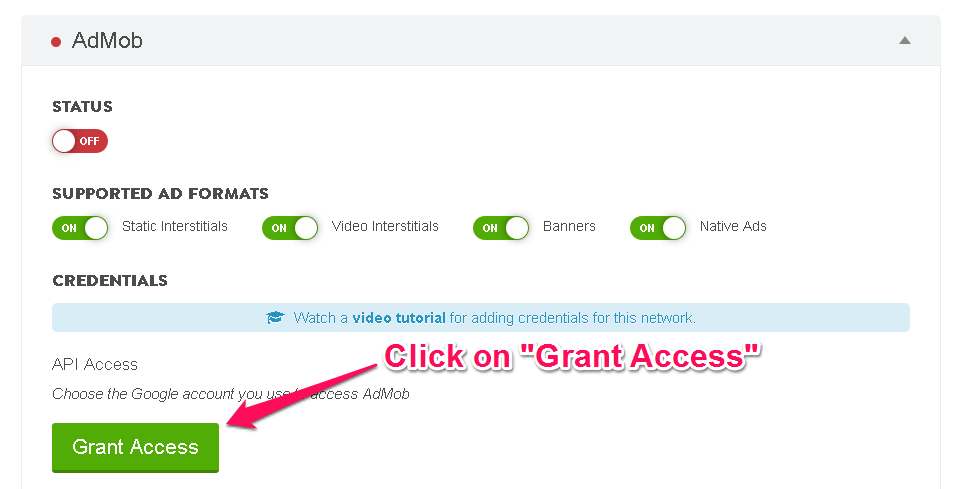
- Click on “AdMob”.
- Click on “Grant Access”. This step is why we need to use the Virtual Machine for admob setup.
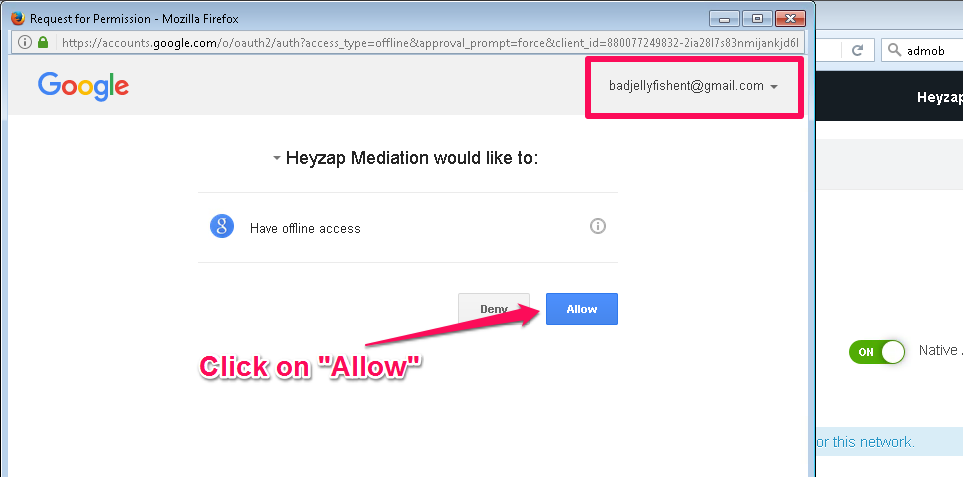
- A new window will open.
- Be careful that the shown email is the correct one.
- Click on “Allow”.
- The green button text and color will change, with a gray out green saying “Access Granted”.
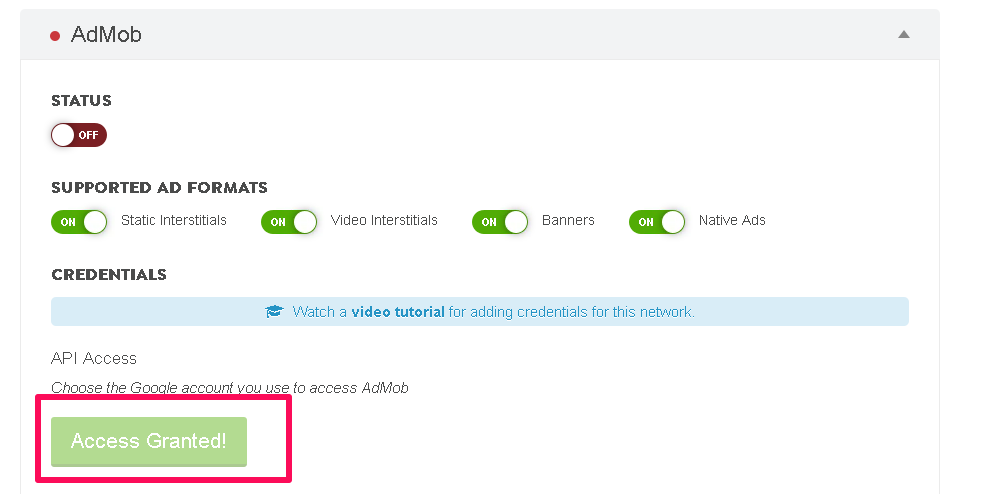
- Now is time to setup the ID’s. You can go to the page where the Publisher ID is by clicking the link in the shown text.
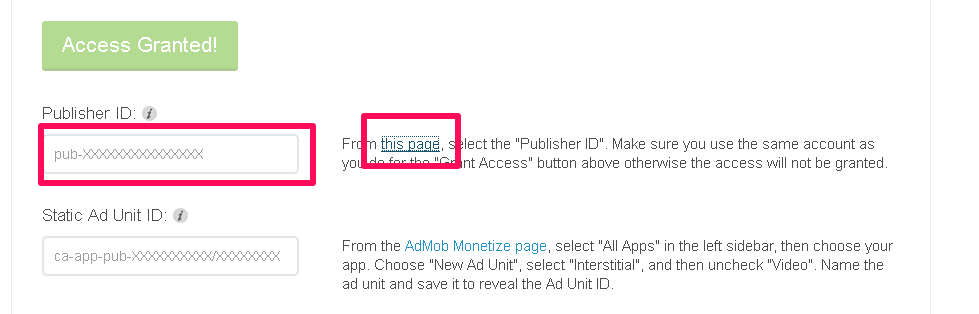
- The Admob settings page will be displayed, so you go for the “Account information” section and copy to the clipboard the Publisher ID*.
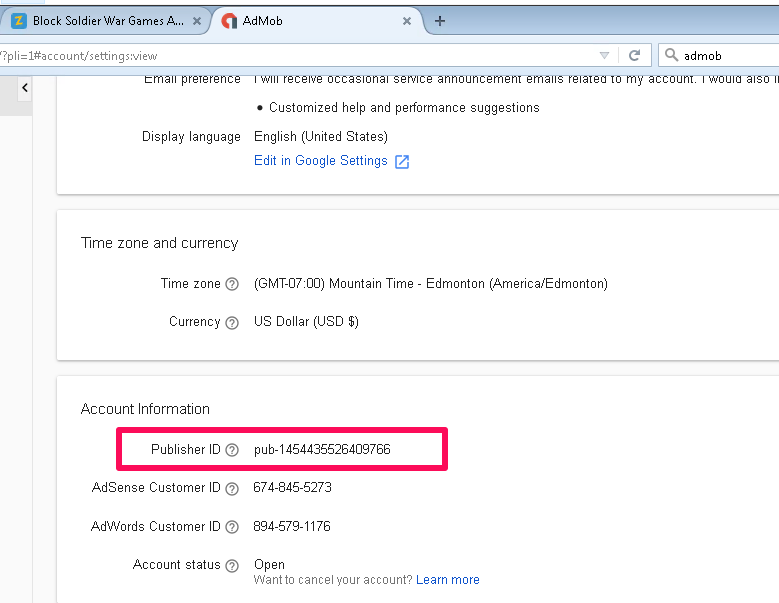
- * The Publisher ID as its name says is an identifier of the Company, that means that all games of the same Company will have the same ID.
- Now back in the Heyap page, paste the ID you just copied.
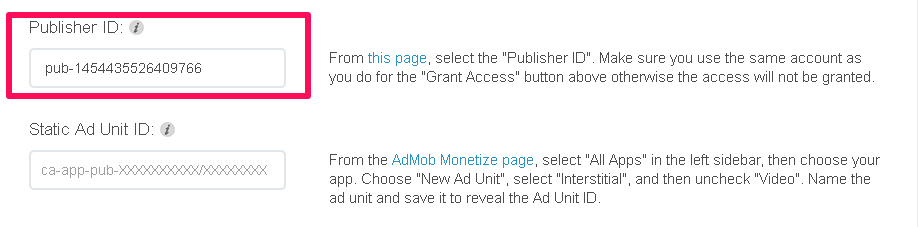
- Go to the AdMob monetize page of your game (See step 2 of Admob setup instructions), and copy to clipboard the Ad Unit ID of “blockislandsurvivalgames_Interstitial”.
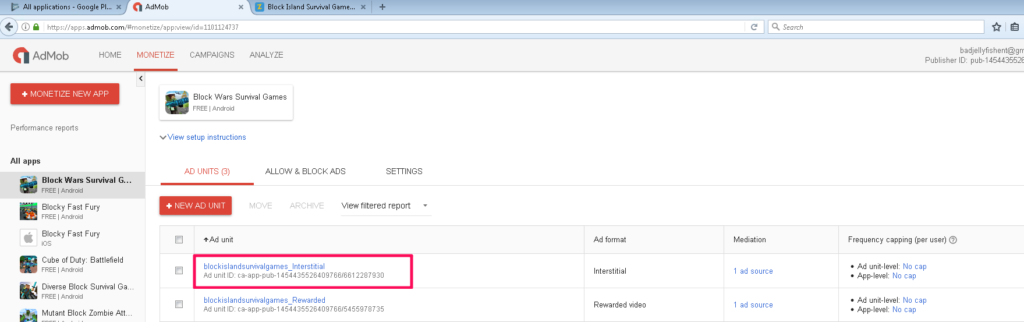
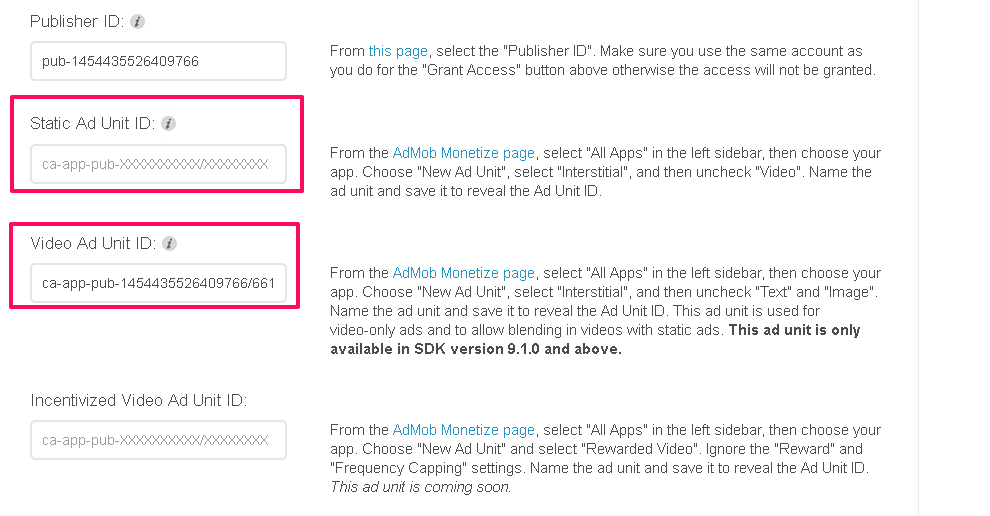
- Back in Heyzap, leave the “Static Ad Unit ID” blank.
- Paste the ID you just copied in the “Video Ad Unit ID” space.
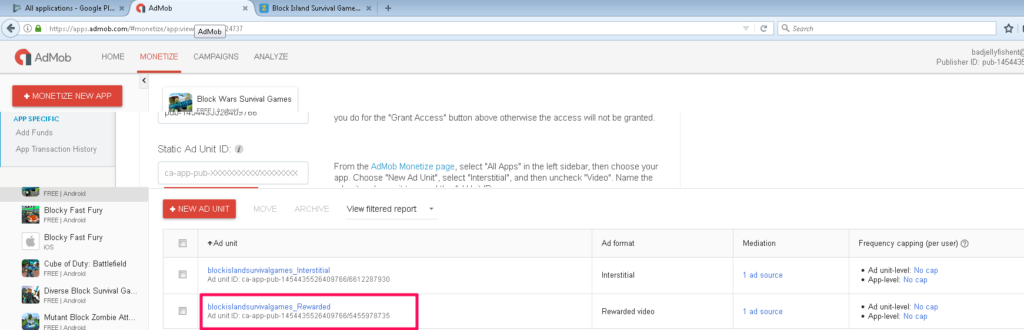
- Repeat the process in step 12, but this time copy to clipboard the Ad Unit ID for “blockislandsurvivalgames_Rewarded”.
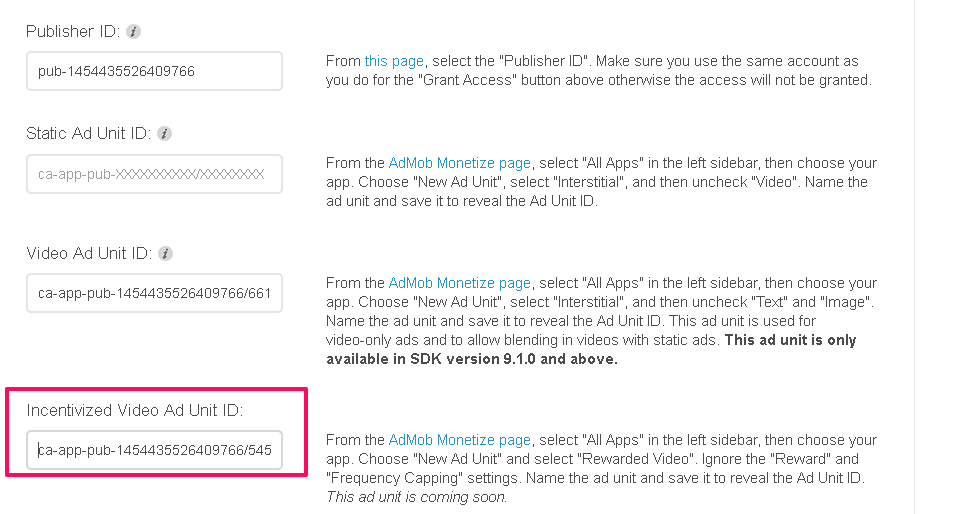
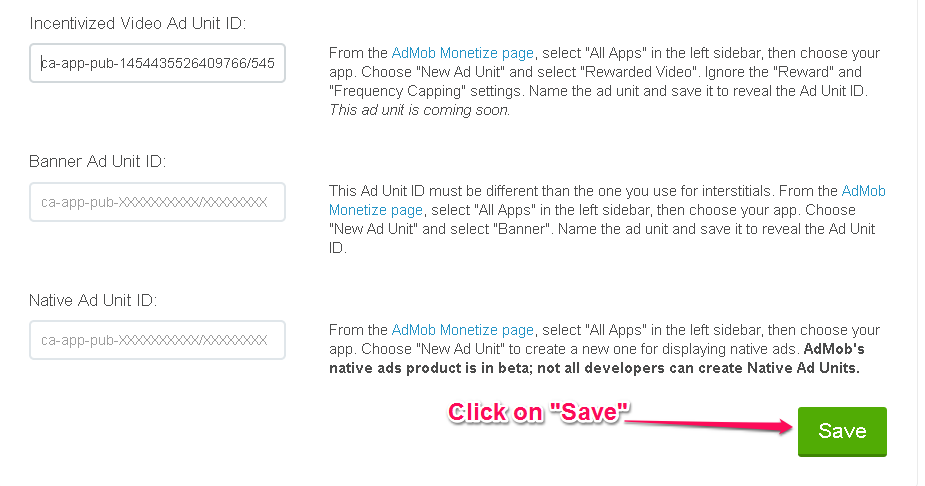
- Paste the ID in the “Incentivized Video Ad Unit ID” space.
- Click on “Save” button.
- Click on “Status” for turning Admob on.
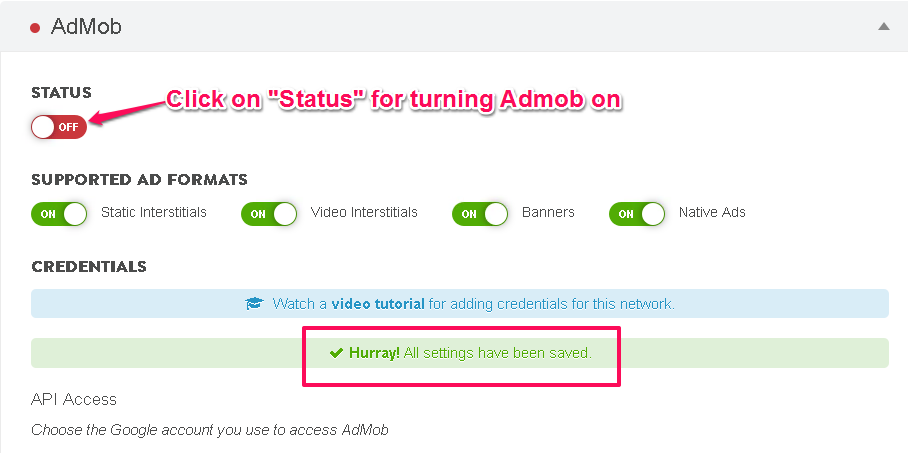
- And that’s it!, now your game is ready to show ads through Heyzap mediation.