
Setup AppLovin on Ads Cascade System
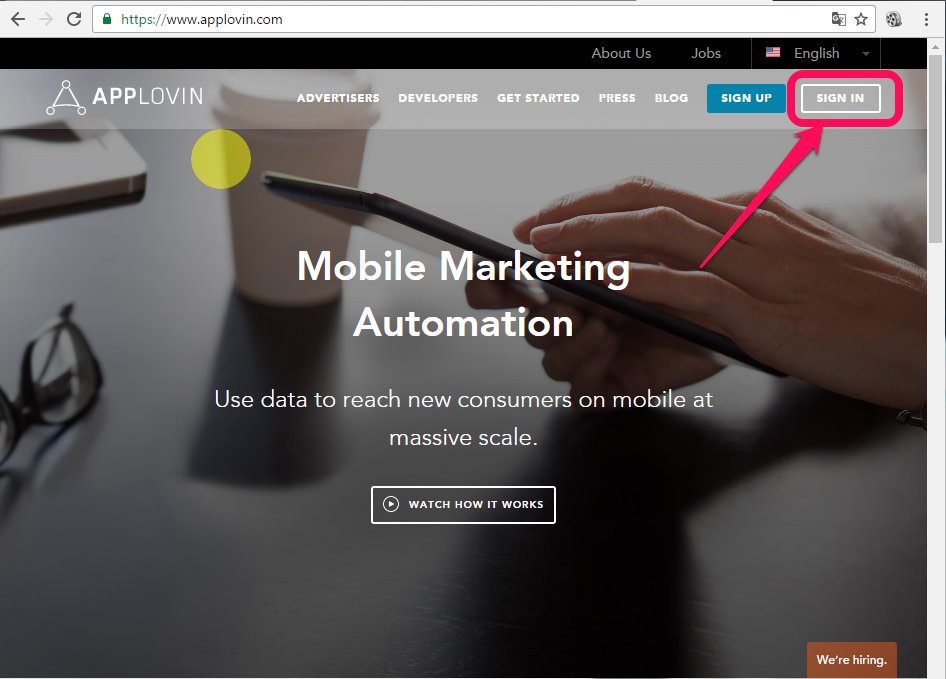
- Go to the AppLovin website
- Click on the “Sign in” button.
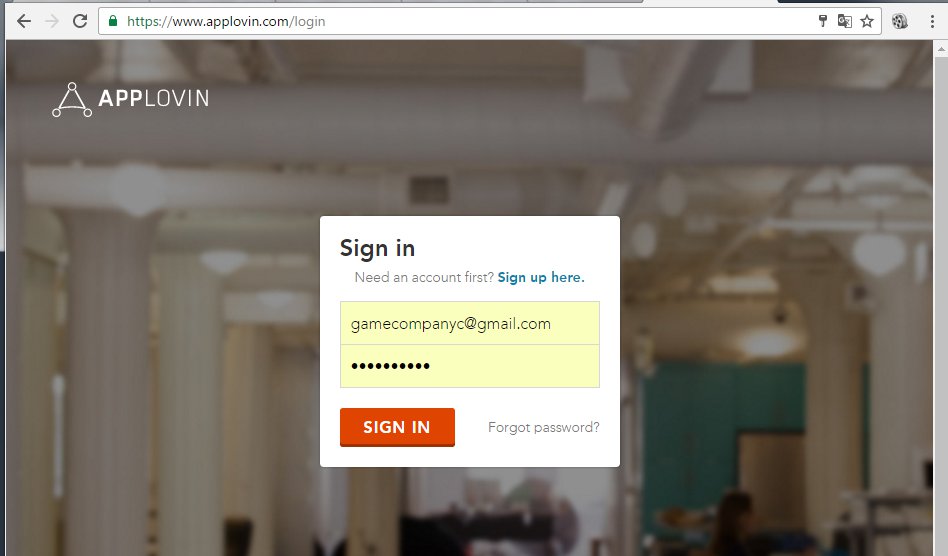
3. Log in with the correct game company.
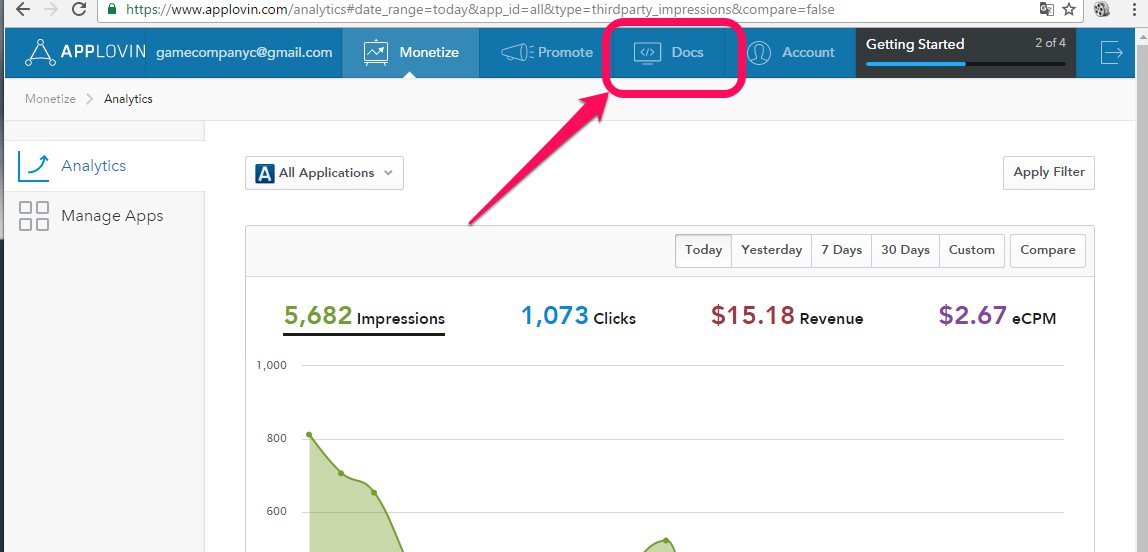
4. Click on “Docs” button.
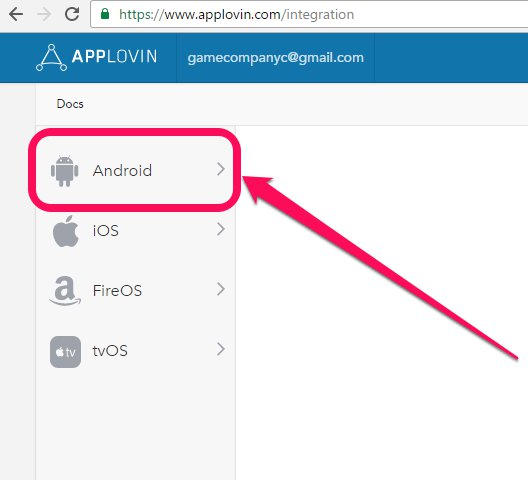
5. Click on “Android” button on the left menu.
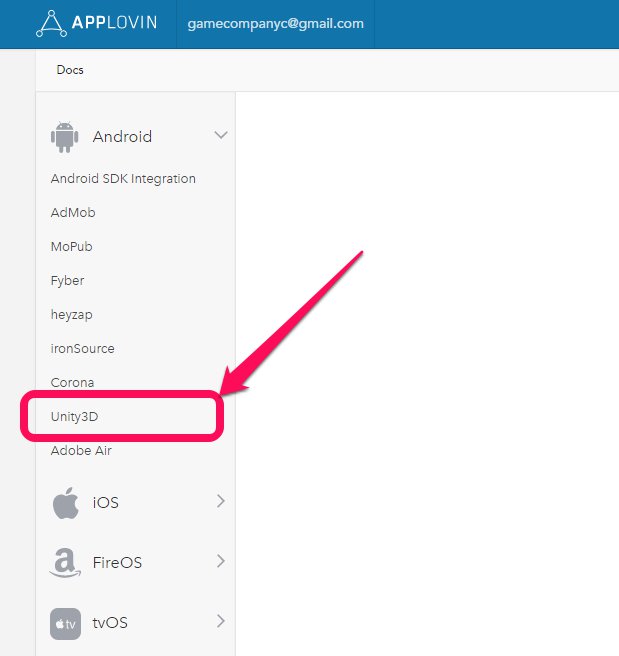
6. Click on “Unity3D” button.
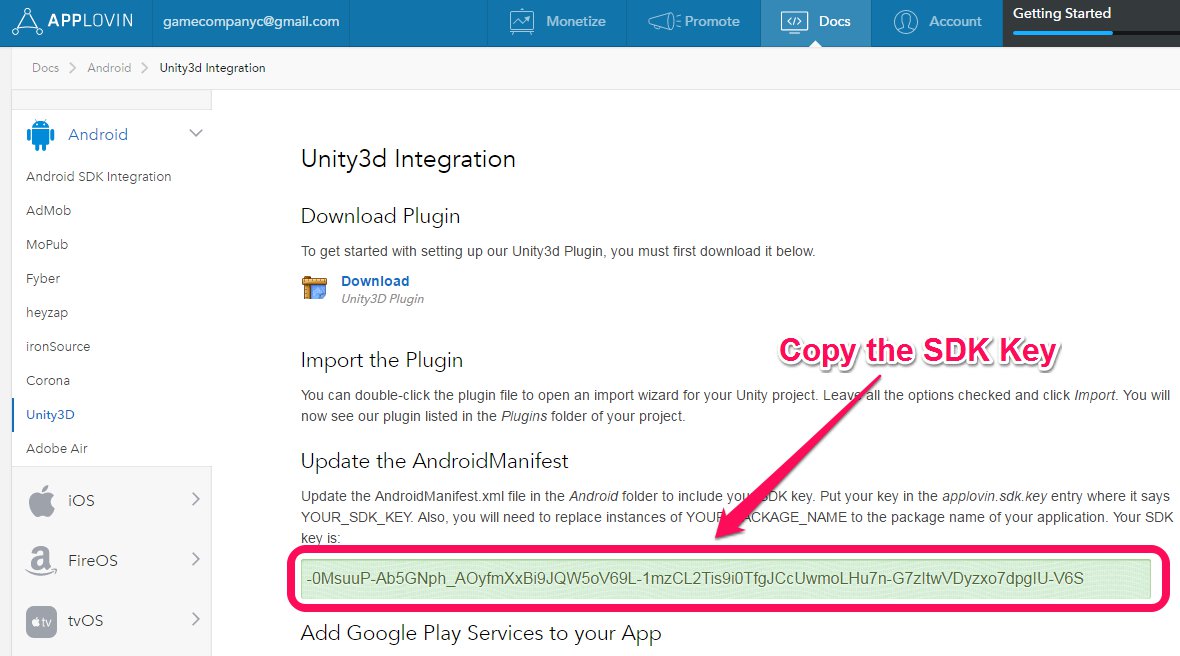
7. Find and copy the SDK Key to the clipboard.
8. Go to the Unity project and click on the “Ad Networks” Menu -> AppLovin -> Edit settings.

9. Paste the SDK Key in the field (AppLovinSettings). Save the project.

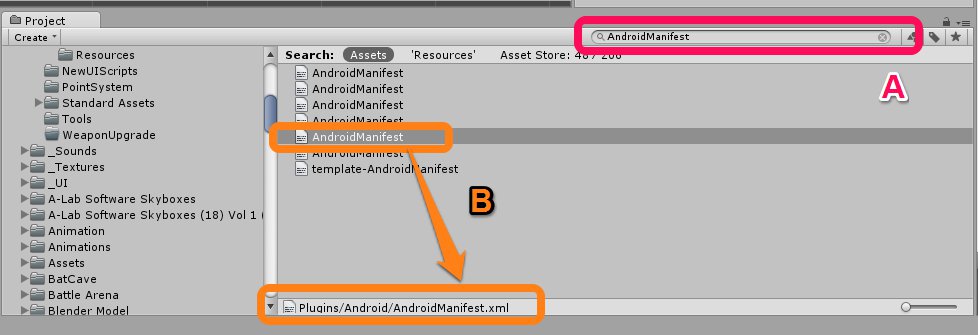
10a. In the Unity Project TAB search for “AndroidManifest” (There will be several files with that name)
10b. Doble-Click on the “AndroidManifest” file with this location: “Plugins/Android/AndroidManifest.xml” to open the script editor (MonoBehavior or Visual Studio).
11. Find the META-DATA tag for AppLovin SDK Key and replace the value with the right one. Save your file.

Please make sure to double check that the rewarded video is enable on the Applovin settings on the dashboard. If is not, you need to do the next extra steps:
12. Go to the AppLovin Dashboard AppLovin website
13. Clic on Manage Apps and click on your game.

14. Scroll down to the Rewarded Video Area and switch on the “Feature Status”. 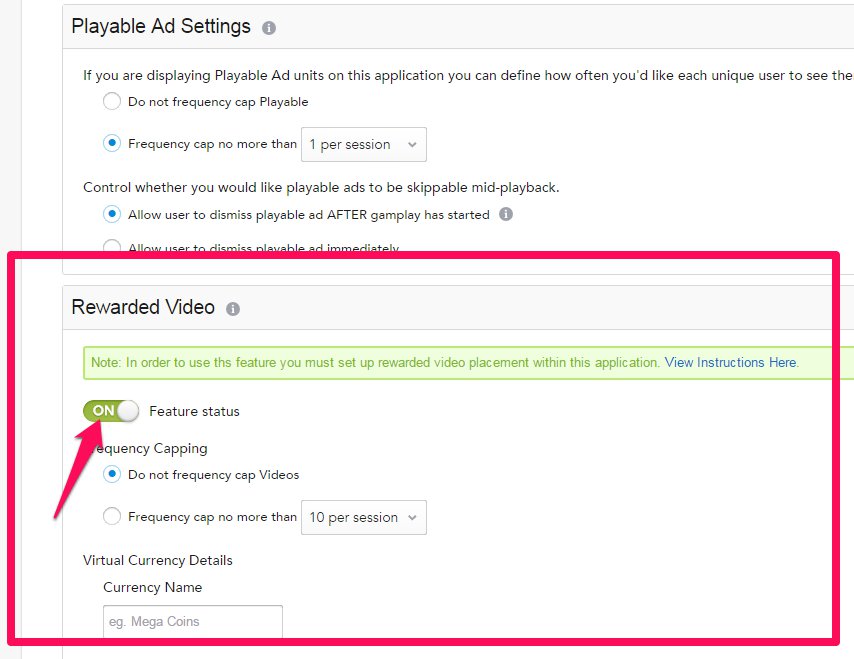
15. Scroll down to the bottom and click on the “Save” button.

16. Congratulations!