
Setup Unity Analytics
1. Once that you configured your game in UnityAds, you’ll need to go to Unity Analytics and scroll down until you find your game on the pending list (when you link your game to UnityAds first it will appear automatically in Untiy Analytics turned off). Click on Enable Analytics.
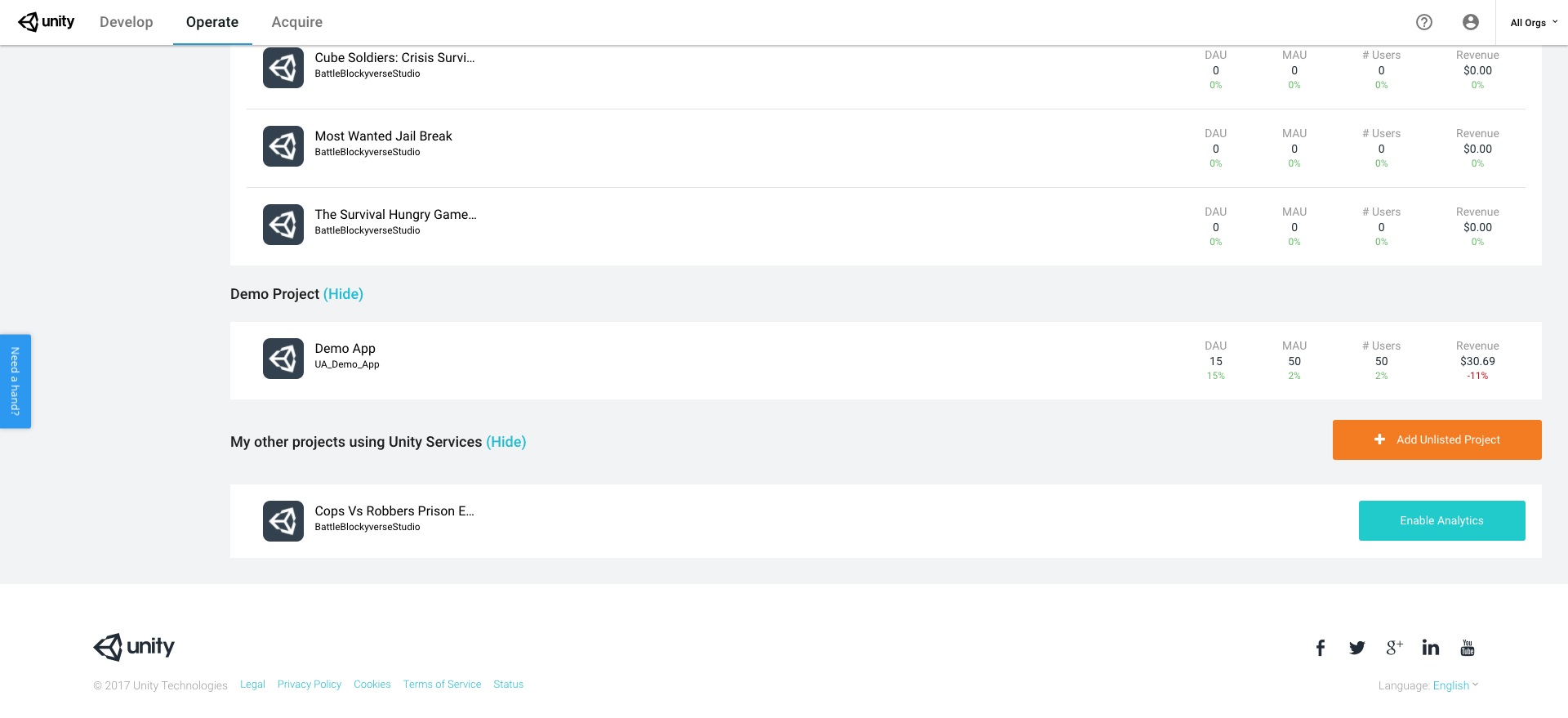
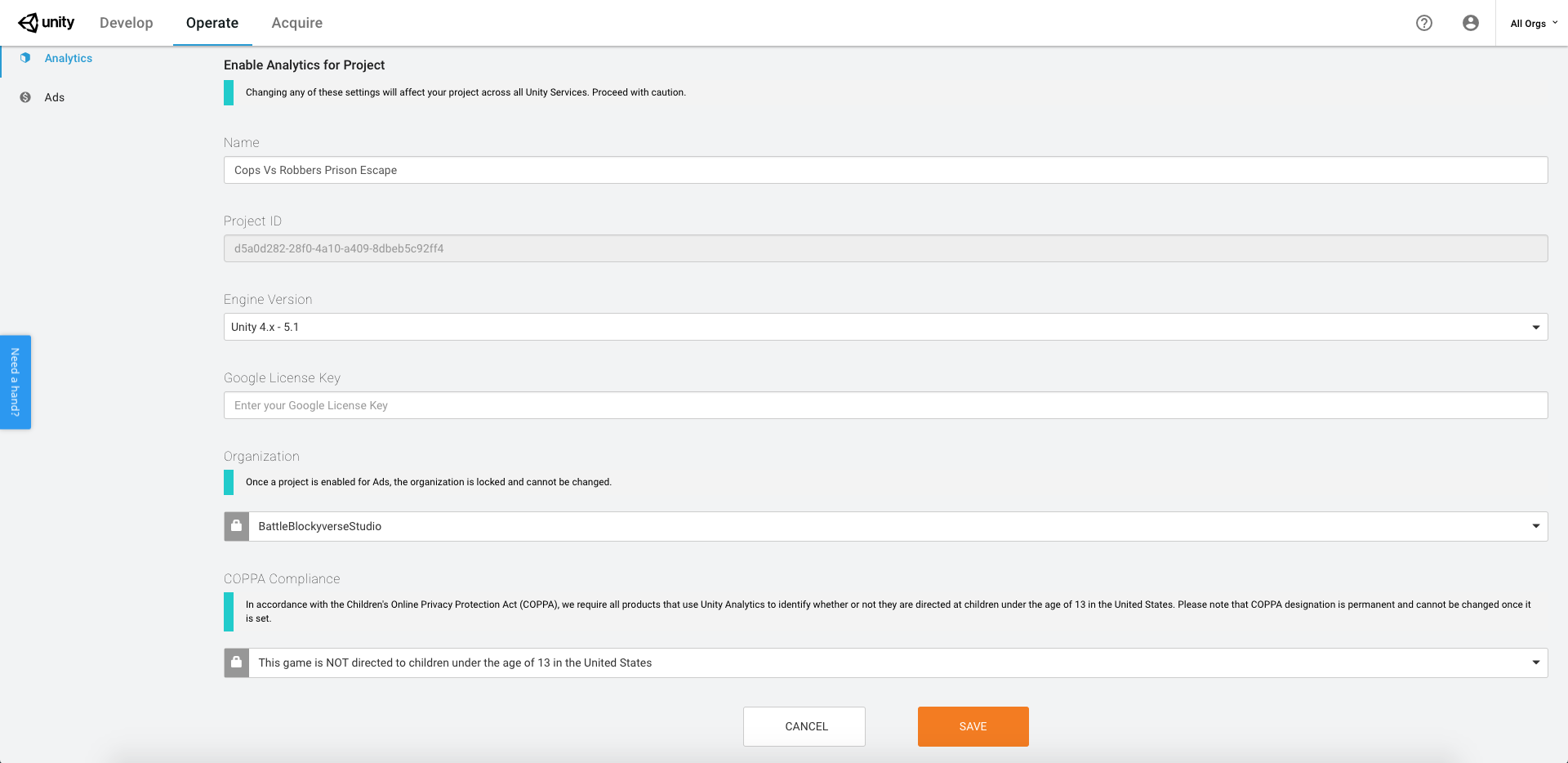
2. Make sure the name is correct and then select Unity 4.x – 5.1 on Engine Version. Finally Save your game.
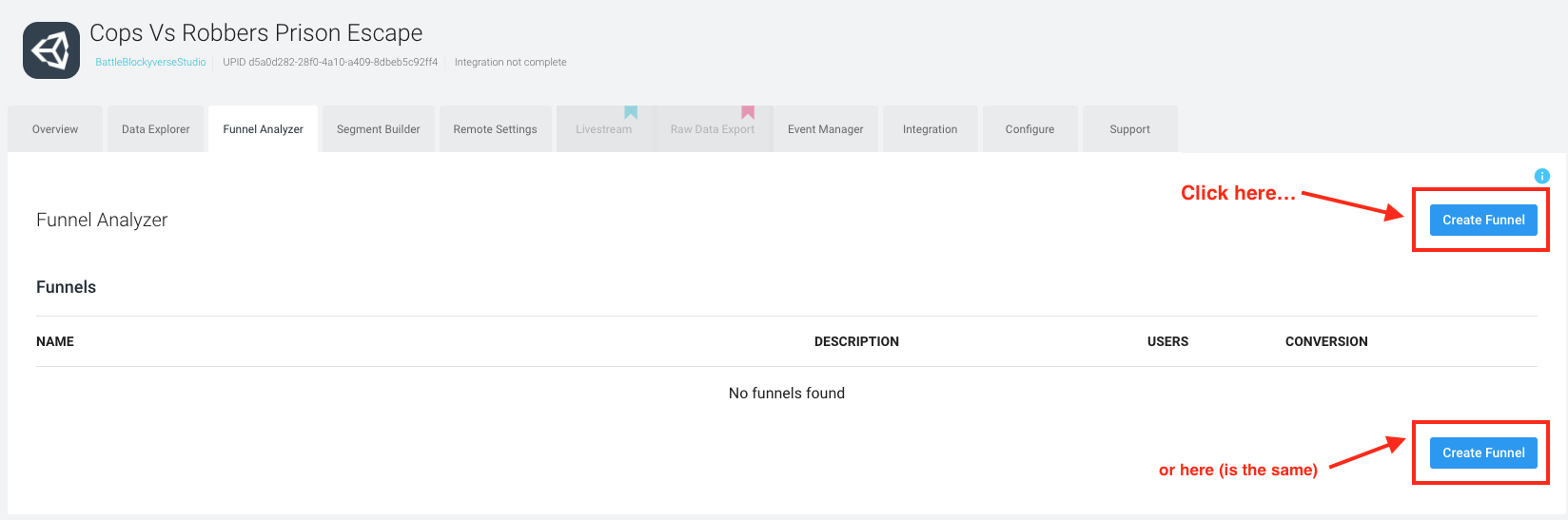
3. Next you will be redirected to the game dashboard. Go to Funnel Analyzer tab and click on “Create Funnel” tab:
4. The Name of your Funnel will be “Level Progression Funnel (NEW)”. Leave the Description blank. Click on “+ Funnel Step” button until you have 14 Steps. The names of the 14 steps are the following. Just copy each one and paste them inside every Step. Leave the Parameter’s blank
- MainMenu
- LevelSelect
- Level1Started
- Level1Completed
- Level2Started
- Level2Completed
- Level3Started
- Level3Completed
- Level4Started
- Level4Completed
- Level5Started
- Level5Completed
- Level6Started
- Level6Completed
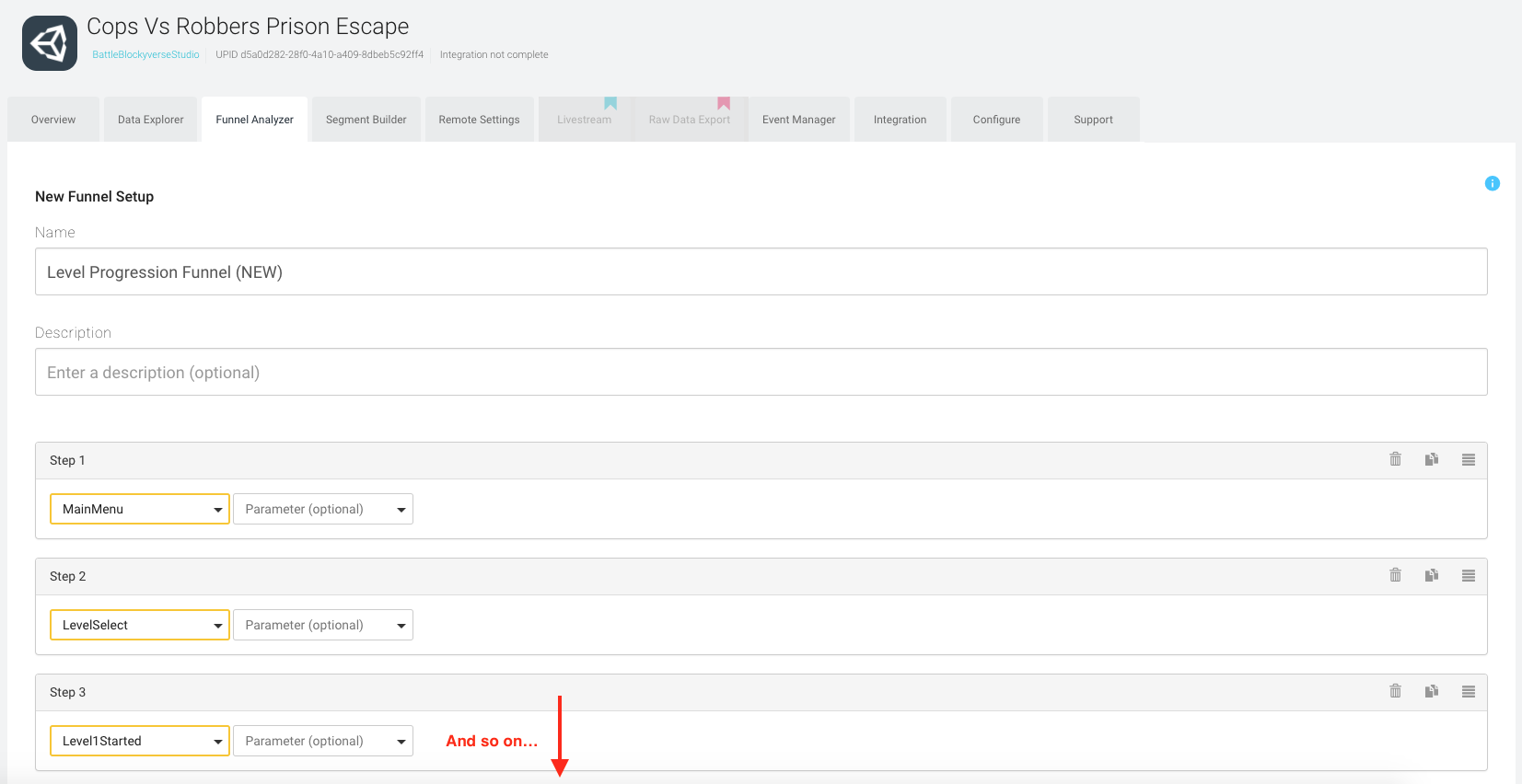
Save your Funnel.
5. Then, inside Unity Services you need to Sign in into Blockyverse account
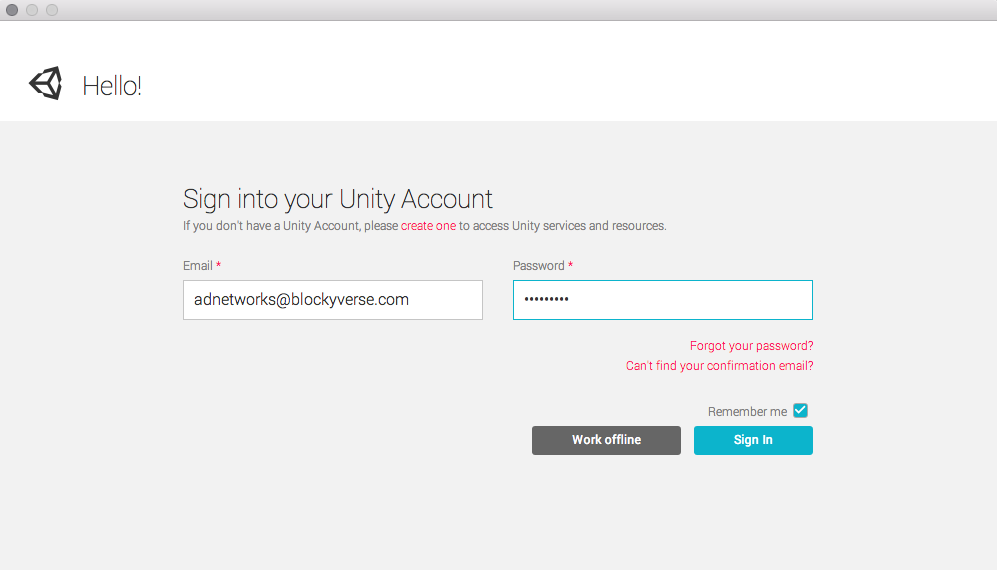
6. Go to Window -> Services tab inside Unity and link the new company:
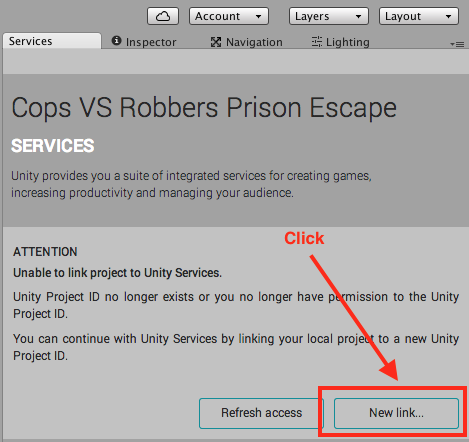
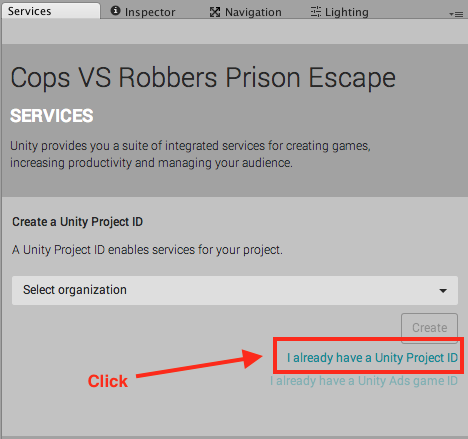
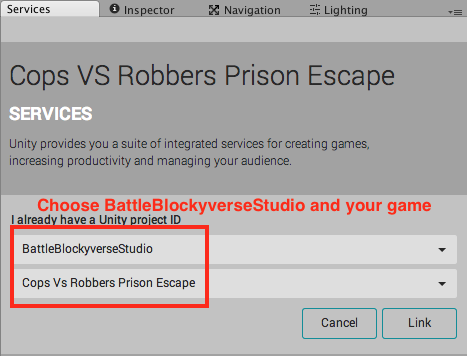
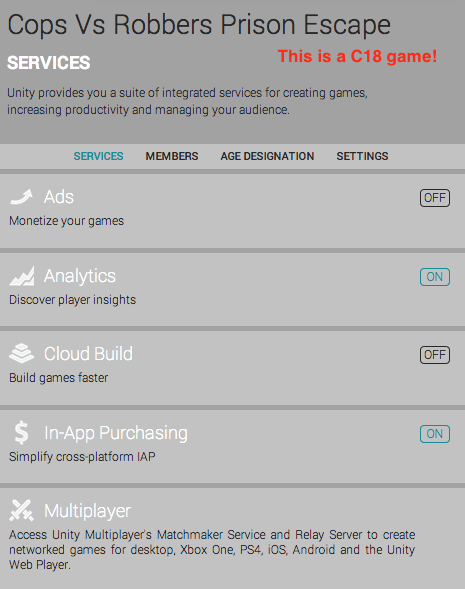
7. Finally, if your game is a C18 game, make sure you only turn on the Analytics and In-App Purchasing Services.
If your game is a C18.1 you need to turn on the Analytics, Ads and In-App Purchasing Services
You’re done!