
Setup UnityAds
1. Go to the UnityAds website
2. Log in with the correct game company.
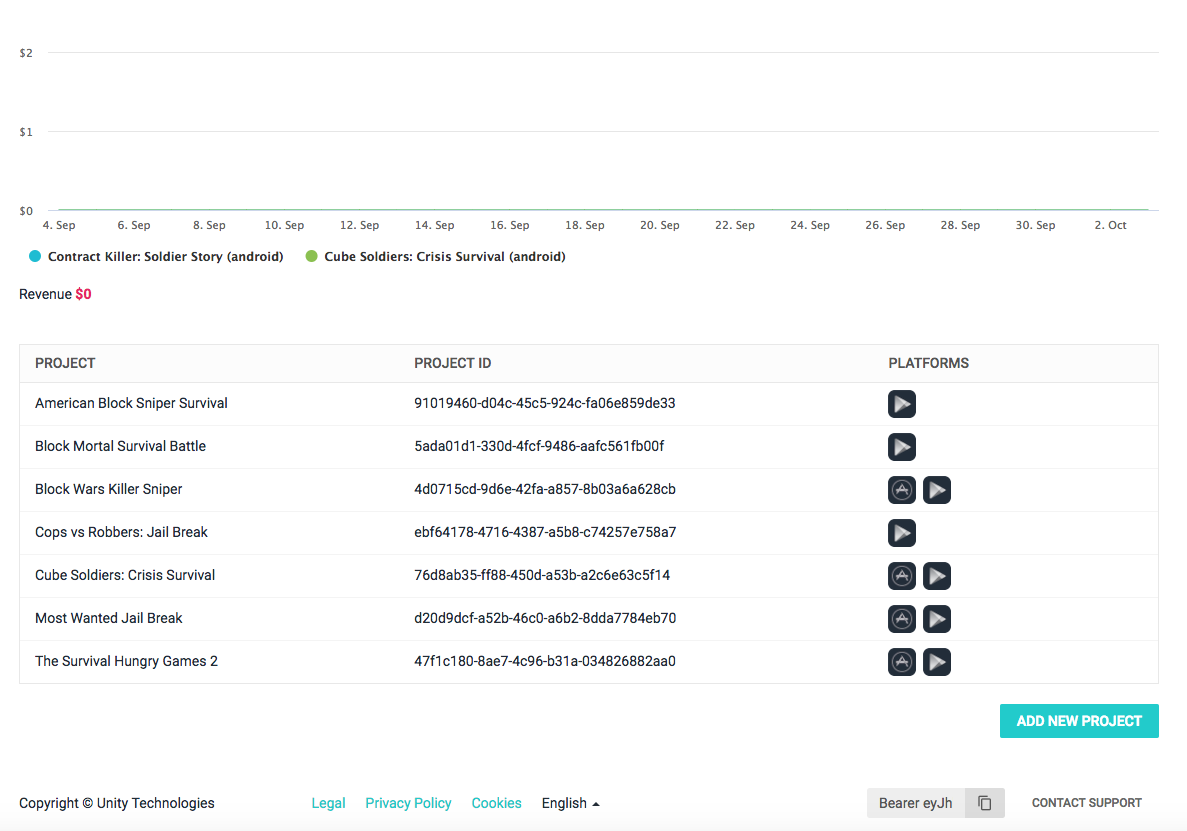
3. Scroll down on the Projects list. If your game is not listed, you need to click on “ADD NEW PROJECT” button. Go to Step 6 if your game is already on the list
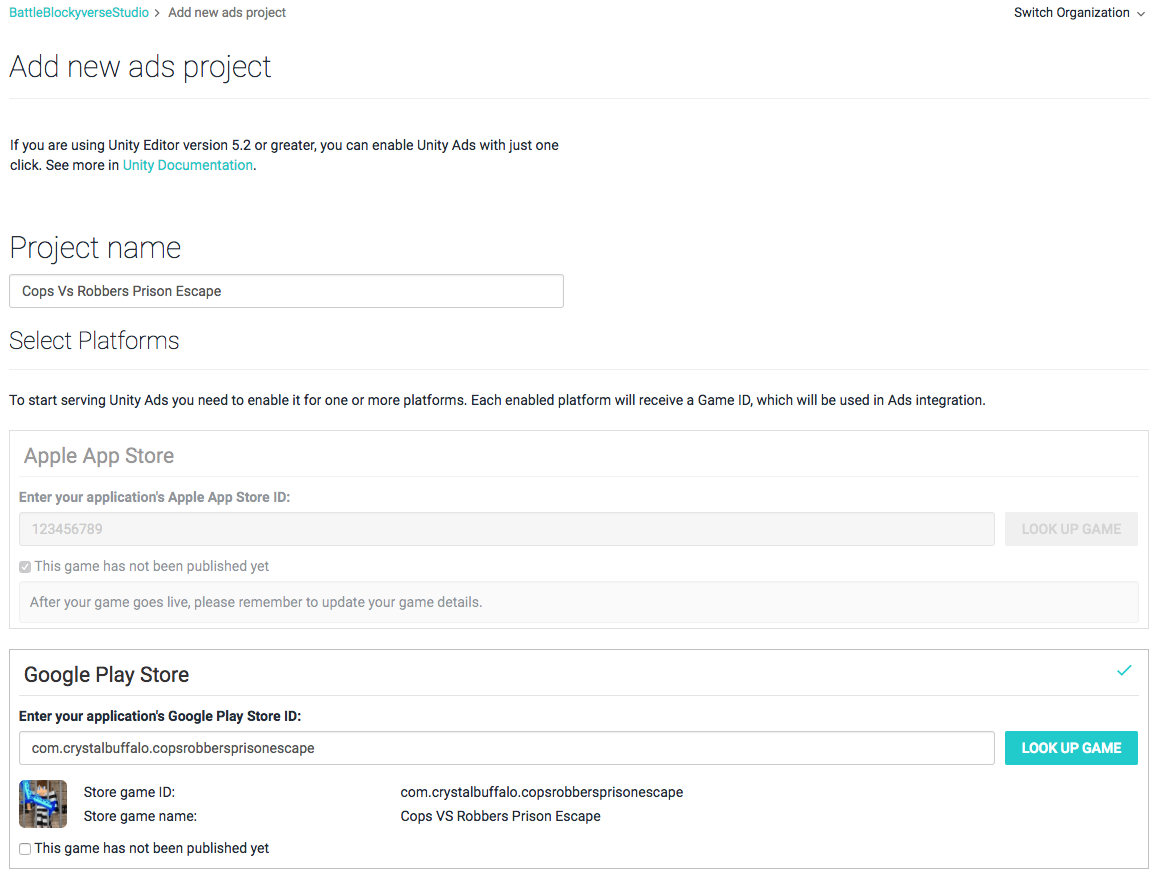
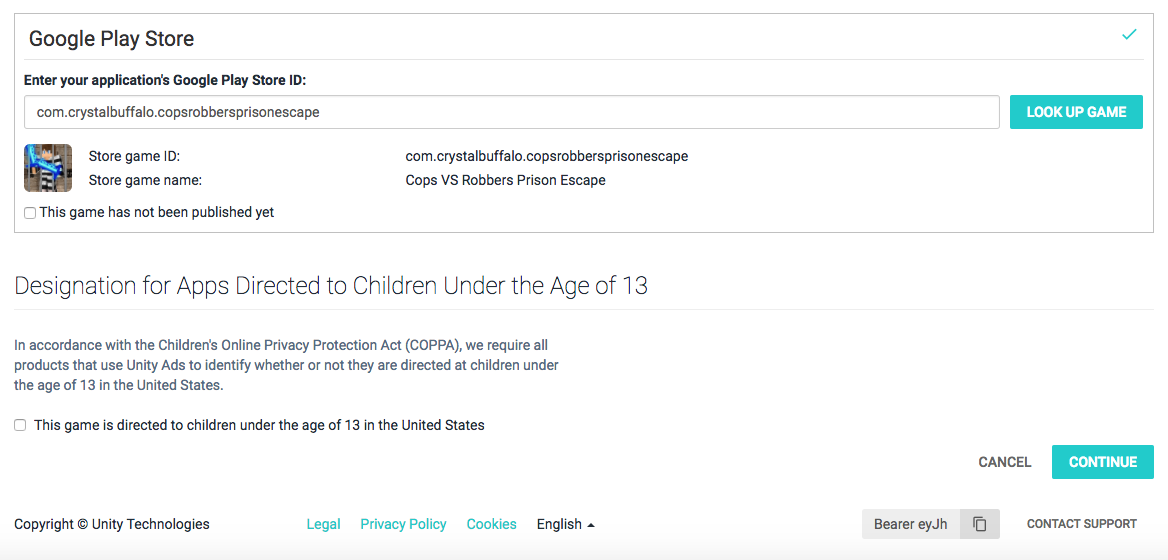
4. Write the game name on the “Project name” input and Look up the game with its Bundle ID
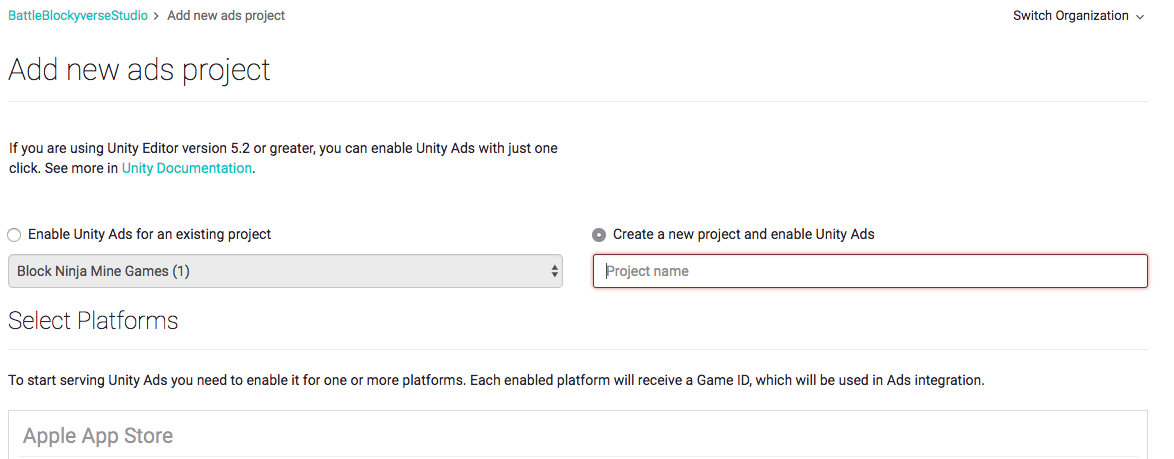
If you see these buttons, just select “Create a new project and enable Unity Ads” and write the name.
5. Do not check the last button for children under the age of 13 in the US. Click on Continue.
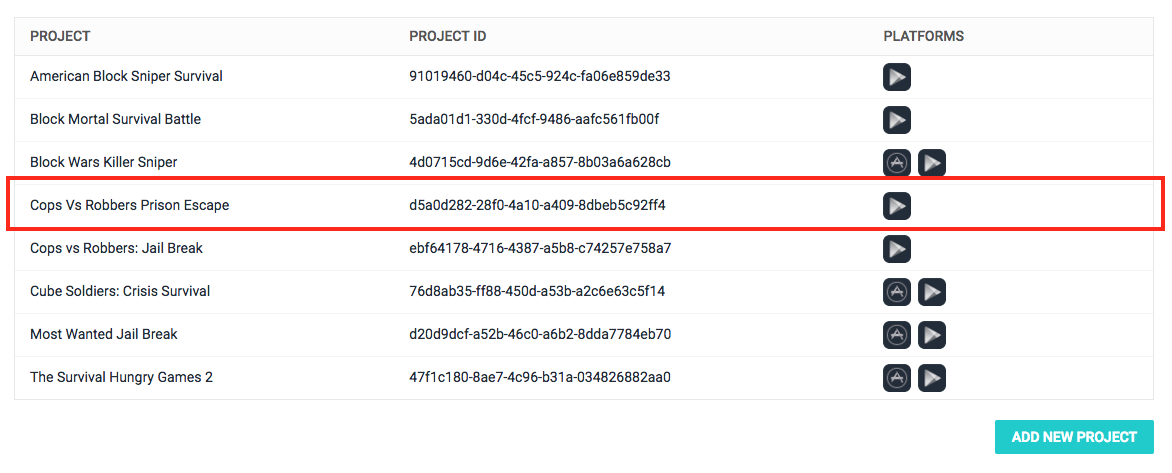
6. Go to the main dashboard and find the game on the Projects list, and click on it.
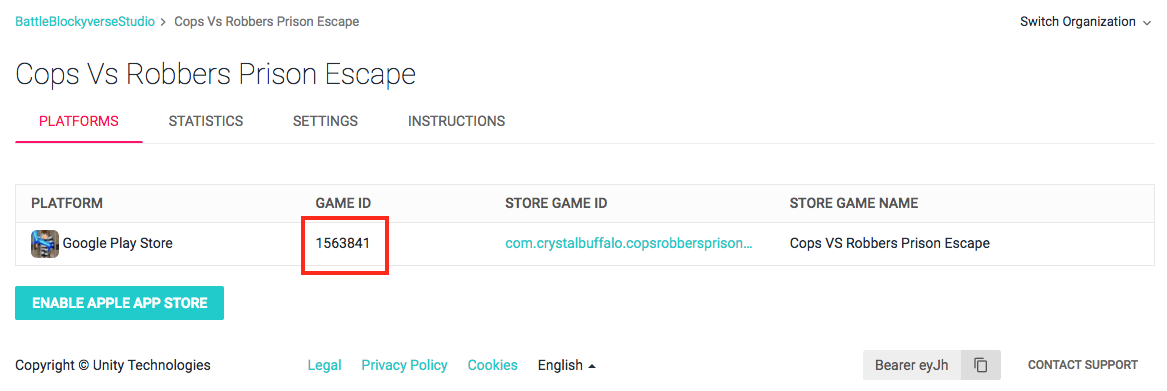
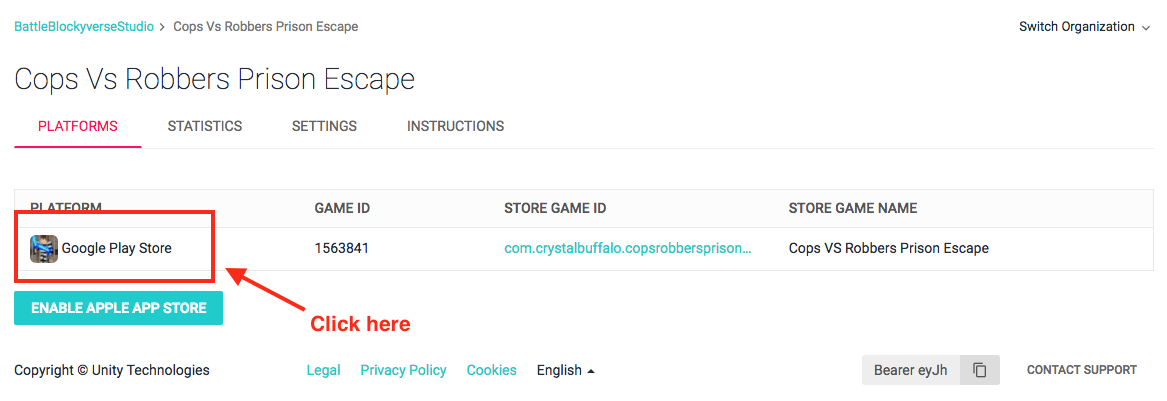
7. Copy the GameID to the clipboard
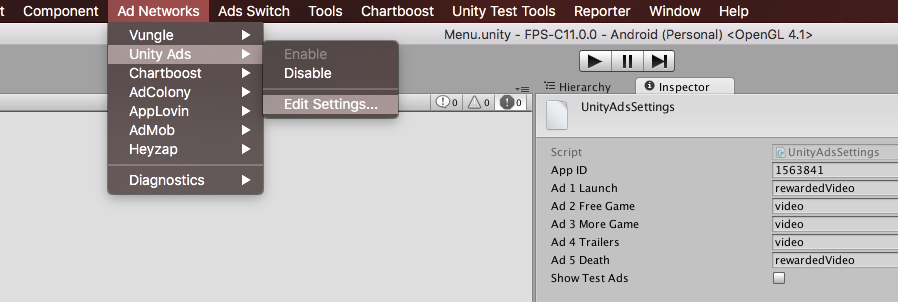
8. Go to the Unity project and click on the “Ad Networks” Menu ->UnityAds -> edit settings.
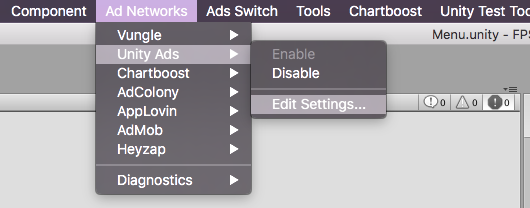
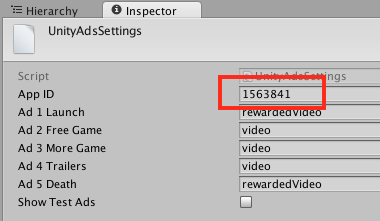
9. Paste the Game ID on the App ID Field.
10. Go back to the Dashobard and click on the game.
11. Be sure that the Rewarded Video is set as “Default“, if not click the “Set” Button on that line.
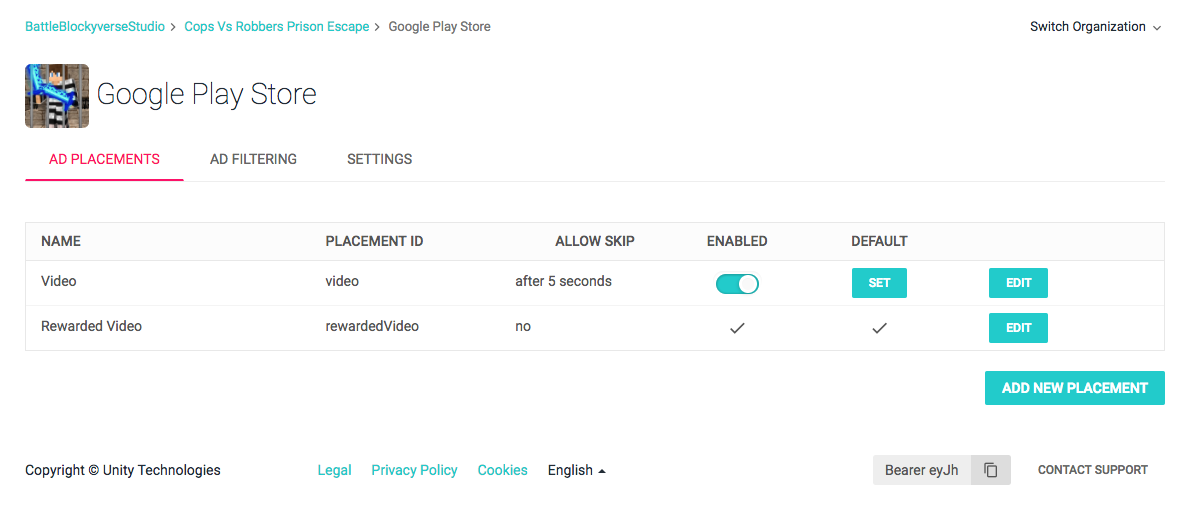
Check that the Placement ID name match in the unity settings. Then paste the same values on Ad Networks Master File in Blockyverse tab on columns E-J.
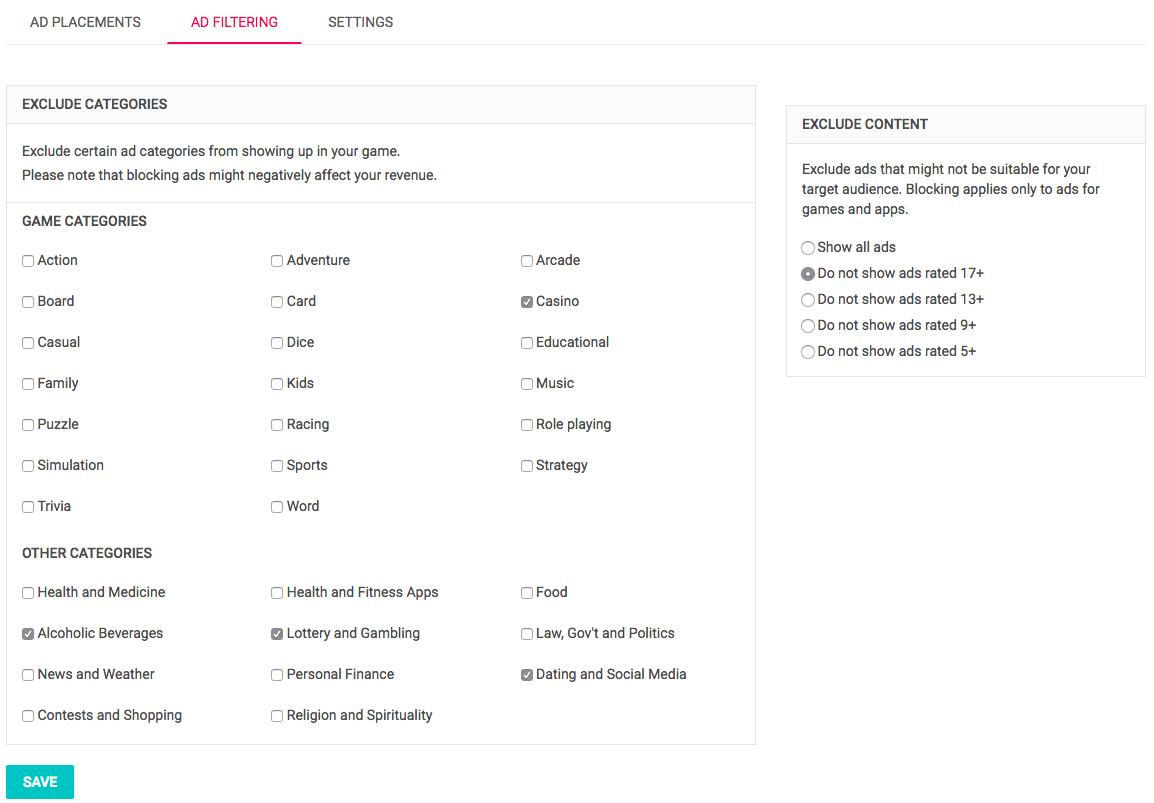
12. Then go to Ad Filtering tab and be sure that you apply the same filters mentioned here: AdsFiltering
13. Save your project.