
Purpose
This article explains how to change what the enemies look like, by setting a minecraft-style skin on them. (It does not cover how to create skins or where to obtain ones that are appropriate for our games.)
Applicability
This article is applicable to anyone wanting to change the appearance of enemies using the D5.1+ codebase.
Video
https://youtu.be/82rM4gRlkLE
Written Instructions
What Do I Need To Reskin?
The texture that is applied to an enemy is called a ‘skin’. There are four classes of enemies (Melee, Bow, Ranged, Magic) in the D5.1 project, and they come in at five different power levels. You need to supply 20 skins (4 classes * 5 skins each) for your enemies. They don’t necessarily need to be unique; use your judgement.
If your game doesn’t use a class of enemies (ex. there are no “Magic” enemies in my science fiction game), then reuse textures from the other enemy types for that class. [That way, if a Dynamic Variable is ever turned on that puts one of the unexpected enemies in your game, they’ll still look like they fit in.]
Skin Dimensions
The D5.1 codebase uses standard Minecraft skins, in the Minecraft version 1.7 and previous format. These skins are 64 pixels wide and 32 pixels tall. [If you find a Minecraft-1.8-style skin, which is 64×64 pixels, crop off the bottom half to make it 32×32 pixels. If you don’t have a tool you like (say, Photoshop), you might try FireAlpaca.]
Importing Skins
I suggest created a folder for your skins – say Assets/Textures/Skins/Your Game Name –and putting your texture images there.
The skins need to be imported with very specific settings, as follows:
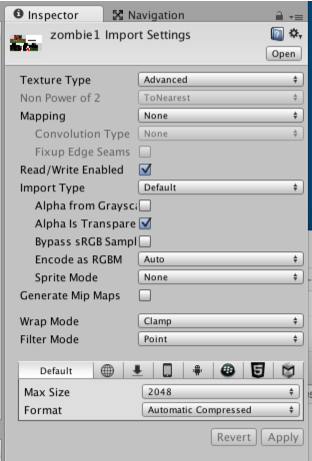
Why these settings?
- Texture Type = Advanced ⇒ so we can turn on Read/Write Enabled.
- Read/Write Enabled = On ⇒ needed so that dead enemies turn into a pile of blocks using colours from the image
- Filter Mode = Point ⇒ makes the texture show up sharp and clear (instead of blurry).
- Generate Mip-Maps = Off ⇒ Mip maps are smaller textures used when an object is far away. This is already a tiny texture.
- Alpha = Transparency ⇒ if the skin image has transparency in it, it’ll be transparent on the enemy.
Using The Skins
In the folder Assets/Resources/NPCFiles/NPCMaterials/BlockMaterials, you will find the following material files:
- Magic1, Magic2, Magic3, Magic4, Magic5
- Melee1, Melee2, … Melee5
- Ranged1, Ranged2, … Ranged5
- Bow1, Bow2, … Bow5
(There are also several other files there, and other materials. I don’t think they are used and hope to remove them in the future.)
These materials are applied to your enemies. The “Melee1” material is applied to a Tier 1 Melee enemy, and the “Bow4” material is applied to a Tear 4 Bow enemy.
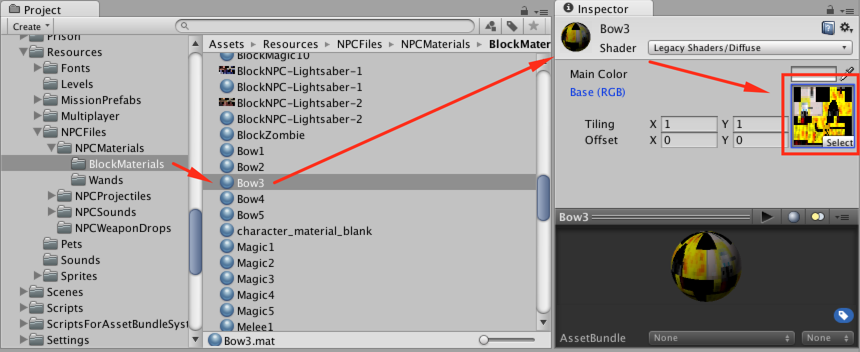
With the material displayed in the inspector, click on the ‘select’ button, and choose whichever skin you want used for that type of enemy.