Import The Game Data
Wait! Stop the presses. Didn’t we just import?
Yes, yes, we did. We imported assets into Unity.
Now, we will import all the enemies and game settings into our game. It is confusing that they use the same name — if you have a better term, contact your friendly neighbourhood dev team.
It is not a bad practice to clear the messages in the console before beginning. Find your console window (Window -> Console, from the menu) and hit the clear button.
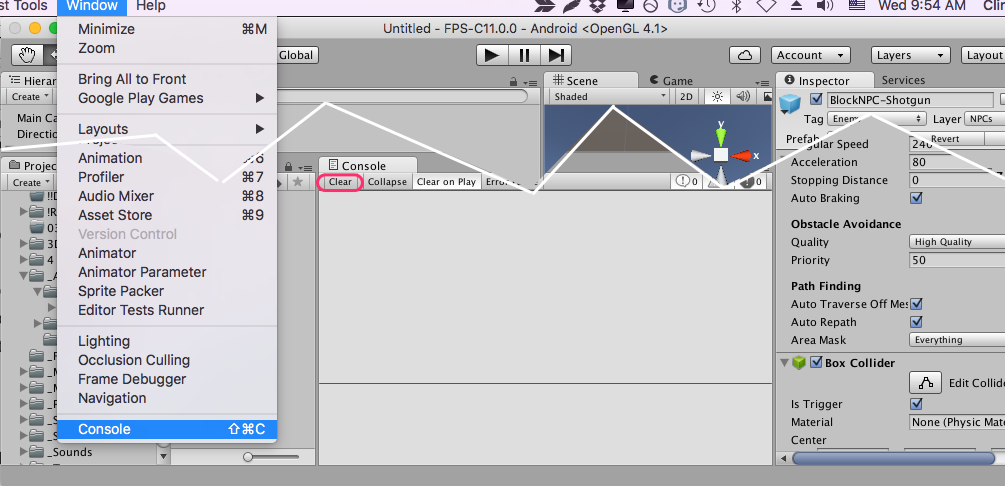
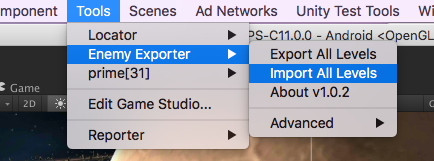
Now, go to Tools -> Enemy Exporter -> Import All Levels to kick off the process.
You’ll get a nice progress bar to show you what is happening.

Woohoo! This process just save you six hours of mind-numbing work!
Troubleshooting – Missing Enemy Prefab
You might get a message like this:
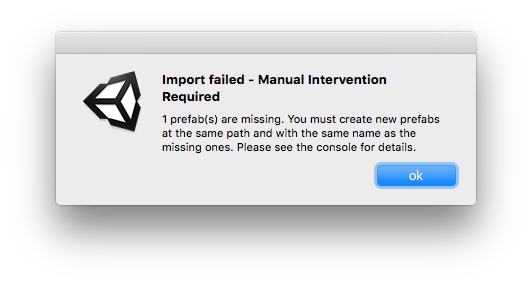
This means that the game couldn’t find one of the prefabs, and you’re going to need to fix it. You’ll need to look at the console (and perhaps the scene) to get a fuller understanding:
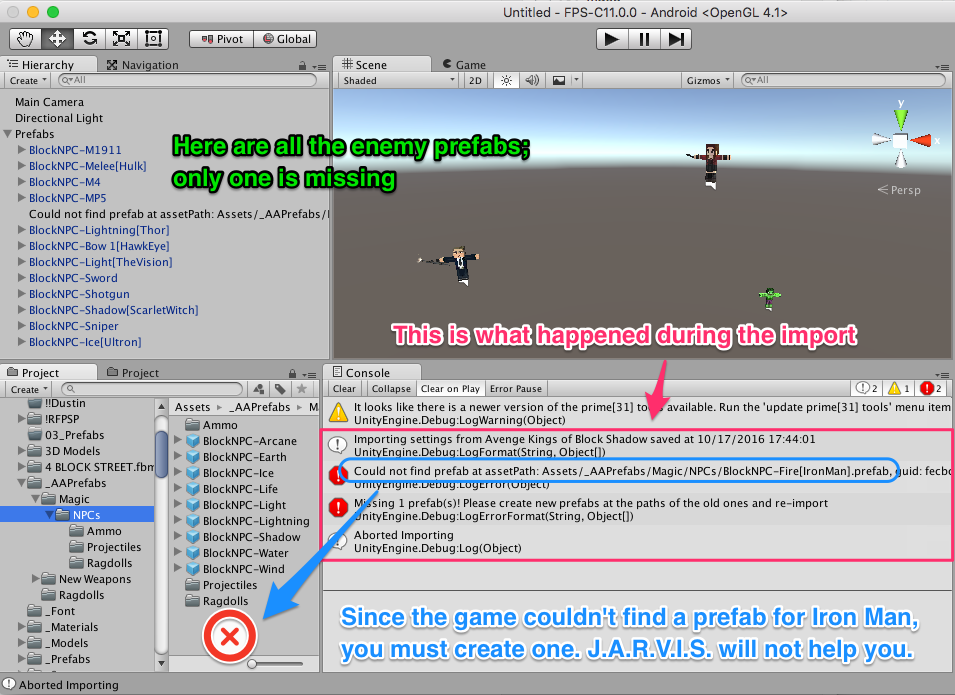
When the importer goes to find a prefab it:
- Sees if there is a prefab in the project with a matching ID (called a GUID, or ‘Globally Unique IDentifier’)
- If not, sees if there is a prefab in the project with the exact same name and path
If you get this message, it didn’t find one, and needs you to create a basic prefab at the same path, with the exact same name, as the one it is looking for. In this instance, the game couldn’t find a match for an asset that had been named Assets/_AAPrefabs/Magic/NPCs/BlockNPC-Fire[IronMan].prefab. Look into the folder (in the screenshot above) you can see that there is no file with that name.
We will need to create one. We will duplicate an existing enemy prefab and rename it (and change the folder) to exactly match what the game is looking for.
One nice thing about this particular example is that we can tell that the IronMan prefab must’ve started as the BlockNPC-Fire prefab, so, if possible, I’d like to start from that prefab (so that IronMan will have the right weapon). [If I had no idea, I’d just have to choose an existing enemy prefab as a starting point].
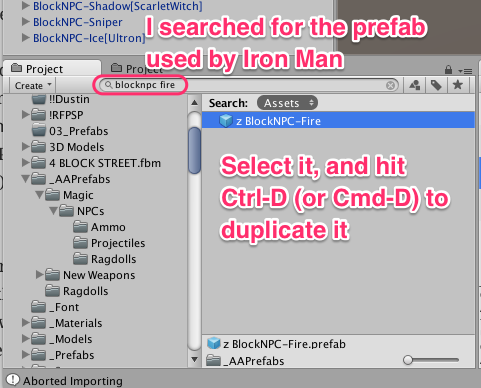
In this particular example, we can see that the IronMan prefab was based on BlockNPC-Fire. Since I don’t see it in the expected folder (_AAPrefabs/Magic/NPCs), I search for ‘blocknpc fire’ and find it. [If I didn’t find it, I’d just choose some other enemy prefab and use it, but note that the enemy will than have the weapon used by the original prefab].
I can then duplicate the prefab (select it and press Ctrl-D or Cmd-D).
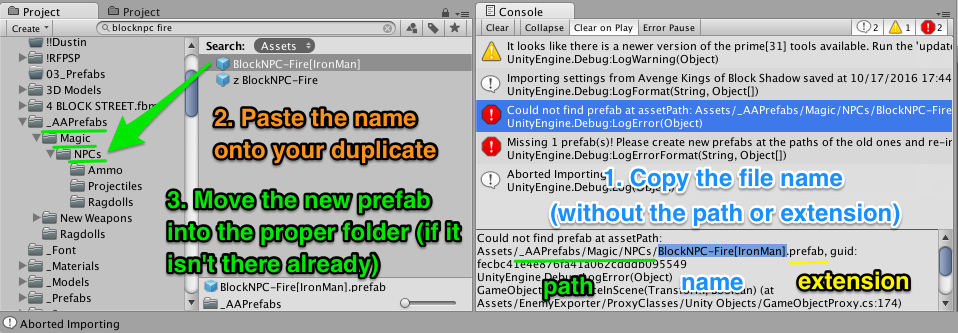
To rename it exactly, I’ll find the line in the console and copy the name. Then I’ll paste that onto my prefab, and finally, move it into the folder where the importer was looking for it.
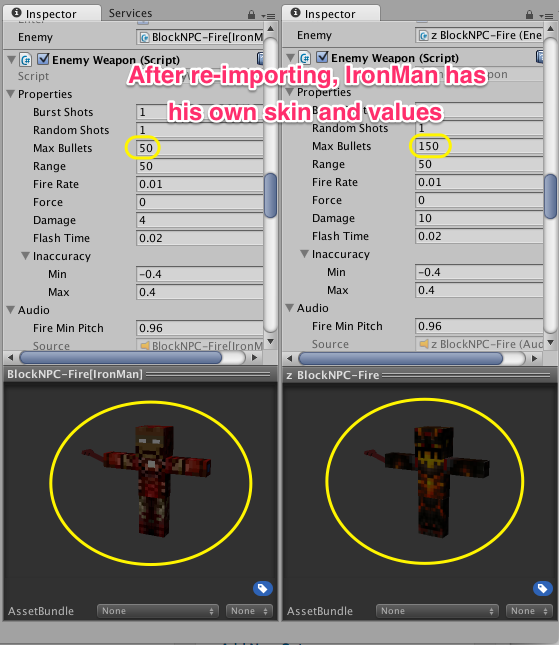
Now when I re-run the importer, it’ll work, and it’ll update the prefab based on the values and skins in the old project.