
Import the Unity Package
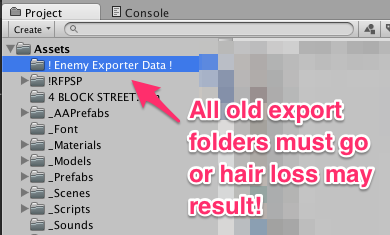
Delete Old Imports
If you have a folder in your project named “! Enemy Exporter Data !” delete it now. (The importer code looks for “Assets/! Enemy Exporter Data !/game.json”. If you already have a folder with that name, you might import the wrong thing. Just toss it).
Import Some Assets Into Unity
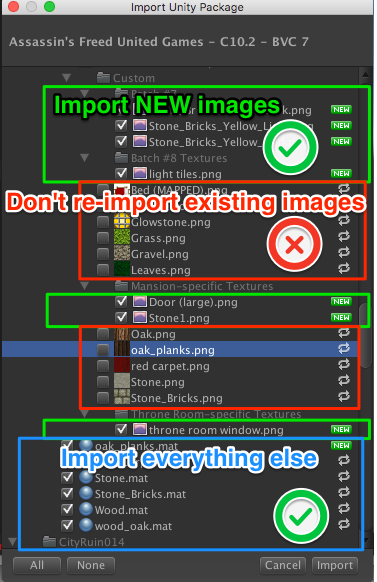 Now that you have a Unity Package with all the details for the game, import it into your NEW project. [How to import].
There will be a lot of files in this package. Textures, materials, levels, models, skyboxes. If you see dozens of scripts (scroll to look at all the files), there is something wrong — abort mission!
BREAKING NEWS
You can’t just import the whole package. A significant number of textures were changed because some of our old projects had copyrighted Minecraft textures in them.
So as to not overwrite corrected textures, when you do the import, go through all the textures (they’ll be .png, .tif, .psd or .jpg files, with little pictures beside them) that are marked as updating an asset, and untick the checkbox.
Now you can hit the Import button.
It may take three minutes to import, but you’ll get nice progress bars along the way.