
Troubleshooting: What happened to my scene?
If your scene looks all wrong, then you’ve got some more work ahead of you.
The exporter can’t export items with scripts on them from your old scene, as then Unity would want to re-import hundreds of old scripts. Before saving out a copy of the geometry of the scene, it first deletes everything in the scene with a script on it. If your building is a prefab with a script on it (even an elevator script or a death zone script), then it will not export right.
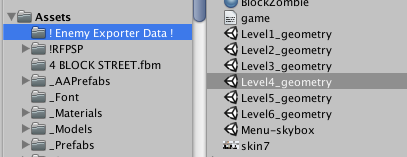
Incidentally, you can see what was saved with the geometry by opening the LevelX_geometry scenes in either the exported data folder.
I’m going to recommend two approaches to dealing with this problem:
Method 1: Fix It And Re-Export
Assume my pirate ship in level one had something with a script on it.
First, we want to break the prefab instance, by selecting our prefab and choosing GameObject -> Break Prefab Instance. This is important because we don’t want to export scripts that are attached to the prefab this object referenced (and now it doesn’t reference them).
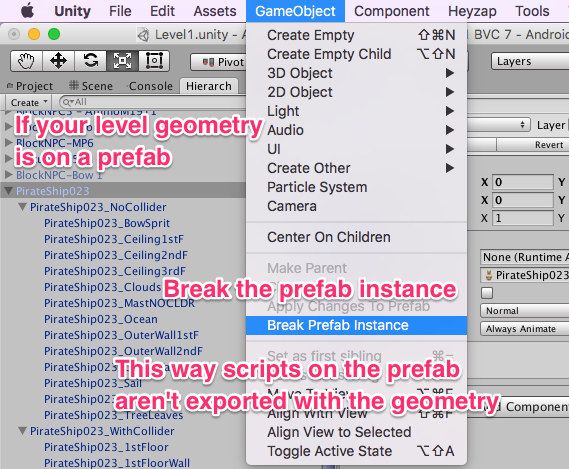
When you do this, the item will change from blue to black in the hierarchy.
Now, go through every game object on the pirate ship (or your particular geometry) and look for custom scripts; remove them.
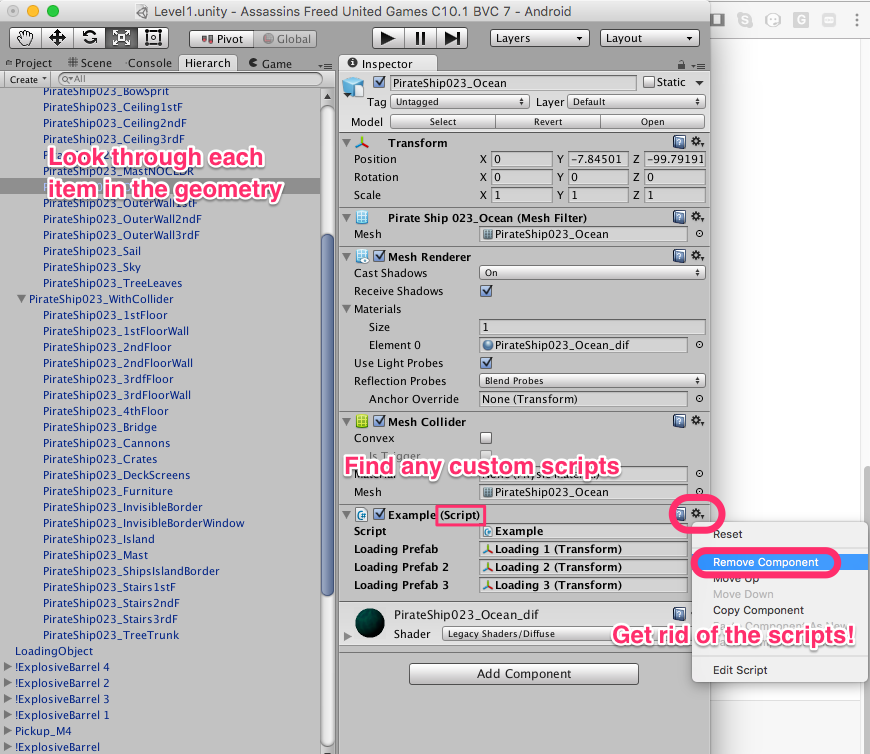
Save your scene. Be certain to delete the ‘! Enemy Exporter Data !’ and you are ready for redoing the export process.
Method 2: Exporting The Item and Importing Just What You Need
This method is more advanced (and is probably similar to what you’ve done in the past). I’m just going to outline it. With sufficient demand, I’ll come back and add pictures 🙂
- Open the scene that has the missing geometry
- Delete everything in the scene except for the pieces of geometry you are interested in.
- As in method 1, break the prefabs, and remove the scripts.
- Save the scene under a different name. (ex. Lvl1-PirateShip)
- Find the scene in your project, right click on it, and choose ‘Export Package…’. You’ll want to export with dependancies, but if it has tons of scripts, well, redo step 3.
- Import the .unitypackage you just created into your new project.
- Open the scene that it needs to go into.
- Find the scene you created earlier (Lvl1-PirateShip), right-click on it, and choose ‘Open Scene Additive’
- Drag the item you are missing from the bottom scene into the top scene.
- Save the top scene.
- Right-click on the bottom scene in the hierarchy and Remove Scene; don’t save.