
Tweak Enemy Skins
You need to adjust some settings on how your enemy skins are imported.
Go to your import folder, and select all the enemy skins. (You don’t want to select the title image. At the time or writing, that is the only other texture you’ll find in this folder).
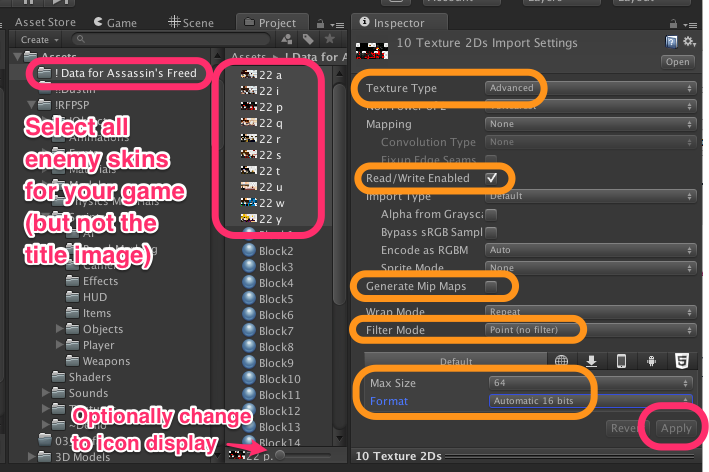
In the inspector, change the import settings. The texture type needs to be advanced so that we can turn read/write enabled on. The skins are so small (they will be in the game at 64×32 pixels) that there is no need to generate mip maps, and it is imperative to use the ‘point filtering’ mode so they look sharp and clear. To force them to be 64 pixels wide, set that as the max size. Images this small don’t take up a lot of space, but we do want the colours to come through cleanly — setting the format to automatic 16 bits does that.
Apply the changes to your images.
Troubleshooting
The skins look awful
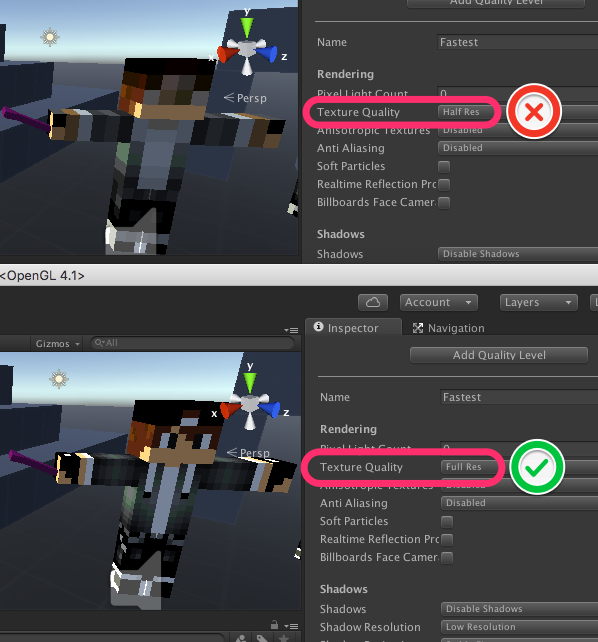
This shouldn’t be the problem, but check it first anyways. Go to Edit -> Project Settings -> Quality, and, under Rendering, change Texture Quality to Full Res.
The skins still look awful
I’ve seen an issue where a skin was stretched really oddly onto a character, and it’ll look terrible with the image resized to 64×32, as it should be. I don’t have an example of it, but here is how you can check.
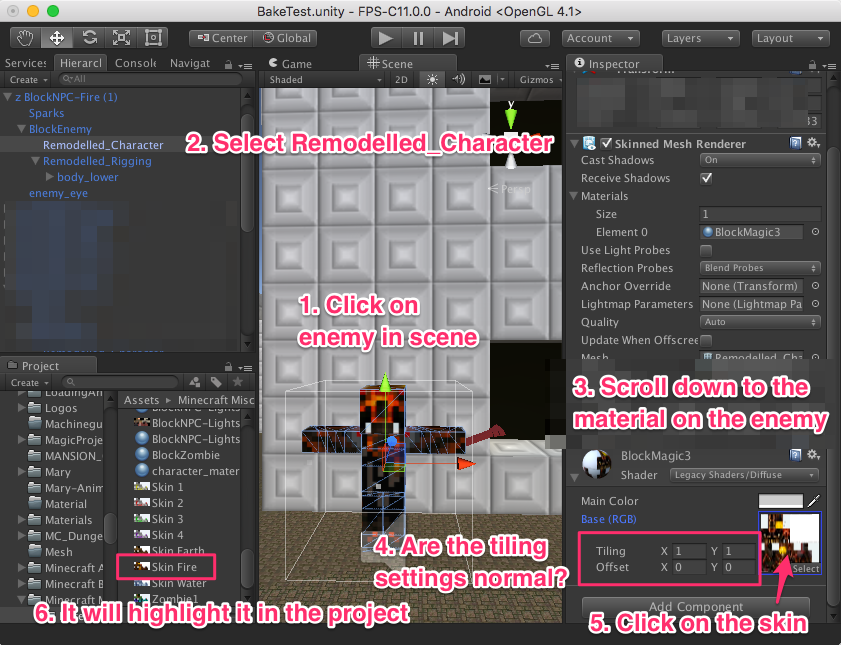
You can find the material on an enemy by selecting them in the scene, selecting ‘Remodelled_Character’ under the enemy in the hierarchy, and scrolling down to the bottom.
The texture tiling should be as shown in the picture — tiling <1, 1> and offset <0, 0>. If this isn’t right, you’ve found your problem.
You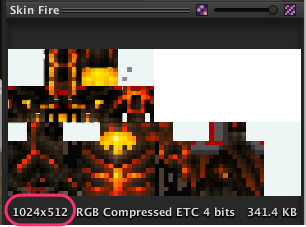 can diagnose further by clicking on the image of the skin (not on the word ‘select’) in the shader area; it’ll highlight the image in the project. Click on that image.
In the inspector, you’ll see the image’s size — pixels wide by pixels tall. The ideal is 64×32. This one is 1024×512, which is okay. Other sizes you might see are 2048×1024, or maybe 512×256. Both numbers should be powers of 2 (2, 4, 8, 32, 64, 128, 256, 512, 1024, 2048), and the first number should be twice as large as the second one.
If you see something funny — I think I saw a texture that was 640×480 — it isn’t going to work right.
If this is your problem, I suggest finding a replacement texture, and setting the material tiling back to <1, 1> offset <0, 0>.