
In this guide I will show you how to publish or update a game in the Windows store, for this you will need the game already exported in “.appxupload” format (in this guide we will not cover how to export and build projects for windows).
First you need to log in to the windows portal from this address (ask Ponch for username and password):
https://developer.microsoft.com/en-us/windows
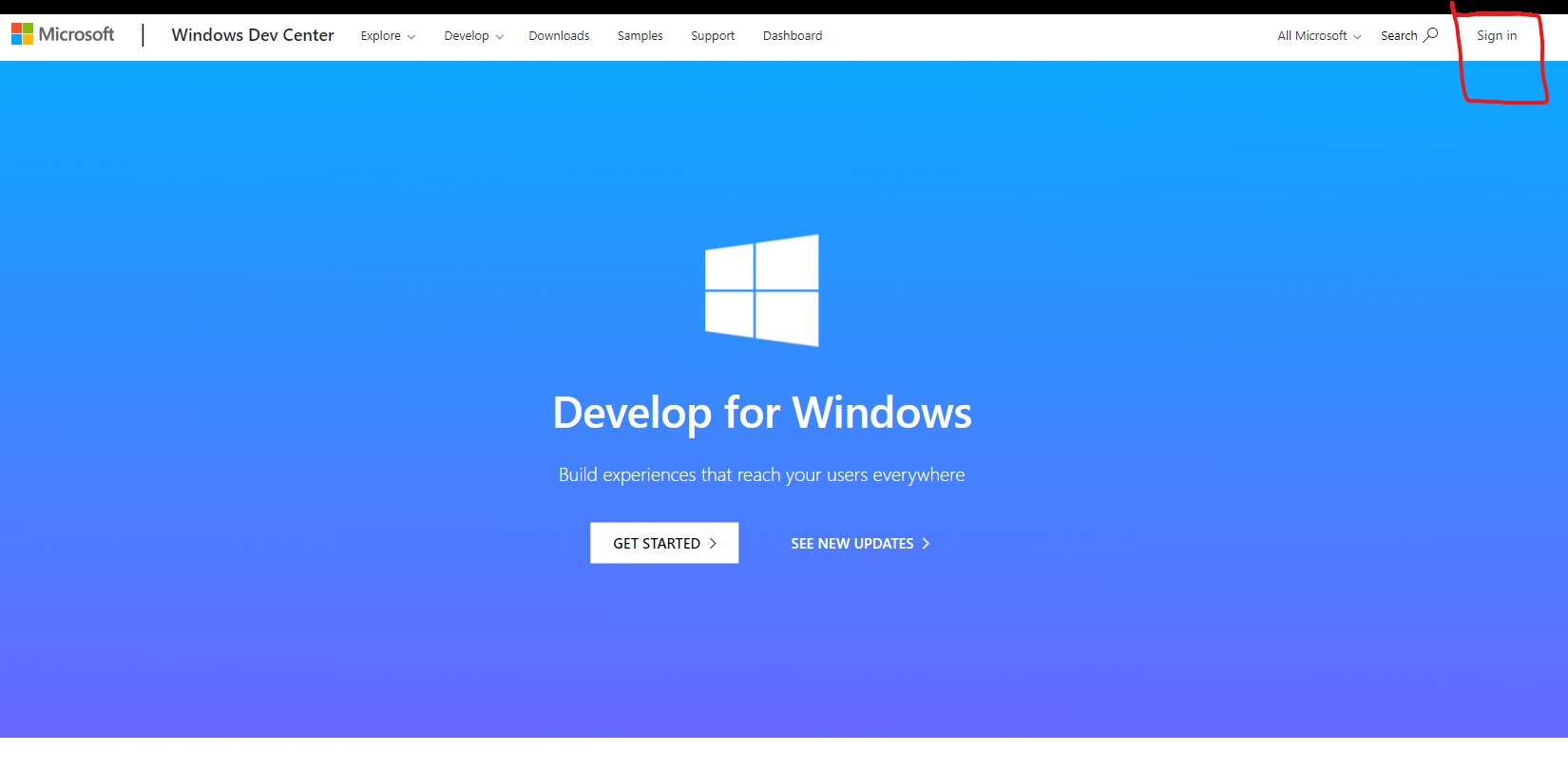
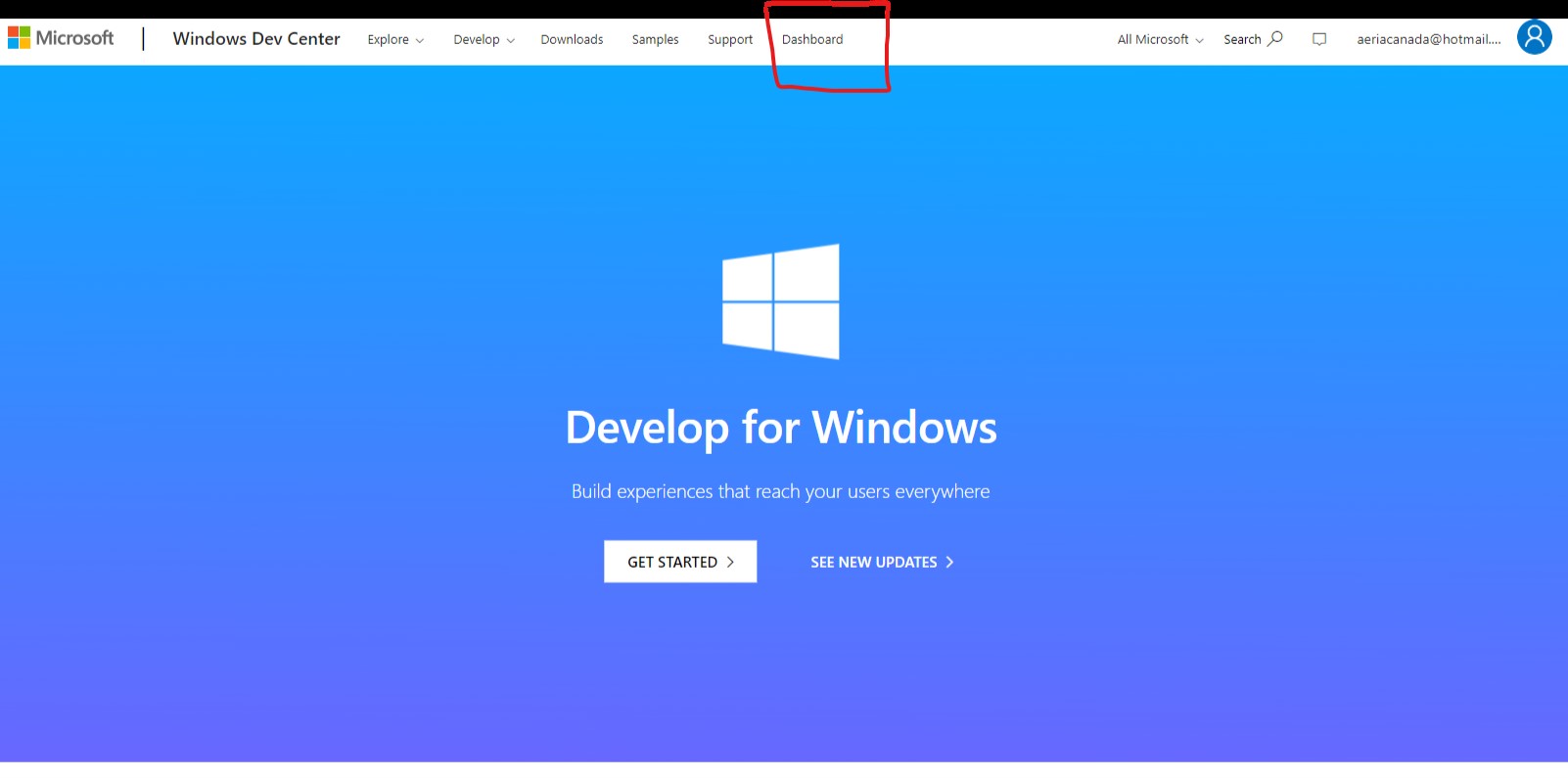
After log in you need to click in the dashboard menu.
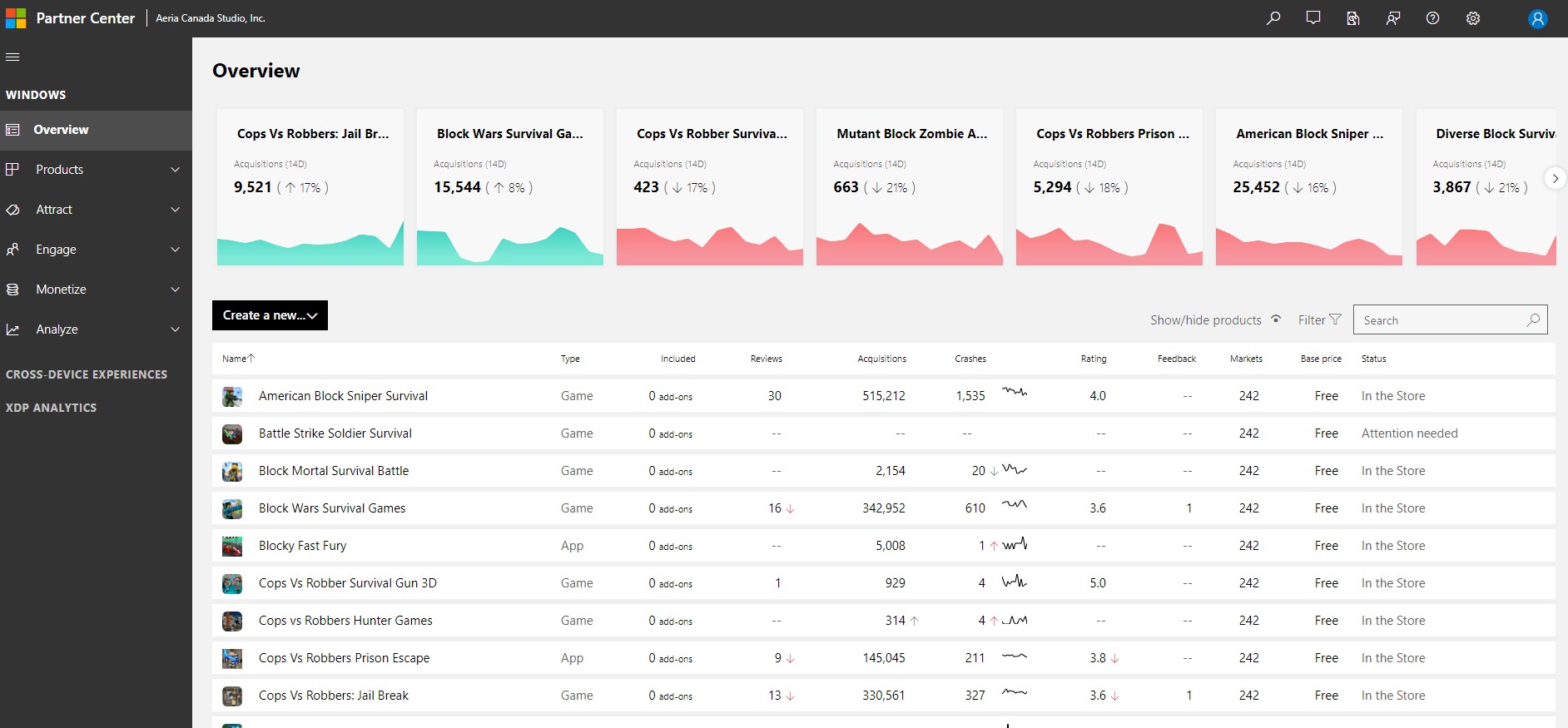
In the dashboard you can see all the games, the status and acquisitions.
Publishing a new game
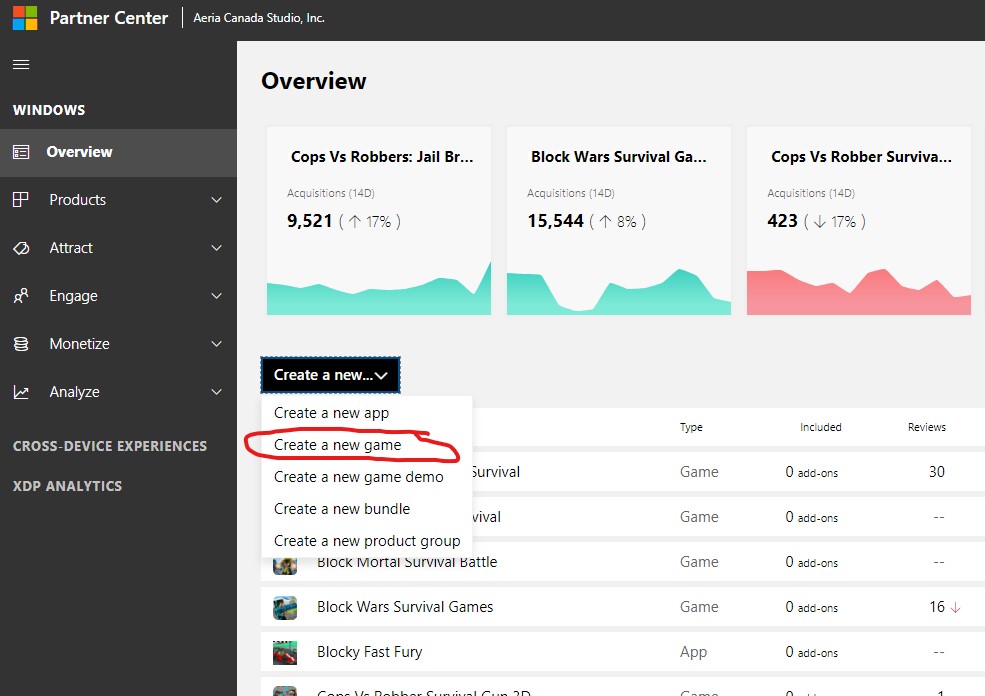
For publishing a new game you need to click in the “Create a new game button” in the main dashboard.
Then you just need to put the name of the new game you want to create and check “Do not create this product in a sandbox” and click “Reserve product name”.
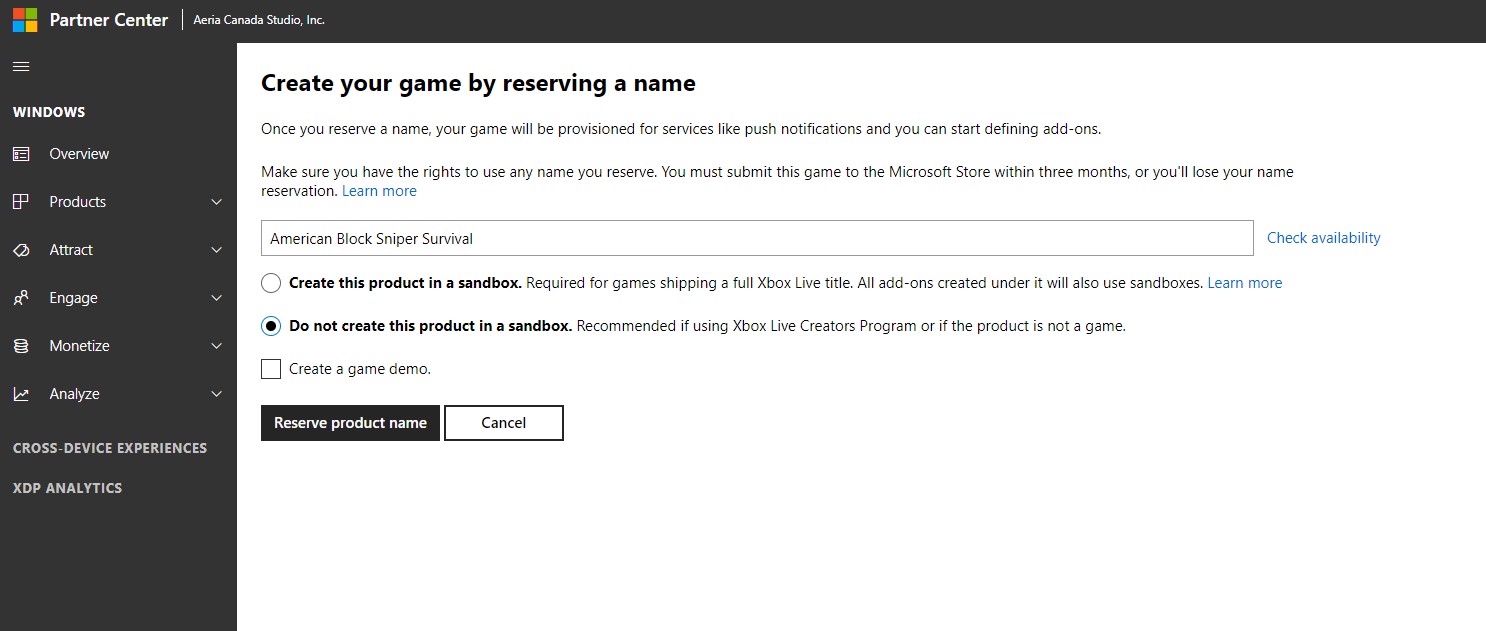
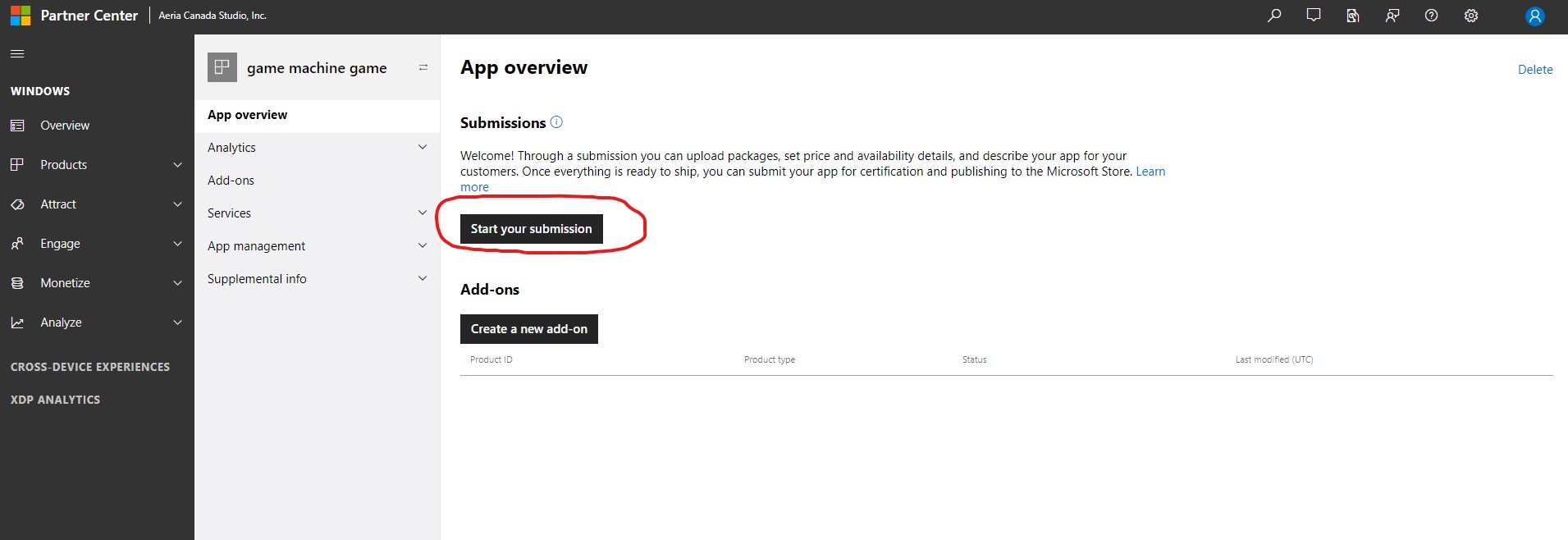
After this you will be inside the game overview where you can start a new submission of the game by clicking “Start submission”.
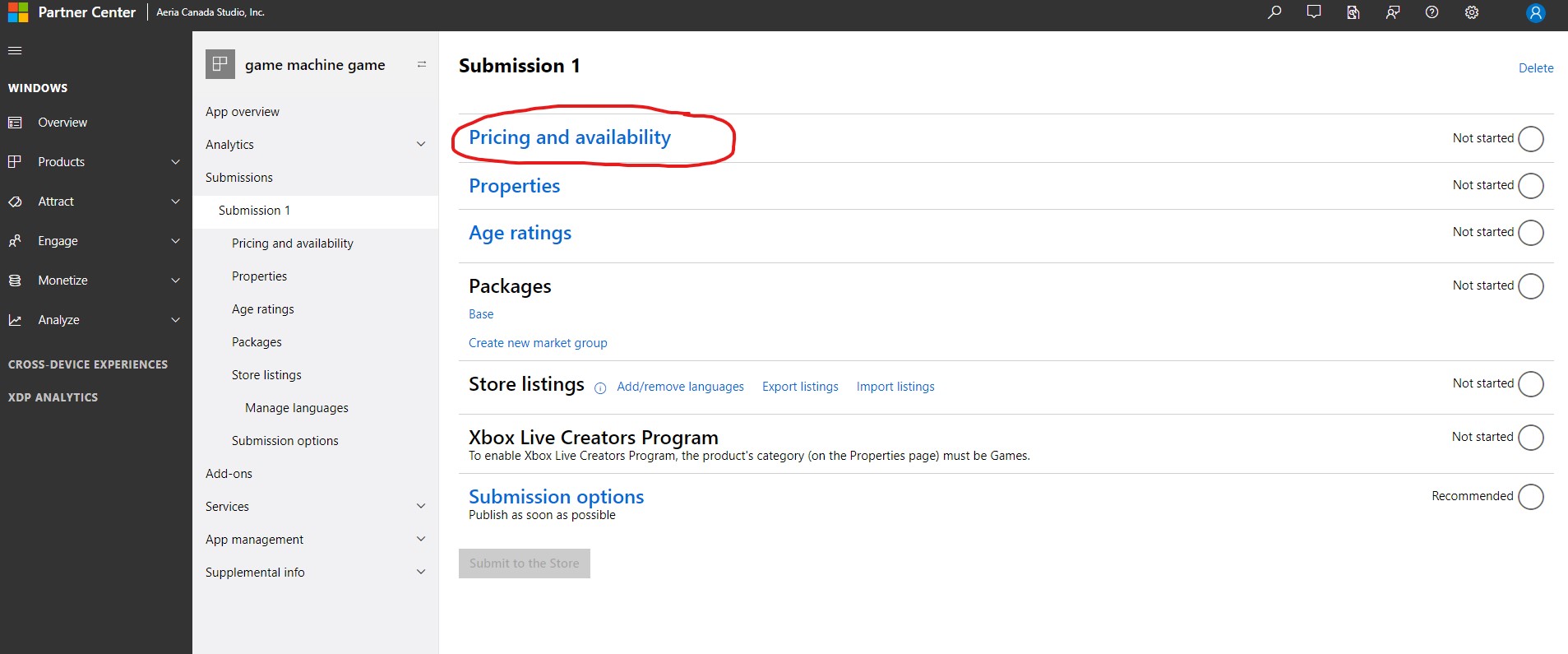
After creating a submission you need to fill all the information needed step by step, so first you need to start with “Pricing and availability”.
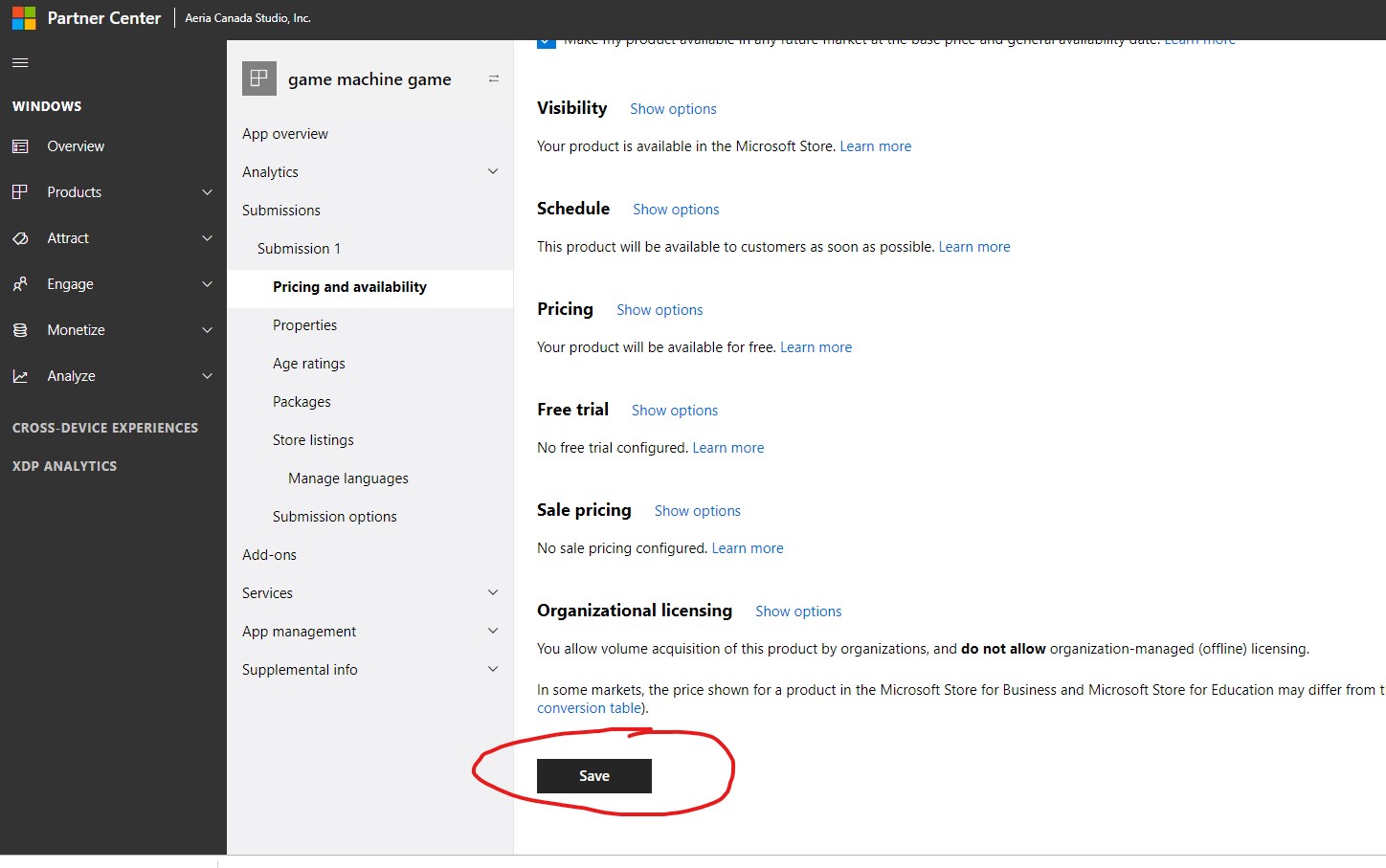
Inside Pricing and availability just scroll to the end and click “Save”, this will set the game FREE in all regions available.
Next we need to setup the properties of the game.
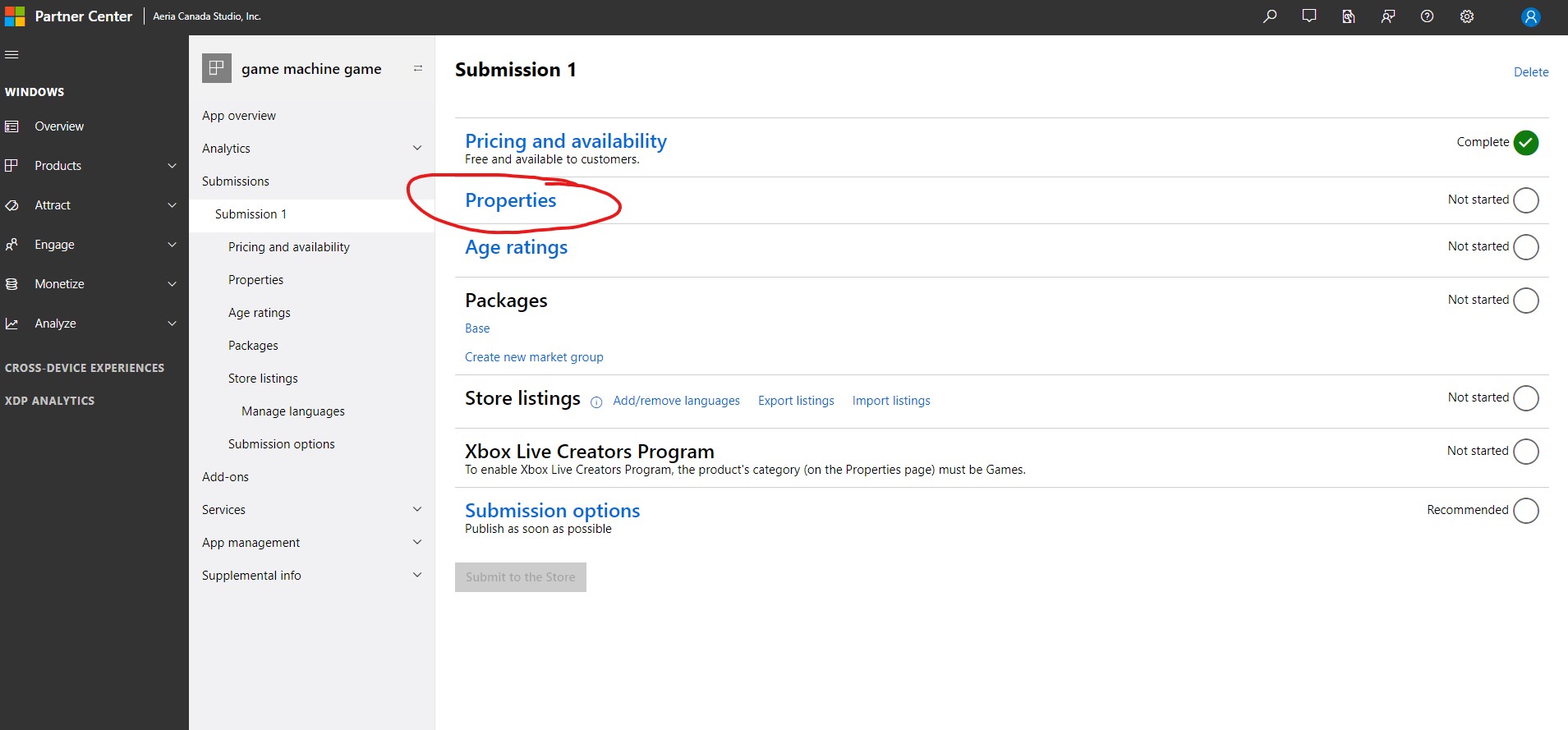
You need to fill this parts with the information showed in the next images.
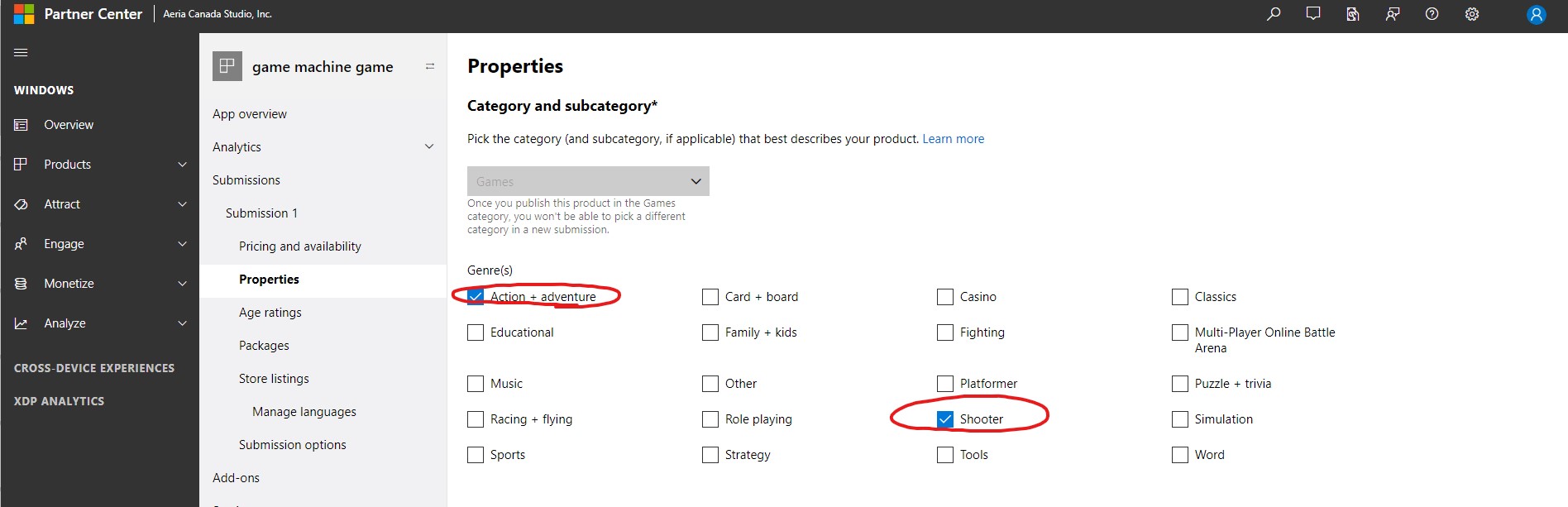
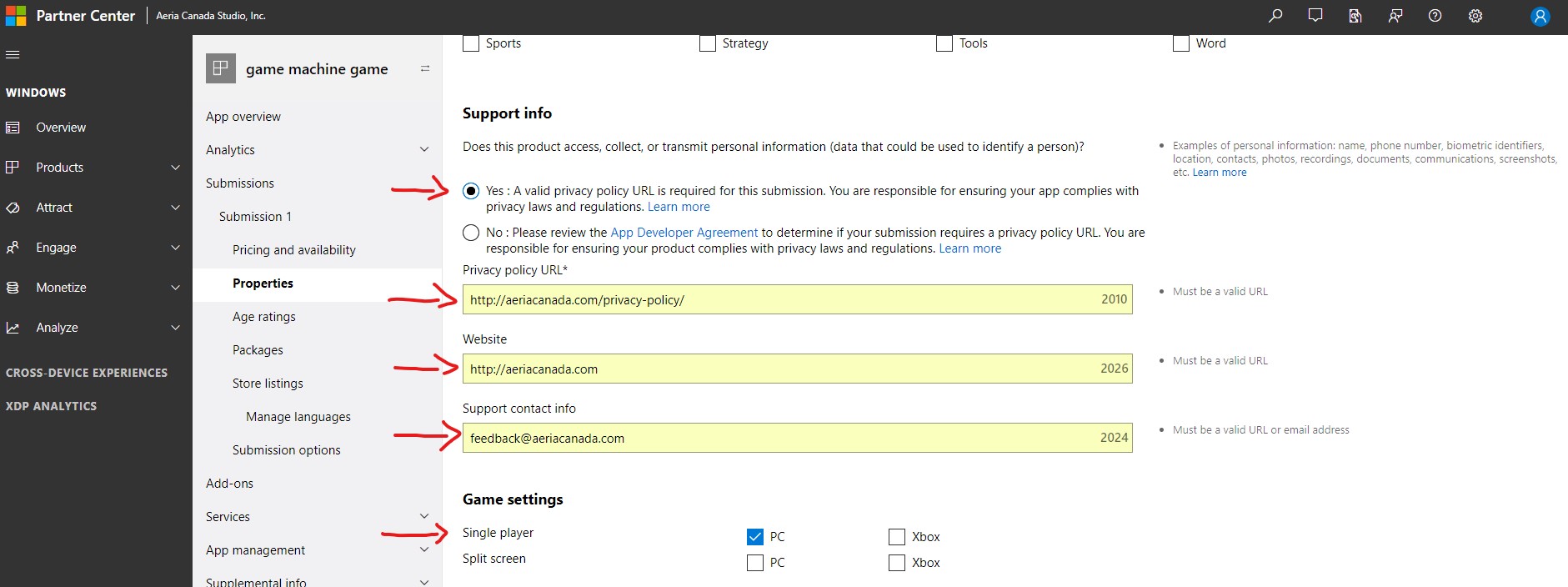
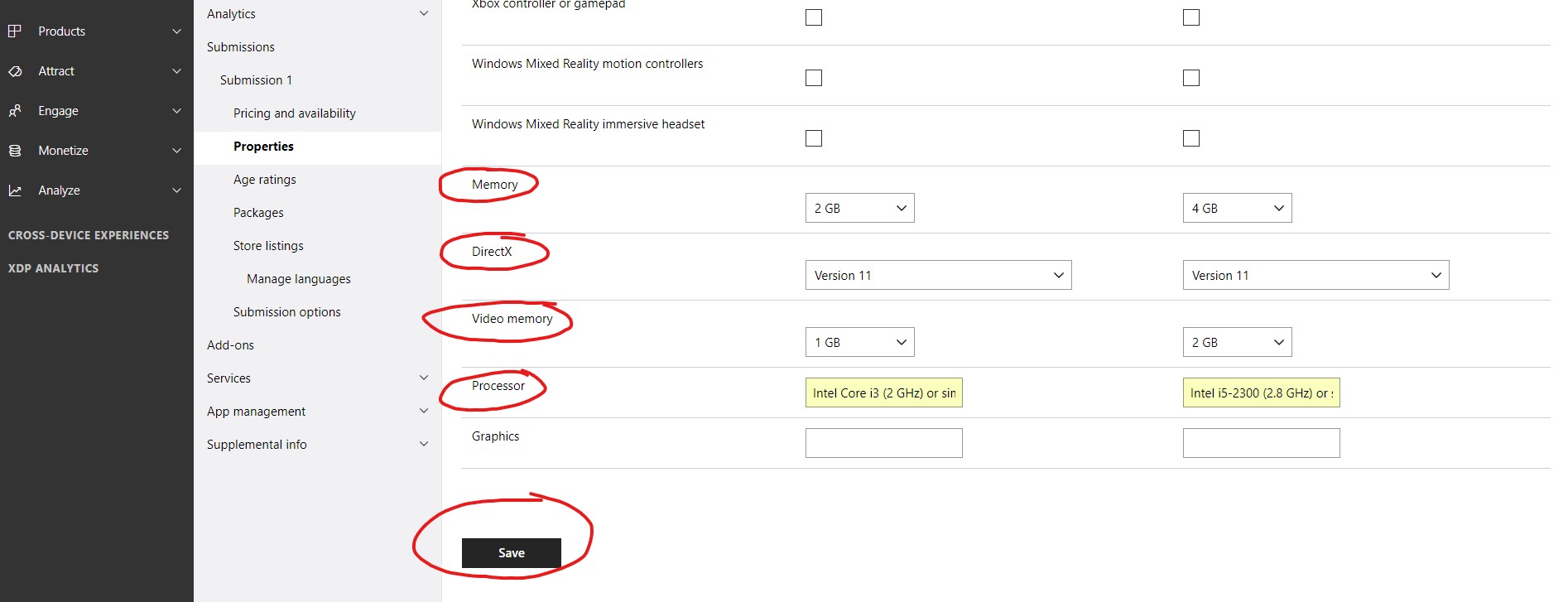
Next we need to setup the Age Rating of the game.
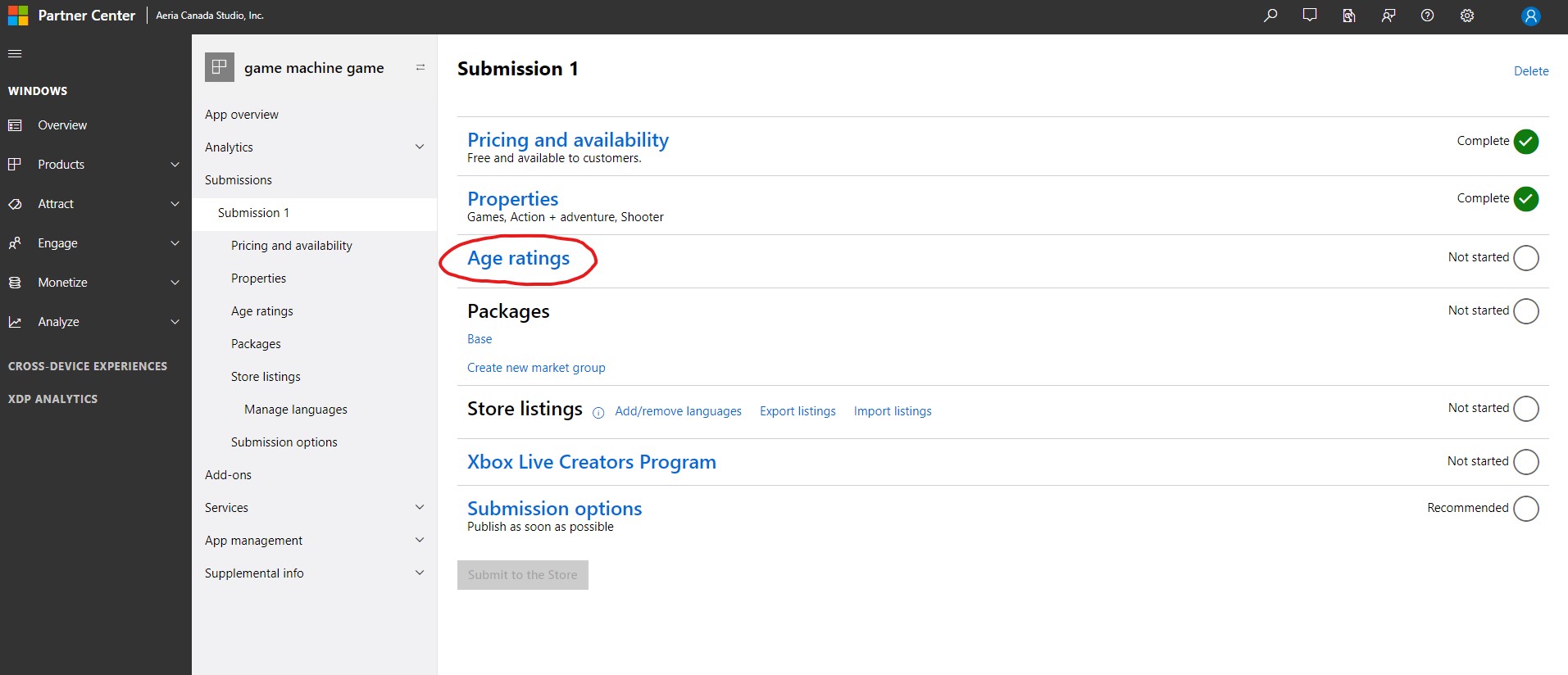
You need to fill this parts with the information showed in the next images.
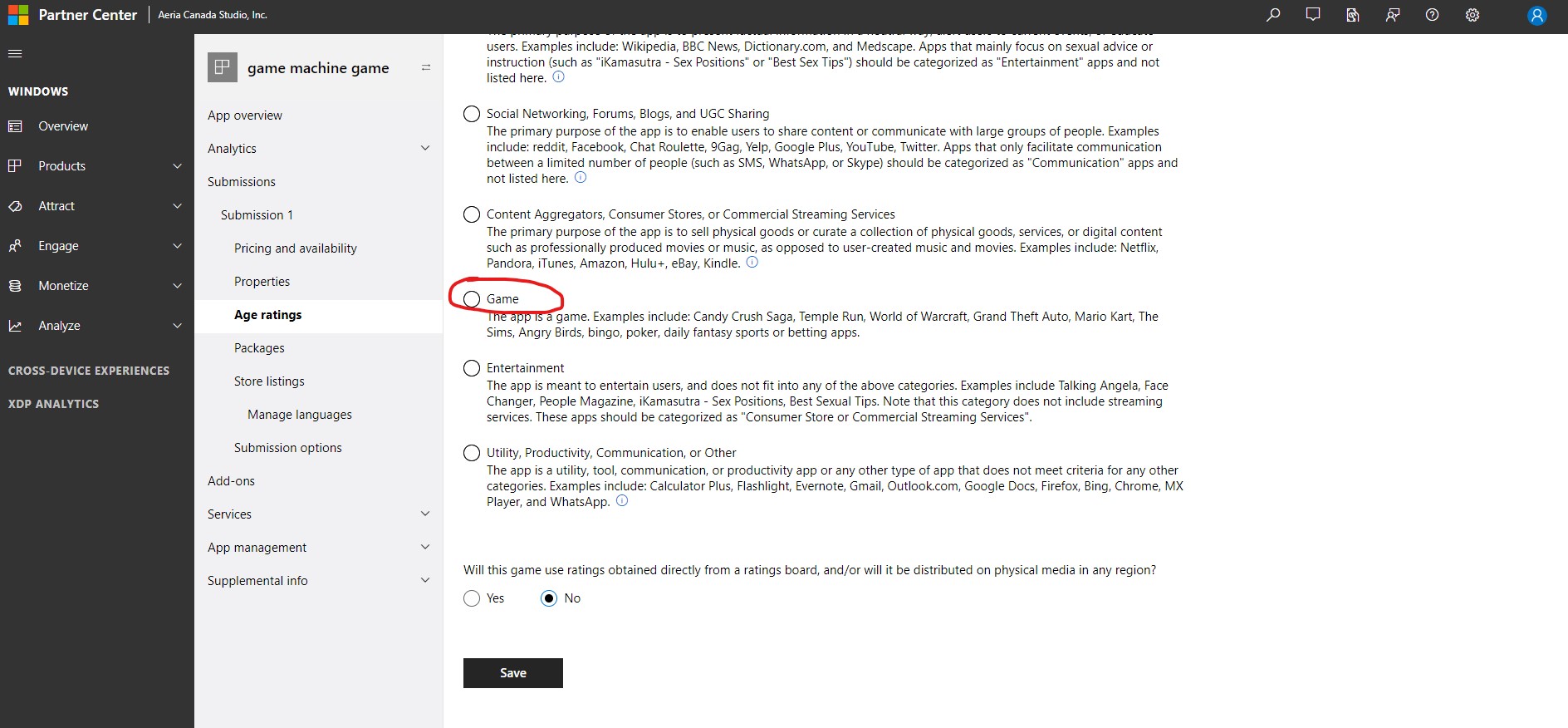
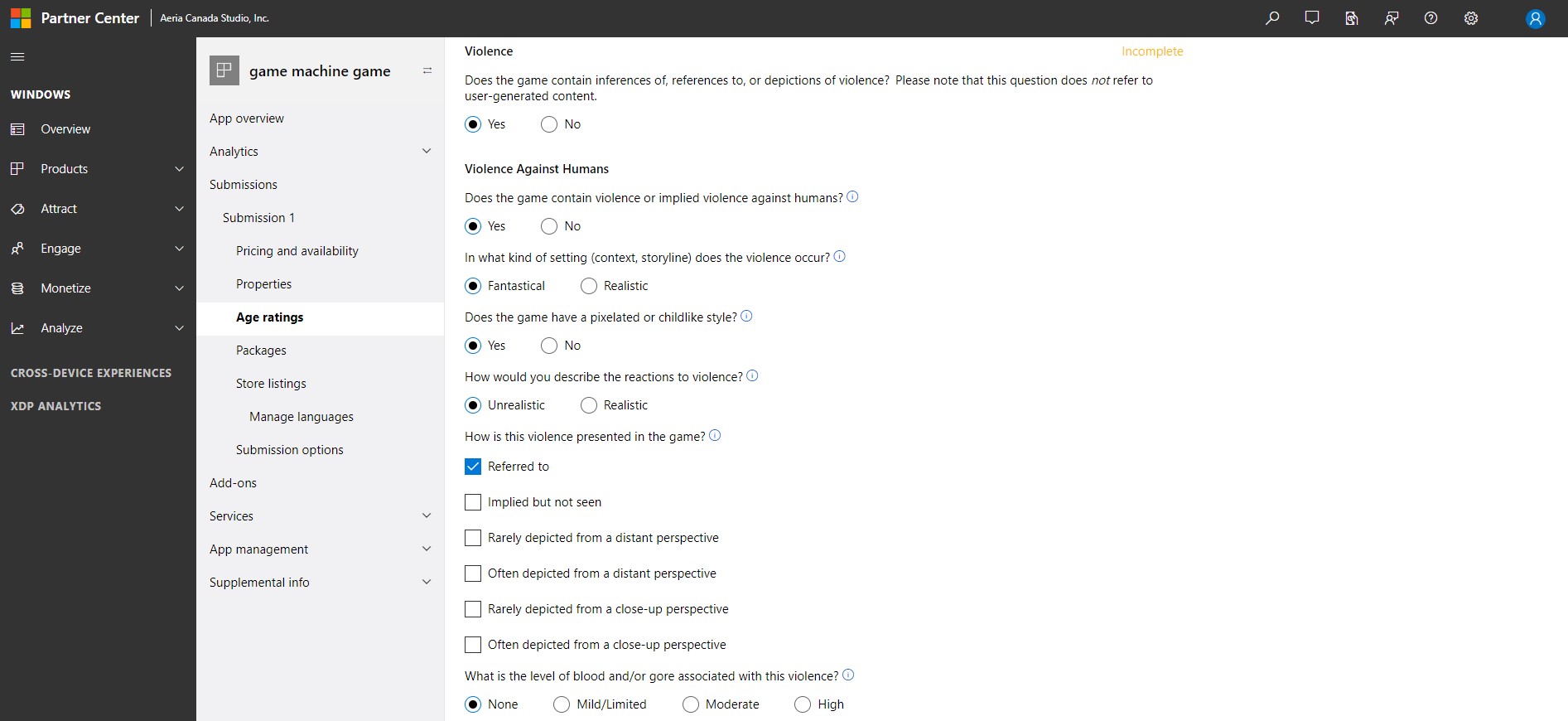
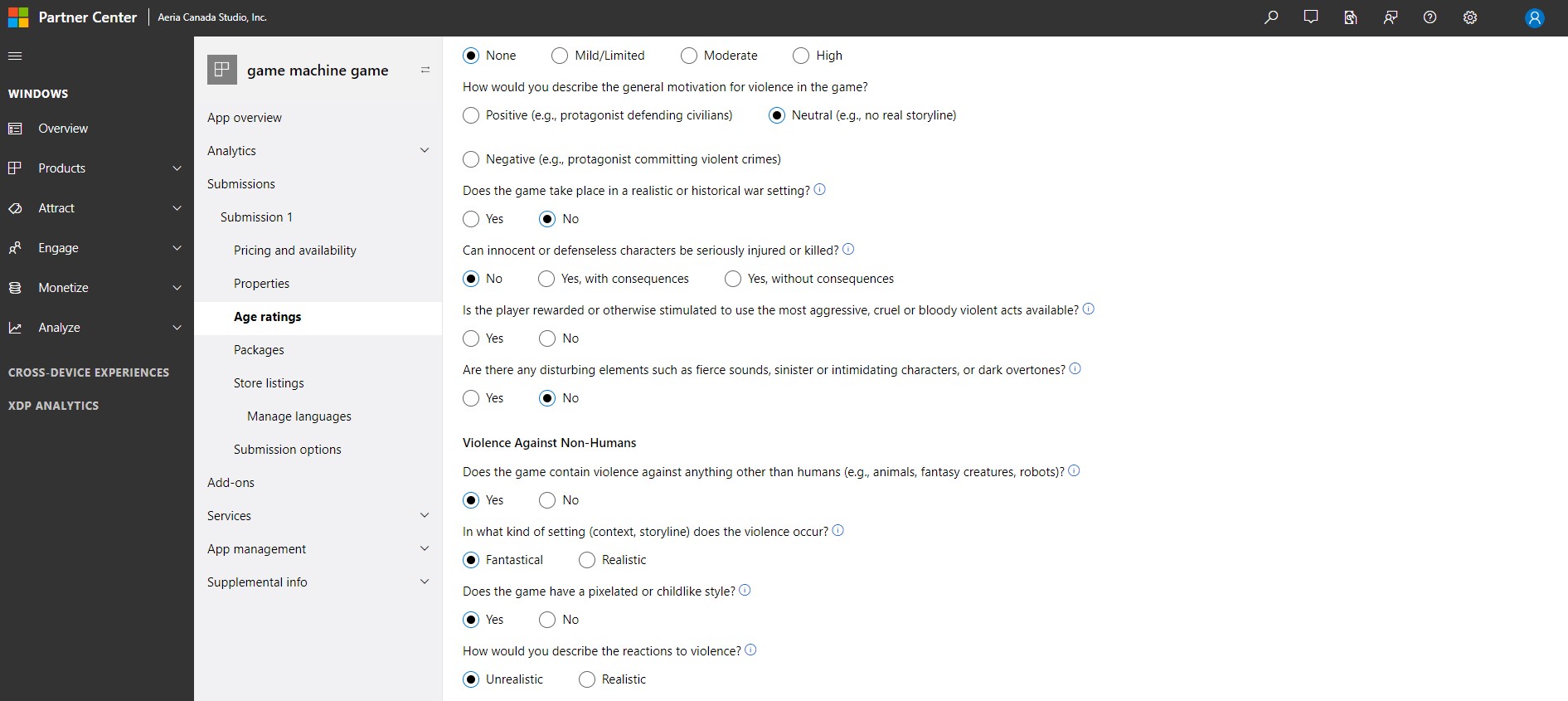
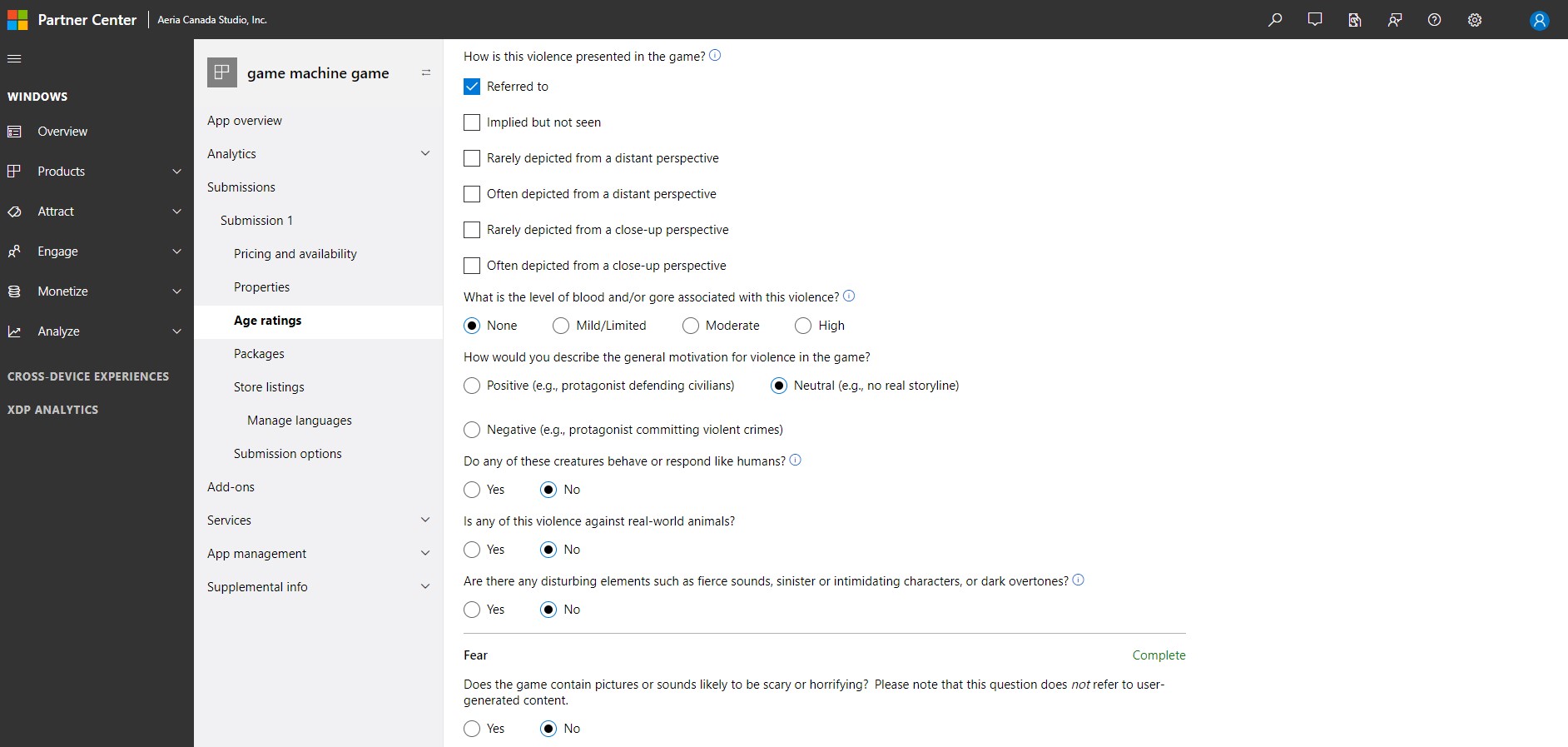
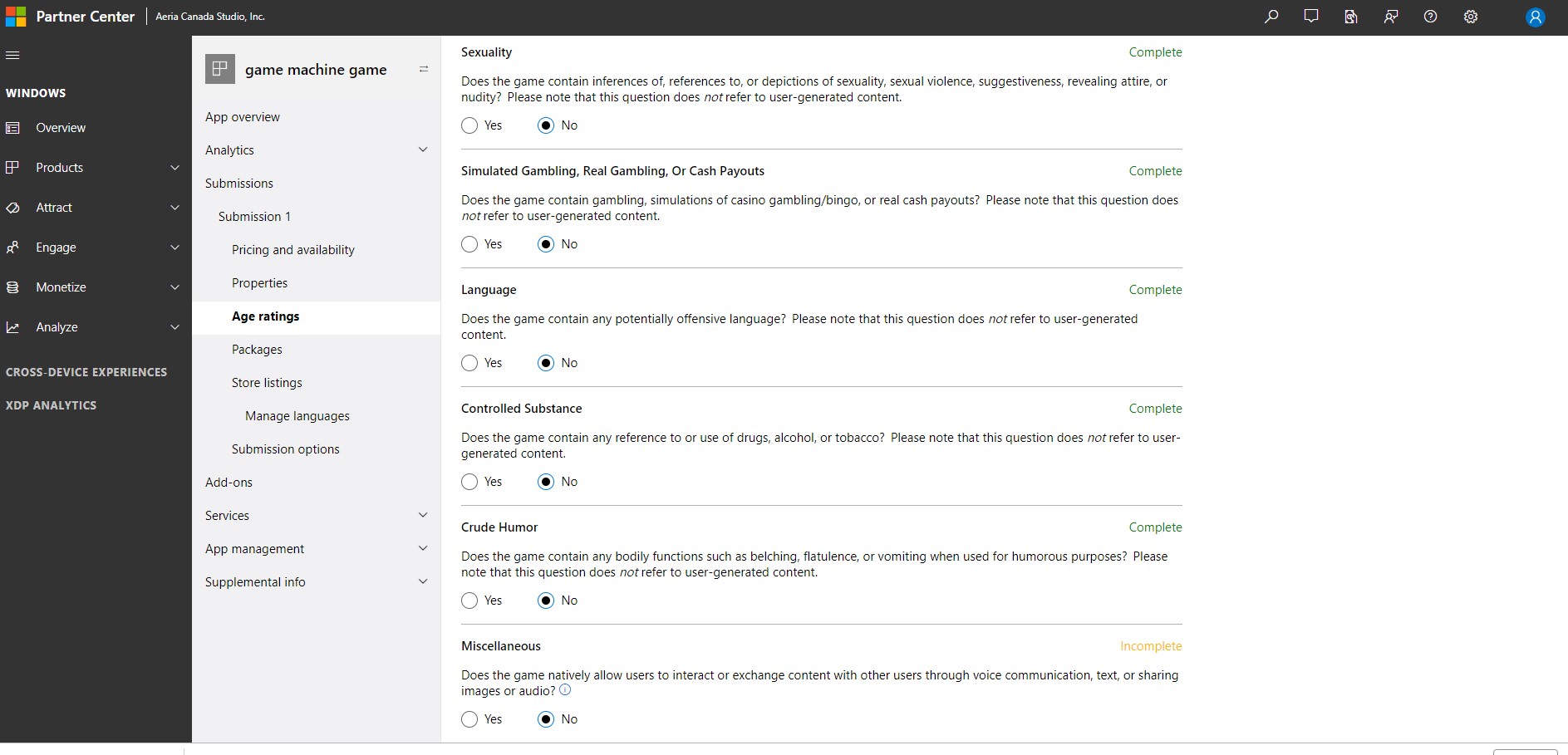
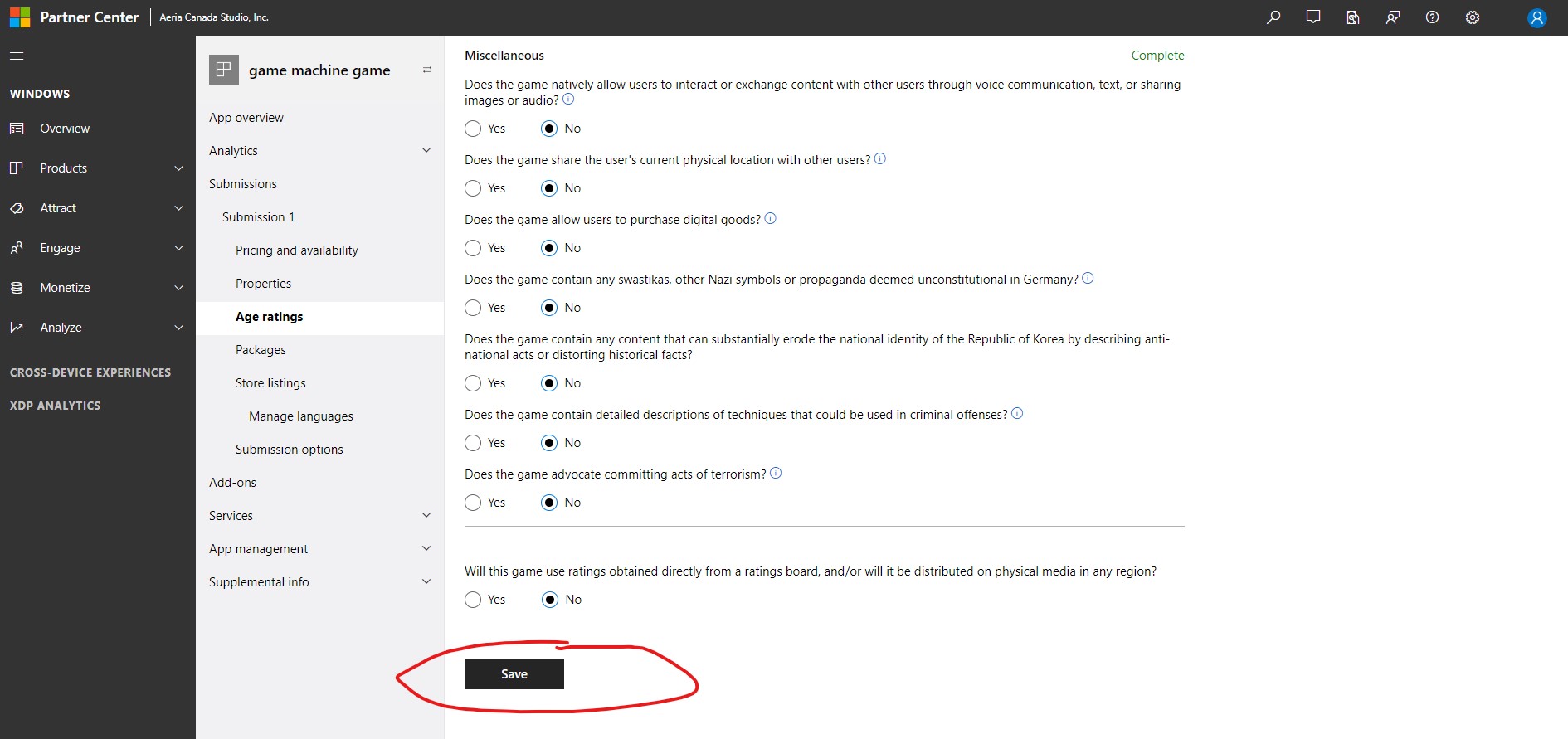
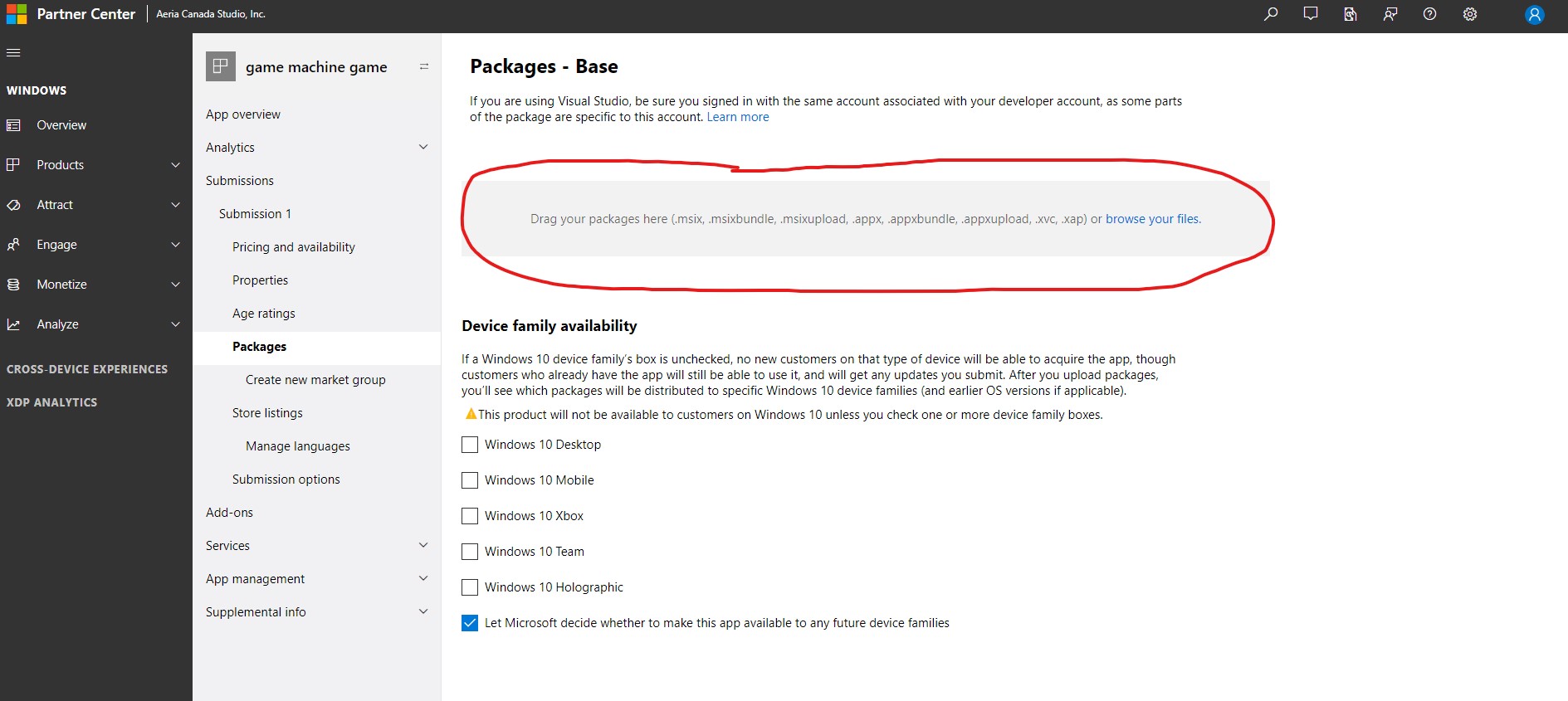
Next we need to Upload the package of the game, click on “Base” to enter the package upload screen.
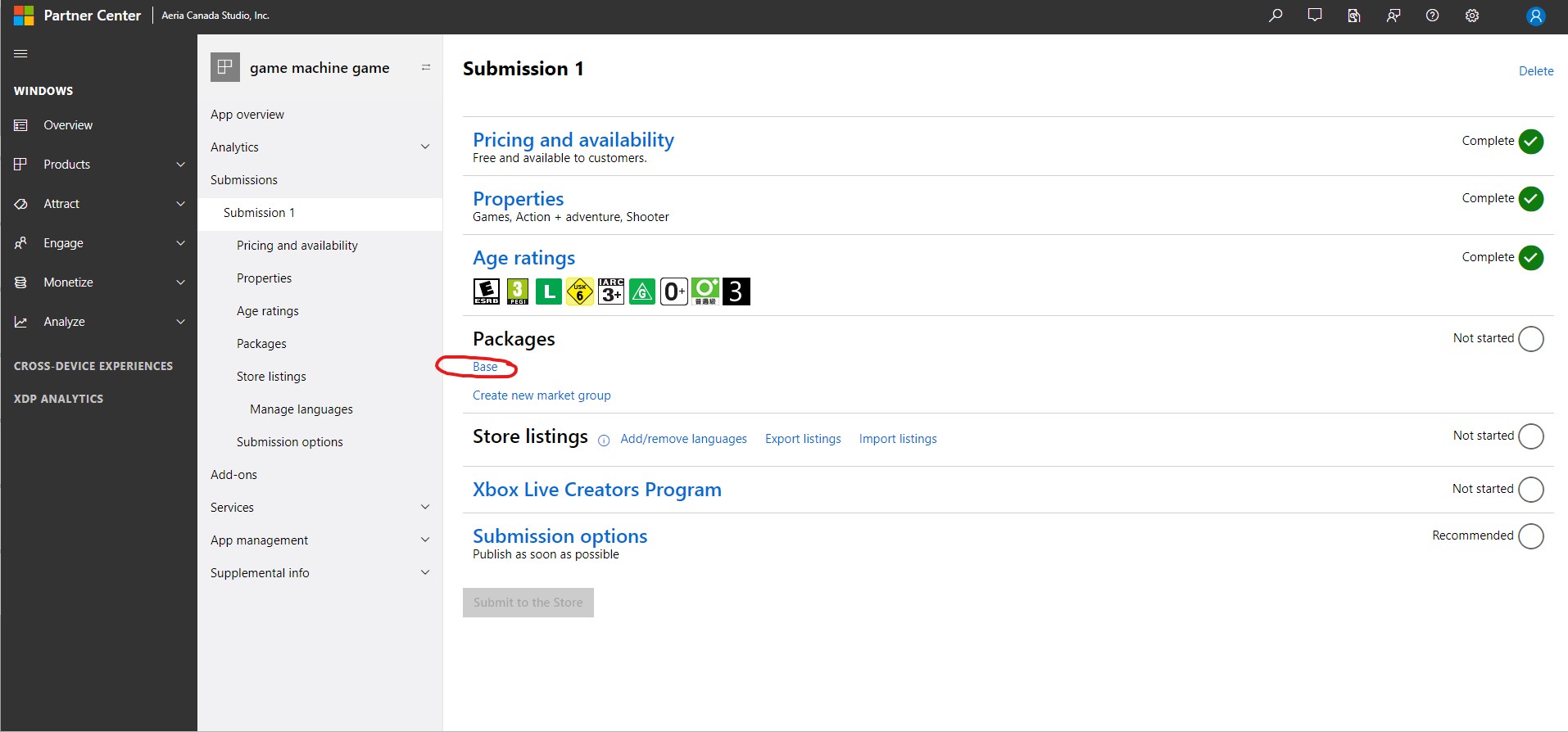
You need to drag in the gray area or browse the file to start the upload, after some time it will validate and select on which devices you can run the game (if the Windows 10 Holographic appear as selected just disable it)
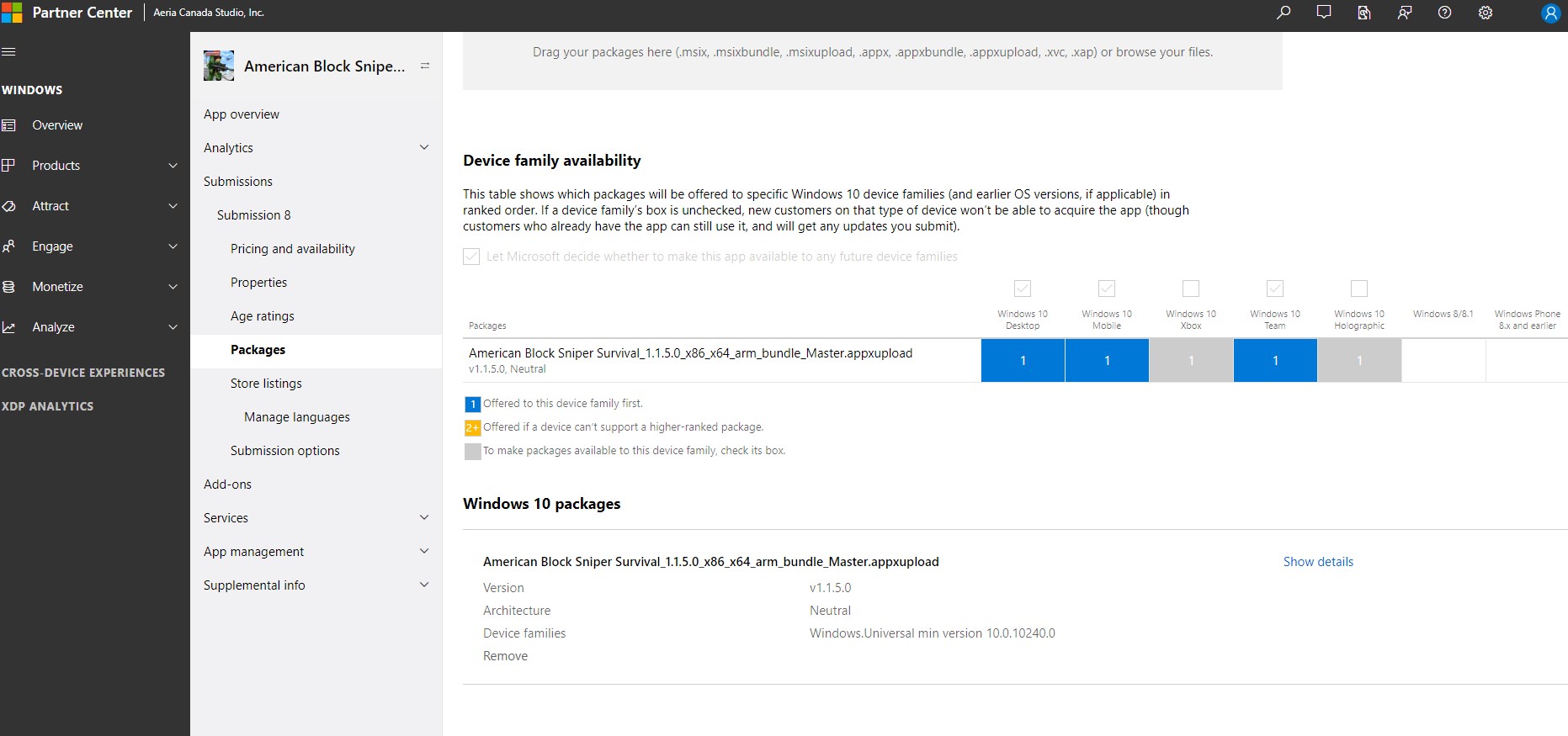
After uploading the package just click “Save”.
After doing all this steps you can now set the store of the game by clicking on the language available.
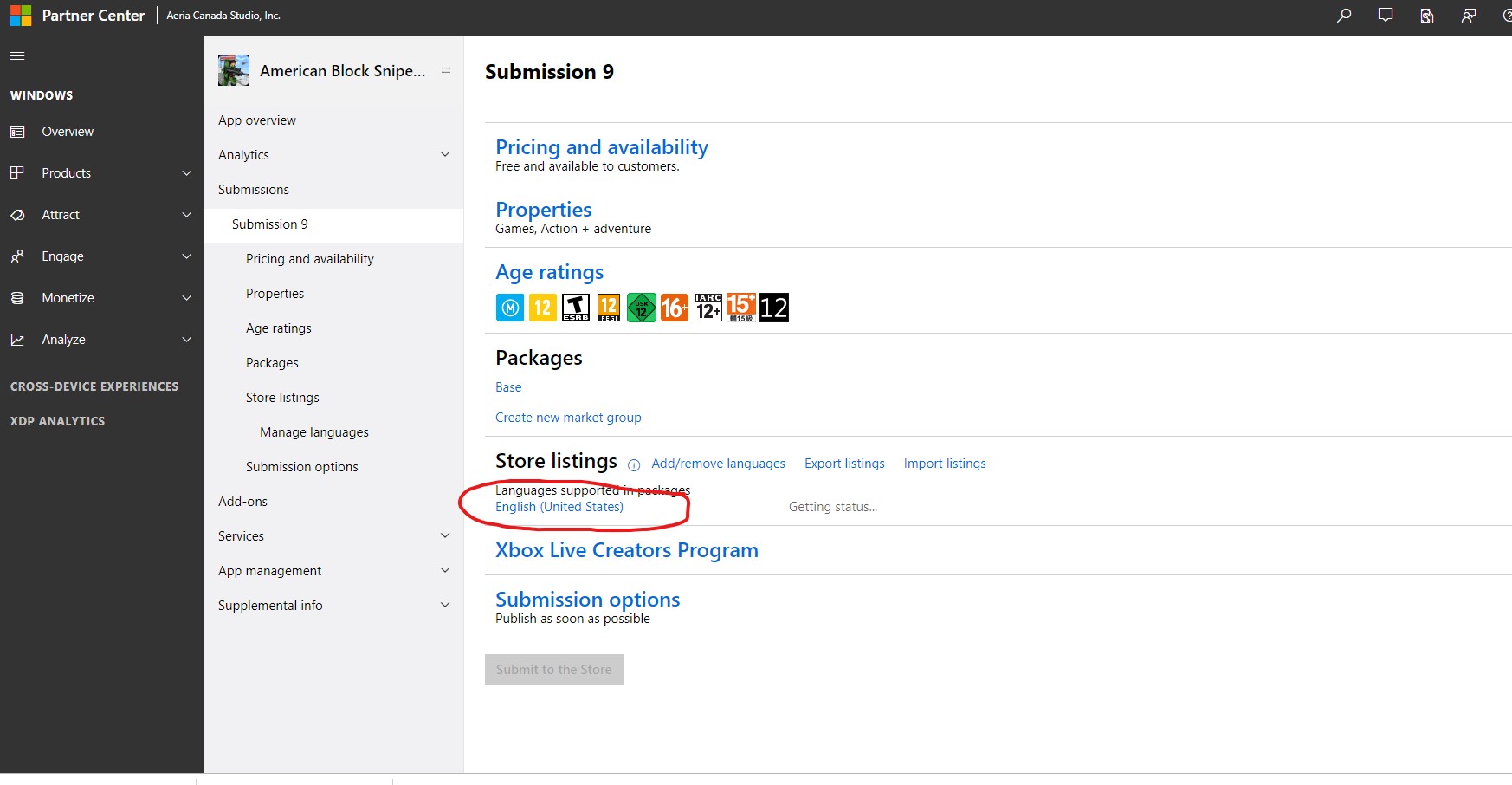
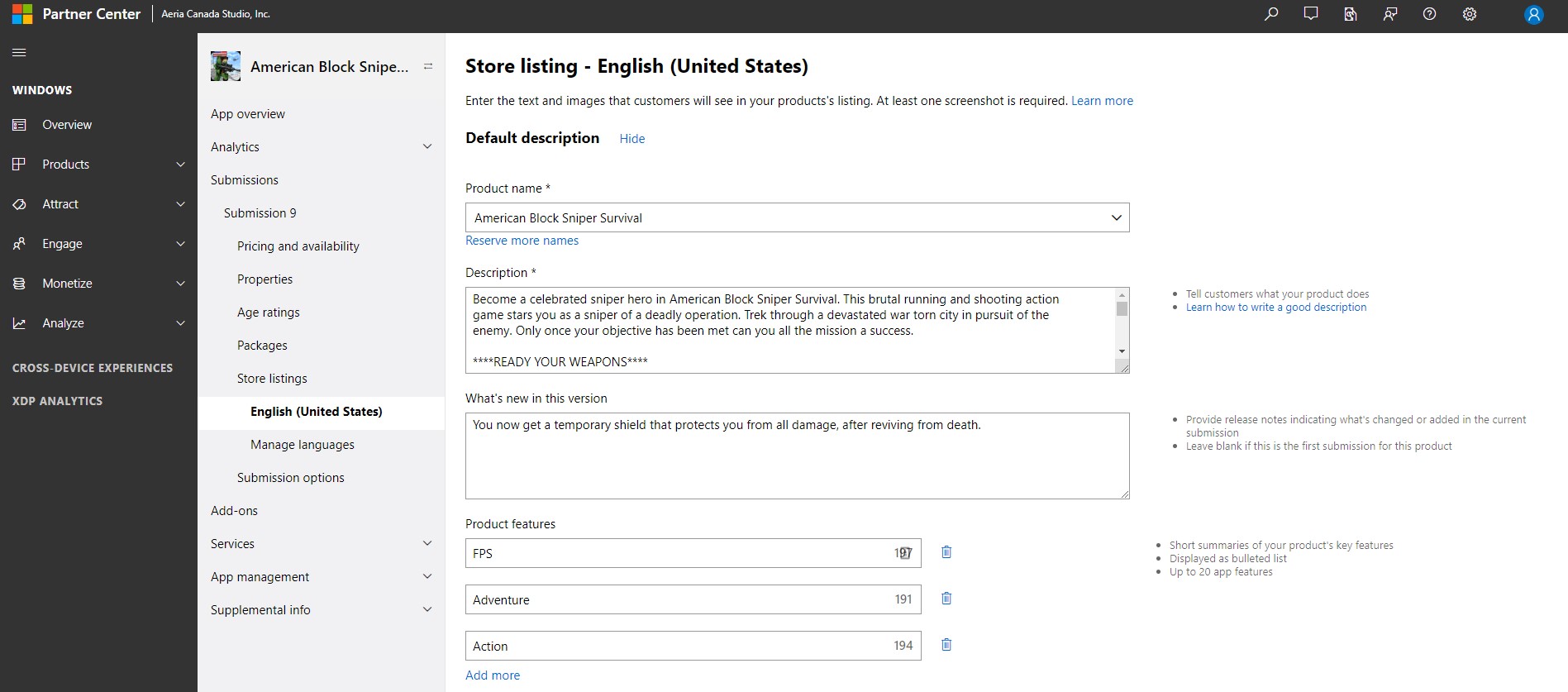
In this part you can upload the description / screenshots / icons, when finished click “Save”.
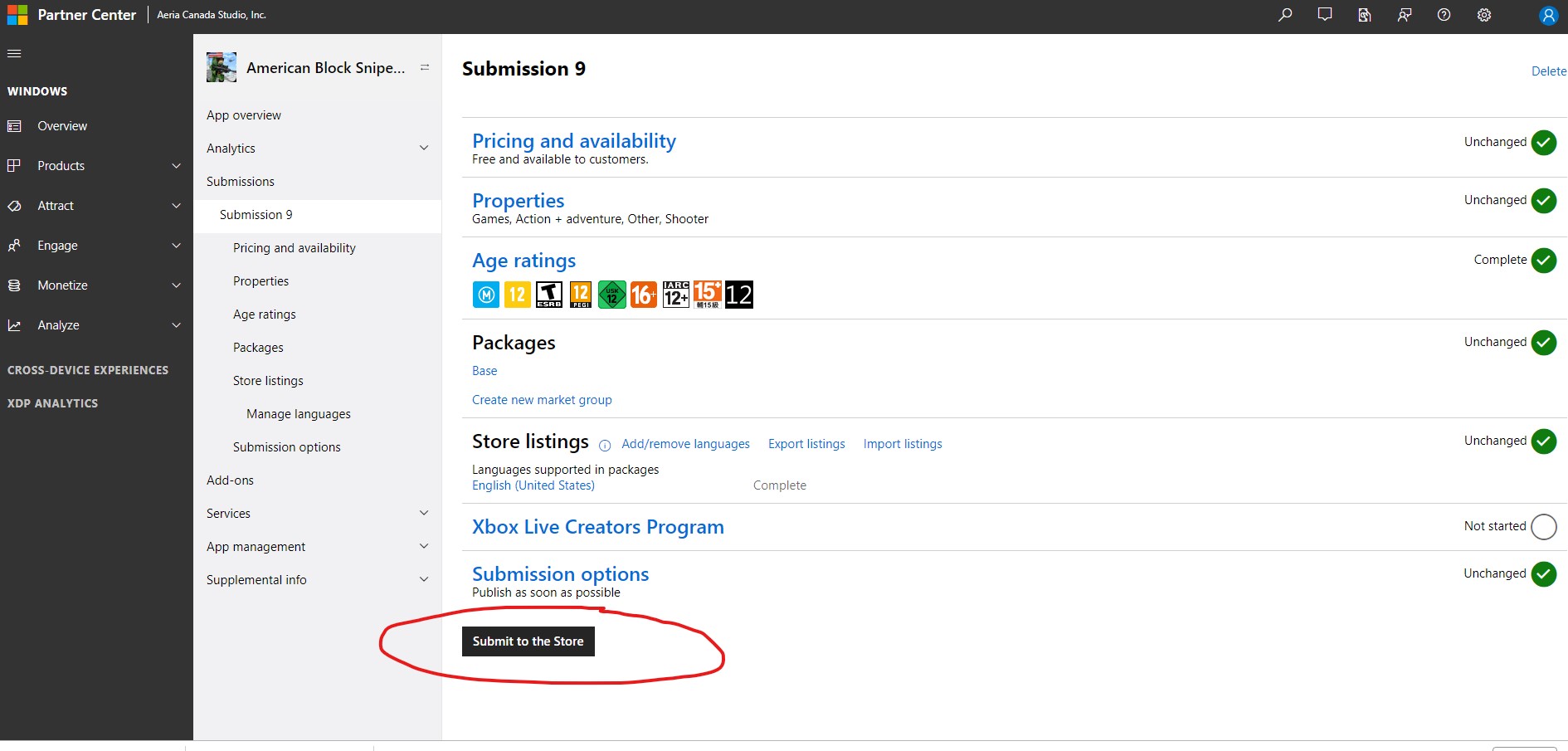
After finishing all this steps you just need to click in “Submit to Store”.
Update a game
For Updating a game, you just need to enter the game and click in the “Update” button, if you click on the submission you will enter but in a read-only mode.
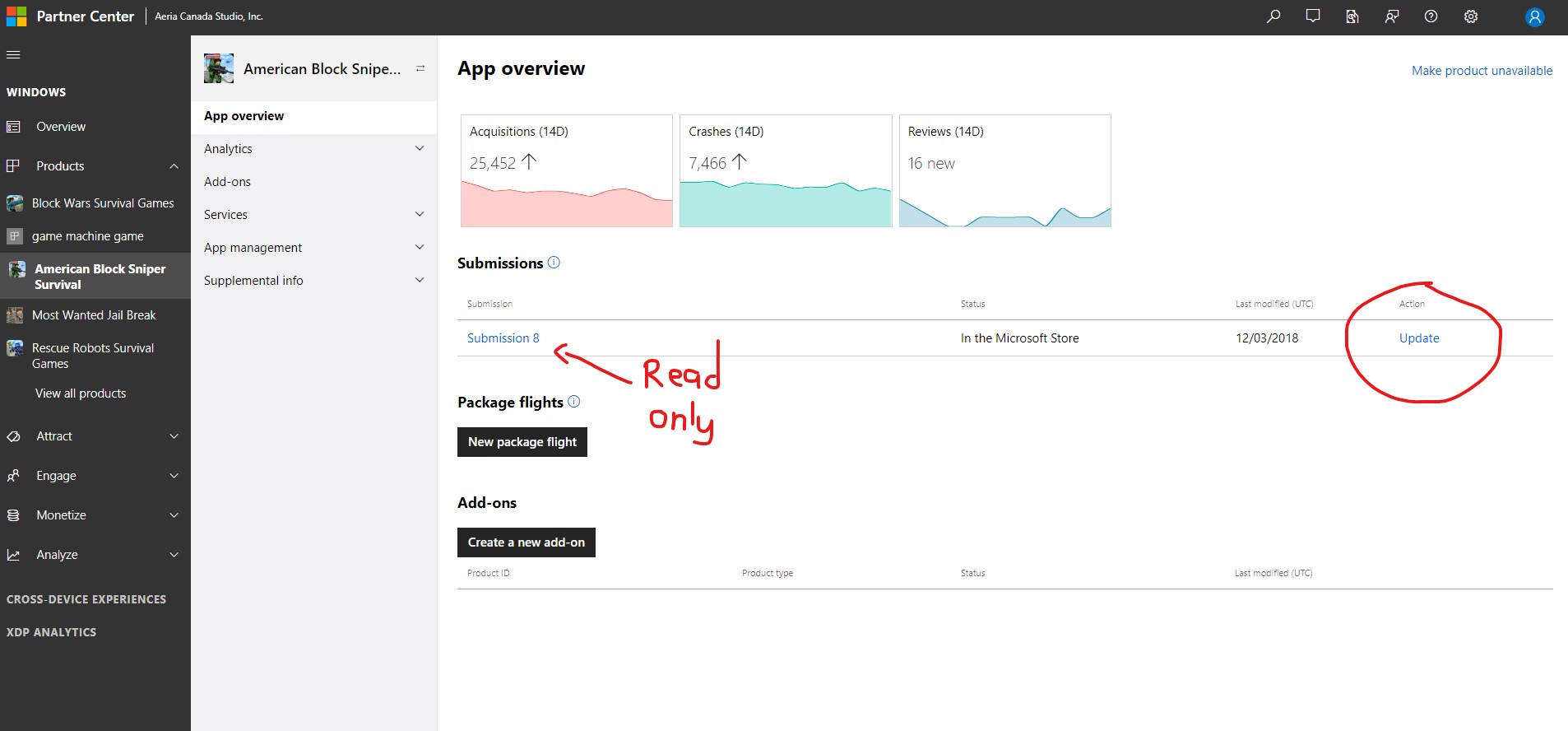
Once you are inside you can edit the properties, package, store, etc. and then just click “Submit”.