AppLovin Setup
Applovin should already be logged in to in VM 1 with the adnetworks@blockyverse.com account. It is likely open in Internet Explorer.
Applovin is a little different than other networks. If you are creating a new game, you have to actually run it first, and it registers itself with Applovin. Note also that AppLovin requires an SDK key in the game, but we already have the key that corresponds with adnetworks@blockyverse.com in the setup.
As per usual, look at my notes below, and here are the AppLovin steps of the Ad Cascade setup doc, and AdMob’s steps for integrating AppLovin.
Be sure rewarded ads are turned on, as per steps 14 and 15 of the Cascade Setup doc!
Note that it is theoretically possible to create multiple “zones”. The Cascade setup only sets up the basic zone, but the AdMob document discusses creating zones. It supposedly earns us more money. Unfortunately, I was unable to create zones when I tried, so I’m not going to recommend it.
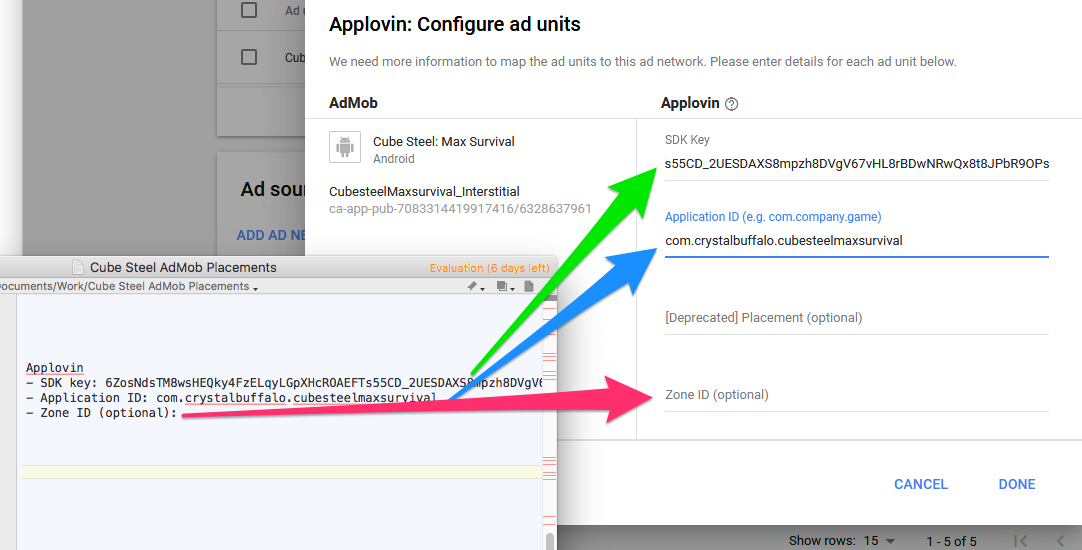
You’ll need to collect the following information.
Applovin
- SDK key:
- Application ID:
- Zone ID (optional):
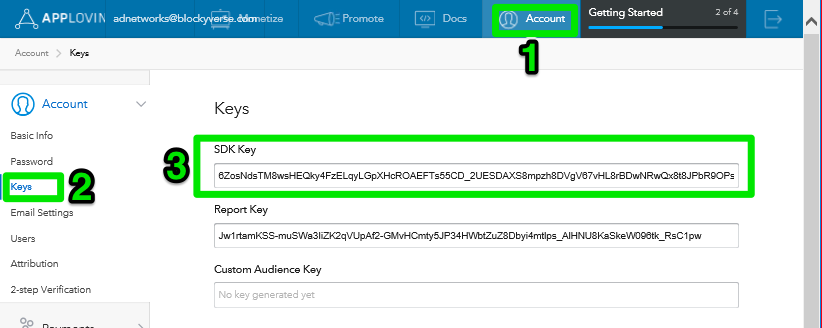
To get the SDK key, 1) click on ‘Account’ (at the top right), 2) click on keys, and 3) copy the SDK key.
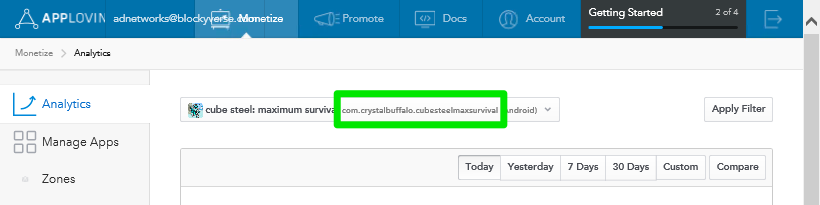
The second thing you need is the game’s bundle id.
If you were able to set up Zones, you’ll want the Zone ID, too.
Now, in AdMob, we can create the mediation settings. Make sure to do it for both rewarded and interstitial ads (if your game uses both).