
Set Up AdMob Mediation
We can finally set up all the advertisements in AdMob under mediation.
I assume you are still logged in to AdMob in VM1 using the blockyverse@gmail.com account.
We’ll start with the rewarded placements.
If you look at the App Ad Units page, you can find the names of the ad placements.
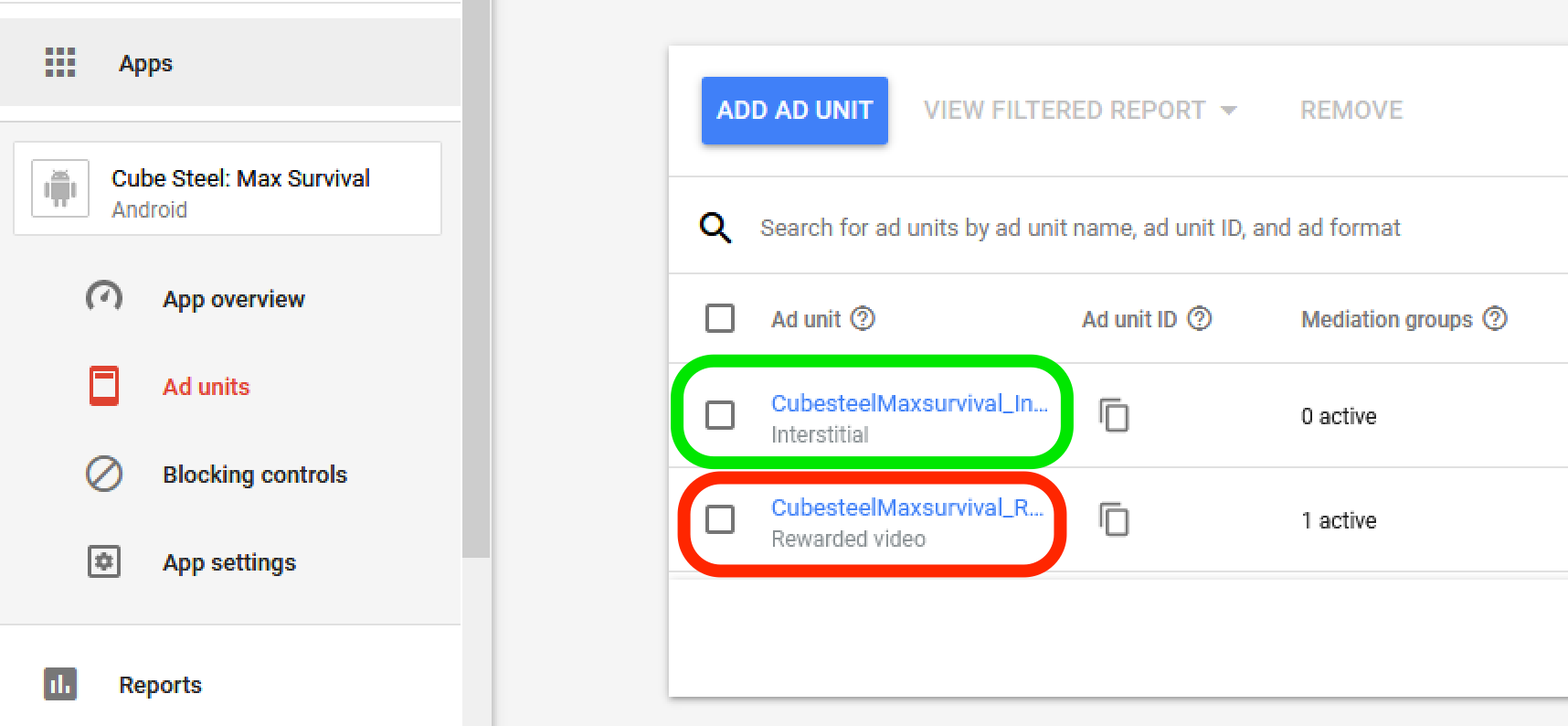
In this case, the placements are called CubesteelMaxsurvival_Interstitial and CubesteelMaxsurvival_Rewarded. Note also that there are ‘0 active’ mediation groups for the Interstitial placement, and ‘1 active’ for the rewarded placement.
Go to the Mediation page. You’ll probably want to click on ‘Show rows:’ in the bottom and make the number as large as possible.
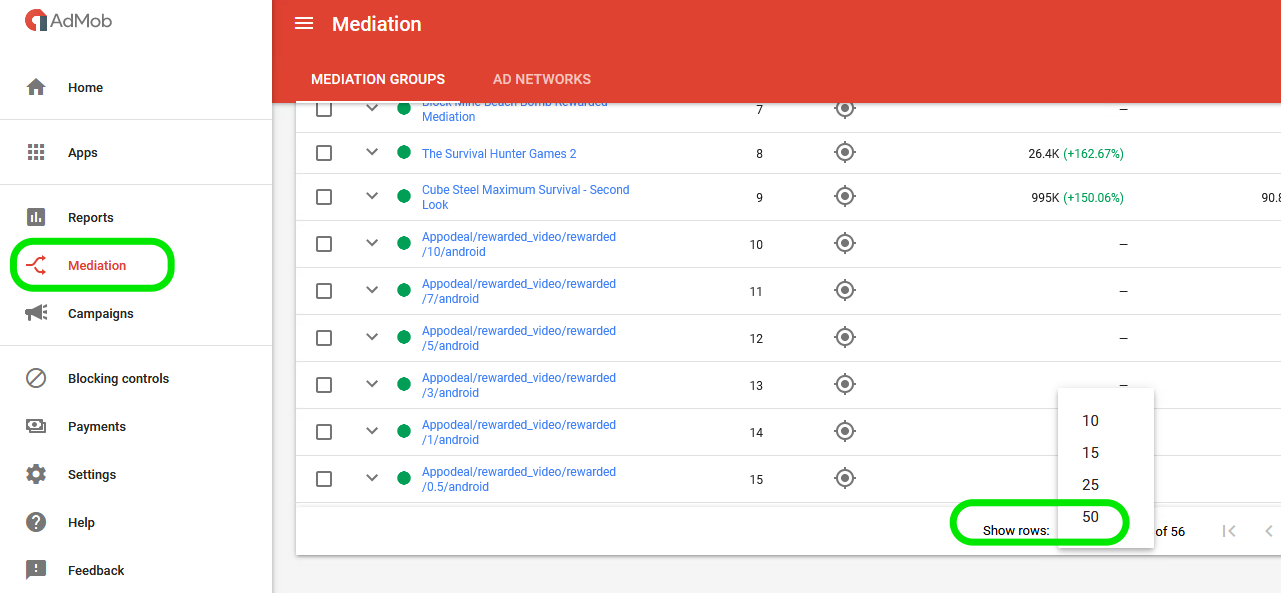
I had thought that knowing the names of the placements would help us find the mediation groups. Unfortunately, that isn’t necessarily the case.
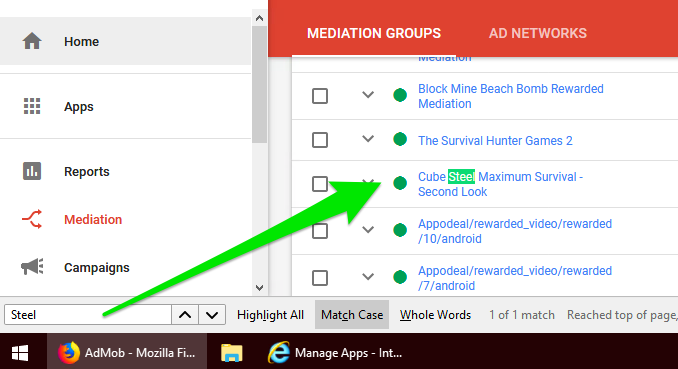
We’re going to ‘Find in Page’ (Ctrl-F) and type in parts of the game name, and hopefully find it. Looking for ‘Steel’, we find a mediation group called “Cube Steel Maximum Survival – Second Look”. That’s the only one. I checked both pages of results.
Opening it up, we see that it is tied to our rewarded ad placement.
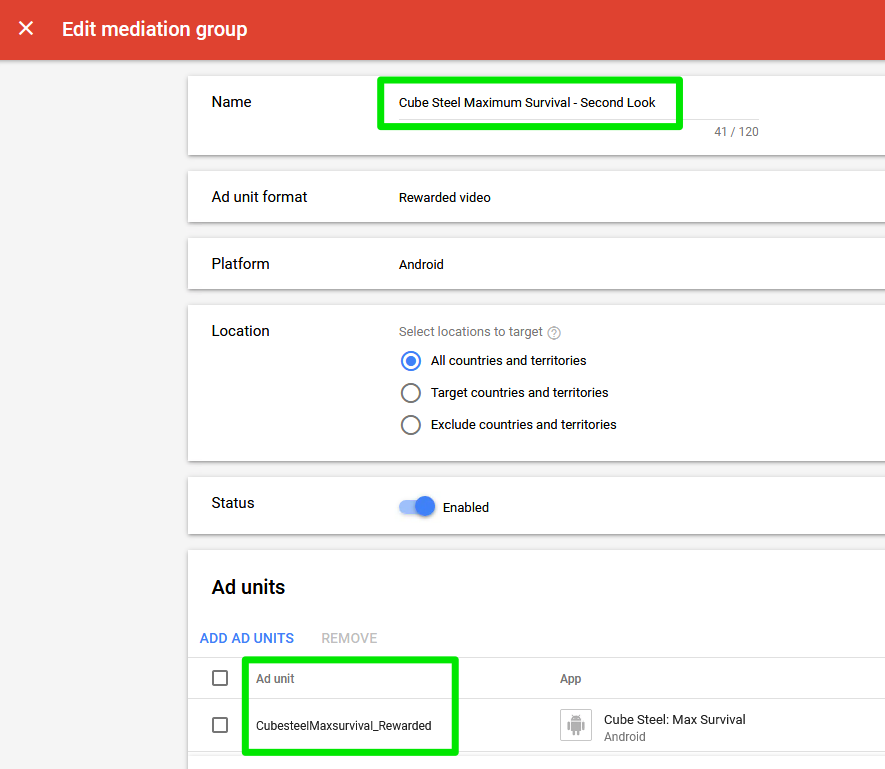
We will go into this placement group and set it up.
At the start, the Ad Sources looks like this:
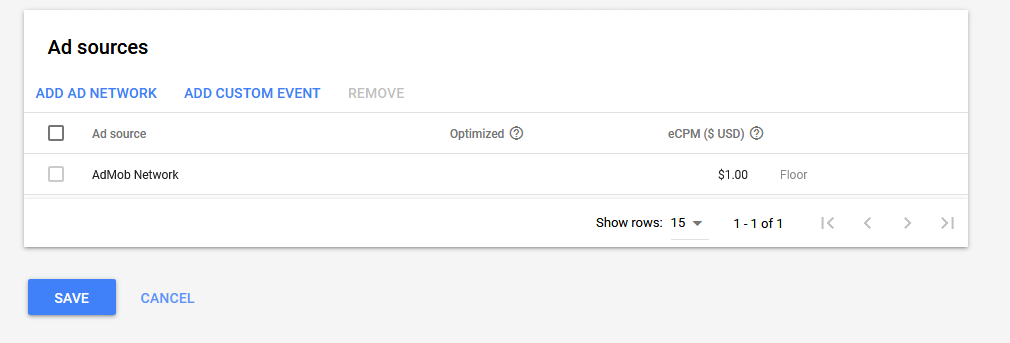
We will (1) click on Add ad Network, and add networks, one at a time, starting with (2) AdColony. It asks for an estimated eCPM (3). I’ve been putting in $1.00.
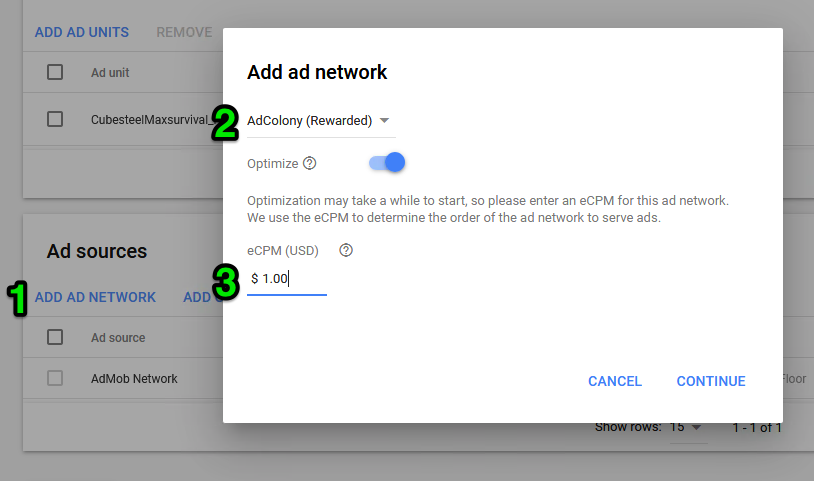
Click on Continue.
Bring up your document with all the placements. You’ll now be copying them into here. Remember that this mediation group is for rewarded ads, so use the values for rewarded ads.
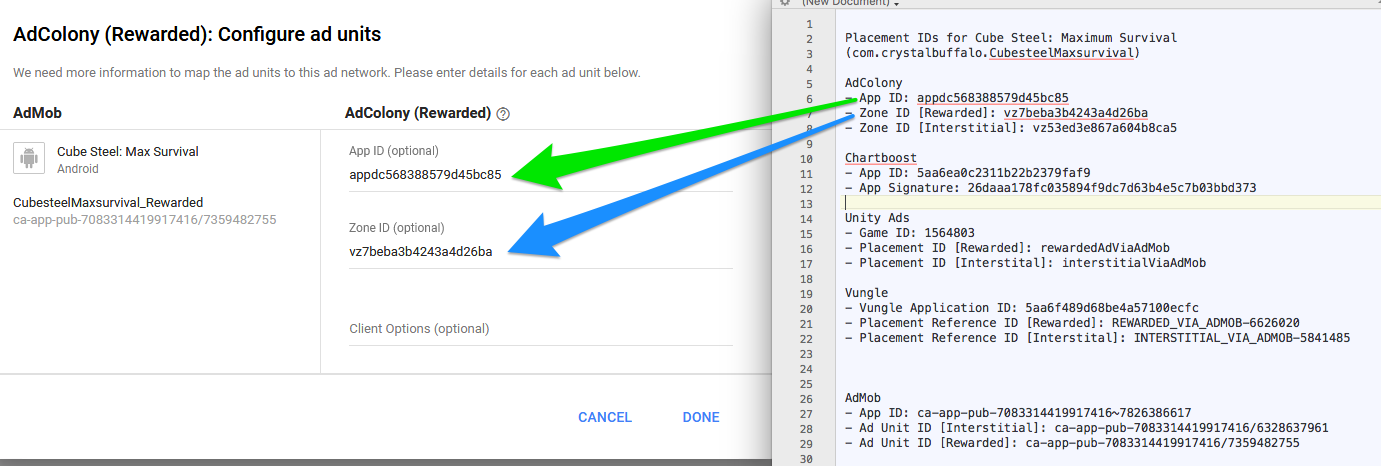
Click on Done. Make sure to hit the ‘Save’ button underneath the Ad Sources when you are done with all the networks you are setting up (or more frequently than that!)
The other networks are very similar:
Chartboost:
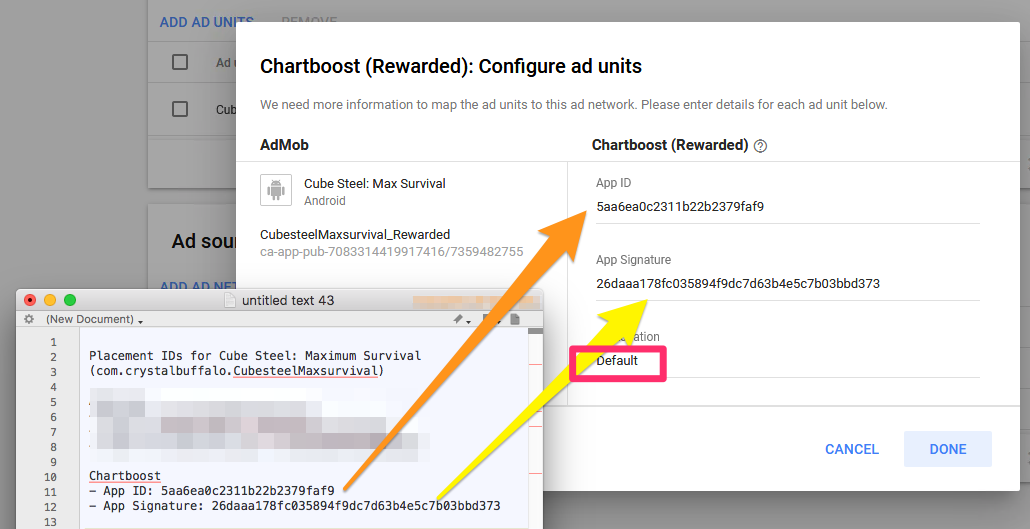
(Note that you need to type in ‘Default’ for the placement location.)
Facebook:
You’ll likely be asked for two pages of information. First, to set up the mediation network for the game: [Note: the first time I did this, it gave me an error saying things were incorrect. All the settings were right. I hit ‘Done’ again a few minutes later, and it worked.]
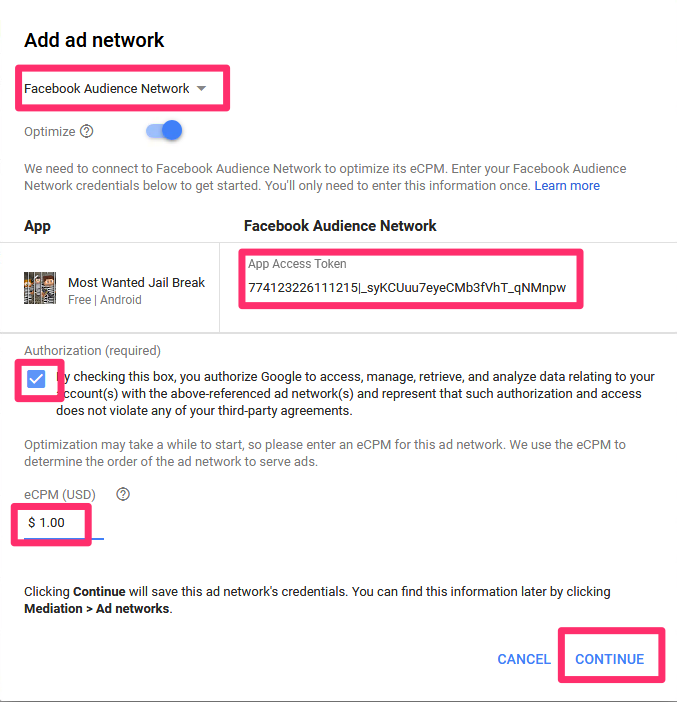
and then to set up the placement:
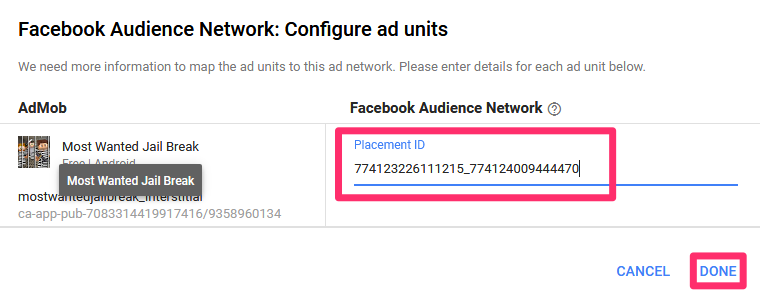
Setting up the rewarded video placement is almost an identical procedure.
InMobi:

Unity Ads:
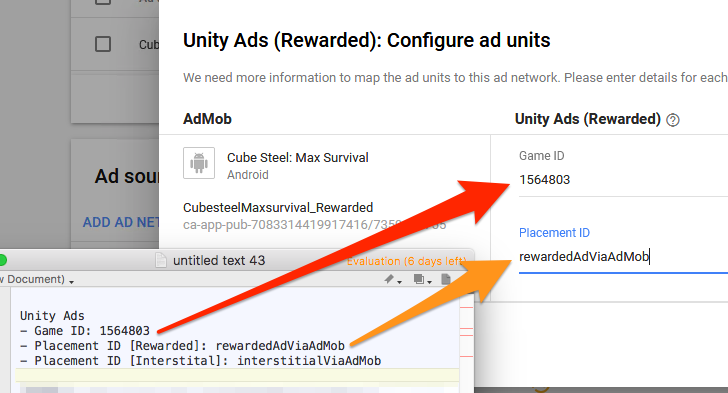
Vungle:
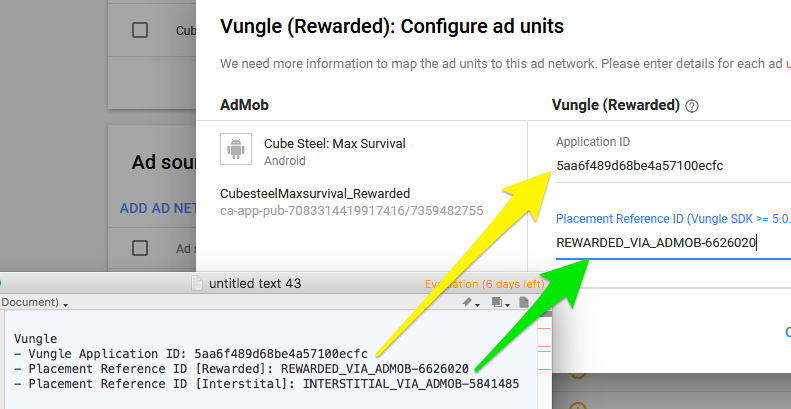
When you are done adding in ad networks to source ads for the rewarded placement, the results should look like this:
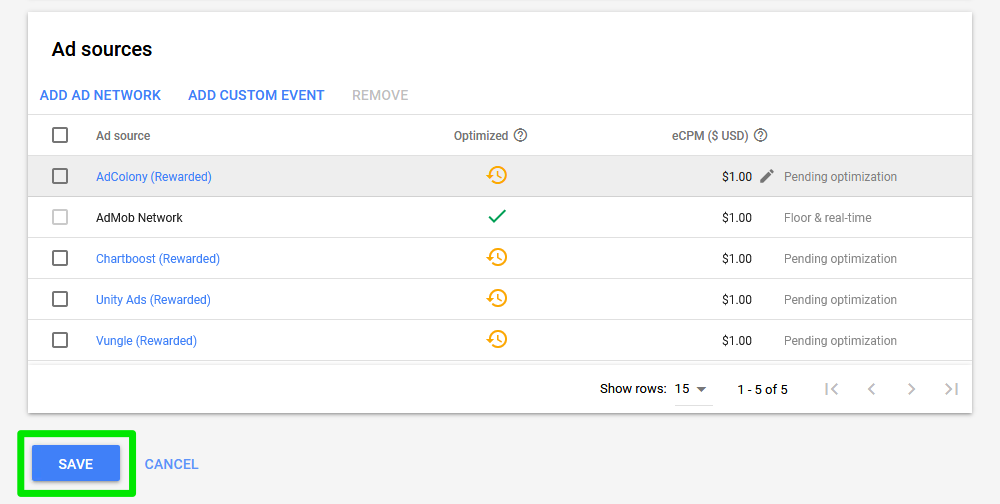
Don’t forget to hit Save.
—–
Now you’ll set up interstitial placements (if your game uses them) in the same way. If there isn’t an ad mediation group already set up, you’ll need to create one.
We will do that in this instance, as there isn’t a mediation group for our interstitial ads.
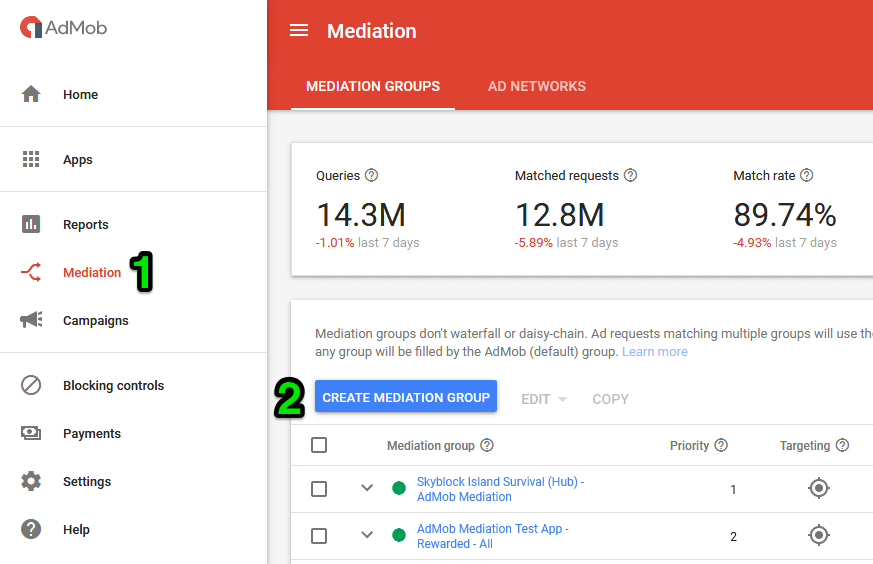
Go to mediation (1) and then hit (2) Create mediation group.
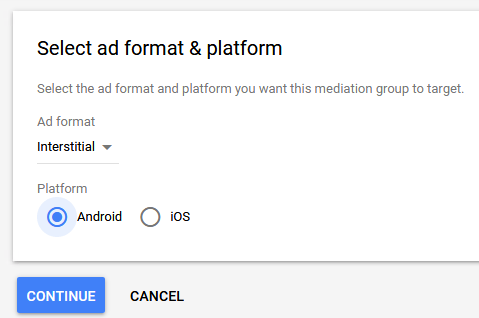
In this case, we’ll tell it we are doing Android Interstitial ads:
We’ll put in a sensible name. (I don’t have exacting guidelines for the names of mediation groups. If that changes, please edit these instructions!)
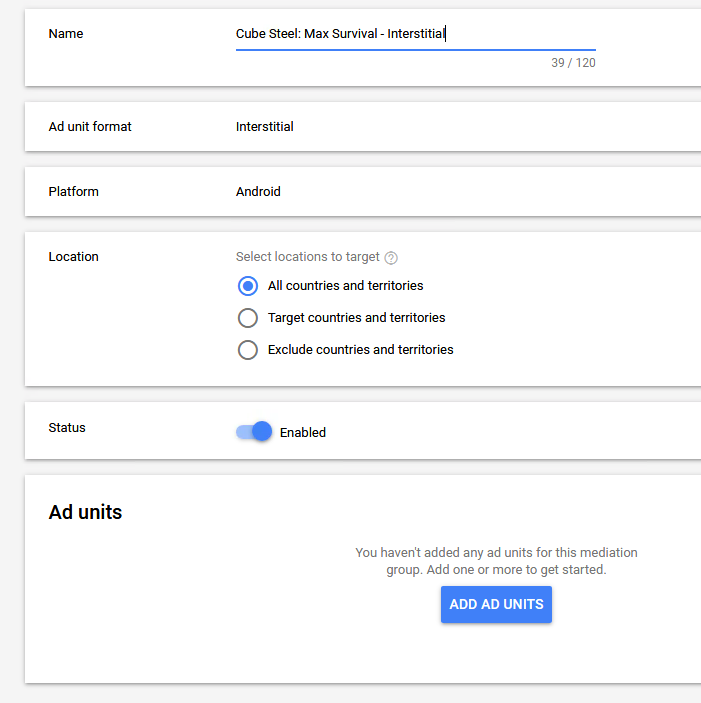
Afterwards, hit the ‘Add Ad Units’ button.
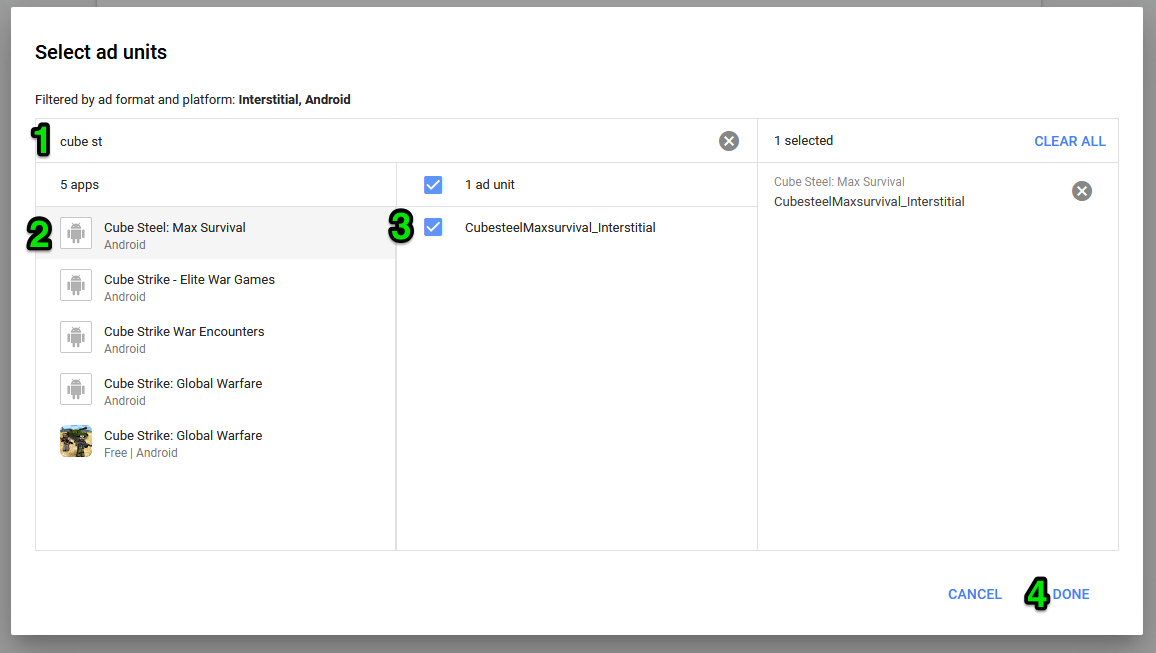
In the ‘Select ad units’ dialog, (1) start typing in the name of your game to filter the list. (2) Choose your game. (3) tick the box for your ad placement. (4) Hit done.
Now you can add ad sources as you did for the rewarded ads, just make sure to choose the interstitial placements this time.
Done!