FOR CREATING A NEW LEVEL
*Textures and asset templates are already created in Voxel Engine plug-in inside Unity* (If you need to change this plug-in or anything related talk with programming team)
- Create the level with Magica Voxel (software).
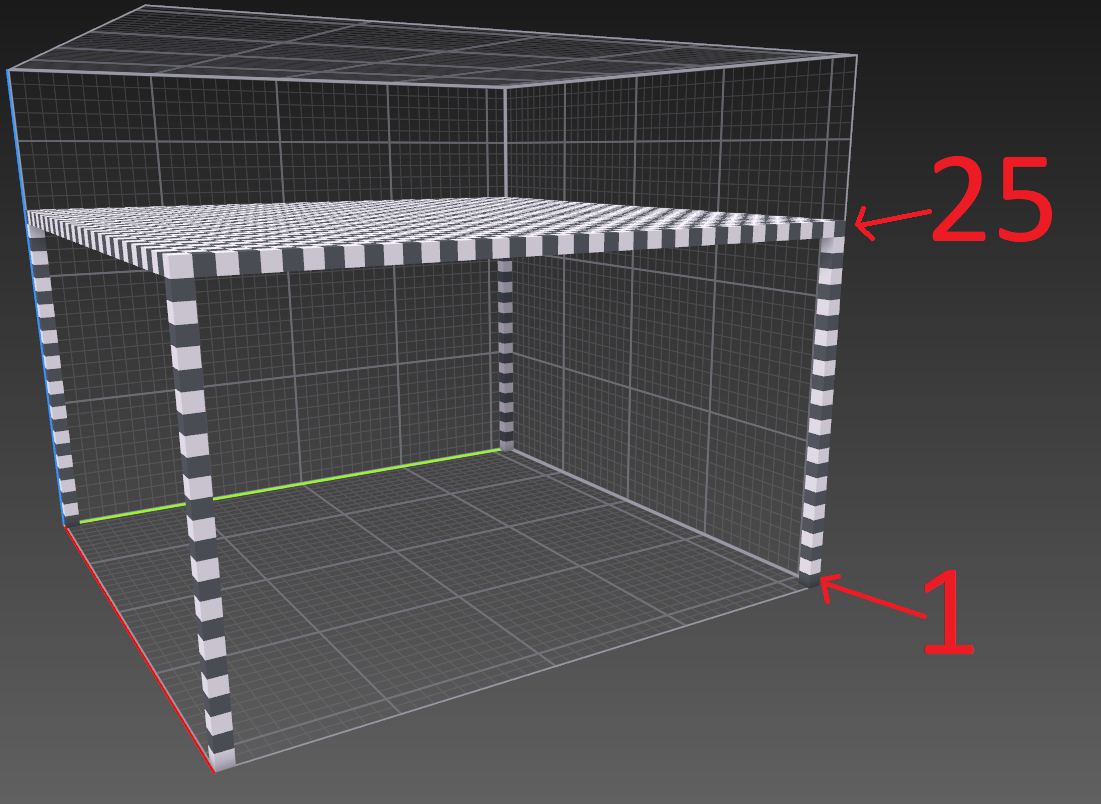
- *Base ground should be at least 25 blocks high.
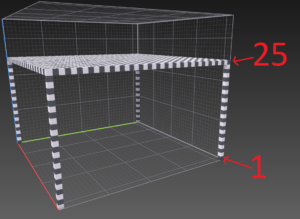
- *All levels cannot be higher than 40 blocks.
- Use the palette of materials (already created before)

- *Base ground should be at least 25 blocks high.
- After finishing the level, export it as a Qubicle file (.qb).
- Open the level with Qubicle Voxel Editor (Steam software) and verify the match of colors.
- Select all the level and export it as schematic file (.schematic).
- Open the level with MCEdit and verify textures.
- Select all level (Ctrl + A) and re-export it as schematic again.
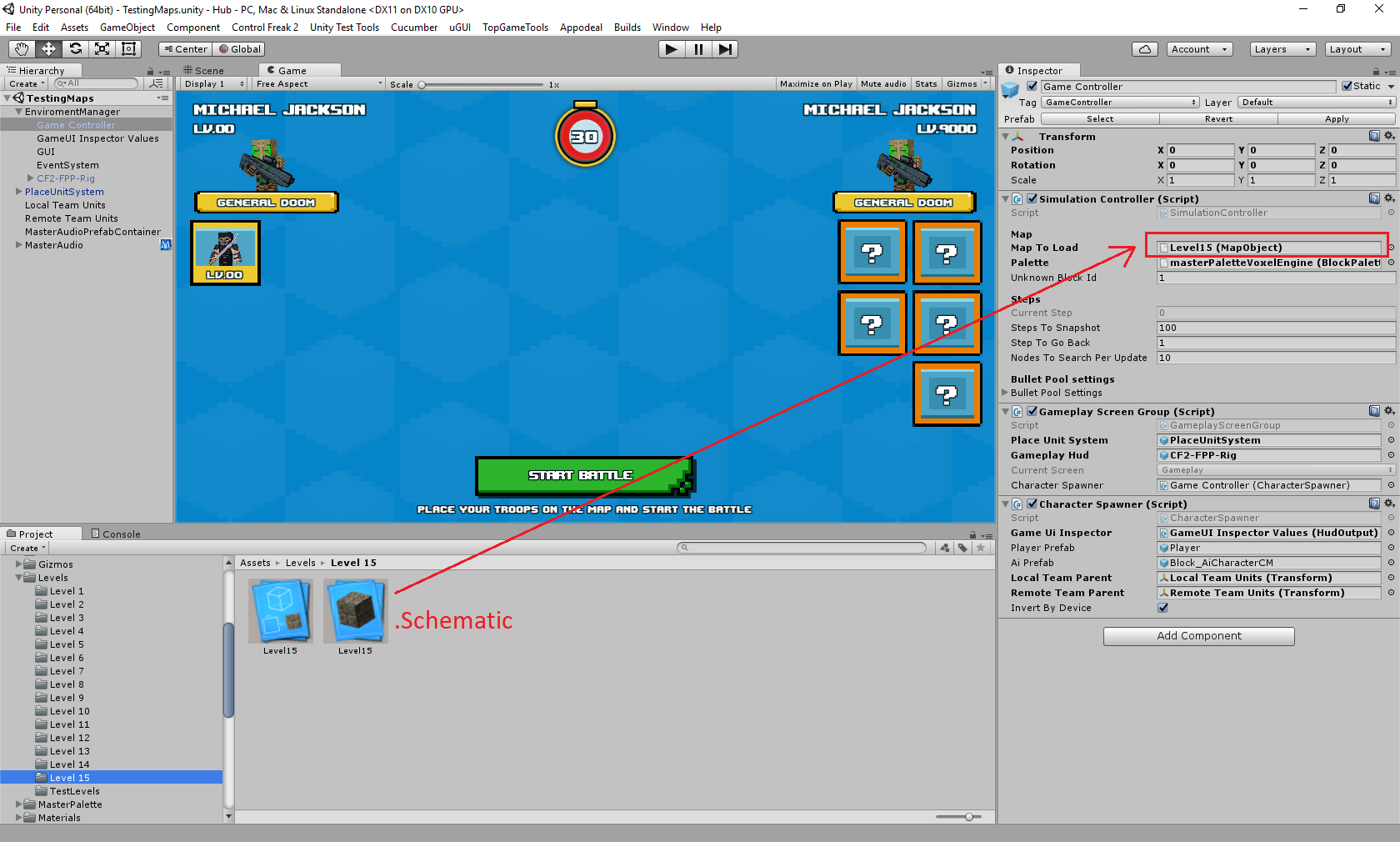
- Drag and drop the file inside of Unity (Assets/Levels/Level X)
- Load the level dropping it in the “Map To Load” box inside the Simulation Controller component.

-For editing textures:
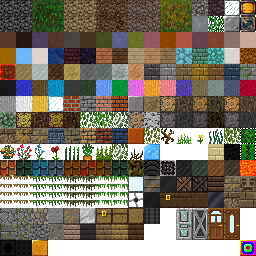
- Open the file “MasterPalette.png” in (Assets/MasterPalette/Materials) with Photoshop or any other graphic editor.
-For editing/adding a new block type:
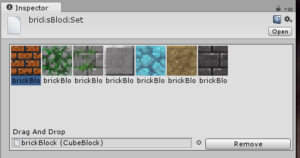
- In (Asets/MasterPalette/Blocks/The type desired) Right click > Create > BlockSet and choose the type of block desired.
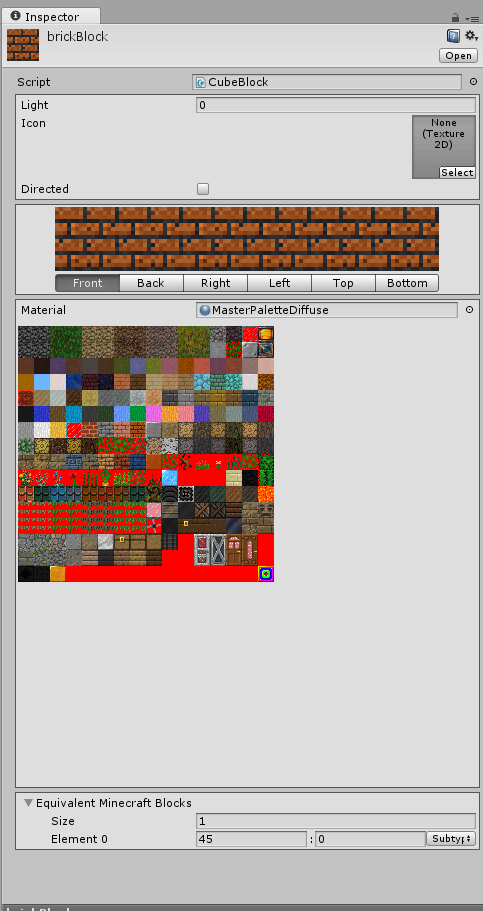
- Select the block of texture desired for each view of the new block.
- Scroll down and write in the Element box the correct Minecraft block ID and sub ID.
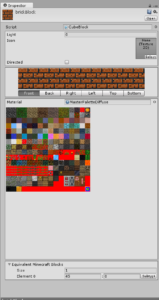
- Choose the correct subtype block.
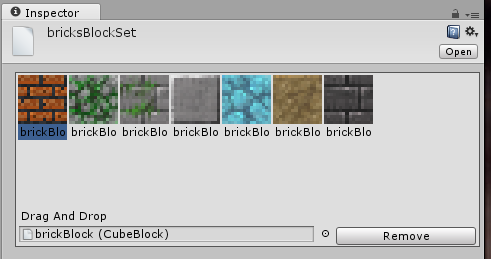
- Select the corresponding Blockset in (Asset/MasterPalette/Blocksets) and drag and drop inside of it the new BlockSet created.